
On this page
- Prerequisite:
- Auth0 User Sync Settings:
- Configure Auth0 Application:
- Configure the Drupal with Auth0:
- Role Based User Sync :
- Fetch Auth0 Roles:
- Map Auth0 Roles to Drupal Roles:
- Sync Users to Drupal
- Group-Based User Sync
- Fetch Auth0 Groups
- Map Auth0 Groups to Drupal Roles
- Sync Group-Based Users to Drupal
- Additional Settings:
- Contact our 24*7 support team
Set Up Auth0 User Synchronization with Drupal
This guide explains how to configure an Auth0 Machine to Machine Application for the Drupal Auth0 Sync module. The module uses the Auth0 User Management API to synchronize users between your Auth0 tenant and your Drupal website. By following the steps below, you'll create an Auth0 application, configure the required permissions, and connect it to your Drupal site.
Prerequisite:
Install and enable the Drupal Auth0 Sync module on your Drupal site before proceeding with this guide.
Auth0 User Sync Settings:
- After installing the module on your Drupal site, in the Administration menu, navigate to Configuration -> People -> Auth0 User Sync. (/admin/config/people/auth0-user-sync)
- Login using miniOrange credentials.
- Now go to the Settings tab of the module.

Configure Auth0 Application:
- Log in to your Auth0 Dashboard.
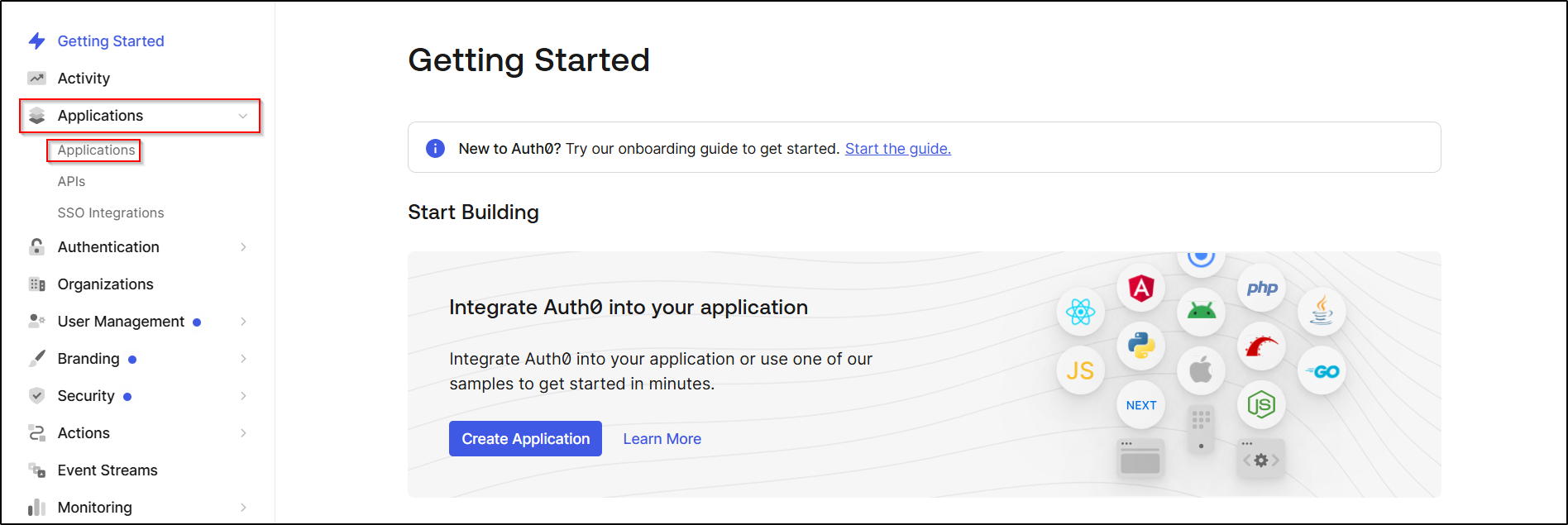
- From the left navigation menu, click Applications.
- Select Applications from the expanded menu.
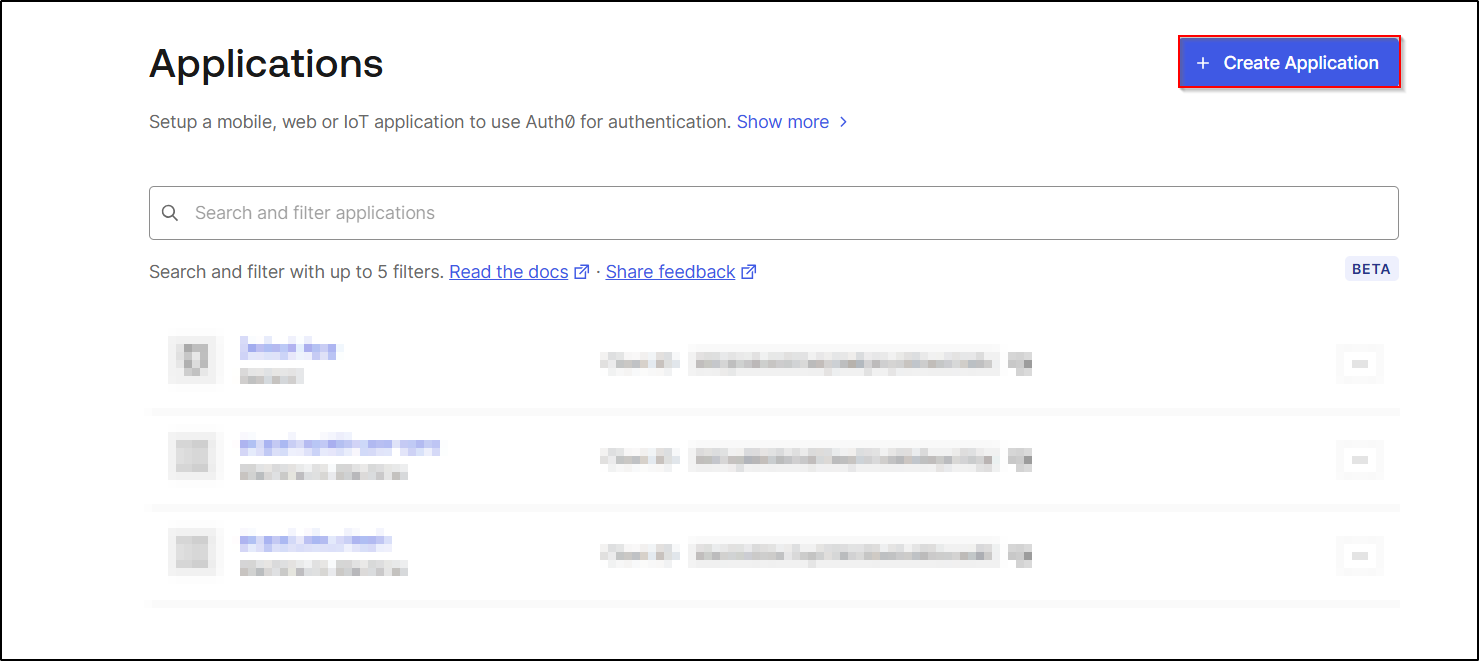
- On the Applications page, click the Create Application button in the top-right corner.
- This will open the application creation wizard, where you'll configure a new Auth0 application for your Drupal site.
- In the Create application window, enter a name for your application in the Name field.
- Under Choose an application type, select Machine to Machine Application.
- Click Create to create the application.

Note: The Machine to Machine Application type is required because the Drupal Auth0 Sync module communicates with the Auth0 Management API to synchronize users.
- After creating the Machine-to-Machine application, the Authorize Machine to Machine Application dialog appears.
- Click the Select an API dropdown.
- Choose Auth0 Management API.

- Next, click Select → All to select all available permissions.

- Click on the Authorize button.
- The application is now authorized to access the Auth0 Management API.
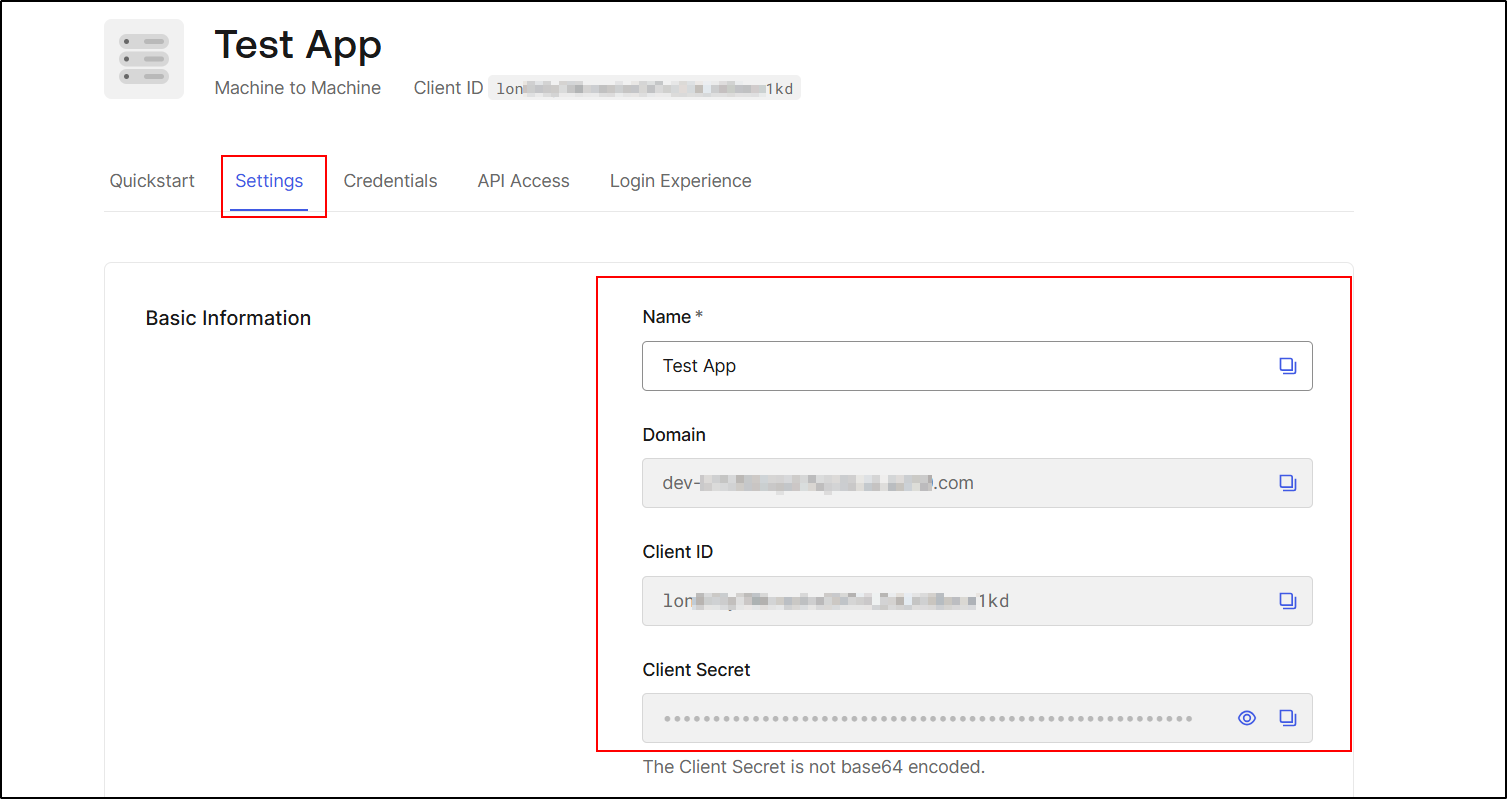
- Now, go to the Settings tab.
- Copy the following values:
- Domain
- Client ID
- Client Secret
- These values are required for configuring the Drupal module.
Configure the Drupal with Auth0:
- Go back to Drupal site and paste the copied value in given textfeild.

- Once done click on the Save and Test Configuration button to save your configuration.
- Your Drupal module is now configured with the Auth0 Machine-to-Machine application and is ready to communicate with the Auth0 User Management API.

Role Based User Sync :
With Role-Based Sync, users are automatically added to Drupal with the appropriate Drupal role based on their role in Auth0.
Fetch Auth0 Roles:
- Go to the User Sync tab of the module.
- Set Roles per page — this controls how many roles are pulled per API request.
- Default: 100
- Maximum allowed: 100
- Leave this at the default unless you have a specific reason to change it.
- Click Fetch Roles from Auth0.
- This pulls all roles currently defined in your Auth0 tenant and stores them locally.
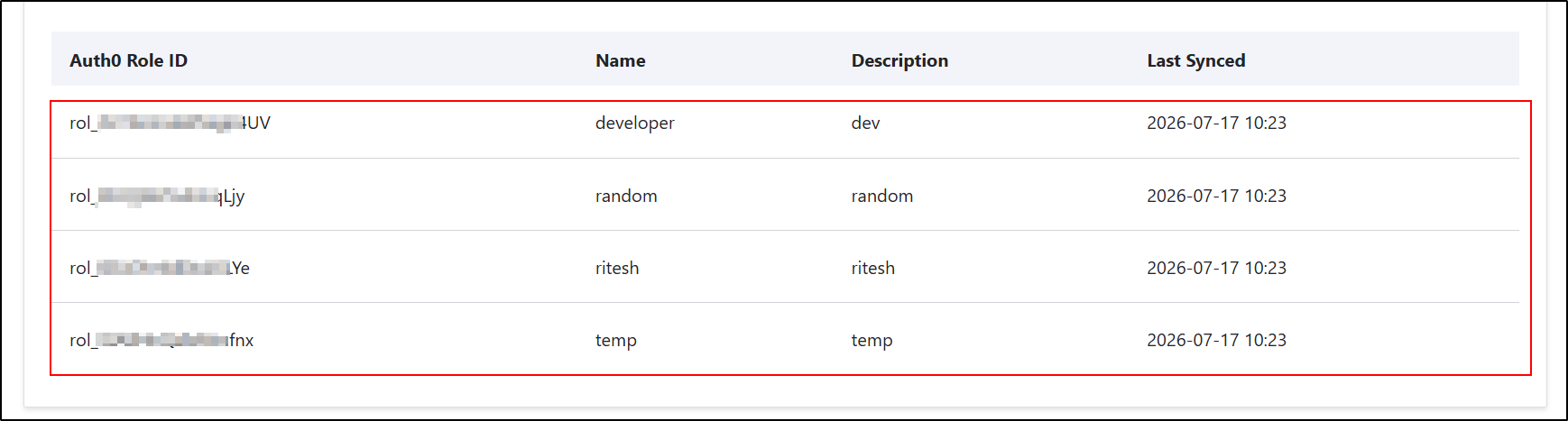
- Once complete, you should see the fetched roles listed where it currently says "No roles fetched yet."

- Roles Successfully Fetched from Auth0.
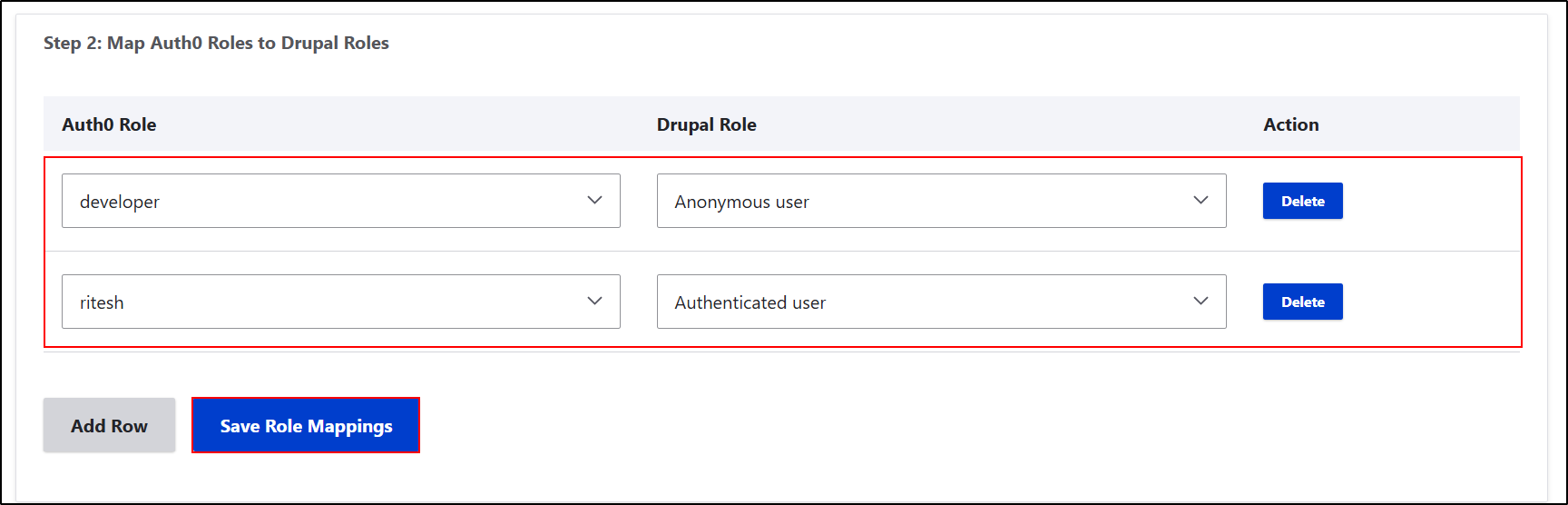
Map Auth0 Roles to Drupal Roles:
This helps Drupal assign the right role to users based on their Auth0 role.
- In the Auth0 Role column, select an Auth0 role that you fetched in above step.
- In the Drupal Role column, select the Drupal role you want to assign.
- Click Add Row to map additional Auth0 roles.
- To remove a mapping, click the Delete button for that row.
- After configuring all the role mappings, click Save Role Mappings.
Sync Users to Drupal
In this step, you can synchronize users from Auth0 to your Drupal site. During the sync, Drupal creates user accounts and assigns roles based on your role mappings.
- In the Users per page field, enter the number of users to fetch in each request.
- The default value is 100.
- Click Run Manual Sync Now to start the synchronization.
Sync Options
- Auto-create Drupal role for unmapped roles
- Enabled: If an Auth0 role is not mapped to a Drupal role, the module automatically creates a Drupal role with the same name and assigns it to the user.
- Disabled: Only the roles you mapped in Step 2 are assigned. Unmapped roles will not be created automatically.
Disable this option if you want to manage all Drupal roles manually.
- Enable automatic sync via cron
- Enabled: Users are synchronized automatically whenever Drupal cron runs.
- Disabled: You need to click Run Manual Sync Now each time you want to synchronize users.
- After configuring the settings, click Save Settings.

Group-Based User Sync
The Group-Based User Sync feature allows you to automatically create Drupal user accounts for users who belong to specific Auth0 Enterprise Groups. During synchronization, users are assigned the appropriate Drupal role based on the group mappings you configure.
Note: This feature only creates new Drupal user accounts. Existing Drupal users are not modified during synchronization.
Fetch Auth0 Groups
- Before configuring group mappings, you need to fetch your Auth0 Enterprise Groups into Drupal.
- Go to User Sync → Group Based User Sync.
- In the Groups per page field, enter the number of groups to fetch.
- The default value is 100.
- Click Fetch Groups from Auth0.

- Groups Successfully Fetched from Auth0.

Map Auth0 Groups to Drupal Roles
- Select an Auth0 Group from the list.
- Select the Drupal Role you want to assign to users in that group.
- Click Add Row to create additional mappings.
- To remove a mapping, click Delete.
- After configuring all mappings, click Save Group Mappings.

Sync Group-Based Users to Drupal
Once your group mappings are configured, you can synchronize users from Auth0 to Drupal.
- In the Members per page field, enter the number of users to fetch in each request.
- The default value is 100.
- Click Run Group Sync Now to start the synchronization.

Sync Options
- Auto-create Drupal role for unmapped groups
- Enabled: If a group is not mapped, Drupal automatically creates a role with the same name and assigns it to synchronized users.
- Disabled: Only the groups mapped in Step 2 are assigned Drupal roles.
- Enable automatic sync via cron
- Enabled: Drupal automatically synchronizes users whenever cron runs.
- Disabled: You need to click Run Group Sync Now each time you want to synchronize users manually.
- After configuring the settings, click Save Settings.
Additional Settings:
The Additional Settings section lets you decide what should happen to a Drupal user if they are no longer assigned to the mapped Auth0 role or group that originally synchronized them.
- When a synced user is no longer found in their Auth0 role or group
- Select one of the following options:
- Do Nothing – Keeps the Drupal account unchanged.
- Block in Drupal – Blocks the user from logging in but keeps the account.
- Delete from Drupal – Permanently deletes the Drupal account.
Note: Deleting a user is permanent and cannot be undone.
- Enable Only act if the user is absent from all mapped Auth0 roles and groups to ensure users are blocked or deleted only if they are no longer assigned to any mapped role or group.
- Click Save Additional Settings to save your changes. The selected action will be applied during the next user synchronization.

 Back to top
Help improve this page
You can:
- Log in, click Edit, and edit this page
- Log in, click Discuss, update the Page status value, and suggest an improvement
- Log in and create a Documentation issue with your suggestion
