
Creating and Managing Sessions
This is documentation for Drupal 7, which is no longer supported. Learn more and find resources for Drupal 7 sites
In order to create a session navigate to [Content] > [Add Content] > Session and fill out all required fields.
Adding Session Tracks
Update the session Track field allowed values in the Session content type (admin/content/node-type/session/fields/field_track).
Adding a Speaker
In order to add a speaker, you must first add a user to the Drupal instance.
When creating a new session, the Speaker(s) field is now an autocomplete field populated with users accounts of your Drupal instance.
Adding a speaker to a new session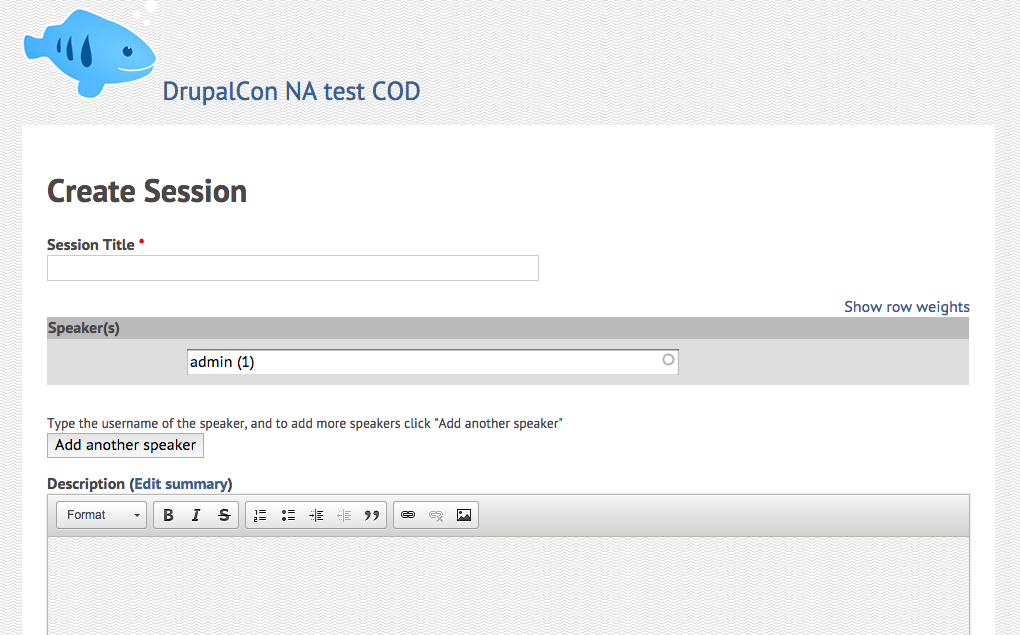 (Click on image to enlarge)
Managing Sessions
As sessions are created, visit the Session administration (conference-admin/sessions) to manage sessions; review and publish submitted sessions so they are visible to the public.
Voting on Sessions
- Voting usually begins once you've finished accepting new sessions, so votes are applied fairly.
- Adjust flag access on the Session vote flag (admin/structure/flags/manage/session_vote) to allow other roles to vote on sessions. Additionally, you'll need to check off which display options apply best to your site.
- You will probably want to do some additional theming to ensure the "Vote for this session" links are more prominent on session nodes, or build a view that shows all nodes that haven't been voted on by the current user, filterable by track/experience level.
- Remove the flag access by role (flags/manage/session_vote) when you want to stop allowing people to vote.
Confirm Session
After session creation by users and after vote and approved session, you need to ask every user assigned to a session to confirm his session.
Steps:
- Go to [Conference]. Find the conference you'd like to manage on the Conference List, click on [Manage Conference]
- Go to the [Speakers] tab and click on [Unconfimed]
- Write message to unconfirmed speakers on how to confirm their session
- Check all of the sessions you wish to notify (all this page, all, all pages) and click on [Send email]
- Each user will need to go to his session and check in the link text below:
- Confirm that I can present this sesssion at the listed date and time.
Help improve this page
You can:
- Log in, click Edit, and edit this page
- Log in, click Discuss, update the Page status value, and suggest an improvement
- Log in and create a Documentation issue with your suggestion
