
11.3. Downloading and Installing a Module from Drupal.org
Download and install the contributed Admin Toolbar module, which allows you to easily browse through the administration section of the website.
- If you want to install modules via the website, the core Update Manager module must be installed. See 第 4.3 节 “Installing a Module” for instructions on installing modules.
- If you want to use Drush, Drush must be installed. See 第 3.2 节 “Concept: Additional Tools”.
You can use the administrative interface or Drush to install a contributed module. If you are installing a custom module rather than a contributed module, if you see a message saying Installing modules and themes requires FTP access to your server, or if the steps below do not work to download and unpack the module files, follow the steps in 第 11.6 节 “Manually Downloading Module or Theme Files”. If you are installing a contributed module with external dependencies that are managed by Composer, follow the steps for downloading in 第 11.9 节 “Using Composer and Git to Download Files”. In either of these cases, then continue here with step 7 in the instructions for the administrative interface below.
- On the Admin toolbar project page on drupal.org (https://www.drupal.org/project/admin_toolbar), scroll to the Downloads section at the bottom of the page.
Copy the address of the tar.gz link. Depending on your device and browser, you might do this by right clicking and selecting Copy link address.

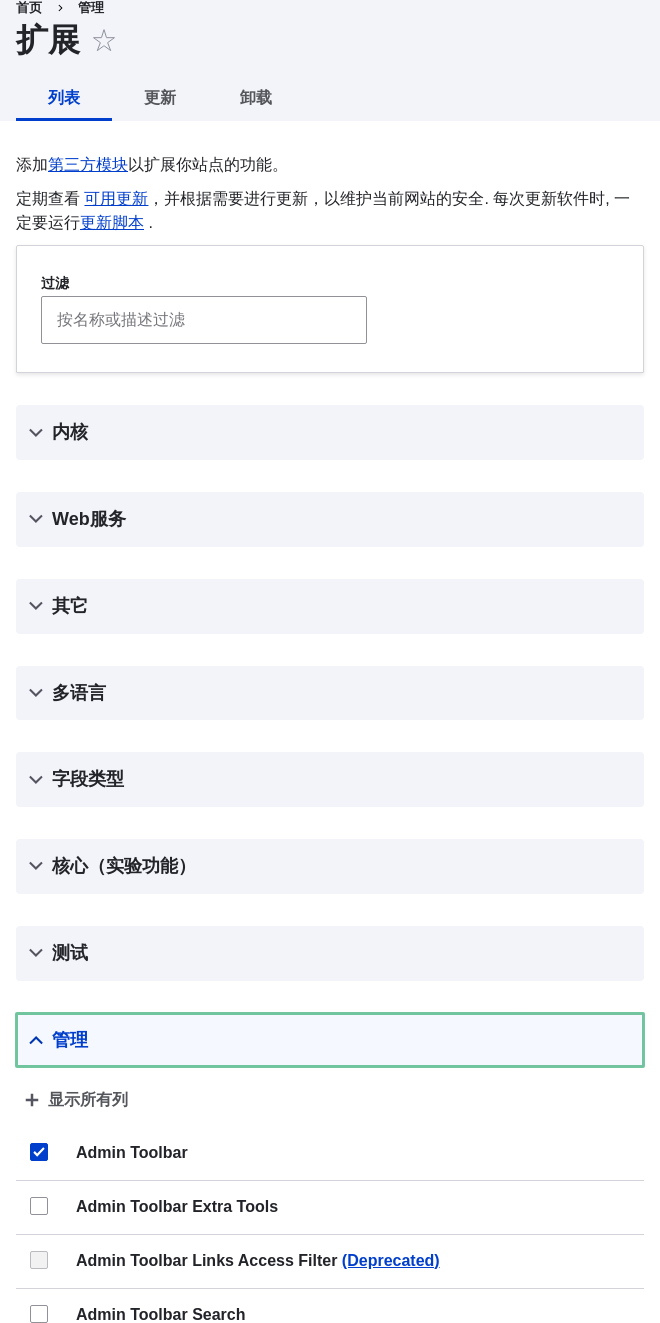
- In the Manage administrative menu, navigate to Extend (admin/modules). The Extend page appears.
Click Install new module. The Install new module page appears.
- In the field Install from a URL, paste the copied download link. This value could look like this: https://ftp.drupal.org/files/projects/admin_toolbar-8.x-1.14.tar.gz
- Click Install to upload and unpack the new module on the server. The files are being downloaded to the modules directory.
- Click Enable newly added modules to return to the Extend page. If you used the manual uploading procedure, start with this step, and reach the Extend page by using the Manage administrative menu and navigating to Extend (admin/modules).
- Locate and check Admin toolbar.
- Click Install to turn on the new module.
- Find the project name for the module you want to install, which is the last segment of the module’s project page URL. For example, if the project URL is https://www.drupal.org/project/admin_toolbar, the project name is "admin_toolbar".
Run the following Drush commands, giving the project name (for example,
admin_toolbar) as a parameter:drush dl admin_toolbar drush en admin_toolbar
- Follow the instructions on the screen.
- Verify that the contributed Admin Toolbar module is working by browsing through the menu in the administration section.
- Install and configure the contributed Pathauto module so that content pages in your site get nice URLs by default. See 第 5.1 节 “Concept: Paths, Aliases, and URLs” for more on URLs.
- If you do not see the effect of these changes in your site, you might need to clear the cache. See 第 12.2 节 “Clearing the Cache”.
Source file: extend-module-install.asciidoc
Help improve this page
You can:
- Log in, click Edit, and edit this page
- Log in, click Discuss, update the Page status value, and suggest an improvement
- Log in and create a Documentation issue with your suggestion
