
 Come together with the global Drupal community in Rotterdam, 28 Sept – 1 Oct 2026. Sessions, contribution, connection, and Early Bird savings until 8 June.
On this page
Set Process Variable Task
The Set Process Variable task (SPV) is used to set the value of a process variable either though a hard-coded value, adding or subtracting a value from the variable, or by specifying a function to fetch data with.
Variables are defined at the template level and are used by the workflow engine to create dynamic task assignments, task routing changes or by your custom code to affect the workflow. A easiest example is the variable called initiator, every new template will automatically generate this variable. It's most often used to assign task ownership to the user that launched (started) the workflow. So if user 'blainelang' starts the Submit Expenses Workflow, then that user will get the first task to fill out the expense form. Now the workflow can send out notifications to 'blainelang' and send additional tasks to the initiator as required. You may not want to hard code the assignment of the initiator's supervisor either for the Approve Expenses task. The solution would be to create a variable called supervisor and then have background logic that looks up the supervisor for the user and assigns a the supervisor's username to the variable supervisor, now this workflow is dynamic. Maybe the Expenses Form has a dropdown for department or even supervisor and on saving the form, the value of supervisor process variable is set.
Process variables usage examples include:
- task assignment by variable
- counters
- logical branching determinations based on values
- storing ID's for content thats to be tracked in the workflow instance
By default, when a template is created there are four process variables created as shown in the image below.

You will Add or Edit the process variables via the Edit Template action either from the listing of templates page or Template Builder UI page.
You can create any number of template variables and assign them a default value. It is advisable to set default values to avoid logic issues in your workflow when testing for specific values. Each time your template is put into production, the variables you've created on the template are created in the process. Process variables and their values are used by the workflow engine for assignment or logic branching. It is up to you to determine how best to use the variables.
Configuring the Set Process Variable Task:
In the Template Builder, add a new task of type Set Process Variable to your workflow. Once it's added, click on the Edit menu icon on the top left corner of the task.
You will need to choose which variable you want to set and the method.
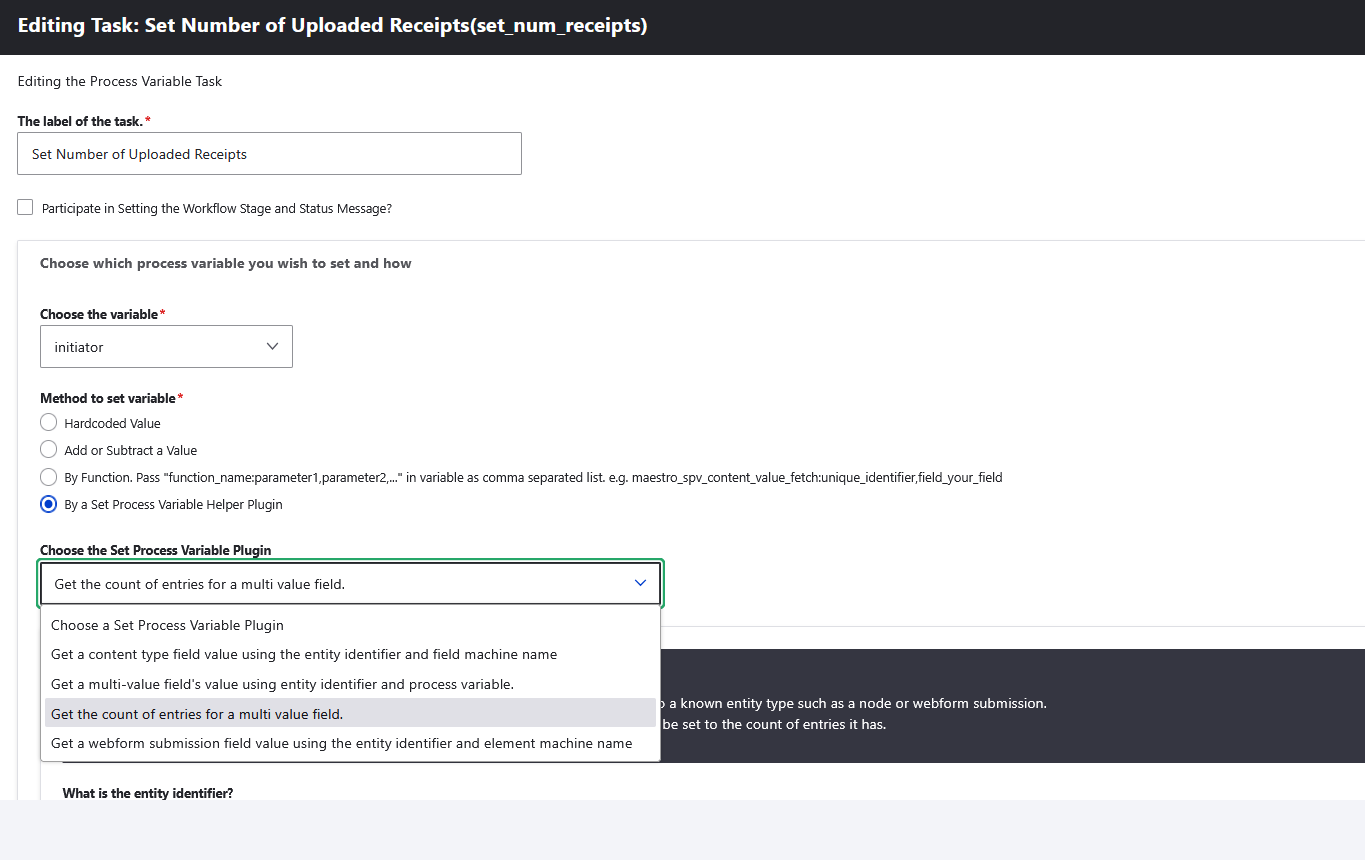
You can set a variable by:
Hardcoded Value: This is pretty straight forward as it can be any string or integer value.
Add or Subtract a Value: The task logic assumes this can be any positive or negative float value and will add the entered value to the current variable value.
By Function: This is the most flexible method and can be used to pull a value off a submitted node of content that is being tracked by the workflow, a webform field value or any other custom function that your module provides for this task type use. In the Variable value, you enter the name of your function and any static value arguments you need. Upon execution, your function will get these arguments as well as the will be passed in the arguments you entered plus the queue_id and process_id. These you can use the maestro API to retrieve anything else you need.
Examples:
1) The provided function maestro_spv_content_value_fetch - will need two arguments
- Unique identifier: The content type task for example had you set a unique identifier so the content node could be tracked by maestro. Refer to the Content Type task documentation page for more info. This may be nid or request as in the example Form Approval Flow.
- Field name: This is the field name on the content type you want to read.
2) The webform task type provides the function maestro_webform_spv_fetch_submission_value and it expects two arguments just like the maestro_spv_content_value_fetch function. It wants the unique identifier name and the webform field.
By a Set Process Variable Helper Plugin: This option was introduced in Maestro version 4. Helper plugins are available to allow workflow administrators pull values out of entities linked in the Maestro Entity Identifiers. Pull values from single or multiple value fields or get the count of entries in a multi value field are available out of the box. More Maestro core SPV Helper Plugins will be added over time. Plugins can be written to suit your requirements.
Link to watch a video tutorial on how to use the Set Process Variable task type.
Help improve this page
You can:
- Log in, click Edit, and edit this page
- Log in, click Discuss, update the Page status value, and suggest an improvement
- Log in and create a Documentation issue with your suggestion
