
On this page
Features & Capabilities
Maestro is a business process workflow automation engine which ships with a process workflow editor and an end user task console. With Maestro's Template Builder is the workflow editor that you can visually design a workflow with. It supports human-interaction-required tasks and machine-executed tasks, complete with logic, looping, branching and variables.
Maestro's first generation release was back in 2003 where a rudimentary version of our current workflow engine was developed. Over the intervening 14 years, Maestro has been steadily updated and in 2011, Maestro was released as a full version module on Drupal 7. Maestro's D7 release heralded a new beginning for the engine with Nextide's focus for Maestro being solely centred on Drupal. Maestro for D8 is now more integrated with Drupal, provides a rich Drupal 8 development environment while still delivering the basic functionality out of the box.
Maestro can certainly do advanced workflow but it's easy to setup and use for a simple 3 step workflow process. Don't be overwhelmed as the installation of Maestro is just like any other Drupal module. Explore the Initial Discovery and Workflow Editor sections after you have installed Maestro to get a better initial idea of what Maestro can do, and then the concepts explained below will be easier to understand.
Key Concepts
Workflow Template: A workflow template is the visual representation that you build using the Template Builder. It's more then just a flow chart, as it also includes task definition details or configuration for each task (workflow step). When mapping out a business workflow, we need to know what is the name of the process step or task to complete, but also who is to be assigned the task, what happens next and do we need to check or test for some value from the previous task. Initially, when mapping out a new process, you may just add and connect tasks to best represent your workflow and then add in additional task configuration details.
Template Variables: Variables are defined at the template level and are used by the workflow engine to create dynamic task assignments, task routing changes or by your custom code to affect the workflow. A easiest example is the variable called initiator, every new template will automatically generate this variable. It's most often used to assign task ownership to the user that launched (started) the workflow. So if user 'blainelang' starts the Submit Expenses Workflow, then that user will get the first task to fill out the expense form. Now the workflow can send out notifications to 'blainelang' and send additional tasks to the initiator as required. You may not want to hard code the assignment of the initiator's supervisor either for the Approve Expenses task. The solution would be to create a variable called supervisor and then have a background logic that looks up the supervisor for the user and assigns a the supervisor's username to the variable supervisor, now this workflow is dynamic. Maybe the Expenses Form has a dropdown for department or even supervisor and on saving the form, the value of supervisor process variable is set.
Process variables usage examples include:
- task assignment by variable
- counters
- logical branching determinations based on values
- storing IDs for content that's to be tracked in the workflow instance
Learn more about Process Variables
Orchestrator: is the engine that is responsible for automating the execution of the workflow templates. There can be 100s or even 1000s of active workflow instances which often are using different workflow templates. There is no practical limit of active and concurrent workflows that the Masestro engine can manage and orchestrate. The maestro engine needs to be able to track the different instances (processes) and their process variables, track the task status and know how to complete tasks and schedule the next task(s) regardless of the number of workflow branches or parallel paths.
Tasks assignment is a key part of what the engine does and tasks can be assigned by fixed user, role or variable. In the case of variable, the orchestrator needs to evaluate the value of the variable to determine the actual site user or users as it's possible to assign a task to multiple users. The orchestrator will also send out task assignment email notifications and check to see if an outstanding escalation notification has been configured. You may want to assign a task to a "department_helpdesk_resource" (example of a process variable that is set earlier in the workflow based on the department value of a submitted helpdesk ticket form). If the ticket is not closed within 3 days, then send out an email to escalate to a supervisor. This is all done automatically by the orchestrator based on configured details for the task in the Template Builder.
The Drupal 8 version of the Maestro is our fourth generation of our workflow engine and now automatically handles looping back to a task that has already been executed. This is necessary for example when a form is reviewed and rejected for missing or incorrect information and needs to be re-edited by the initiator - possibly many times. Normally, you would not want to re-execute a completed task but the Maestro workflow engine knows how to handle this and continue to track all the metrics for the execution of each and every task. Detail stats on the assigned date/time for a task as well as the assigned user are tracked. Additionally, the date/time when a task was first opened and also completed. This makes it possible to get reporting on how long certain tasks take to be completed, how long tasks have been assigned but not completed thus isolating if certain tasks or even users are bottlenecks.
The orchestrator is a background process that should be running 24x7 and is typically scheduled by your server cron process. We provide several options to configure the setup and running of the orchestrator including manually running it during development.
Template Builder: The Template builder is the workflow editor with a drag and drop interface to build the workflow template, which defines the tasks and routing for your business or content process. You will use the Add Task button to add a new task to the template canvas (the bounded work area the tasks are laid out on). Clicking on Add Task will bring up a modal dialog where you select the task type you want to add. Maestro ships with 10 task types but this is extendable. The Template Builder groups the task types into one of five categories and uses different colors as indicated by the legend at the bottom of the template builder canvas area.

Task Types: By default, there are ten (10) task types as noted above which are of five (5) different categories. More detail on each task type will be covered in a separate section of this manual but a explanation of the task type category is relevant here.
Start and End Task - all workflows require a start and end point, and visually having them green and red makes sense. There is no configuration associated with them but we need to be able to have them and be able to drag them around the canvas. It's possible and often the case, that from a Start task, we branch off to not just one task but multiple tasks. Also, it's possible that we want to end a workflow from more then one point in a workflow.
Interactive Task - the most common task type is one that requires human interaction such as to create content, fill out a form, review content, prompt a user to approve or reject some content, ask a question that the workflow may use the answer to branch off in 2 or more different paths. There are many use-cases for interactive tasks. One of the flexible features of Maestro is that a developer can easily create their own interactive task to use a custom form with custom buttons that can control future parts of the workflow.
Logical Task - we need the capability to test for conditions in a workflow and branch depending on a result from a previous step or a value that is set earlier in the workflow. Maestro allows you to define variables called Process Variables that can be string or a numerical value that you can set or increment as need either in code or with another task in the workflow. Workflows or business processes are not just straight lines of tasks i.e. a serial workflow, they often need to branch back as in the case of a review step not approving some content so it needs to go back to the initiator. Workflows also may need to send a form for approval by 2 or more department managers and we need the workflow to wait until each and everyone of the department managers approves the form. If any one dept manager does not approve the form, then an email goes out to the others and the form is routed back to the initiator. This is done using several different logical tasks. Any combination of serial and parallel tasks and branches are supported.
Batch Task - we often need the ability to execute code at some point in the workflow to improve the automation. This may be to look up information from the local site or a remote site. A batch task can be a single line of code, or a complex function. It can even be a background process that needs to pause the workflow for days until a specific state is reached. Until the batch task returns a TRUE result, the workflow engine will continue to execute it every time the orchestrator runs. You would not want to have a long running piece of code but you could implement the drupal queue API or some other batch processing API so that all you do is check for completion status in the batch task code.
Task Console: The task console is default dashboard for users to see their assigned interactive tasks. Tasks are assigned to users based on the template and the configuration provided for the task. The task console provides users with a simple interface to execute their tasks and also open the details pane for any task to view the workflow instance details like task history, associated content and a visual status bar showing the current stage this workflow instance is at - within the overall workflow process.
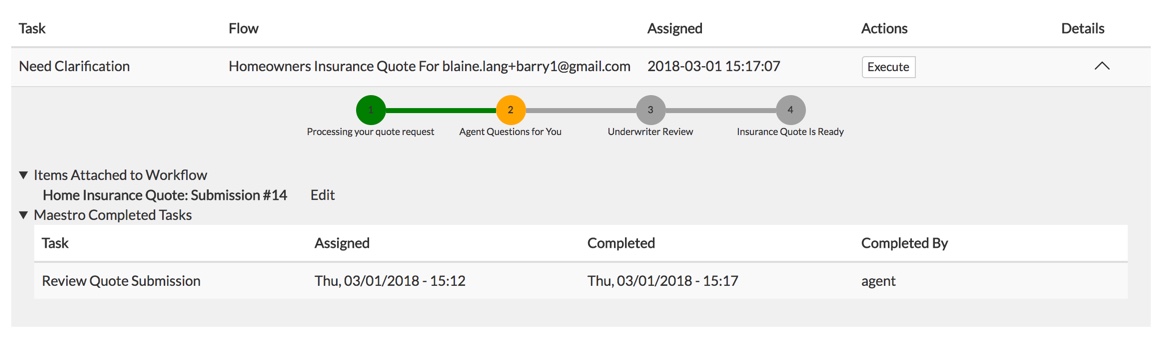
Maestro developers can customize the functionality, look and feel of the tasks to suit the business' requirements. A number of APIs and hooks exist for the Maestro Engine and the task console to augment and customize the text and appearance of the console columns themselves.
Help improve this page
You can:
- Log in, click Edit, and edit this page
- Log in, click Discuss, update the Page status value, and suggest an improvement
- Log in and create a Documentation issue with your suggestion
