
 Come together with the global Drupal community in Rotterdam, 28 Sept – 1 Oct 2026. Sessions, contribution, connection, and Early Bird savings until 8 June.
On this page
Content Type Task
The content type task is used to create and/or route content for review or edit. A few use-cases example:
- Use to create a new piece of content
- Use to edit / review an existing piece of content
- Launch a maestro workflow in a submit handler of a node save upon creating a new piece of content
- A workflow can handle more than one content type and more than one node of the same content type
Why would I use Maestro for a content editorial workflow vs the Drupal core workflows solution?
- You have a non-standard content creation process or review process
- Need to dynamically assign departments or users to edit or review steps
- A workflow can have any number of actors with serial or parallel paths ie: multiple actors reviewing at the same time
- You need to track metrics associated with the process and track where in the workflow the process is
- Maestro does not impose any restrictions on number of states, users involved etc. Review the config options for this task type to better understand the flexibility out of the box with no coding that is supported
Configuring the Content Type Task:
In the Template Builder, add a new task of type Content Type Task to your workflow. Once it's added, click on the Edit menu icon on the top left corner of the task. The following image is the edit dialog for setting the Content Type task properties.

The configuration fields for this task type are:
Content type: In this field you enter the machine name of the content type you wish to use.
Unique identifier: This setting is critical for the operation of the task. In any given workflow, you can have many types of content associated with the flow. In fact, you can attach multiple different instances of the same content type to your workflow. Therefore, Maestro needs to know which specific piece of content you wish to present to the user. In our example image, we have "request" as the unique identifier. We could have another Content Type task later in our flow that uses the same unique identifier in order for Maestro to show this specific piece of content to the end user. In your workflow, you can have a second Content Type task that has a different unique identifier with the same content type, and that will inject a second unique piece of content into the workflow to manage.
Maestro tracks content created with the Content Type task or the Webform Task in the maestro_entity_identifiers table and you can retrieve the linked content (entity type of node), using the maestro API, knowing the processID.
$nid = MaestroEngine::getEntityIdentiferByUniqueID($processID, 'request');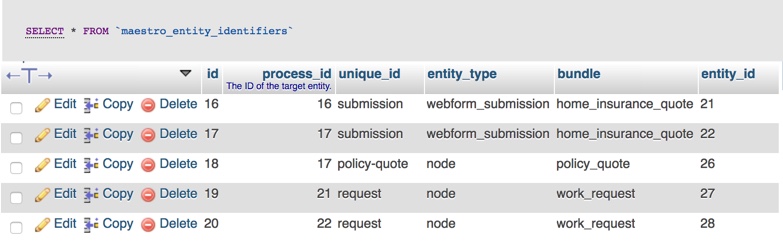
Show a Save and Edit Later button: This setting if enabled, will show a "Save and Edit Later" option on the bottom of the content type. The button allows users to fill in the content, saving it, but not completing the content type task. The task will remain in their console until such time they save and complete the task. Keep in mind, holding an interactive task uncompleted in a task console means the workflow after the task is stalled until completion.
Link to the edit page of the content in the task console: This setting if enabled, will make the action button in the task console for this users task open up the linked content node in Edit vs View
Show the Maestro Accept and Reject buttons when viewing the content type: This setting if enabled will show you options to add one or both Accept and Reject buttons to the bottom of the edit or view display of tasks linked content. You have the option to set the label for the button and the return path on submit. Having both buttons allows you to test for the accept or reject status in your workflow after this task completes.
Return Path: This setting allows you to set the route to redirect the user upon completing the task. is functionally identical to that of the Interactive tasks's Return Path option. In our example, Maestro will redirect back to /taskconsole.
Help improve this page
You can:
- Log in, click Edit, and edit this page
- Log in, click Discuss, update the Page status value, and suggest an improvement
- Log in and create a Documentation issue with your suggestion
