
Maestro Introduction
Maestro is best described as solution to automate a business or collaboration process that requires multiple people and roles. If you have a process today that uses a form or multiple forms, that are created and then routed via email or other methods to one or more people then Maestro can automate this process and put it online and inside Drupal.
If it can be flow-charted, then it can be automated with Maestro.
This is not a just a clever saying. It's true. With Maestro, the method to automate your process starts with our visual workflow editor with which you drag, drop and connect your workflow steps together. The maestro workflow editor can be used by business users to map out their business process. The image below is an example of a typical expense form submit / approval workflow that has been created in the workflow editor.
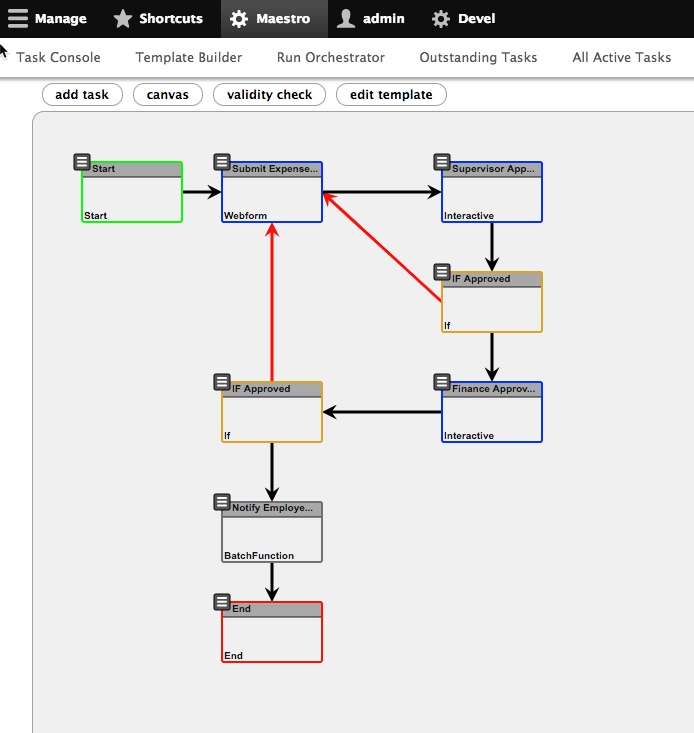
Maestro workflows are called templates and the workflow editor is called the Template Builder.
Workflows typically include the movement of documents or forms for editing and review/approval. A number of condition checks (if tasks) can be incorporated through simple configuration without any coding.
Complex business processes which include parallel approvals and serial grouping of tasks with dynamic routing can be modeled. The workflows have a very flexible set of options to assign tasks to users. Assignment options allow tasks to be delegated by 'role' or predefined user or even multiple users. Often the user to be assigned needs to be determined by a previous workflow step or a form value, and this is why Maestro has the option to use internal variables for assignment - allowing you to create a variable like department_supervisor and set that depending on the user who submits the form or document.
There is no limit to the number of forms, documents, tasks or users participating in a workflow. Workflows can be very complex and include integration with external applications to retrieve and populate information on a form, lookup information such as a users supervisor or update an external database. For example, if a business requires integration with a CRM application, the custom code for this can be written in a module and referenced as a maestro batch function in the workflow.
Simple workflows may just leverage Email to notify the user of a task assigned with a link to the interactive task for the user to review and approve/reject a form. For larger business use, a user may have many assigned tasks and they will want to use the Maestro Task Console. This intuitive 'Task Console' provides users with the flexibility to review all assigned tasks. Additionally, maestro provides out-of-the-box views which allow site builders to customize as need. The maestro views integration provide access to workflow process detail. The workflow admin user can monitor the process activity and if need re-assign tasks or trace how a workflow is executing.
It's important to recognize that there could be 100s of active workflows being managed on the site concurrently. The Maestro workflow engine can manage virtually unlimited number of concurrent workflows for many different business processes. In a larger deployment of Maestro, we have seen some workflow participants with 50 or more active tasks where some tasks may require many weeks to complete.
Workflow users need a way of quickly seeing where is their request in the overall workflow path. Maestro provides extensive tracking of task start, assigned and completed timestamps as well as all the related documents associated with a workflow instance. This is all available in the workflow details but sometimes, a user just needs a quick visual and this is why maestro provides a status bar for each active workflow. The number of workflow stages and their associated workflow task are all configured in the workflow template builder.

An extensive API is available and since it's developed using Native Drupal 8 best practices, new task types can be added and everything about maestro can be extended.
Help improve this page
You can:
- Log in, click Edit, and edit this page
- Log in, click Discuss, update the Page status value, and suggest an improvement
- Log in and create a Documentation issue with your suggestion
