


This module utilizes Drupal migrations along with custom migration plugins and functions to import events, groups, and taxonomy terms from Localist, an event management platform, into Drupal from the Localist API.
What is Localist?
Localist is a hosted event management system which offers a branded solution for entering, viewing, filtering, and finding events. They also have an API to be able to integrate these events on other platforms.
Features
- Provides an interface to set up the module and connect to your Localist instance
- Sets up a group migration (that can be overridden) to sync events from a specific group
- Documentation on how to create custom migrations to retrieve most event information from Localist into Drupal
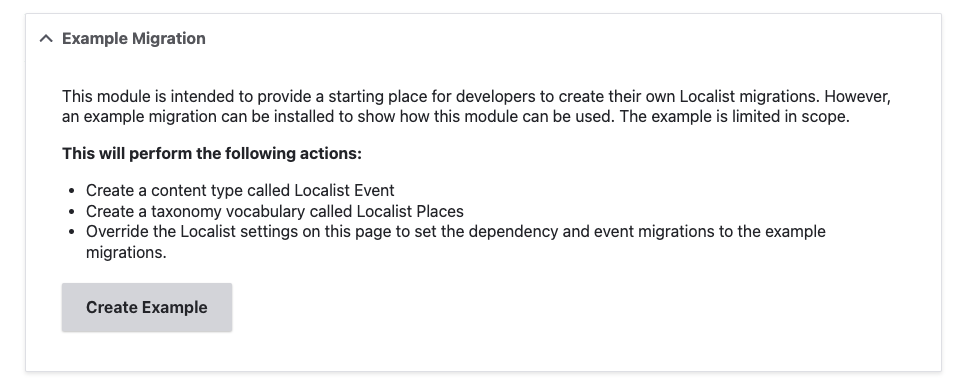
- Provides an installable recipe to create an example migration to show how the module works
- Migrations specified in the module config will run hourly on cron
Post-Installation
- Visit the Localist settings page under Configuration -> Web services -> Localist settings (
/admin/config/services/localist). - Check the box next to "Enable Localist sync".
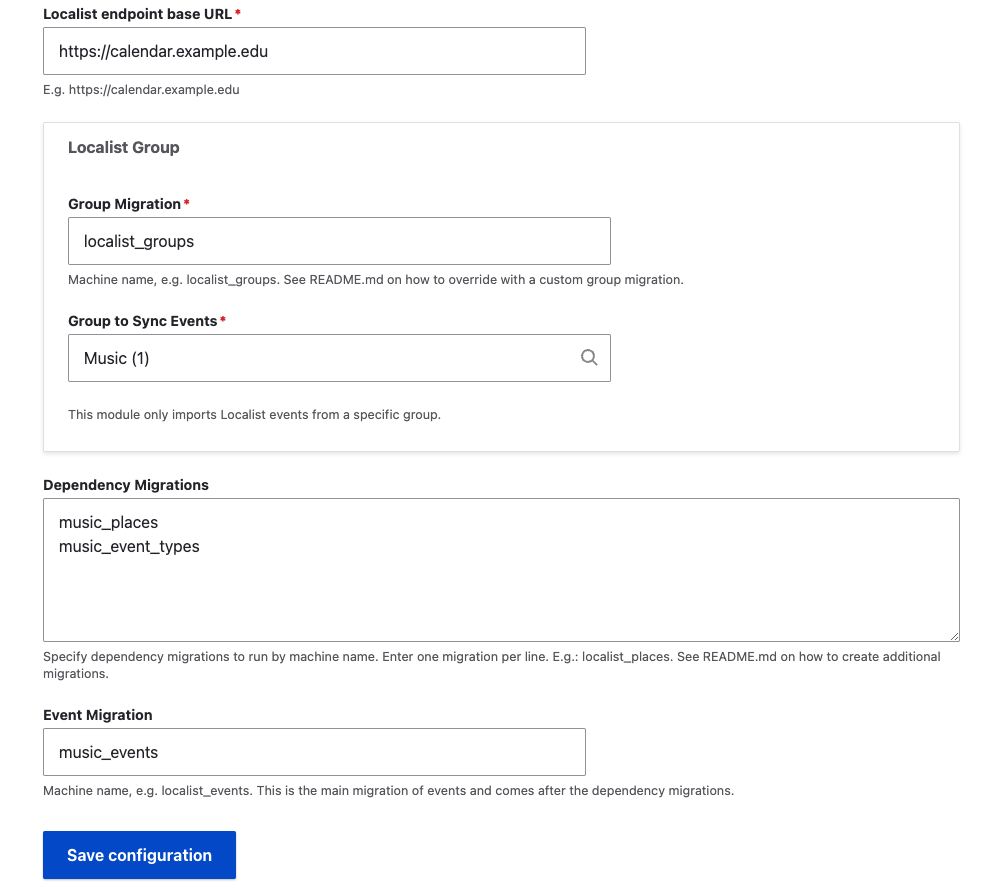
- Enter the Localist endpoint base URL for your organization. Get this by visiting your Localist home page or by asking your Localist representative.
- Click Save Configuration at the bottom.
- Once the form refreshes, check the Preflight Check section at the top. If the endpoint works, a green checkmark will appear next to Localist Endpoint.
- Click "Create Groups" to create the group taxonomy terms. Groups will synchronize from Localist and be added to the
localist_groupstaxonomy vocabulary. - Once the groups have been created, select a group in the autocomplete for "Group to Sync Events". This will synchronize events from the selected group.
- At this point, all Preflight Checks should be green and the module is set up for accepting custom migrations. No events will be synchronized until an Event Migration is specified. See the README.md for more information about creating an event migration.
Additional Requirements
- Migrate Plus
- Migrate Tools
- Smart Date - Smart date handles start and end times that work better with Localist dates.
Supporting organizations:
Project information
- Project categories: Import and export, Integrations
- Ecosystem: Custom Migration
 1 site reports using this module
- Created by codechefmarc on , updated
 Stable releases for this project are covered by the security advisory policy.
There are currently no supported stable releases.
Releases
1.0.0-beta2
released 13 December 2024
Works with Drupal: ^10.3 || ^11
Bugfixes and refactor
Install:


