
Media: YouTube upload
This is documentation for Drupal 7, which is no longer supported. Learn more and find resources for Drupal 7 sites
Installation
Follow instructions from README.txt in the module, or:
1) Download and enable Media: YouTube upload module with its dependencies.
2) Download and install the required libraries:
- Install the Google APIs Client Library for PHP code with drush command drush myu-libraries or manually (from here) and extract it to a valid library folder. Then go to the library folder google-api-php-client and run composer install so the path libraries/google-api-php-client/src/Google/autoload.php is available.
- Install the Google CORS upload library code with drush command drush myu-libraries or manually (1 single file from here) and extract it so the path libraries/google-api-cors-upload/cors_upload.js is available
Part 1 and 2 can be combined by using Drush: drush en media_youtube_upload -y. It will automatically download the module and the libraries as well. Only step you still need to take is to run composer install in the libraries/google-api-php-client folder to download it's dependencies and generate the autoload.php files.
Google application registration
Follow instructions at https://developers.google.com/youtube/registering_an_application. Those instructions are currently outdated. Go to https://console.developers.google.com/project and follow instructions on screenshot page.
Drupal configuration
Configure Google Application
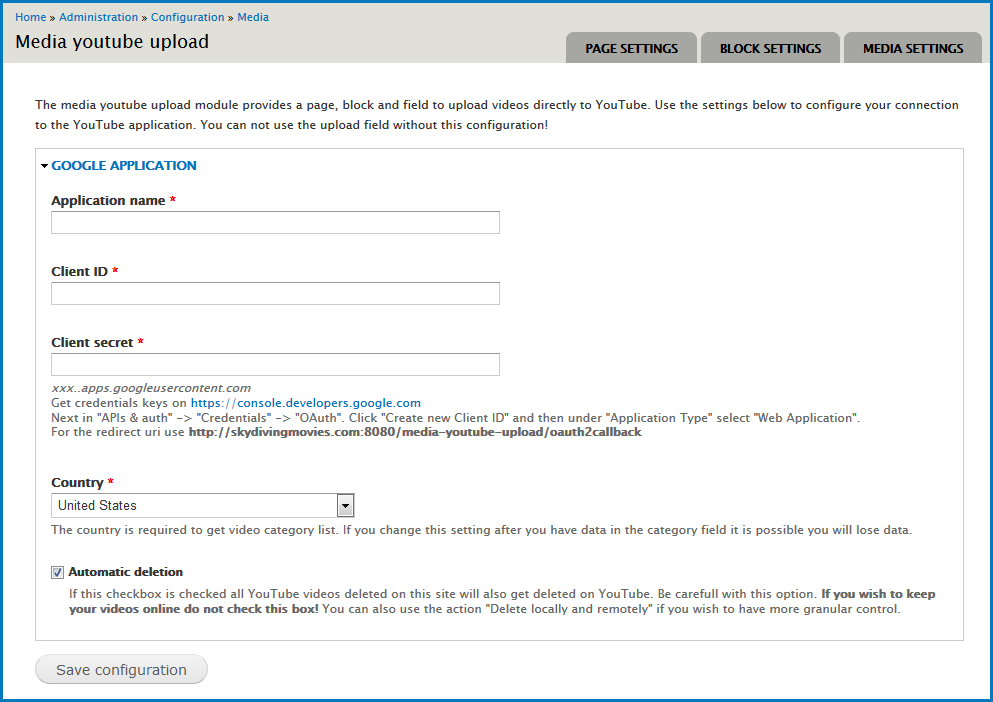
|
Go to "admin/config/media/media_youtube_upload" and set your
|
Choose your preferred upload method
There are 4 different ways to use the YouTube upload element through the module.
- File field (Youtube upload widget): Add a file field with YouTube upload widget and set your default settings for the widget.
- File field (Media browser widget): Add a file field with the Media browser widget. Select the YouTube upload browser plugin. Before you can use the widget you need to configure the settings at "admin/config/media/media_youtube_upload/media_settings".
- YouTube upload page: Before you can use this upload page you need to configure the settings at "admin/config/media/media_youtube_upload/page_settings".
- YouTube upload block: Before you can use the upload block you need to configure the settings at "admin/config/media/media_youtube_upload/block_settings".
Multilingual configuration:
The Media: YouTube Upload module has multilingual support. To enable this feature you must first download the Internationalization module and the Entity Translation module. After this enable the following modules: i18n, i18n_string, i18n_field and entity_translation.
-
Entity Translation
- Visit "admin/config/regional/entity_translation".
- Enable file under the "Translatable entity types" fieldset.
- Select your default language under the YouTube video fieldset and check it's checkboxes to your likings.
- Save the configuration.
-
Field Translation
Visit "admin/structure/file-types/manage/youtube/fields/field_file_youtube_title" and enable field translation if not already enabled.
Visit "admin/structure/file-types/manage/youtube/fields/field_file_youtube_description" and enable field translation if not already enabled.
The Media: YouTube Upload module will now automatically push any file translations to YouTube.
Help improve this page
You can:
- Log in, click Edit, and edit this page
- Log in, click Discuss, update the Page status value, and suggest an improvement
- Log in and create a Documentation issue with your suggestion
