
Display OpenLayers map on each geolocated node
This tutorial will show you how to display an OpenLayers map on each node that has a location set, in a block or content pane.
The instructions below are based on, and many steps are similar to, the process to create an aggregate map displaying points for all geolocated nodes. It's recommended that you browse that article first, and build your aggregate map first if you are doing so, before proceeding below.
Overview: Displaying an OpenLayers map on each node
- Add geolocation data to nodes. This can be done by inputting latitude and longitude coordinates directly, or by using the OpenLayers WKT CCK field or Geo module (see optional modules, below).
- Make a data overlay in Views. We will leverage Views to get the data from each node and create an overlay for the map.
- Configure a map preset. Using the OpenLayers interface, we will create a full map object, including the overlay made in Step 2. A map preset references settings, layers, styles and behaviors and assembles them into a map.
- Make a display in Views. We will create a second view to display the map itself in a block or content pane.
Required modules
- OpenLayers 2.x: openlayers, openlayers_ui, openlayers_views
- CTools
- Views: views, views_ui
- CCK: cck
Optional modules
You will need to have either CCK's number module, the OpenLayers WKT CCK field, Geo module, or some other method for storing geolocated data.
You will be able to display the resulting map in either a block, or in a Panels content pane.
Building your node map with OpenLayers
First, add geolocation data to some nodes.
- Create a field for storing geolocated data in your content type. Options are inputting the latitude and longitude directly in a CCK number field, using the OpenLayers WKT CCK field, or Geo module.
- Once you've created your fields, add some nodes with locations.
Second, create a view that will pull the OpenLayers data from each node.
- Create a new view of the "node" type.
- In the drop-down menu at the top left, select the OpenLayers Data type and add a display.
- Select the Style and be sure "OpenLayers Data" is chosen.
- Add fields for the node title, geolocation data (latitude/longitude fields, OpenLayers WKT value, etc.), and the node body content. Add the node ID field, and exclude it from the display by ticking the first checkbox.
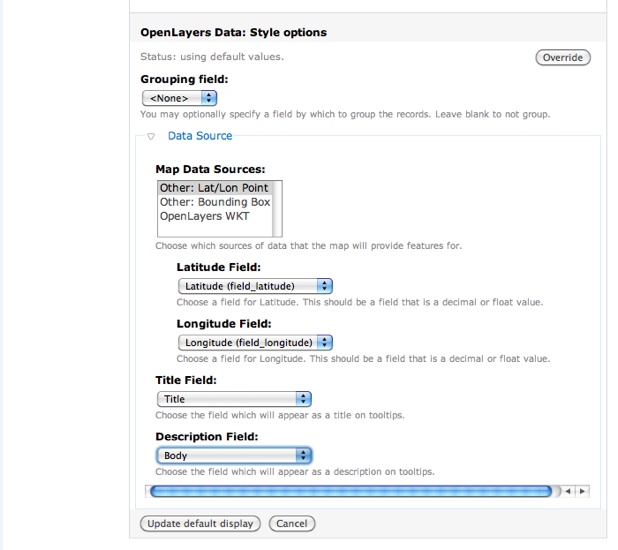
- Next to the Style (OpenLayers Data), click on the cog wheel.
- Map data sources: This will be either "Other: Lat/Lon Point" or "OpenLayers WKT" depending on your method of storing geolocated data.
- Select your latitude and longitude fields or the WKT field.
- Select the node title field and any field you want to use as the description field, such as the node body.
- Add an argument for the node ID. Under "Action to take if argument is not present," select "Provide default argument," and select "Node ID from URL" below it. Under "Action to take if argument does not validate," select "Display all values."
- Add a filter that restricts this view to the appropriate nodes -- such as a particular content type, or nodes in which the geolocation data field (lat/long, OpenLayers WKT, Geo, etc.) is not null.
- Add a meaningful title to your OpenLayers Data display, as it will show up in the map preset information in the next step.
Third, create a map preset that will hold the layers, behaviors and styles defining the display of your OpenLayers map.
- Go to Site Building » OpenLayers » Preset » Add, or directly to
admin/build/openlayers/presets/add. You can also clone an existing map preset. - General information: These settings let you set the description and size of the map. For our purposes, set the width of the map to
auto, so that it will expand to the width of the block or content pane in which it is displayed. Set the height to something nonzero, such as250px. You may also want to set the "image path" to use different map navigations images (pan, zoom, etc.) than the default images; one option is MapBox's dark theme, which you can use by using an image path ofhttp://js.mapbox.com/theme/dark/. You should also tick the final box, "Hide empty map," to suppress the display of a map on nodes with no location information. - Center & Bounds: You will likely not need to set these, as we will set the map to automatically center on and zoom to the individual node one is viewing. You can, if you like, restrict the extent to which people may pan the map by using the "Restrict Extent" setting and drawing a box on the map.
- Skip "Behaviors" and move down to Layers & Styles: Here is where you select both the base map and the OpenLayers Data overlay created in the view in step two. Select the map projection of "900913," and enable and set as default at least one of the base layers provided. Below this, tick all three checkboxes next to your overlay (weight, enabled, activated). Scroll back up to the top and save your preset.
- Now, visit Behaviors: The map navigation options listed at the top of this page are up to you to determine for your map. In order to have the map center on and zoom to the node one is viewing, check the "Zoom to Layer" option. Select the view you created in step two, which will be appended with
_openlayers_1. (This can only be done after enabling it in the "Layers & Styles" section.) Set a zoom level such as10-- you will need to experiment to see what zoom level works for you. Save your preset again.
Finally, create a second, different view to generate the OpenLayers map. It is not recommended you use the same view as in step two, but instead create a new one.
- Create a new view of the "node" type.
- In the drop-down menu at the top left, select either block, or (if you are using Panels module) content pane, and add a display.
- Select the Style and choose "OpenLayers Map." In the style settings, select the map preset that you created in step three. Save your view.
- Add the block or content pane that you've created into your node display through the blocks or Panels interfaces, and you'll have a map displayed on each node.
Help improve this page
You can:
- Log in, click Edit, and edit this page
- Log in, click Discuss, update the Page status value, and suggest an improvement
- Log in and create a Documentation issue with your suggestion
