
Creating Inline Labels with CSS
Last updated on
30 April 2025
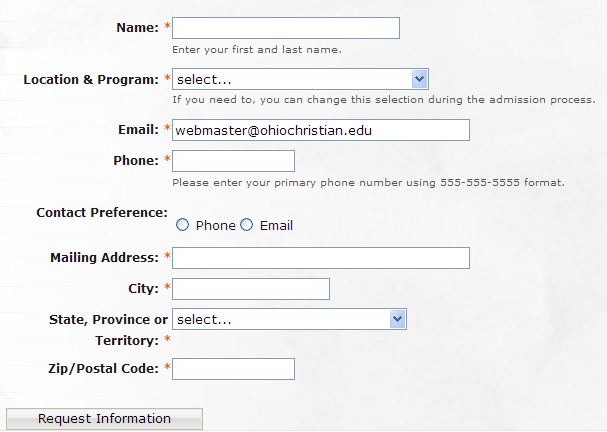
You can manually make your webforms use inline labels with the following CSS. Simply add this CSS to your theme's style.css file and all labels will be displayed inline instead of above form elements.
Note that this documentation is largely obsolete because this has been implemented as a built-in feature. Any component may be edited and the label setting may be set to "Inline". See #1009240: Individual field inline-label support and #255356: Option for putting label and field on same line (inline).
Code to add to style.css:
.webform-client-form {
}
.webform-client-form .form-item input.error, .form-item textarea.error {
	border: 1px solid #FF5C00;
	color: #494949;
}
.webform-client-form .form-item {
  margin: 0px;
  margin-bottom: 7px;
}
.webform-client-form label {
  margin: 0px;
  width: 30%;
  float: left;
  text-align: right;
}
.webform-client-form label.option {
  width: auto; /* We don't want radio labels to follow the same rules as component labels */
}
.webform-component-textfield, .webform-component-select, .webform-component-email,
.webform-component-select .form-radios {
  overflow: auto;
  overflow: hidden;
  height: 100%;
}
.webform-component-textarea {
  width: 50%;
  float: right;
}
.webform-client-form .description {
  display: block;
  clear: both;
  line-height: normal;
  color: #565656;
  padding: 0px;
  margin-top: -10px;
  margin-left: 30%;
}
.webform-client-form .form-submit {
  margin: 20px;
}
After screenshot:
Help improve this page
Page status: Not set
You can:
You can:
- Log in, click Edit, and edit this page
- Log in, click Discuss, update the Page status value, and suggest an improvement
- Log in and create a Documentation issue with your suggestion

