
Guide for Single Sign On (SSO) in to HubSpot using Drupal as Identity Provider (IDP)
This guide will help you in configuring SAML IDP 2.0 Single Sign On (SSO), which allows you to integrate HubSpot as a Service Provider and Drupal as an Identity Provider. By following these steps, you can enable SAML Single Sign-On, which allows users to sign into HubSpot using their Drupal credentials.
The Drupal SAML IDP 2.0 Single Sign On (SSO) module is compatible with Drupal 7, Drupal 8, Drupal 9, and Drupal 10.
You can check our module reviews and ratings here.
Prerequisite:
- Install and activate the SAML 2.0 IDP Single Sign On (SSO) - SAML Identity Provider module on your Drupal site. Click here to check out the module installation step.
Drupal SAML IDP Metadata:
-
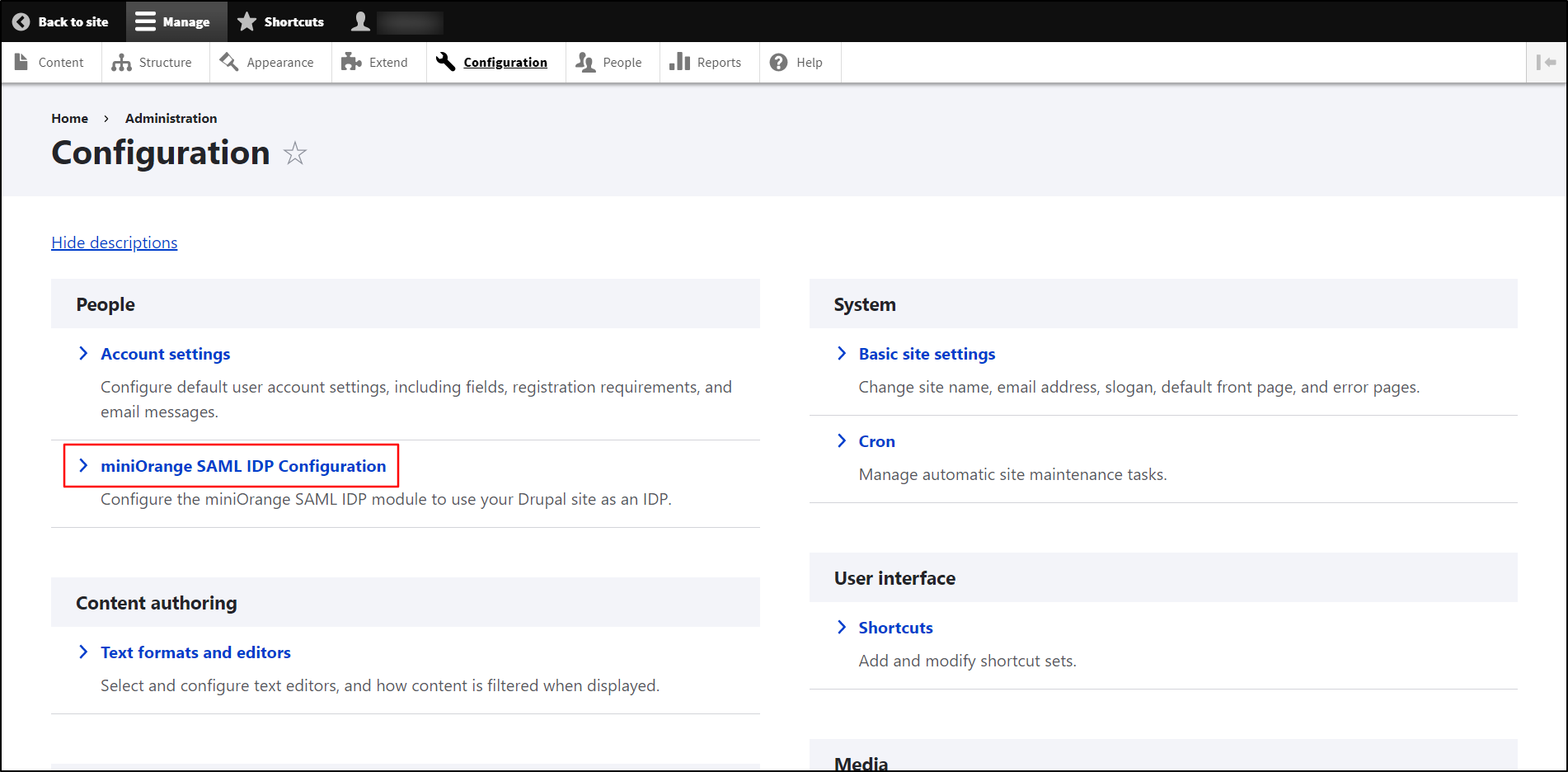
After installing the module on your Drupal site, in the Administration menu, navigate to Configuration -> People -> miniOrange SAML IDP Configuration. (/admin/config/people/miniorange_saml_idp/idp_setup)
-
Under the IDP Metadata tab, copy the IDP Entity ID or Issuer, SAML Login URL, and X.509 Certificate. Keep it handy. (This is needed to configure HubSpot as SAML SP.)

Configure SAML SSO Application in HubSpot:
- Login to your HubSpot dashboard.
-
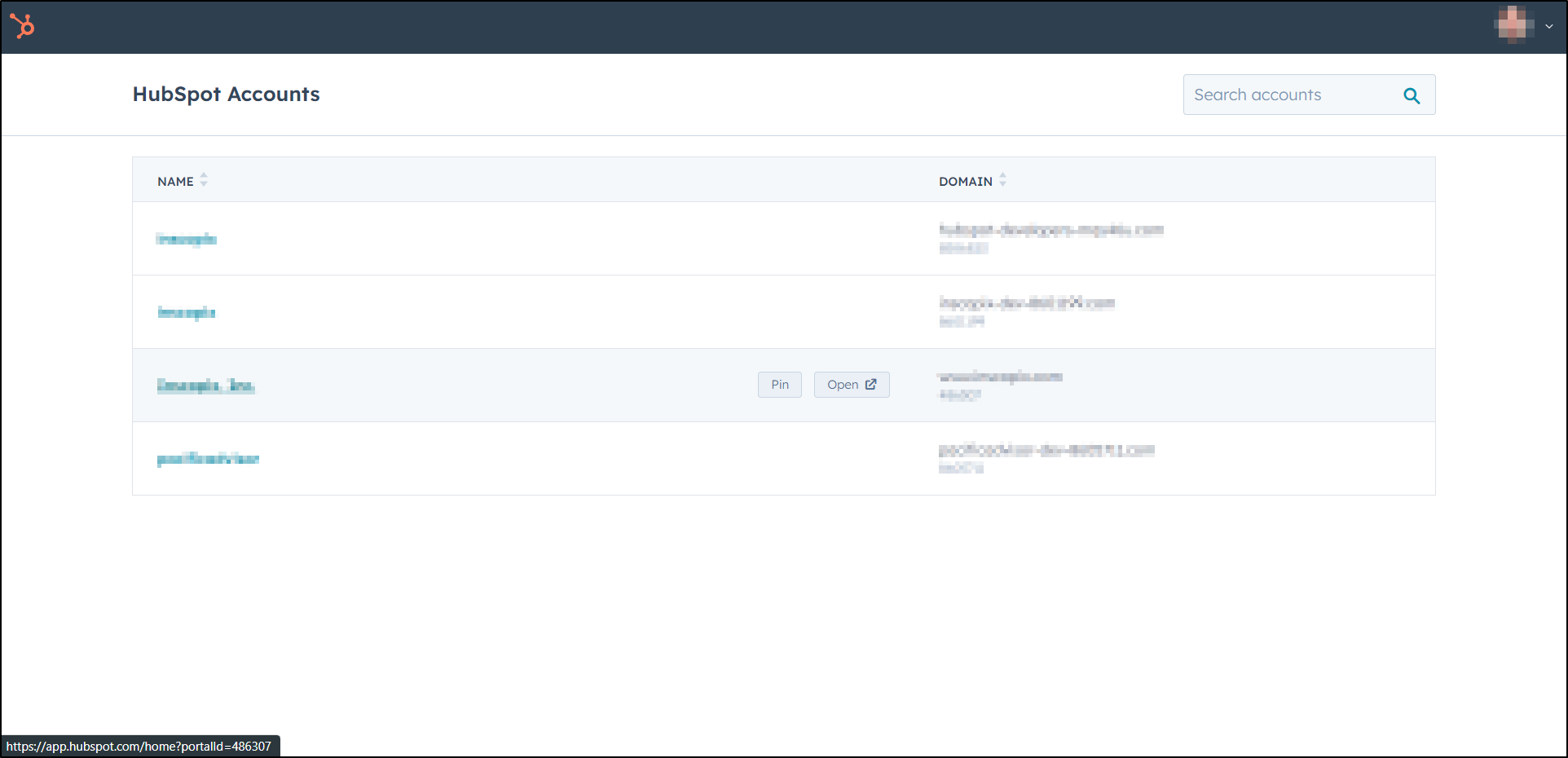
Select the Account from the list for which you want to enable SSO.
-
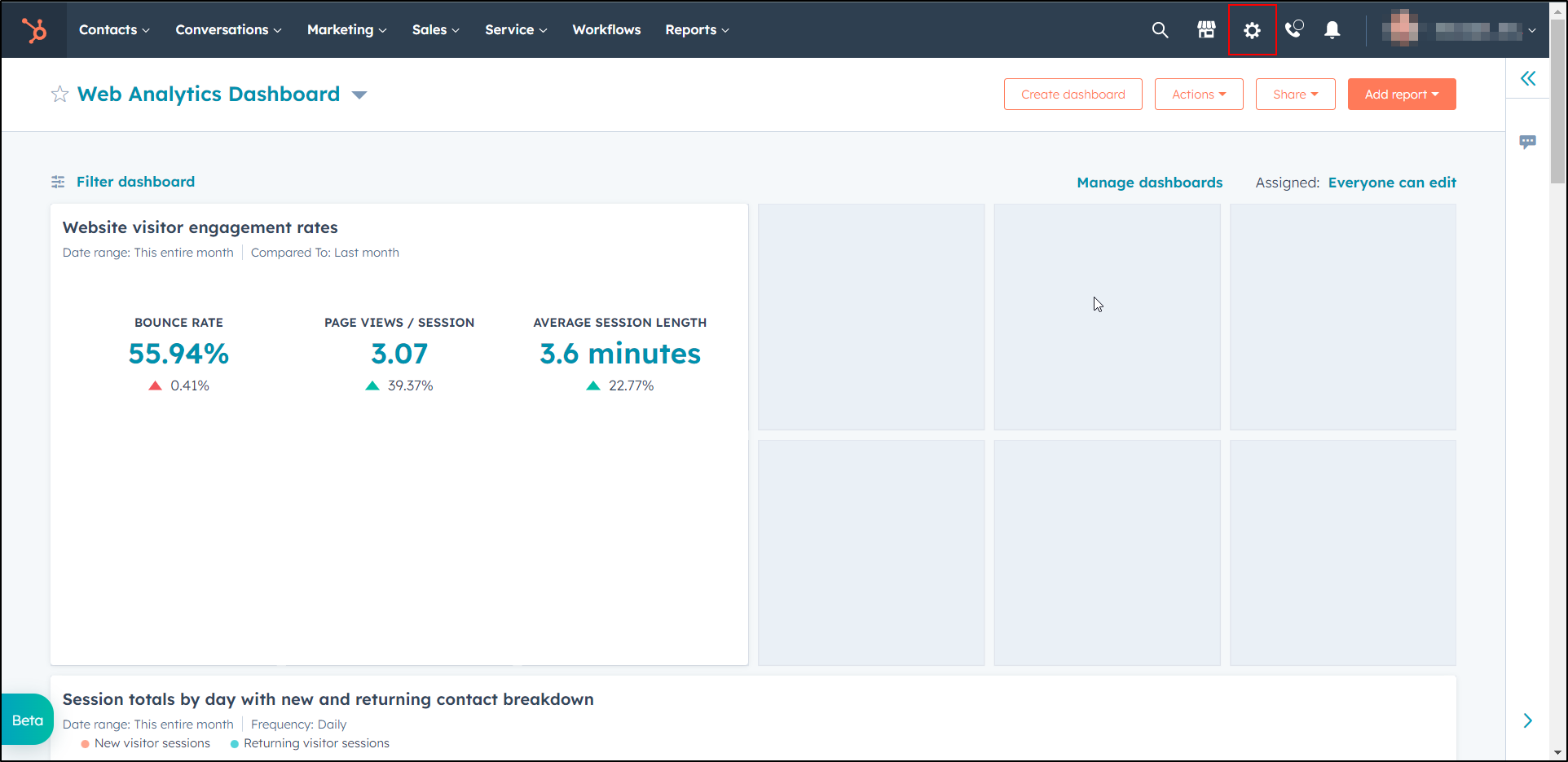
Click on the settings Icon in the top right corner.
-
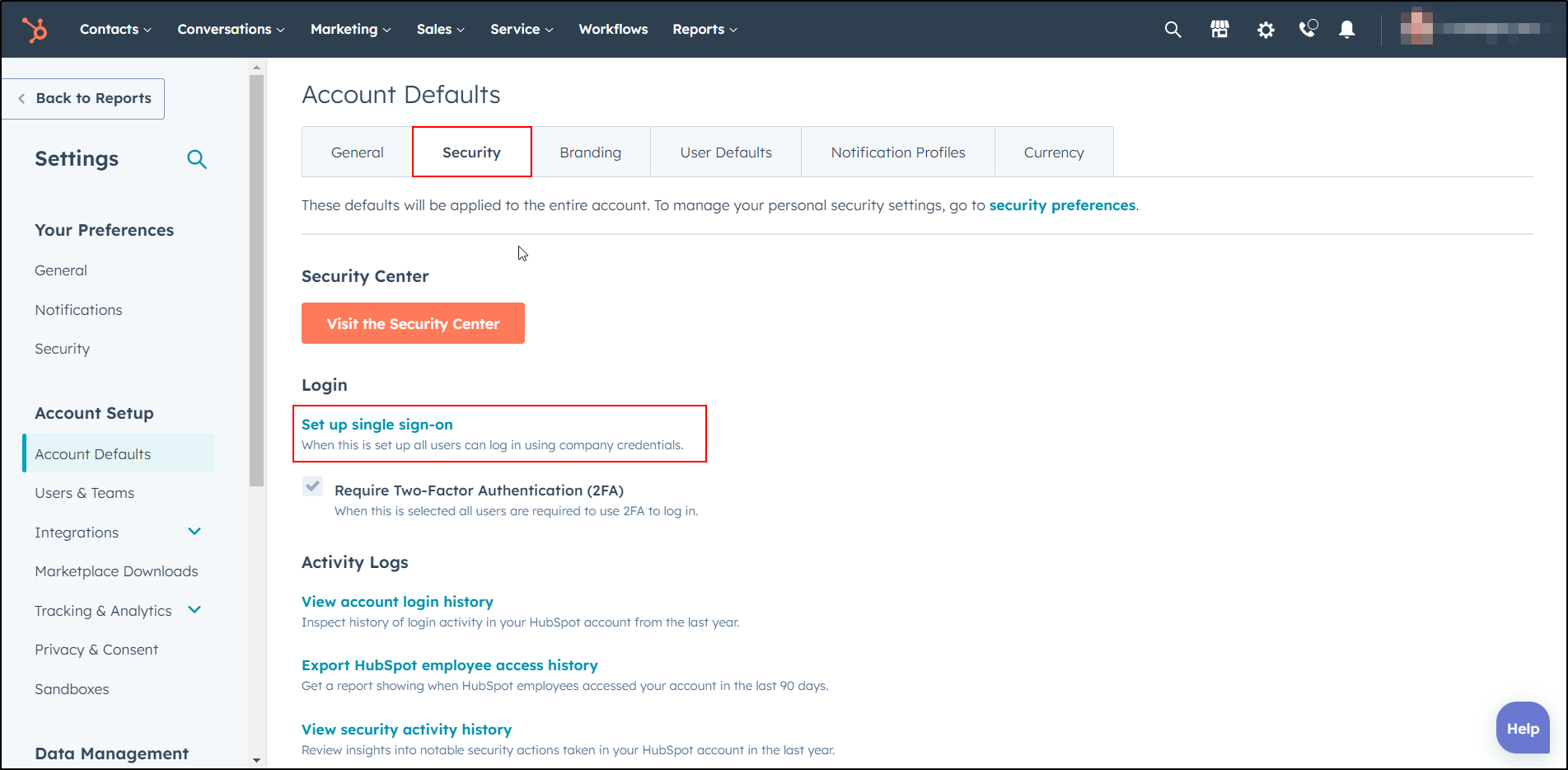
From the left navigation panel, select Account Defaults under Account Setup.

-
Navigate to the Security tab and click on Set up single sign-on link.
-
On the Set up Single Sign-on panel, under the Most Identity Provider tab, provide the required information from the IDP Metadata tab of the module.
Audience URI (Service Provider Entity ID) Copy the IDP Entity ID or Issuer and paste it into this text field. Sign on URL, ACS, Recipient, or Redirect Copy the SAML Login URL and paste it into this text field. X.509 Certificate Copy the X.509 Certificate and paste it into this text field. 
- Copy the Audience URI and Sign on URL from the Most Identity Providers tab of the same window. Keep it handy. (This is required to configure Drupal as Identity Provider.)
-
Click on the Verify button.

-
You have successfully saved your identity provider (Drupal) information in the HubSpot application.

Configure Drupal as SAML Identity Provider (IdP):
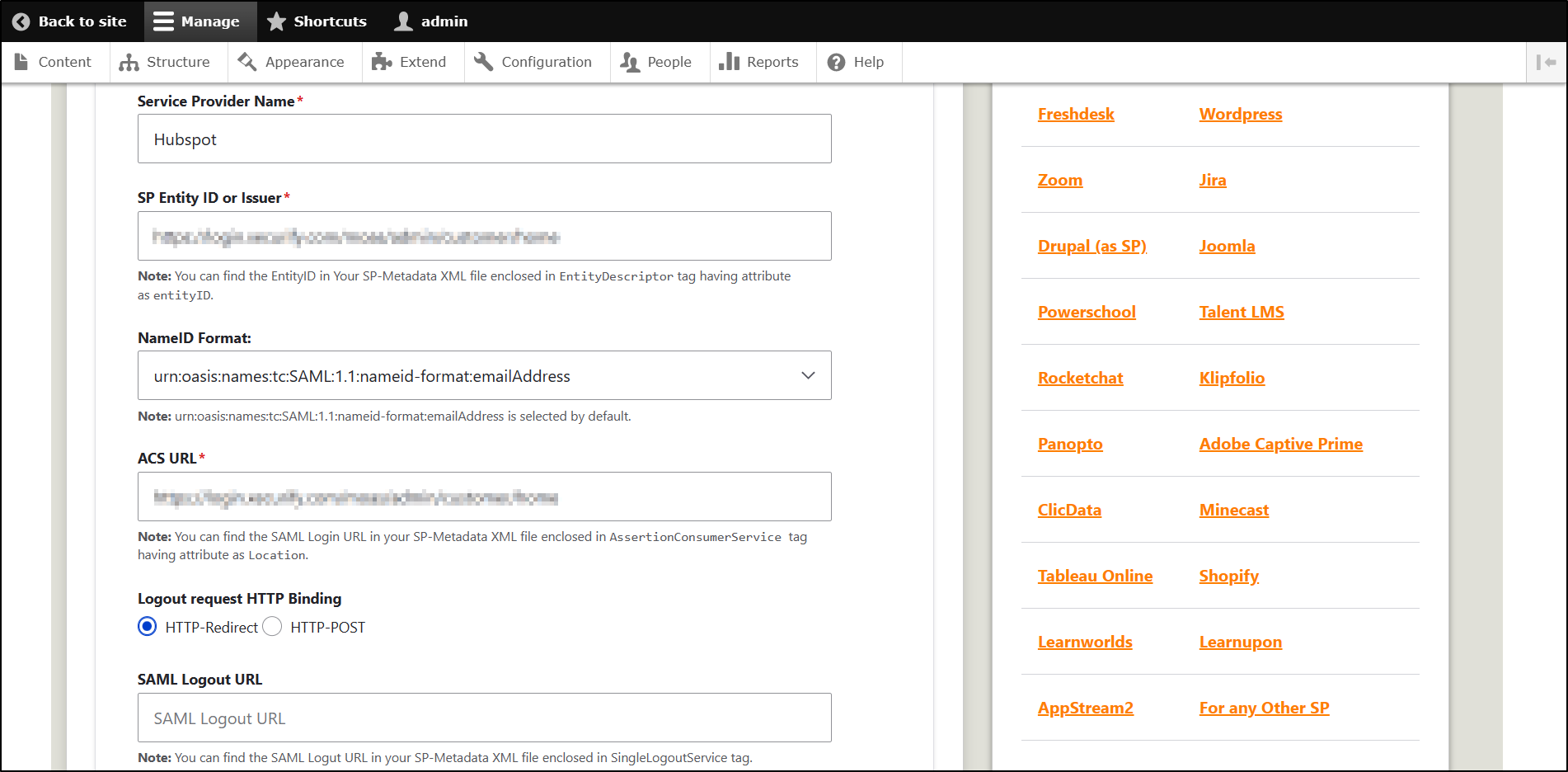
- Go to your Drupal site. Navigate to the Service Provider Setup tab of the module.
-
Provide the required information in the corresponding fields from the Most Identity Providers tab of the HubSpot application.
Service Provider Name Enter the Application name as HubSpot SP Entity ID or Issuer Copy the Audience URI and paste it into this text field. ACS URL Copy the Sign on URL and paste it into this text field.
-
Scroll down and click on the Save Configuration button.
You have successfully set up HubSpot as Service Provider and Drupal as Identity Provider.
Support:
 Back to top
Help improve this page
You can:
- Log in, click Edit, and edit this page
- Log in, click Discuss, update the Page status value, and suggest an improvement
- Log in and create a Documentation issue with your suggestion

