
SSO setup with Nextcloud using Drupal IdP
This guide will help you in configuring SAML IDP 2.0 Single Sign On (SSO), which allows you to integrate Nextcloud as a Service Provider and Drupal as an Identity Provider. By following these steps, you can enable SAML Single Sign-On, which allows users to sign into Nextcloud using their Drupal credentials.
The Drupal SAML SSO - Identity Provider module is compatible with Drupal 7, Drupal 8, Drupal 9, Drupal 10, and Drupal 11.
Prerequisite:
-
Install and activate the SAML SSO - Identity Provider module on your Drupal site. Click here to check out the module installation step.
In order to enable Single Sign-On (SSO) functionality using Nextcloud as SP and Drupal as IdP, you will require the premium version of the Drupal SAML IDP module. If you want to test the SSO functionality with Nextcloud, please reach out to us at drupalsupport@xecurify.com for a free trial request.
Drupal SAML IdP Metadata:
-
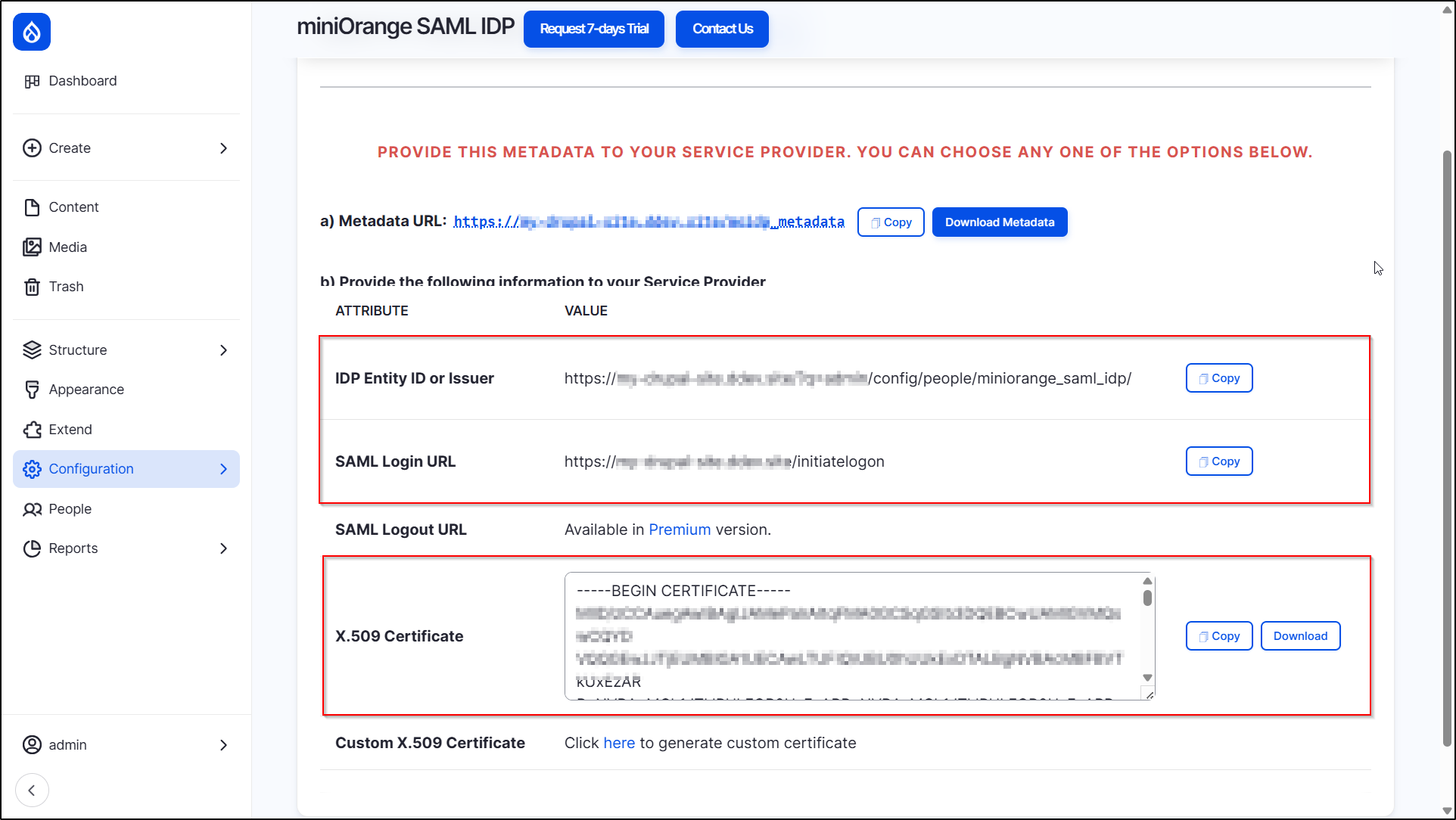
After installing the module on your Drupal site, in the Administration menu, navigate to Configuration → People → Drupal SAML IDP Configuration. (/admin/config/people/miniorange_saml_idp/idp_setup)

-
Under the IDP Metadata tab, copy the IDP-Entity ID / Issuer and SAML Login URL. Click here to download the Certificate (Optional). (Open the downloaded file in Notepad and copy it). Keep these values handy. (This information is required to configure Nextcloud as SAML SP.)
Configure SAML SSO Application in Nextcloud:
- Login in to your Nextcloud Web interface as admin.
-
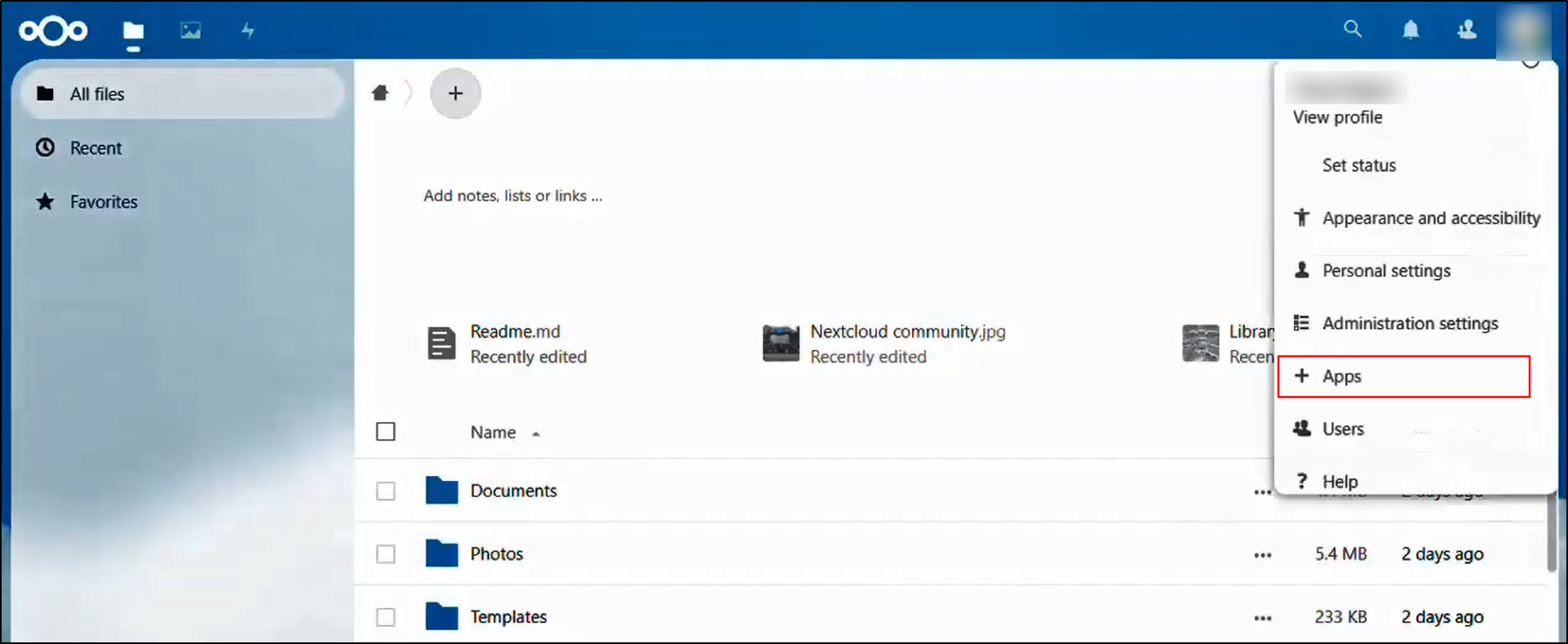
Navigate to the Profile Icon from the top right side and click on Apps.
-
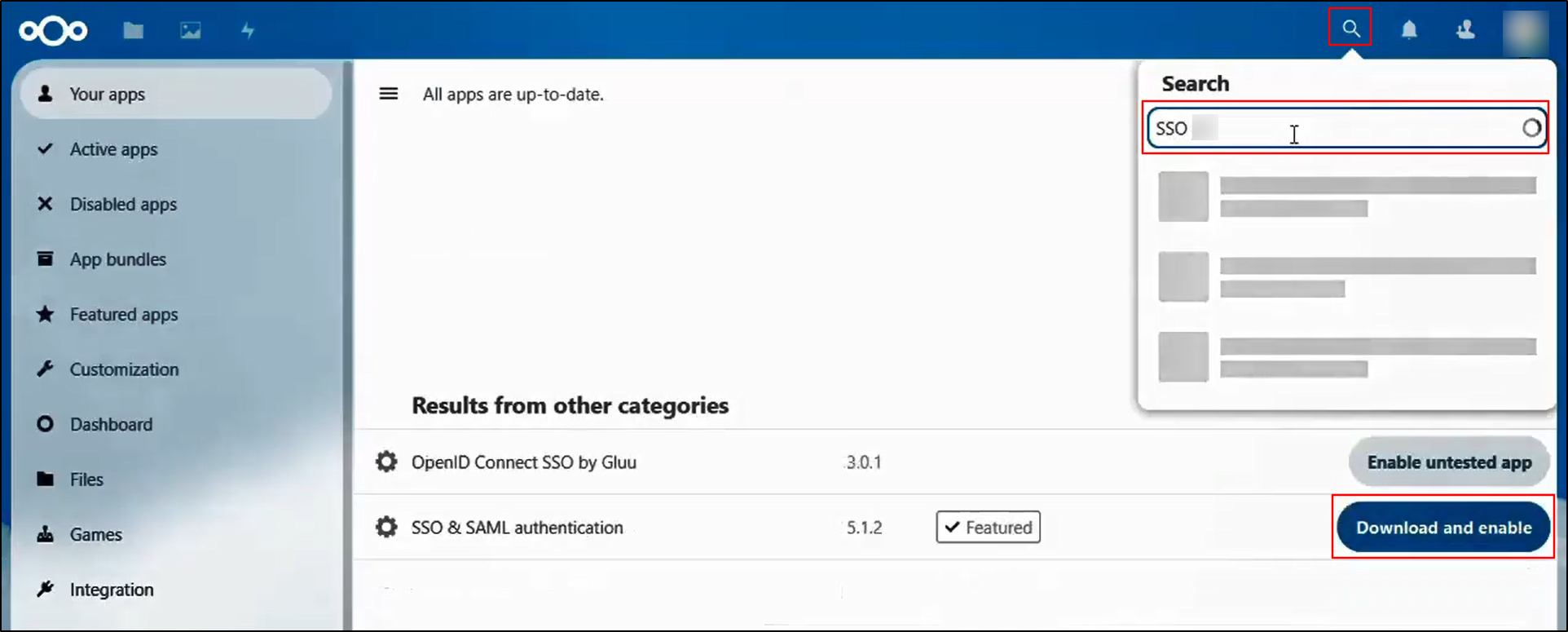
Search for SSO & SAML authentication and click the Download and enable button.
-
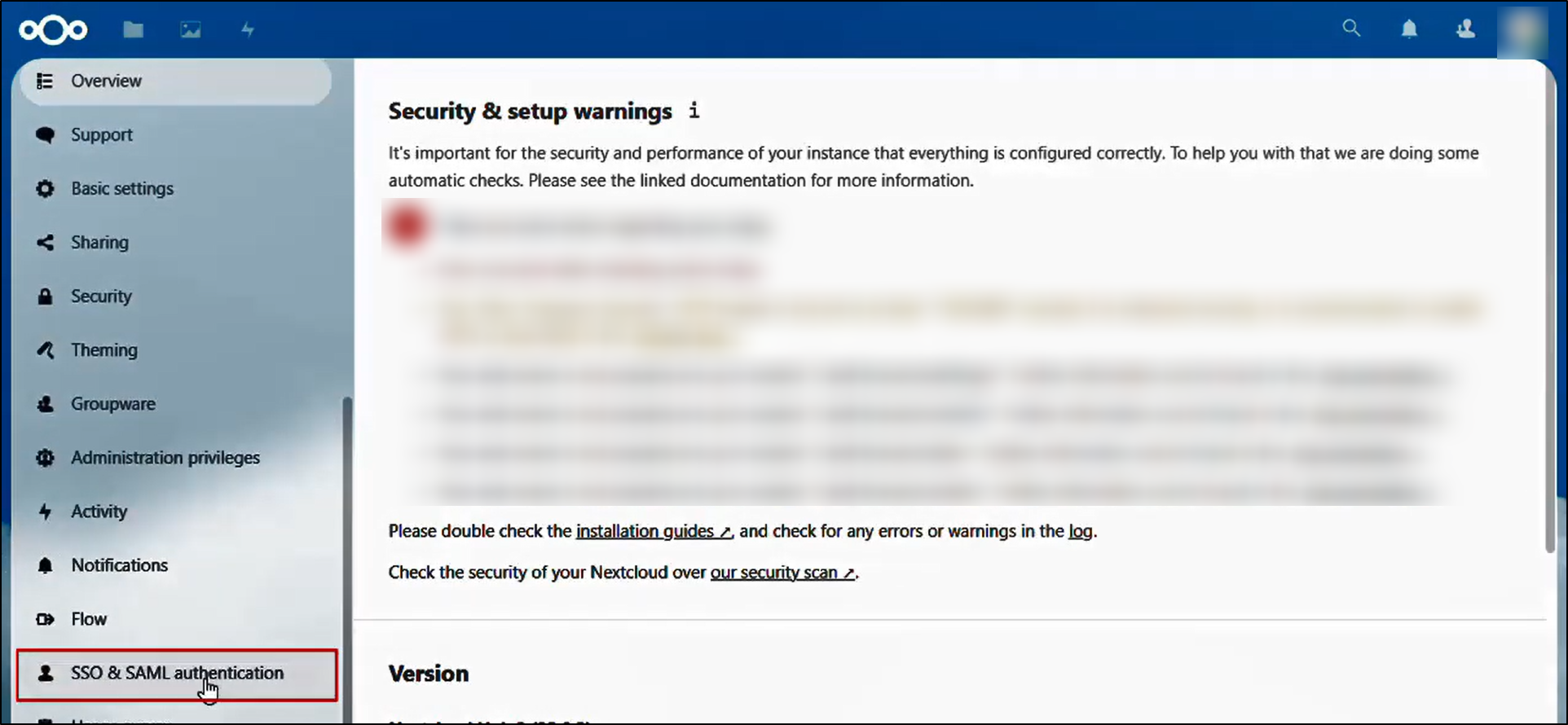
Again, navigate to the Profile Icon from the top right side and click on Administration settings.

-
From the left navigation panel, scroll down and click on SSO & SAML authentication.
-
Click on the Use built-in SAML authentication button.

-
Under Global settings, enable the checkbox Allow the use of multiple user back-ends. (e.g. LDAP)

-
In General, enter the following information in the corresponding text fields.
Attribute to map the UID to
EMail
Optional display name of the identity provider (default “SSO & SAML log in”)
Enter the Application name as Drupal
-
Provide the appropriate information in the Configure your IdP settings section of the Nextcloud Application from the IDP Metadata tab of the module.
Nextcloud Field
Identity Provider Information (Drupal)
Identifier of the IdP entity
IDP-Entity ID / Issuer
URL Target of the IdP where the SP will send the Authentication Request Message
SAML Login URL

- Then, click on the Show optional Identity Provider settings link.
-
Paste the previously copied Certificate (from Drupal site) into the Public X.509 certificate of the IdP text field.

-
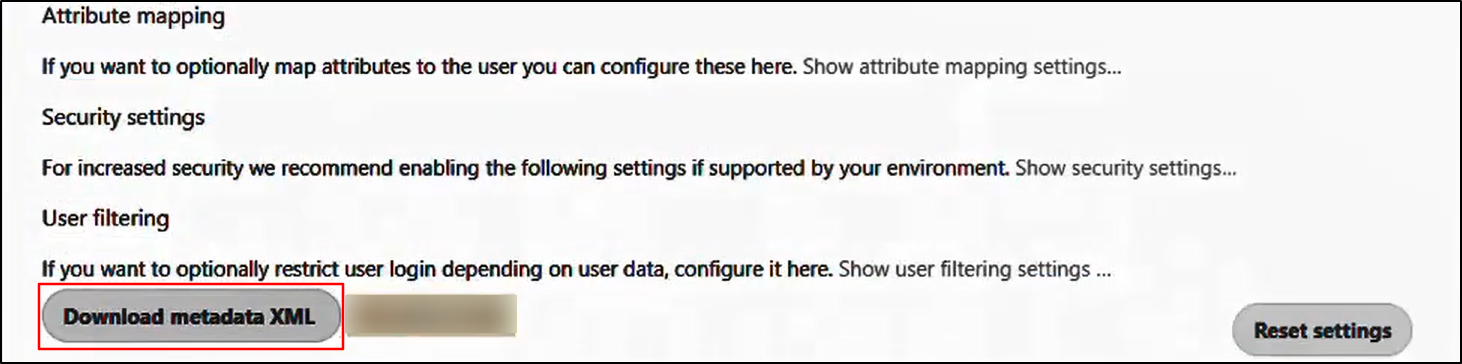
Click on the Download metadata XML button and keep it handy. (This is needed to configure Drupal as Identity Provider.)
Configure Drupal as SAML Identity Provider (IdP):
- Go to your Drupal site. Navigate to the Service Provider Setup tab and click on the Upload SP Metadata.
-
In the Upload a metadata file field, choose the metadata file that you downloaded from Nextcloud, and then click on the Fetch Metadata button.

You have successfully configured Nextcloud as Service Provider and Drupal as Identity Provider.
 Back to top
Help improve this page
You can:
- Log in, click Edit, and edit this page
- Log in, click Discuss, update the Page status value, and suggest an improvement
- Log in and create a Documentation issue with your suggestion
