
 Come together with the global Drupal community in Rotterdam, 28 Sept – 1 Oct 2026. Sessions, contribution, connection, and Early Bird savings until 8 June.
SSO setup with Moodle using Drupal IdP
This guide will help you in configuring SAML IDP 2.0 Single Sign-On (SSO), which allows you to integrate Moodle as a Service Provider and Drupal as an Identity Provider. By following these steps, you can enable SAML Single Sign On, which allows users to sign into Moodle LMS using their Drupal credentials.
The Drupal SAML SSO - Identity Provider module is compatible with Drupal 7, Drupal 8, Drupal 9, Drupal 10, and Drupal 11.
Prerequisite:
- Install and activate the SAML SSO - Identity Provider module on your Drupal site. Click here to check out the module installation step.
- Download the plugin from the Moodle Plugin Directory and install it in the Moodle. Refer to the steps below:
- Login as administrator in Moodle.
- Navigate to the Site Administrator → Plugins → Install plugins. In Plugin installer → beside the ZIP package → click on Choose a file.
- A File Picker window will appear, on the left side, select Upload a file and then click on the Choose File button (upload the zip file that you downloaded in the previous steps from the Moodle Plugins Directory) under Attachment.
- Click on the Upload this File button.
- Now, click the Install the plugin from the ZIP file button and then click on the Continue button to proceed.
- In the next screen, click on the Upgrade Moodle database now button, and then click on Continue button.
Drupal SAML IdP Metadata:
-
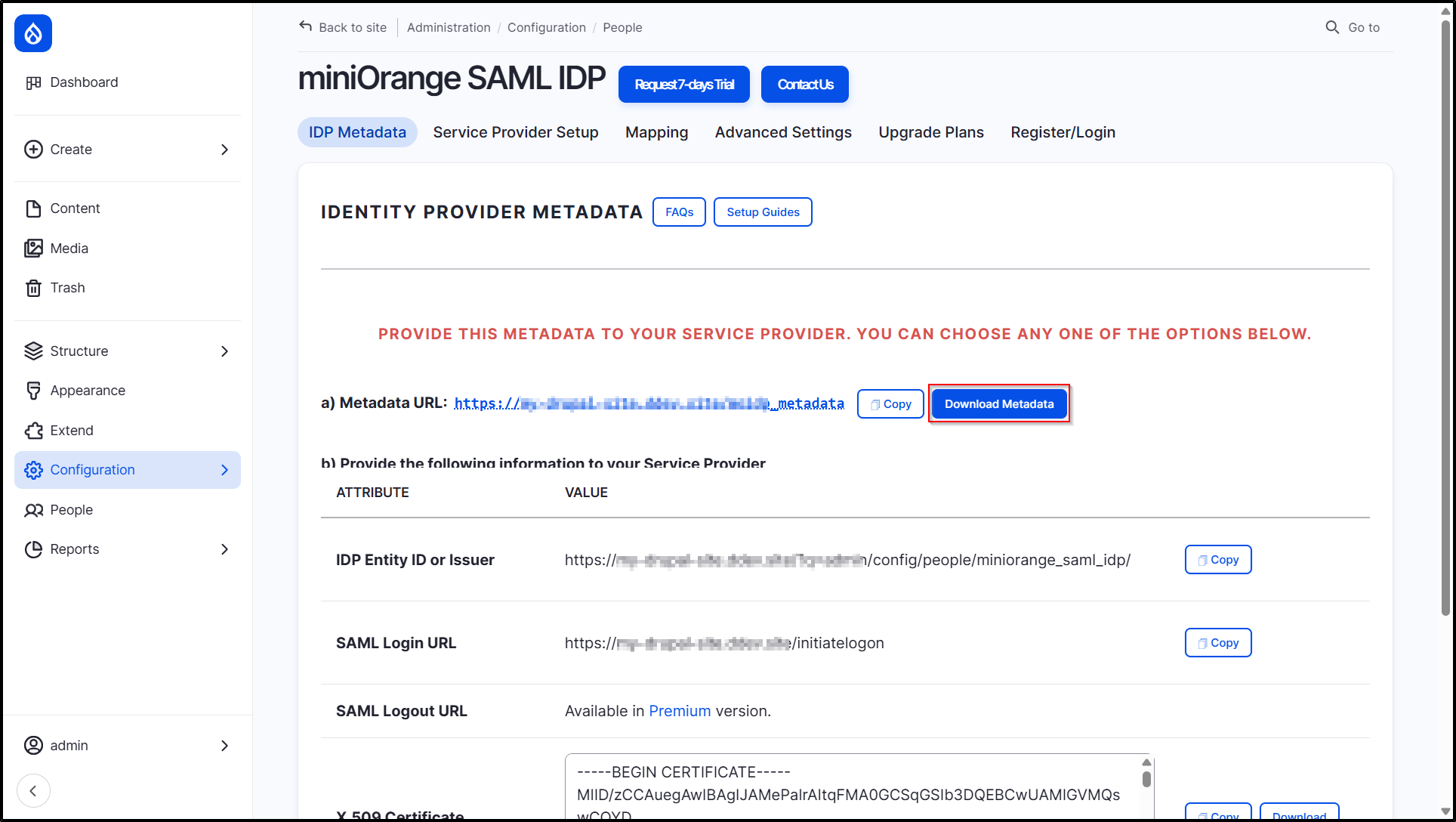
After installing the module on your Drupal site, in the Administration menu → navigate to Configuration → People → miniOrange SAML IDP Configuration. (/admin/config/people/miniorange_saml_idp/idp_setup)

-
Under the IDP Metadata tab, click on the Download Metadata button (simply this file is open it on the notepad and copy the IdP information). Keep it handy. This information is required to configure Moodle as SAML SP.
Configure SAML SSO Application in Moodle LMS (E-learning):
- Log in to your Moodle administrator account.
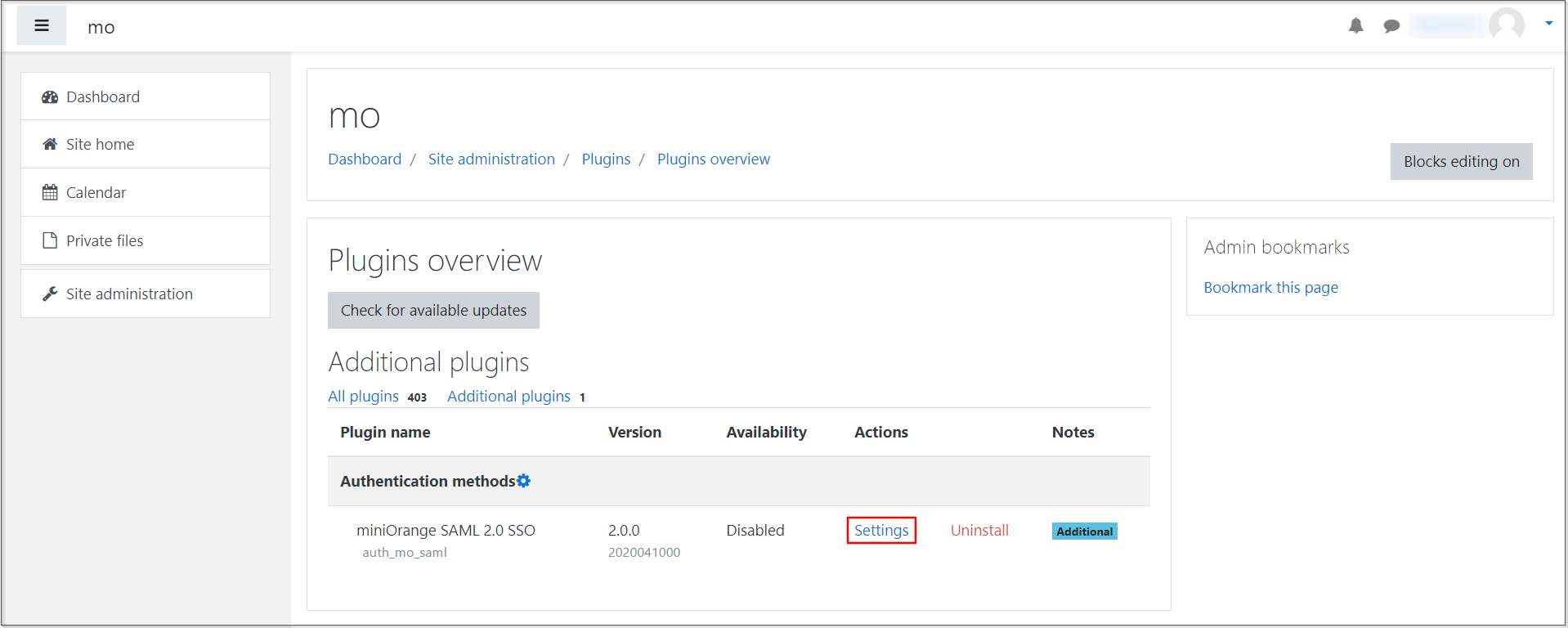
- Navigate to the Site administrator → Plugins → Plugins overview → Additional plugins.
-
Click on the Settings link under Actions.
-
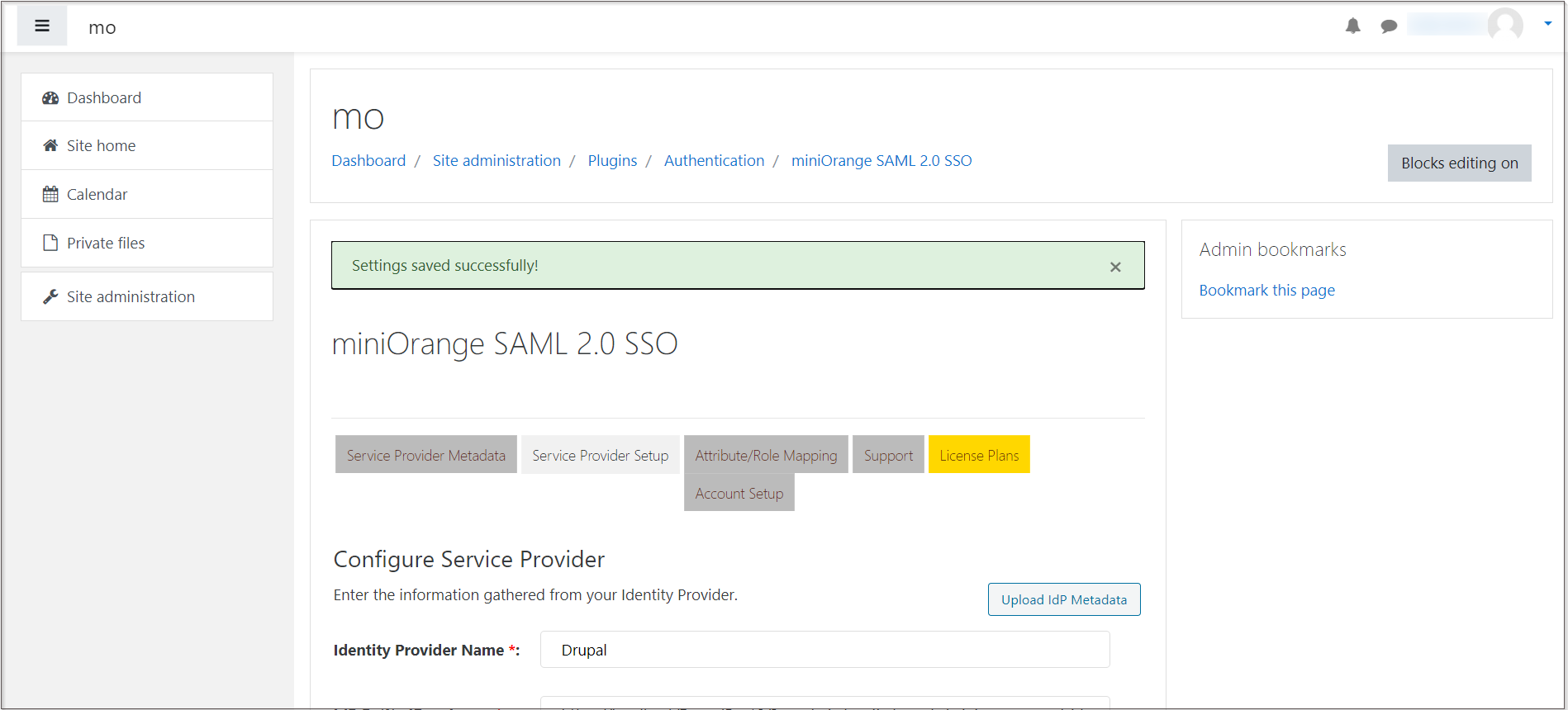
Under the Service Provider Metadata tab and click on the DOWNLOAD link to download the XML metadata file. Keep the metadata file handy. This is required to configure Drupal as SAML Identity Provider (IdP).

-
Go to the Service Provider Setup tab of the plugin and click on the Upload IdP Metadata button.

-
Enter the Identity Provider Name and paste the previously copied IdP metadata file from Drupal into the IdP Metadata XML text field. Then, click on the Upload Metadata button.

-
You have successfully saved the Drupal SAML IdP information into your Moodle site.
Configure Drupal as SAML Identity Provider:
- Navigate to the Drupal site. Go to the Service Provider Setup tab of the module and click on the Upload SP Metadata.
-
In the Upload a metadata file field, choose the SP metadata file which you downloaded from the Moodle, and then click on the Fetch Metadata button.

You have successfully configured the Moodle as Service Provider and Drupal as SAML Identity Provider.
Test Connection between Moodle and Drupal:
- Navigate to your Moodle site.
- In the Moodle dashboard → Site administration → Plugins → Plugins Overview → Additional plugins → Settings.
-
Go to the plugin's Service Provider Setup tab. Scroll down and click on the Test Configuration button to check the connection between Moodle and Drupal.

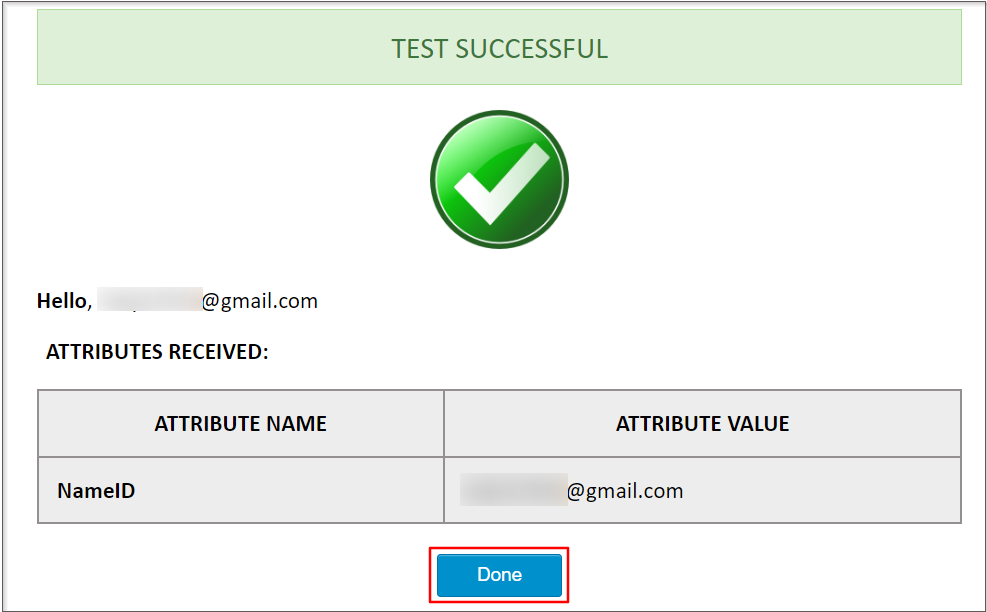
- On a Test Configuration popup, if you don't have an active session on Drupal in the same browser, you will be asked to sign in to the Drupal site. After successfully logging into the Drupal site, you will be provided with a list of attributes that are received from the Drupal site.
-
Click on the Done button.
If you face any issues in test configuration, you can reach out to us at drupalsupport@xecurify.com with a screenshot of the test configuration window.
 Back to top
Help improve this page
You can:
- Log in, click Edit, and edit this page
- Log in, click Discuss, update the Page status value, and suggest an improvement
- Log in and create a Documentation issue with your suggestion
