
 The 2026 Drupal Business Survey is open. Your response will help shape the future of the Drupal business ecosystem.
On this page
Instructions
This is documentation for Drupal 7, which is no longer supported. Learn more and find resources for Drupal 7 sites
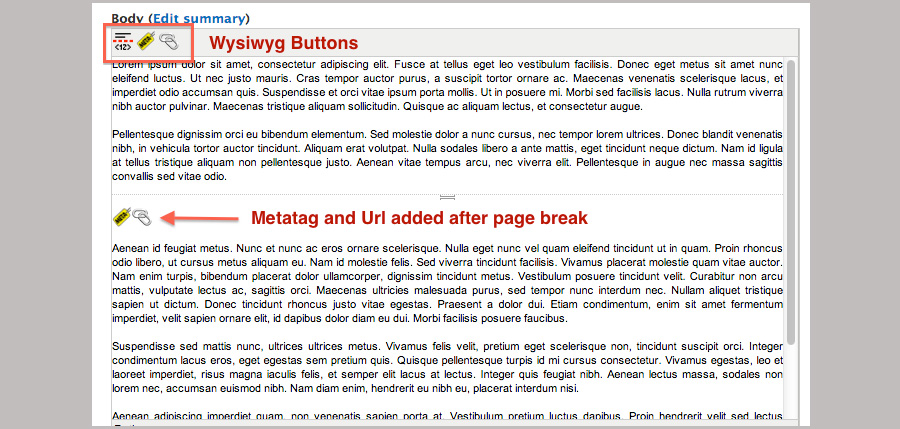
When you click on the Wysiwyg button a for will appear and you can configure:
- Metatag - Add individual metatags to each page.
When you click on the Wysiwyg Metatag button, a new page break will be added, a popup will be displayed and you can configure the metatags for that specific page. - Url - Allow you to specify the Fragment Url to an anchor on the page.
When you click on the Wysiwyg Url button, a popup will be displayed and you can configure the Fragment Url for that specific page.
Compatible modules
Requirements
- Smart Paging
- Wysiwyg
- Wysiwyg editor i.e. TinyMCE
Installation
Copy the module directory in to your Drupal: /sites/all/modules directory as usual.
Enable the Wysiwyg Smart Paging SEO
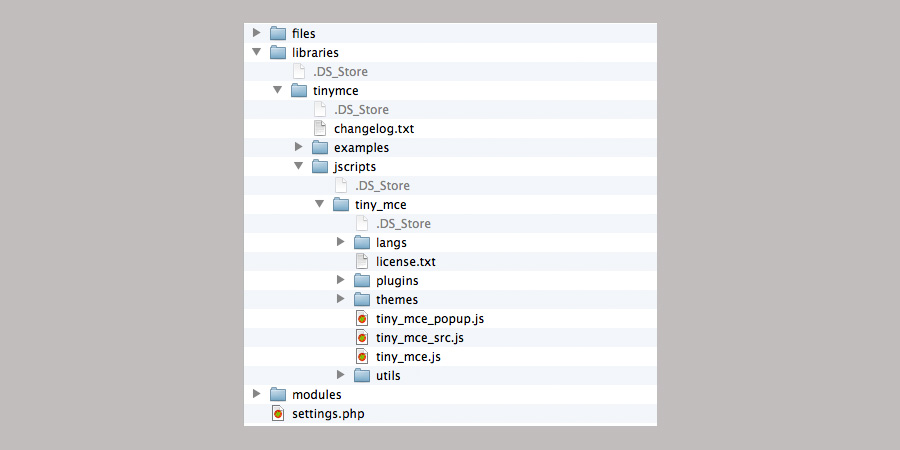
Download a Wysiwyg editor, for example TinyMCE (http://cloud.github.com/downloads/tinymce/tinymce/tinymce_3.4.9.zip) and put into the libraries folder, it will look like this:
Configuration
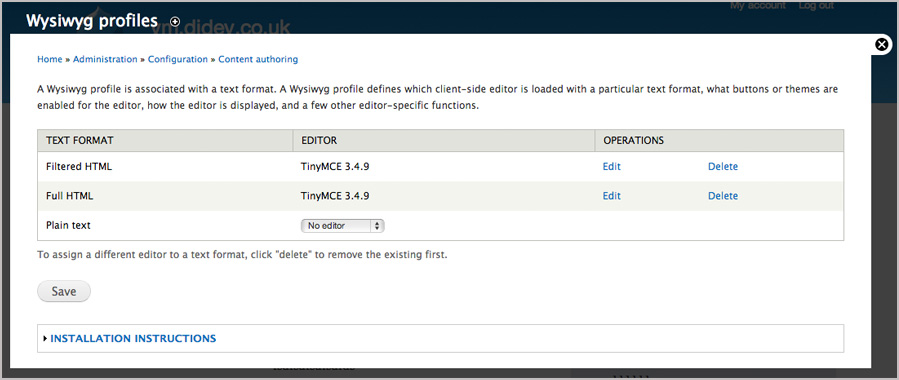
Go to Configuration > Content Authoring > Wysiwyg profiles (/admin/config/content/wysiwyg)
Choose TinyMCE as editor for each Text format and click Save
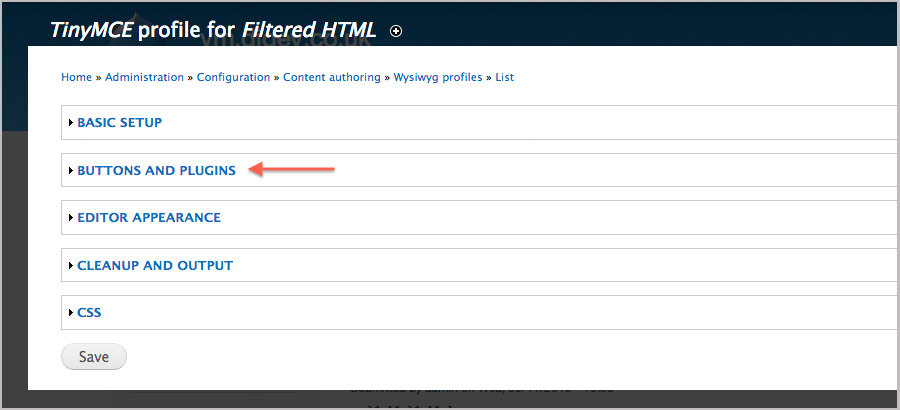
Edit each Text format, enable Smart Paging SEO under SHOWBUTTONS AND PLUGINS
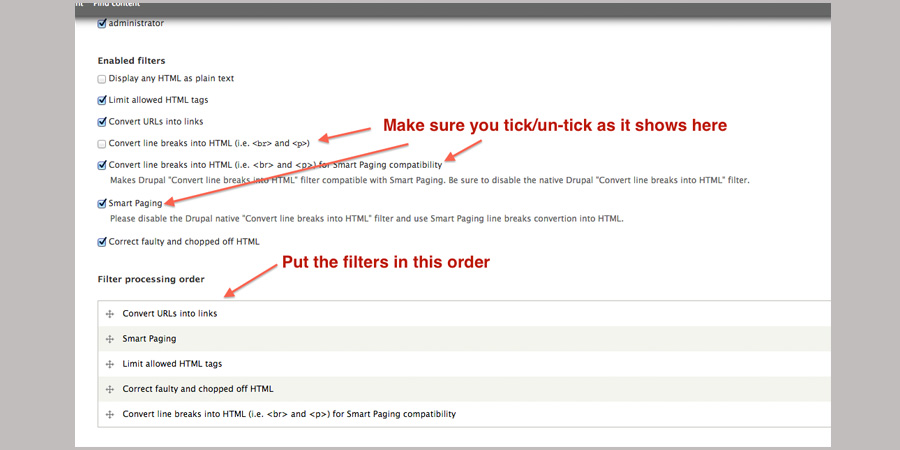
***IMPORTANT*** make sure Smart Paging is not ticked
Go to Configuration > Content Authoring > Text formats (/admin/config/content/formats).
Edit the text formats and make sure that the Enabled filters look like this
Using it
- Create a new article (/node/add/article)
- Insert some paragraphs
- Click on the place you want to add the page break
- Click on the Wysiwyg Smart Paging Seo button
- Configure the metatags, you can use tokens too.
- Configure the Fragment Url.
- Save the Article
Help improve this page
You can:
- Log in, click Edit, and edit this page
- Log in, click Discuss, update the Page status value, and suggest an improvement
- Log in and create a Documentation issue with your suggestion
