
Setting and configuring the DEIMS Data Explorer
Configuring the Data Explorer: working with data sets.
The use of the Data Explorer may be clear, however, how do get the DEIMS Data Explorer set up? This is a task for the DEIMS administrator, and to some degree, also to for the data and metadata contributor. Let us begin with the system administrator. If you are just a DEIMS data/metadata contributor, skip this section, it should be taken care by the administrator.
Basic requirements:
We are going to need to let DEIMS see the desired external database. We need to provide a connector to that external database. Assuming you have valid ‘read’ credentials to this external database, all you need to do is place the following connector code in a file named “settings.local.php”. This file will created at the same location where Drupal’s notable ‘settings.php’ is: at “sites/default”. The connector code will look like this:
$databases['external-db-nick']['default'] = array(
  'database' => 'external-db-name',
  'username' => 'user-with-read-rights',
  'password' => 'corresponding-password',
  'host' => '',
  'port' => '',
  'driver' => 'mysql',
  'prefix' => '',
);
It should be clear that you will substitute placeholders such as ‘external-db-name’, ‘corresponding-password’ with real passwords or names.
Once the external database is accessible, the data entry person can pre-configure the Data Explorer, including hiding columns that lack interest for query, such as things that bear no interest for the scientist, perhaps a primary key, a constant field, or the likes. Let me walk you to the process the data entry person has to undertake. Let me specify how.
This new connector should make your external data accessible to the DEIMS pages that look for it. Which DEIMS pages? In DEIMS case, the connector will be exposed at the “data source” and “data set” data entering forms (I.e; node/add/data-set or node/%datasource-nid%/edit ).
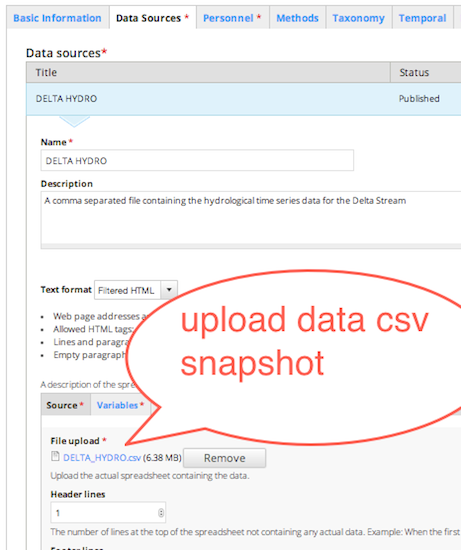
The key to a good data query page is good descriptive metadata: Make a snapshot of the data (a comma delimited file of the original table) and describe it using the “create dataset form”, part of the DEIMS metadata tools. We start by typing a title, and abstract, other details, and then, using the “Data Source tab”, we upload the csv/txt file. You will then move to the “Variables” tab, where you will use the “parse CSV” button to parse out the first line of the data file into the variables, where the “data table” columns names are. Finally, we will use the variable boxes to complete the column description, and more importantly, use the two Data Explorer checkboxes to configure the column for the Data Explore query page functionality.
Note that at the bottom of the data source form, you may select an external database using a pull-down field. This is the database it has the original table and the one you want to connect to in order to establish the relation between the cdv you are describing and the living source.. The second pull-down field let's you select the actual table from all tables in the database. Let’s illustrate this with a few snapshots:

This image shows the data-set edit form. We see below the “Data Source” form, a place where we attach details about the data source, and the data snapshot to the general data set description. Let us focus on the Data Source tab. Inside you can upload a snapshot of the data table from the external database. This provides a static version of the data, for general distribution services. The Data Explorer extends that general service providing a direct query capabilities (filtering, subsetting). The following highlights the csv already uploaded and described.
The database connector is further below, scroll down and you will see the connector to the dynamic database. Look for the pull-downs under the “Remote Data Source”. You are connecting your description to the actual remote data resource, and now we are going to see how we are going to configure the query options to users that see the DEIMS data Explorer:
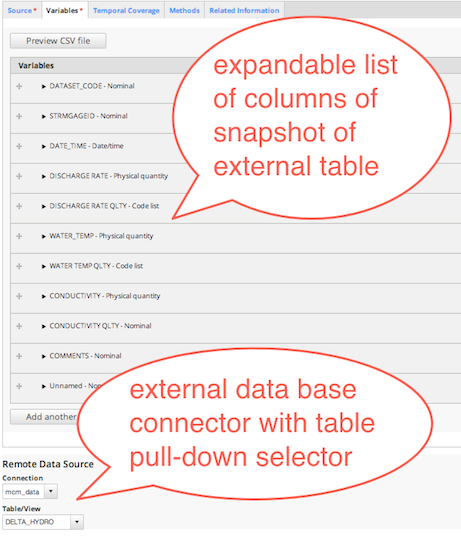
Here you see the list of columns of the data table snapshot that belongs to this dataset. Below is the connector to the parent table from the external database. This is the connector used by DEIMS to the external database. Inside each of these columns (let’s expand one), you will see the configurable options for each column of the data source.
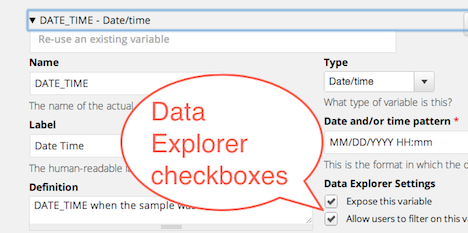
In the following column (aka variable) descriptor form, you see the general metadata (name of the column, human readable name, definition, type of column/variable, etc). These are important descriptors, make sure you accurately use them. The checkboxes to the right, under the “Data Explorer Settings” are used 1) to decide whether to expose this column to the user in the “Data Explorer Page”, and 2) whether to allow the user to filter in this particular variable. Here is a “date”, and we want to offer the user to download the “date/times” when the measure was conducted, and further filter or subset on the dates. Similarly, the data-entry person may have the ability to configure these settings for each column of the table being described. Particularly useful to exclude certain bookeeping columns that may not bear interest to the scientists, such a meaningless primary key, or the likes. Here is a snapshot.
Help improve this page
You can:
- Log in, click Edit, and edit this page
- Log in, click Discuss, update the Page status value, and suggest an improvement
- Log in and create a Documentation issue with your suggestion
