Basic concept
The OpenLayers module enables the display of any content with geo data (node, user, taxonomy terms) as layers on top of base maps (base layers) in layer maps. It provides a user interface to configure the styles of this content (color of dots, thickness of lines, highlighting, ...), and the behavior of the maps (zooming, tool tips, ...).
Layers, maps, styles and behaviors are stored as objects.
The configurations can be exported to code or included as a part of a feature with the Features module.
Changes from OpenLayers 2.x for D7
- The 'Preset' were changed to maps (admin/structure/openlayers/maps).
- The OpenLayers module focuses on displaying data and therefore does not provide its own input field anymore. You can use the Geofield module for inputting geo data.
Required modules
These need to be enabled before moving to the next step.
- OpenLayers: OpenLayers, Openlayers UI, OpenLayers Views
- CTools
- Views 3: Views, Views UI
- Libraries: Use the 2.x version, and make sure to create your sites/all/libraries subdirectory.
- geoPHP (dependency for Geofield 1.1 and higher)
- Geofield (use 1.1 or higher) or other module for inputting geo data.
Drush makefile
If you have Drush 5 installed you can use this drush makefile to download Drupal 7 core, all required modules and the Openlayers 2.11 library for this tutorial much more quickly to an empty website document root (rename the download file to openlayers.make). You need to install Drupal via your browser and enable all required modules in a second and third step (look into the makefile for a drush command to enable all required modules quickly).
Overview of the main steps
The following four steps switch between Views and OpenLayers module and back. The order of these steps is important and cannot be changed.
- Add geodata nodes
- Make a data overlay layer in Views.
- Configure a map
- Add data display to the map through Views.
Step-by-step instructions
This example is a step-by-step manual for displaying the locations of several nodes on a map in Drupal 7. Check this manual for Drupal 6.
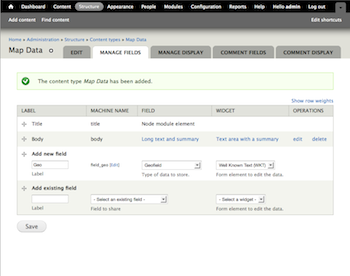
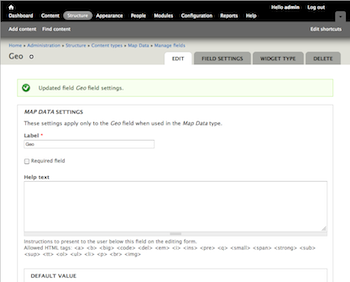
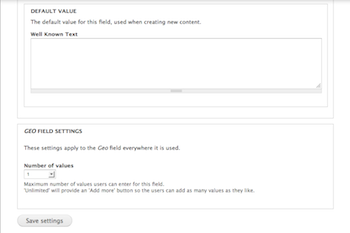
1. Add Geofield data to node
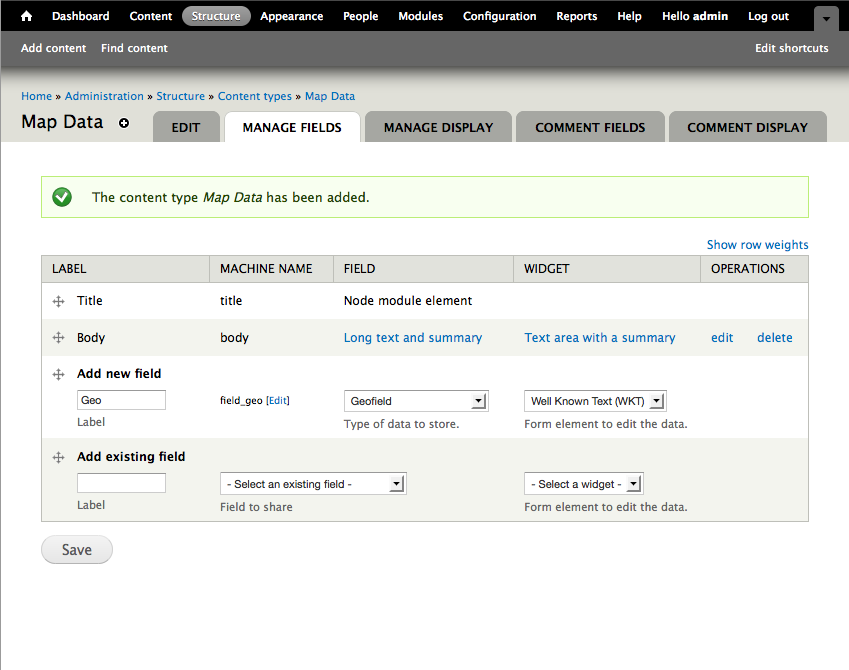
The first step is to create a mechanism for storing geo-related data. Geo data can come in different formats (e.g longitude and latitude, well-known text WKT) or can be entered directly as points on a map.
In order to create maps with the OpenLayers module, it does not matter in which format the data is entered.
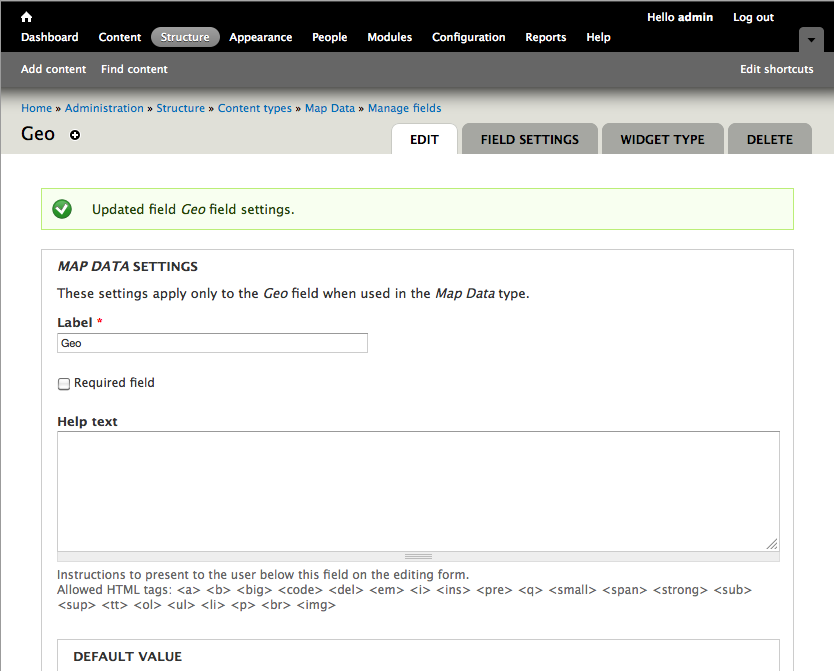
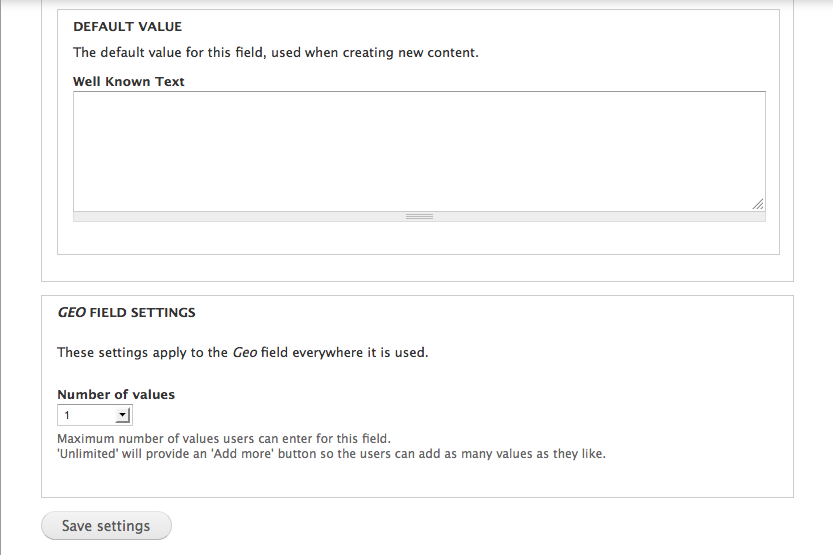
In this example we use Geofield to store longitude and latitude.
2. Make a data overlay layer in Views
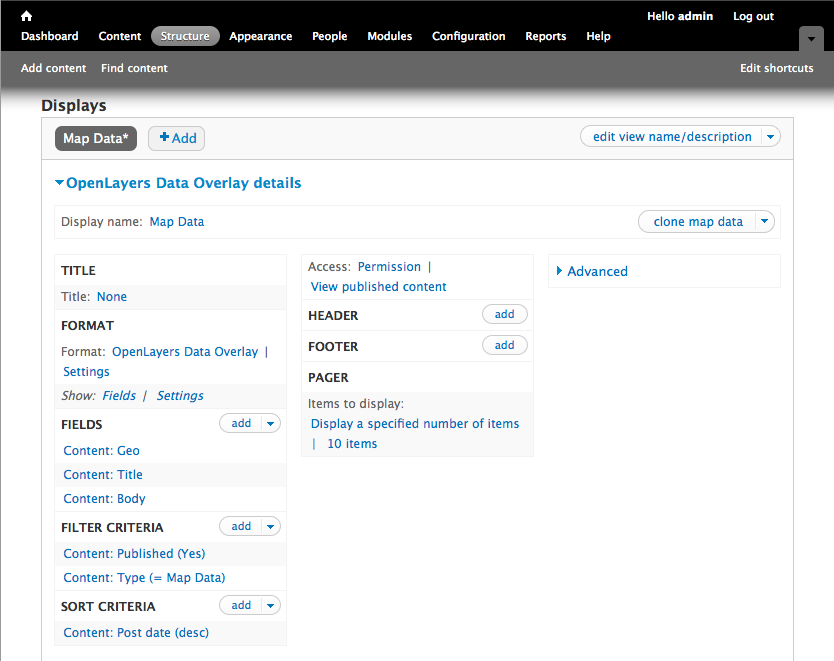
The OpenLayers module adds a plugin to Views to create OpenLayers Data overlays. This view display will not actually be visible, but serves to pull the required data from the nodes. It also allows you to add filters, arguments and relationships to the data you want to display on the final map, as well as the number of locations to be displayed. Check the Views handbook for additional information.
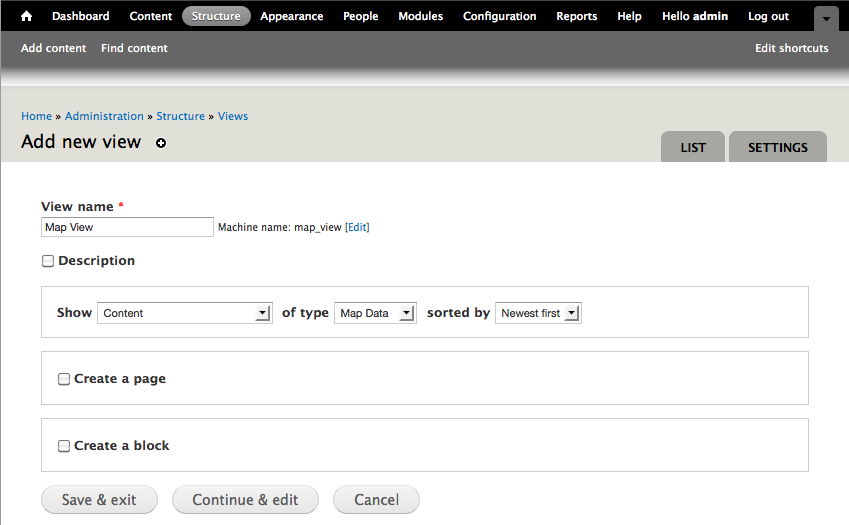
- Add a new View to show Content
- Add or edit the filter criteria (e.g. published content, content types)
- Add fields:
- The Content Geofield containing the geo data. Set the formatter to use
Well Known Text (WKT)
- Optionally choose a title and a description field.
- NOTE1: make sure you uncheck "Use field template" in style settings (or markers might not show up)
- NOTE2: if your geodata is a polygon under the location field settings use a centroid instead of full geometry (otherwise a marker won't show on the map)
- NOTE 3: if you see a projection select list, you probably want this to be "ESPG:4326".
- Add an OpenLayers Data Overlay display, and give it a meaningful display name to identify it during the further steps.
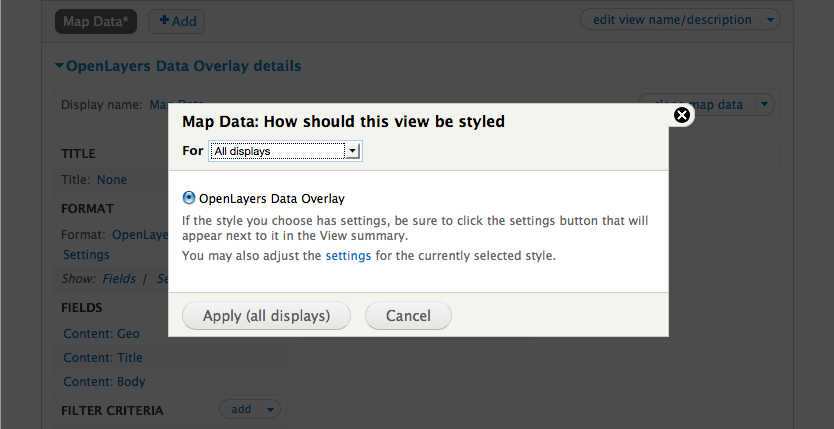
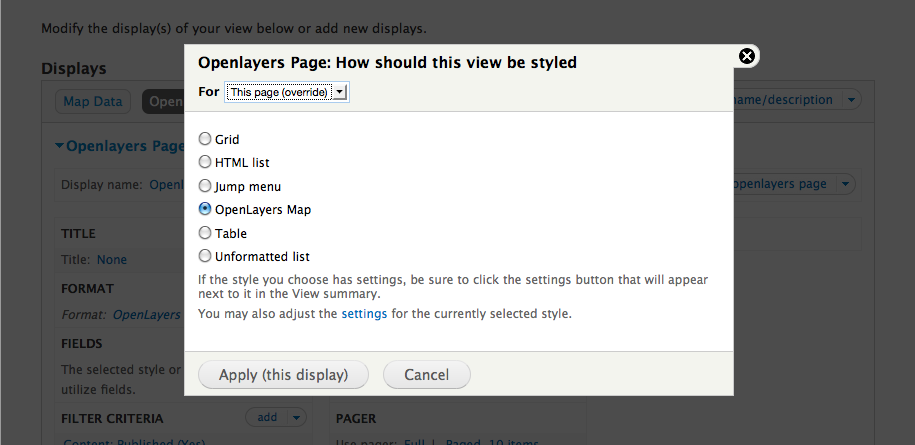
- Change the format this display (override) to "Openlayers Map" and use "OpenLayers Vector Data Overlay" (older versions might say "OpenLayers Data Overlay.")
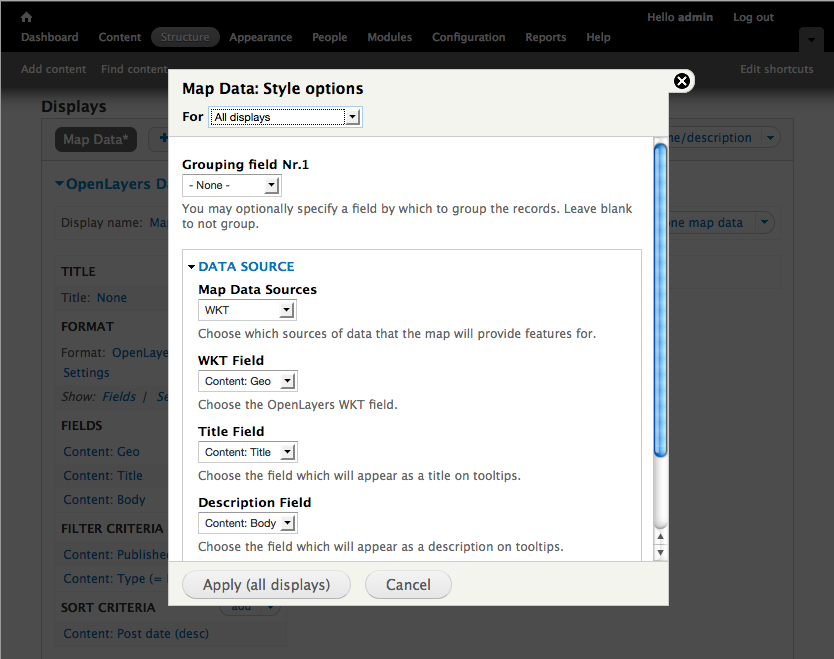
- In the Style options / Settings
- set Map Data Source: WKT;
- choose your geofield content as WKT Field;
- optionally choose your Title and Description.
- don't use "style field" as its dropped after 2.x beta9, as per this discussion
- Note: It's worth adding a page or block View at this time to allow you to see the raw HTML, but not necessary.
- Save the view.
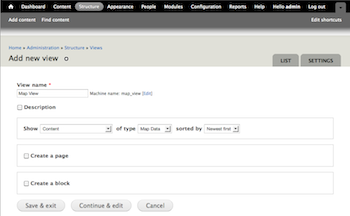
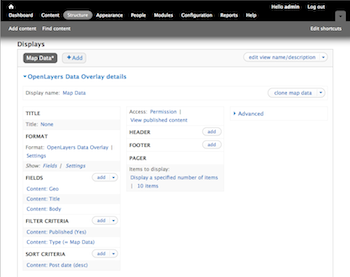
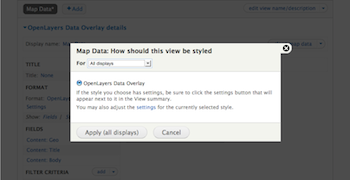
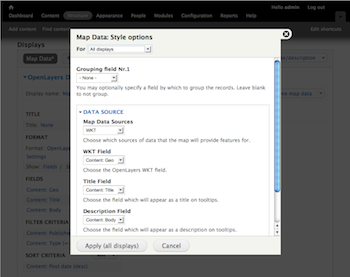
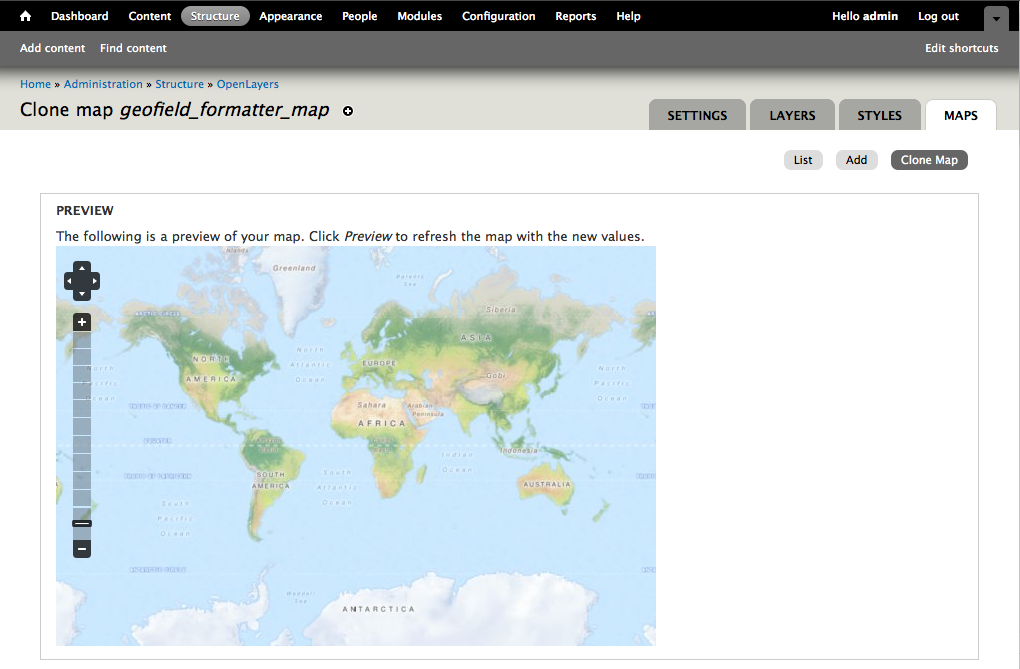
A Map is a collection of settings, base layers, behaviors and styles that define an OpenLayers map. In Drupal 6 this was called a 'Preset'.
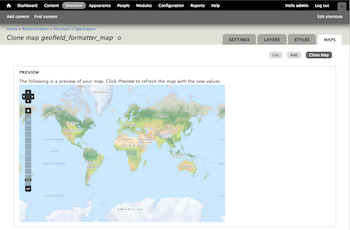
- Go to Structures » OpenLayers » Maps, and either add a new map or clone an existing one.
- Configure your map:
- Basics (also called Infos) allows you to change title, description, width and height of the map as well as a few other map specific settings.
- Center & Bounds allows you to determine where the map will start from: on which point it will center and at which zoom level it will display initially
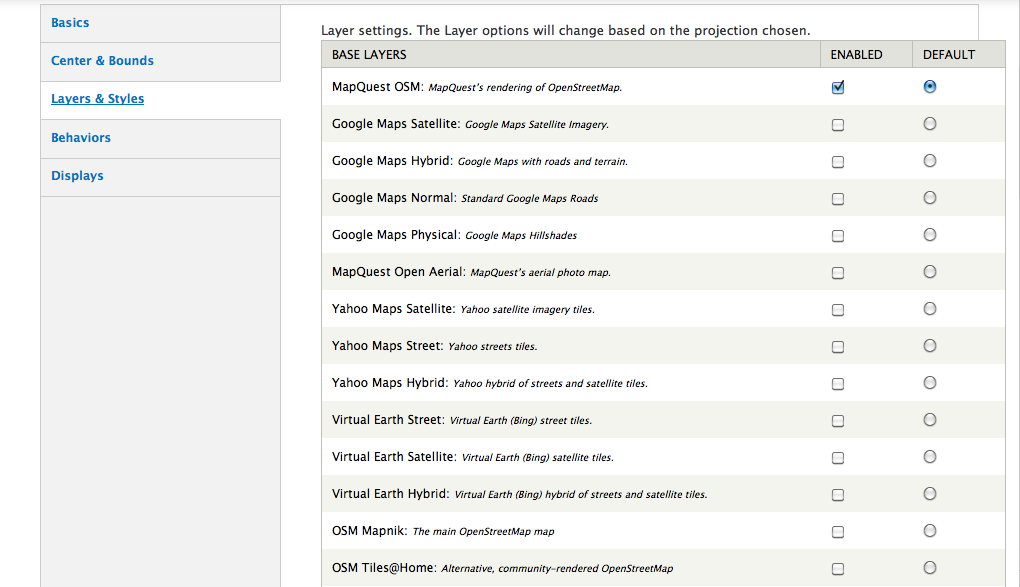
- In Layers & Styles you have to:
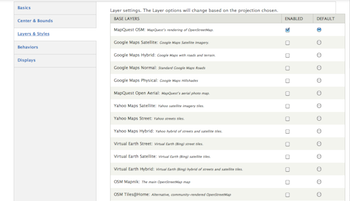
- Choose a base layer that will act as background of your map. If you choose several base layers then users will be able to swap between them.
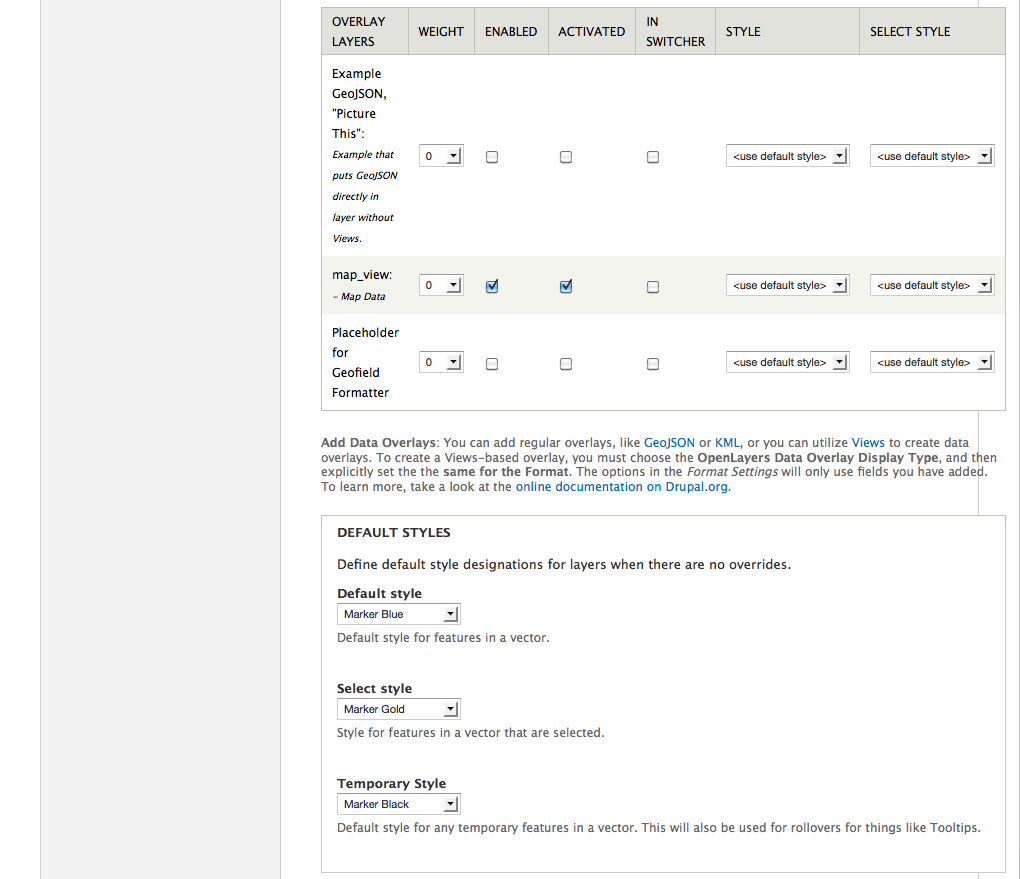
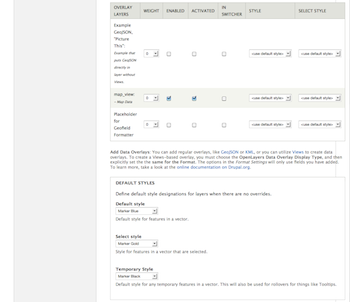
- Enable the Data Overlay that you have created in the previous step. You can also enable several Data Overlays here, arrange their weight, decide whether they should be activated or not, and whether they should be displayed in different styles.
- Set the default style for markers and other features.
In this example we enable the Data Overlay we have created, and set a blue marker, a gold selected marker and a black temporary marker as the default styles.
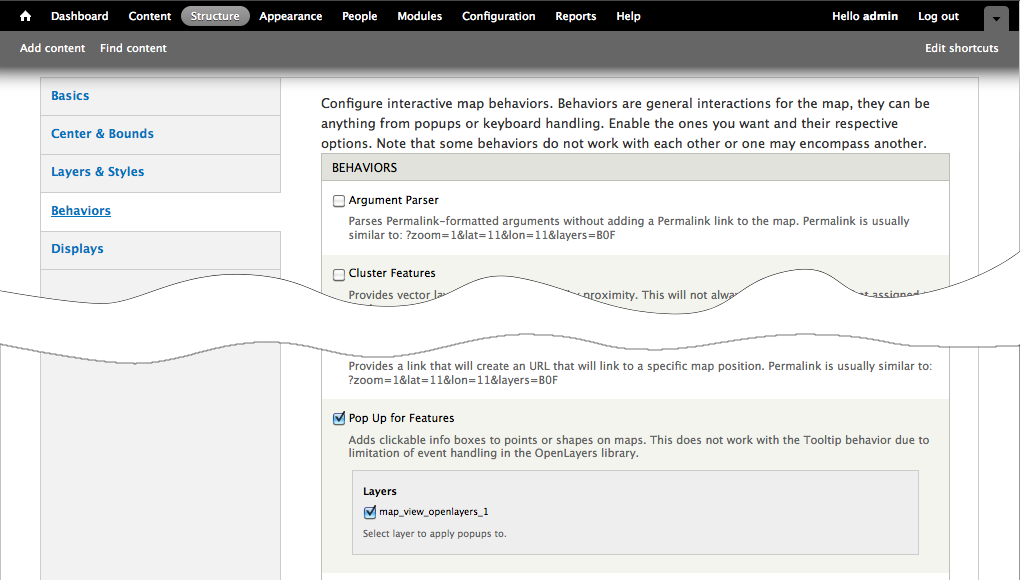
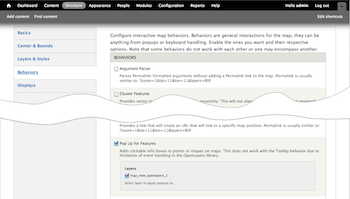
- Behaviors are events and functions that can be added to the map, e.g tool tips, a bar to zoom the map etc. Some of these options fulfill similar functions, so they might not work well together.
In this example, locations have a title and a description so either enable Pop up for Features or Tooltip for Features.
- Save your map.
4. Display the map through Views.
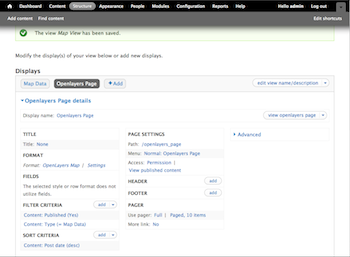
Go back to the View you created in step 2, and now add another display that will actually display the data on your map. (This display could also be added in a different View, but keeping both displays together has the advantage of ensuring that they both have the same fields, filters, arguments etc.)
If you have changed the number of items to display, or used arguments and relationships in the OpenLayers Data Overlay then these need to be present in this display as well.
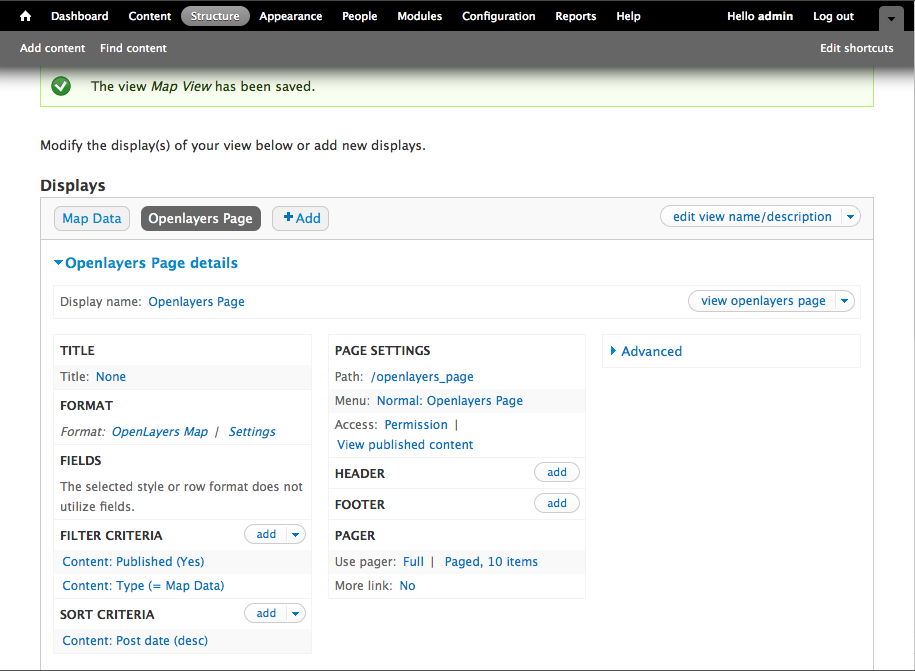
- Add a display in which your map will be displayed. In most cases this will be a page or block.
For this example add a page display
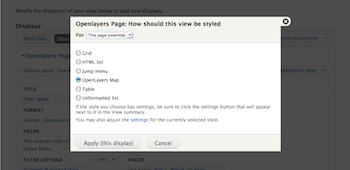
- Set the format of this display to OpenLayers Map
IMPORTANT: override the format of this display - you must be careful to only do this for the new display, and not clobber your settings in the previously saved displays. Do this by changing away from "For All Displays"
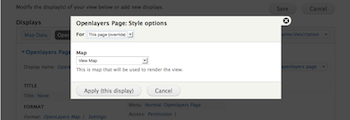
- Set the Style options / Settings for this display by choosing the map you created in the previous step
- Set a path for your new page. If you created a block or content pane you need to add them to a region later.
- Save your view
5. Add Map Data nodes
Here is a sample value of WKT for your initial testing. (You can use your own Longitude and Latitude)
POINT (-123.39 48.89)
You should now be able to see your map with data points on it.
Links to Other Docs and tutorials