
On this page
- Requirements
- Peculuarities and Patches
- Steps:
- 1. Create a View with a geo-spatial data field (GeoField tested here - see Image 1).
- 2. Select "GeoJSON Feed" as View Format (Image 1) and configure style block to select geospatial column and labelling column (Image 1.1)
- 3. Add the contextual filter type "Bounding Box" (enabled from within Views GeoJSON, see Image 2). It is critical to configure the filter to "Provide Default value" as "Bounding box from query string" otherwise the Leaflet GeoJSON module will not load javascript necessary to add layer (see Image 2.1).
- 4. Add Panel (Structure -> Panels, "Panel Page" used in this example, see image 3).
- 5. Fill in necessary details like URI and select layout.
- 6. Click on edit link to "Add Content" to panel (see Image 4).
- 7. Select content type "Leaflet GeoJSON" (Image 5).
- 8. Configure the Leaflet map, selecting base layer set, and desired GeoJSON view source from drop-down menu (Image 6).
Setting up Leaflet GeoJSON 7.x-2.x with Panels (Drupal 7)
Last updated on
30 April 2025
Outlined below is the process of enabling a Leaflet GeoJSON map via Panels. Note that this has been verified for the versions listed below, and successfully creates maps with 1 OR MORE Leaflet GeoJSON layers added to them.
Requirements
(versions listed below are used in this example, not necessarily the minimum req):
- Leaflet (7.x-1.x-dev)
- Views GeoJSON (7.x-1.0-alpha4)
- Leaflet GeoJSON (7.x-2.x-dev) - the 2.x branch is necessary to add via Panels UI
- CTools (7.x-1.4)
- Panels (7.x-3.4)
- Custom content panes (7.x-1.4) - This is a CTools plugin - this is not enabled by default in CTools but must be present or the content type "Leaflet GeoJSON" will not appear in the Panels UI.
Peculuarities and Patches
Current version requires that you have CleanURLs enabled, but these 2 patches adds regular URL support
Steps:
1. Create a View with a geo-spatial data field (GeoField tested here - see Image 1).
2. Select "GeoJSON Feed" as View Format (Image 1) and configure style block to select geospatial column and labelling column (Image 1.1)
Image 1: Views GeoJSON view fields block.
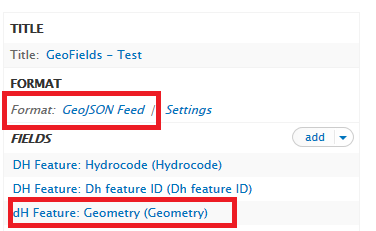
Image 1.1: Views GeoJSON configuration.

3. Add the contextual filter type "Bounding Box" (enabled from within Views GeoJSON, see Image 2). It is critical to configure the filter to "Provide Default value" as "Bounding box from query string" otherwise the Leaflet GeoJSON module will not load javascript necessary to add layer (see Image 2.1).
Image 2: BBOX Contextual Filter add screen.

Image 2.1: BBOX Contextual Filter provide default querystring.

4. Add Panel (Structure -> Panels, "Panel Page" used in this example, see image 3).
Image 3: Create Panel Page.
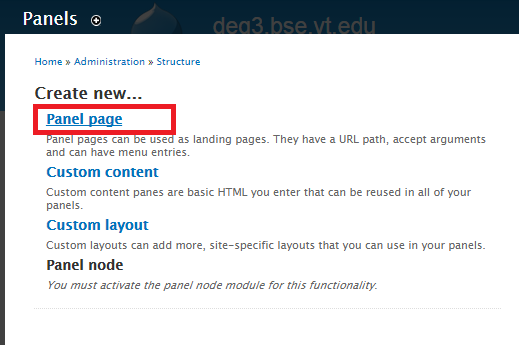
5. Fill in necessary details like URI and select layout.
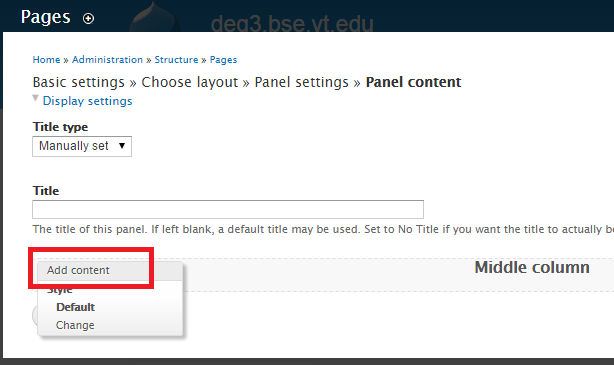
6. Click on edit link to "Add Content" to panel (see Image 4).
Image 4: Adding content to panel.
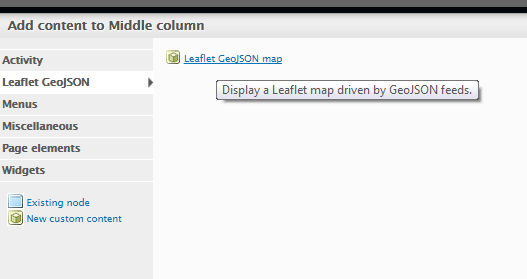
7. Select content type "Leaflet GeoJSON" (Image 5).
Image 5: Leaflet GeoJSON Content type.
8. Configure the Leaflet map, selecting base layer set, and desired GeoJSON view source from drop-down menu (Image 6).
Image 6: Configuration screen for Leaflet GeoJSON map.

Help improve this page
Page status: Not set
You can:
You can:
- Log in, click Edit, and edit this page
- Log in, click Discuss, update the Page status value, and suggest an improvement
- Log in and create a Documentation issue with your suggestion

