Comparison of gated file download modules
This documentation needs review. See "Help improve this page" in the sidebar.
Files available for download can be valuable assets, and as such it can be advantageous to track downloads with in-depth analytics. This can be accomplished by providing a gateway step to users before they download a file, for example to ask for their e-mail address and/or other information. Once their response is validated, the file becomes available through a direct download or a link on a secure page.
A number of modules implement a solution like this, and what follows is a comparison of each of them.
Webform Attachment Gated Download
User journey start point: File field on content, displayed by a formatter as a unique link to a webform.
File accessed via: Attachment(s) on email sent to user after webform submission.
File upload method: File field on content (which means the file URL is actually publicly accessible, so users are not forced to fill out the webform they would be guided through, if they know the specific URL).
Supports multiple files: Yes
Access: File is only emailed to the entered email address, but a direct URL to the file is publicly accessible.
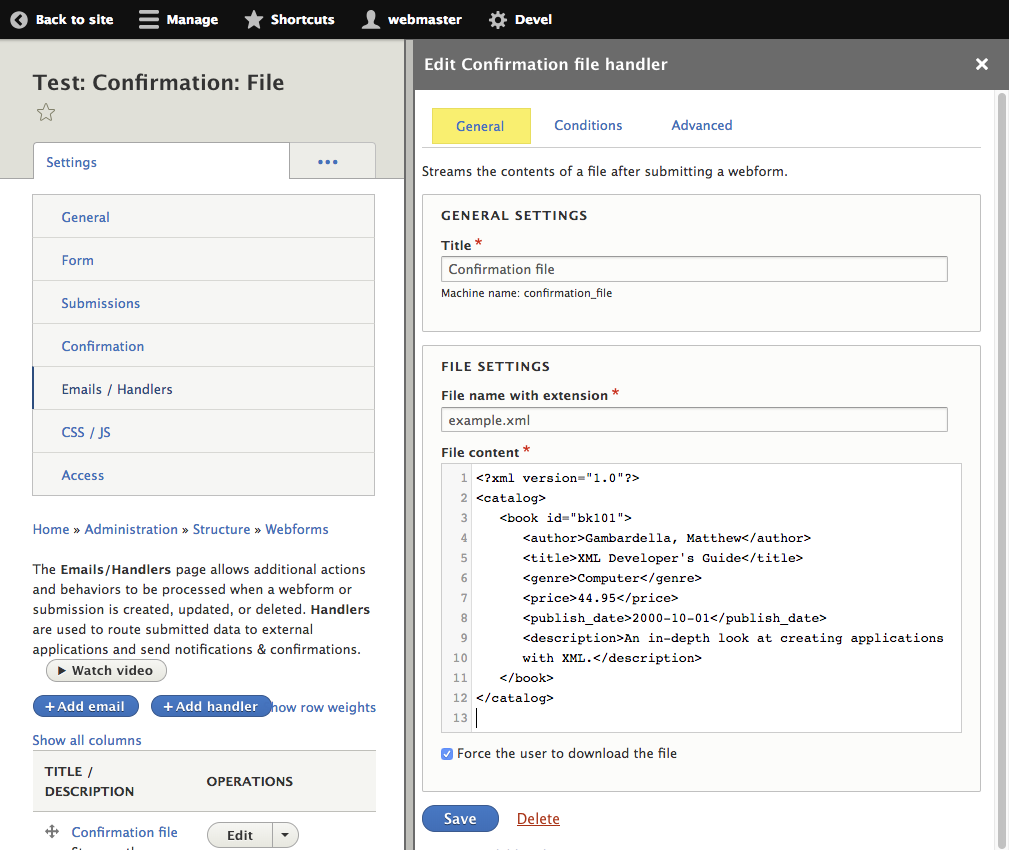
Webform Confirmation File
User journey start point: Webform (no special incoming link)
File accessed via: Streamed to browser after webform submission, i.e. displayed in place of any confirmation page
File upload method: Text input on webform handler
Supports multiple files: No
Access scope: File is only delivered to the user immediately after they submit. No URL exists to directly access it for anyone.
Webform Protected Downloads
User journey start point: Webform (no special incoming link)
File accessed via: Link in confirmation page, message or email (via a token)
File upload method: Private file upload in webform handler
Supports multiple files: No
Access scope: Configuration allows the files to optionally only be accessible at their URLs to the user who submitted the webform (via session validation) and/or to users with permission to view the submission.
Help improve this page
You can:
- Log in, click Edit, and edit this page
- Log in, click Discuss, update the Page status value, and suggest an improvement
- Log in and create a Documentation issue with your suggestion