
Installation and basic usage
Synonyms module is not the most simple one to use. Here is a short how-to guide.
Basic setup
1. Install Synonyms, module as usual. For this tutorial we need the main 'Synonyms' module and 'Synonyms Autocomplete Widget' submodule. So, install them both.
Set up a field to serve as synonyms provider
2. Go to Tags vocabulary "Manage fields" page (/admin/structure/taxonomy/manage/tags/overview/fields) and create a new "Text (plain)" field to serve as synonyms provider for "Tags" terms. In our example we will name this field "Synonym". You can allow unlimited number of values inside field setting, so that you will be able to add more than one term synonym to our Synonym field.
You can setup more than one field to serve as synonyms providers for one entity. For example, the "Typo" multi-valued field can contain the usual typos for given term and the "Plural" single-valued field can have the plural version of your term.
Note: It is always good to name your new synonyms provider field here with singular name like: Synonym, Typo, Variant, Email, Nickname etc. (instead of Synonyms, Typos, Variants etc.) - even if you allow unlimited or multiple values for it. This field name you can use inside 'wording' suggestions as @field_name token, and you will probably like suggestion like "Entertaining is a synonym of Funny" and "Prety is a typo of Pretty" more than "Entertaining is a synonyms of Funny" and "Prety is a typos of Pretty" suggestions.
Add some terms and their synonyms
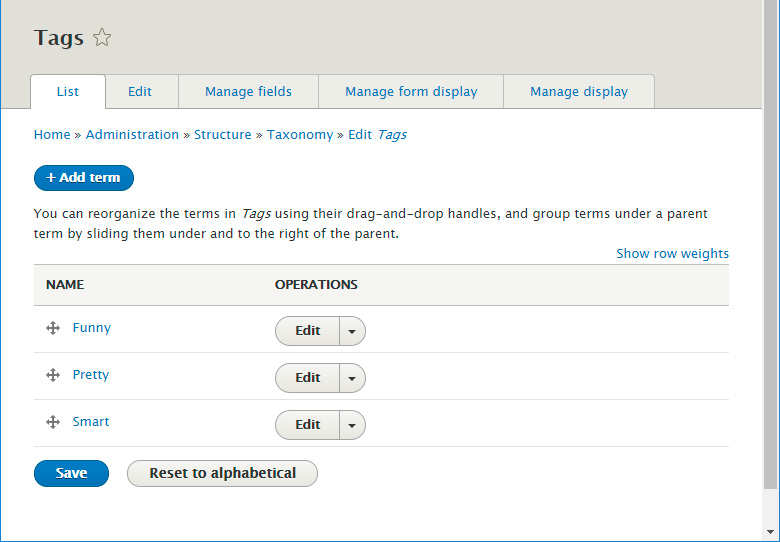
3. Add a few Tags terms and their synonyms (/admin/structure/taxonomy/manage/tags/add). For example:
- Term name: Pretty, Synonym field: Beautiful
- Term name: Funny, Synonym field (Two values): Amusing | Entertaining
- Term name: Smart, Synonym field (4 values): Brilliant | Intelligent | Clever | Bright

Review the default settings
4. Go to the Synonyms module configuration page (/admin/structure/synonyms).
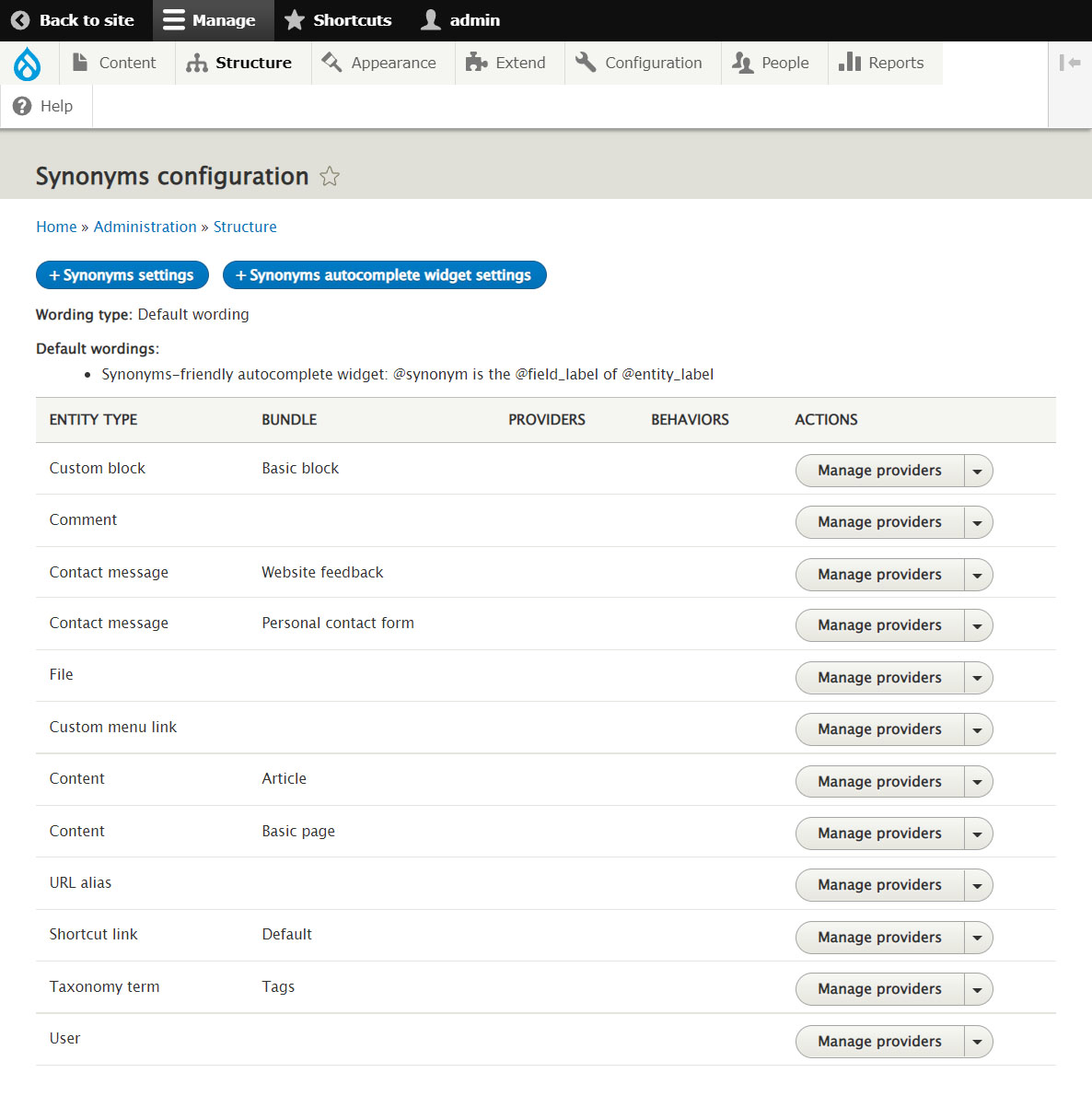
Click on "Synonyms Settings" button on the top of the page to review or change default settings.
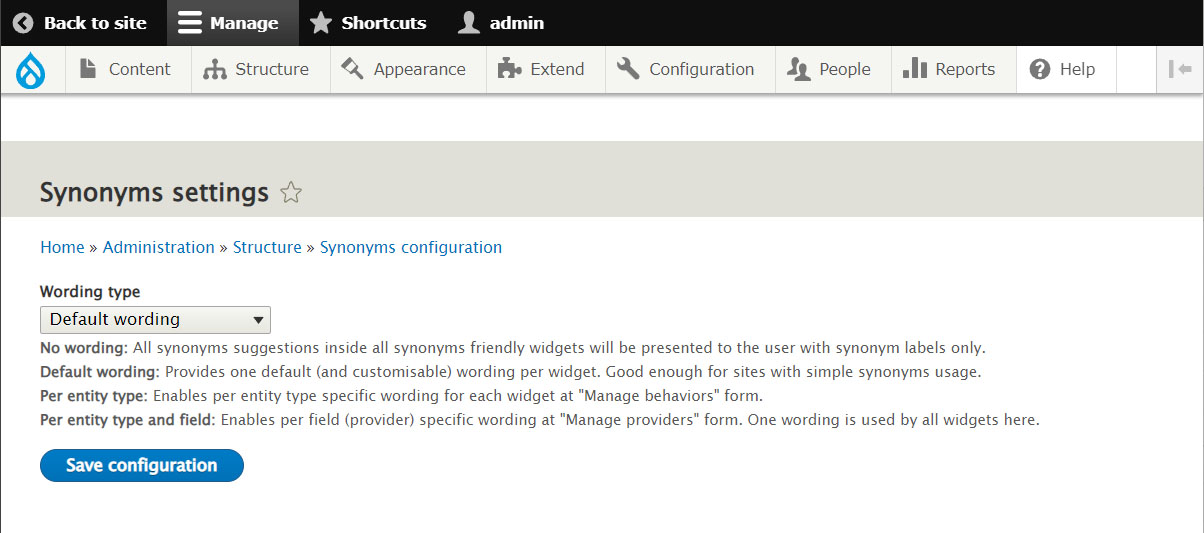
Choose the wording type you need and save the configuration.
Go back to the Synonyms module configuration page (/admin/structure/synonyms). Click on "Synonyms autocomplete widget settings" button on the top of the page to review or change default widget settings.

Change the Synonyms-friendly autocomplete widget "Default wording" to customize it to your needs or just leave it as it is for now... you can always change it later.
Manage providers
5. Go to Synonyms module overview page (/admin/structure/synonyms), click on "Manage providers" button inside Taxonomy term / Tags row to visit (/admin/structure/synonyms/synonym/taxonomy_term/tags) page. Click on "Add provider" button, select "Synonym" field as your provider and save the configuration.
You can enable more than one field to serve as synonyms provider here... like Typo, Plural etc. You need to add such fields to your Tags entity first of course.
Manage behaviors
6. Go back to Synonyms module overview page (/admin/structure/synonyms), and select a pulldown "Manage behaviors" button inside Taxonomy term / Tags row to visit (/admin/structure/synonyms/behavior/taxonomy_term/tags) page. Turn on "Autocomplete service" checkbox here and save the configuration.
The Synonyms-friendly select widget and Synonyms friendly search behavior will be available here as well if their respective submodules are installed.
At the end, you can go back to the main synonyms admin page (/admin/structure/synonyms) and you can review all your new added configuration.

Adjust the widget type
7. Go to your "Article" content type "Manage form display" page (/admin/structure/types/manage/article/form-display) and change the widget type for Tags field from "Autocomplete" to "Synonyms-friendly autocomplete".
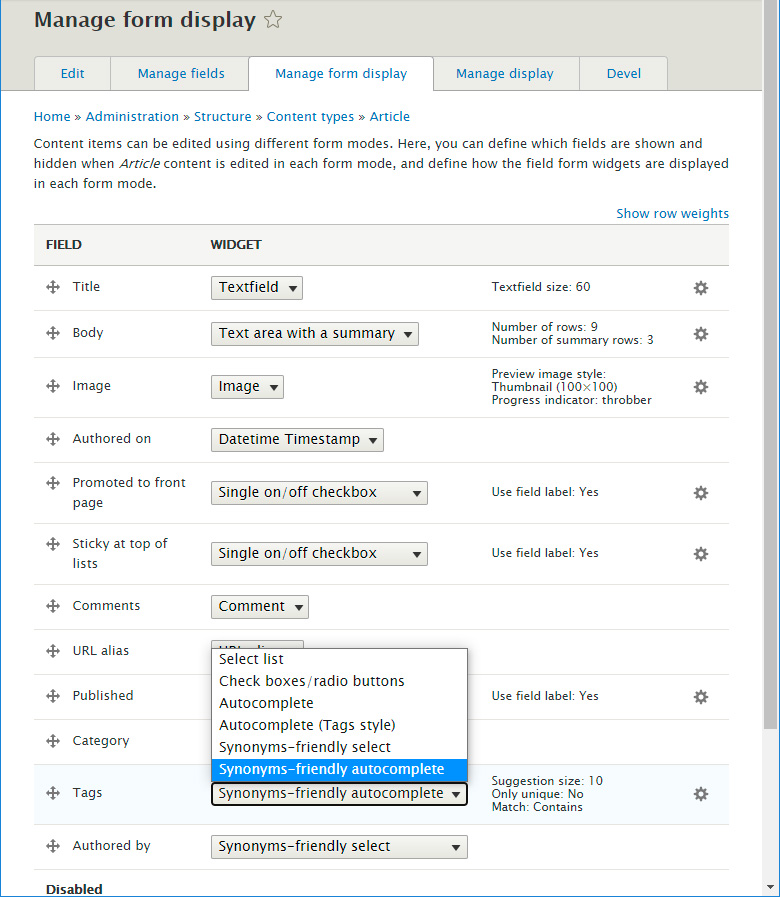
You can adjust Synonyms-friendly autocomplete widget settings here as well to serve your needs.
Testing
8. Finally, go to "Add new article" page (/node/add/article). Inside "Tags" autocomplete field you will be able to get suggestions for your Tags terms by typing into autocomplete field both tags' names and tags' synonyms.

In our example the default match operator "Contains" is used. It can be adjusted at widget settings as well as other handy autocomplete widget parameters.
More use-cases
In a similar way, you can add a "Nickname" field to your "User" entity and enable it as a source for synonyms for user names. And you can enable a core "User ID" filed as a source for synonyms for user names if you want your content administrators to be able to find users inside "User" synonyms-friendly autocomplete widget by both Nicknames and user IDs.
Synonyms-friendly select widget
To use Synonyms-friendly select widget you need to enable "Synonyms Select Widget" submodule. And you probably want to install the Chosen module as well to make searching through your long select pulldown lists easy and convenient.
Synonyms Search, Synonyms Views
To apply Synonyms module functionality to the frontend of your site you will want more Synonyms submodules like "Synonyms Search" or "Synonyms Views Filter". Guides for all Synonyms submodules' usage are published as separate guides.
Help improve this page
You can:
- Log in, click Edit, and edit this page
- Log in, click Discuss, update the Page status value, and suggest an improvement
- Log in and create a Documentation issue with your suggestion
