
 Come together with the global Drupal community in Rotterdam, 28 Sept – 1 Oct 2026. Sessions, contribution, connection, and Early Bird savings until 8 June.
CSS Color Picker Tutorial
Example Use Case: You need to allow users to select a CSS color value to apply to pages they create (either background or foreground/text color). Rather than a simple drop-down list of color names, you want to provide a selection method that gives a visual indication or preview of what the colors look like.
Add a Style Selector 'Color list' field
Add a Style Selector Color list field to your entity. That could be a node, block, paragraph, etc. -- we'll use Basic Page for this example.
Visit /admin/structure/types/manage/page/fields/add-field and choose Color list for the new field type.

Enter a label for the field, (e.g. 'Color') and click Save and Continue.
Enter the Allowed values list for your color selections -- one value per line in the format 'color_value|label'. This example uses the values below:
currentColor|Current Text Color
#ffffff|White
#222|Black
hsl(323, 91%, 58%)|Pink
green|Green
#003767|Navy
rgba(0,0,0,.75)|Black 75%
Leave the 'Allowed number of values' to the default value of 1 and click Save field settings.
If all went well and your field was added, you should already see that a Style Selector widget is being used for the Default value selector.

Check your display settings
Visit the Manage display page for your entity to ensure your new field is configured to add styles to the node. You'll need to ensure the new 'Color' field is enabled for the view mode/display you're using, and that the Format is set to Style Selector CSS Color.

Note that colors are applied to the background property by default. To change this, you can click the cog icon for the field formatter settings, and choose color instead.
If your display is using Layout Builder, be sure to add the field to your layout with the correct format setting.
Try it out
Add a new Basic Page to test our new field. If you select, for example, the 'Pink' background, your new page in Olivero might look something like this:
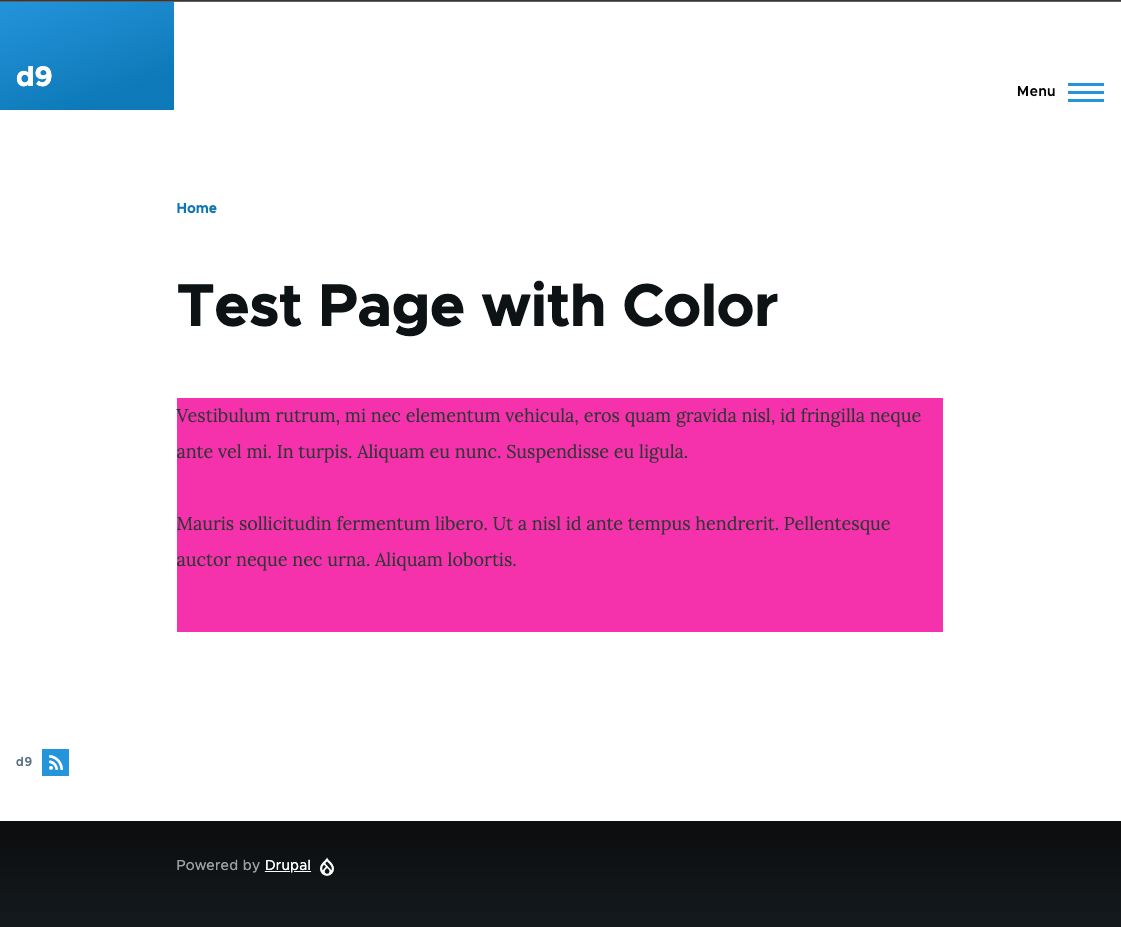
The Style Selector CSS Color formatter works by applying an inline style to the entity wrapper element. Depending on your own theme and environment, you may need to take additional steps (e.g. a preprocessor function or CSS adjustments) to get the color applied to the right element.
Help improve this page
You can:
- Log in, click Edit, and edit this page
- Log in, click Discuss, update the Page status value, and suggest an improvement
- Log in and create a Documentation issue with your suggestion
