

This module supplies a Webform element that generates a QR code. The QR code can be shown on the web, in the email body, or as an attachment (PDF, PNG). Webform emails can be sent to the person who filled out the form, to your site’s team, or both, so the QR code can be aimed at either side - see Why use this module and Other ways to use this module below for what that opens up.
The QR code is only visible after the form is submitted, not while it is being filled out.
Why use this module
This module was originally developed for one specific purpose: emails sent to event participants, so that they can be checked in faster by scanning a QR code instead of having their name looked up manually.
PDF attachment
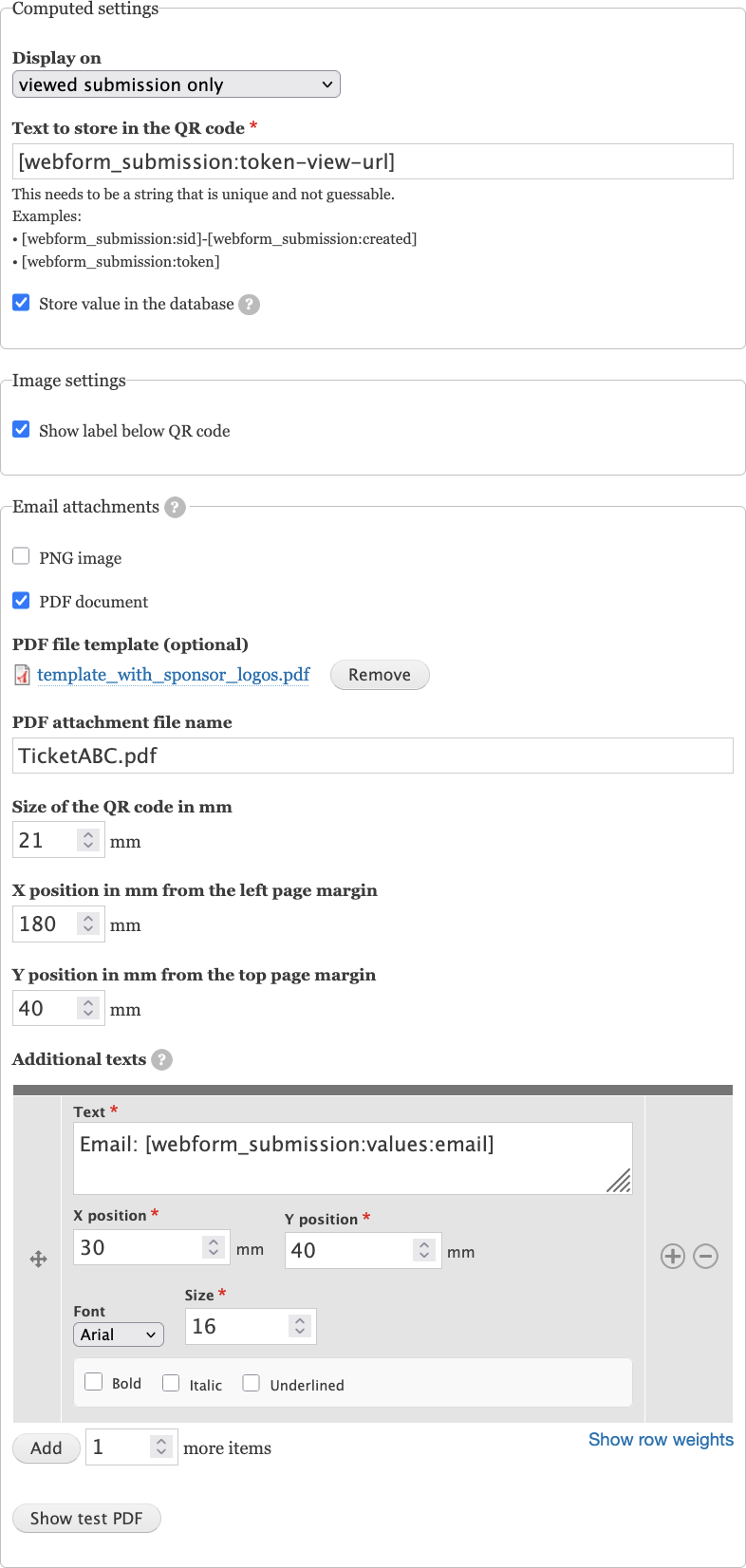
This module allows to attach a customizable, dynamic PDF to emails, for example “Ticket.pdf”. They can optionally be based on a template PDF, and the module just adds the QR code. Additionally, text can be added to the PDF by this module - either static text or dynamic text based on tokens.
This allows, for example, to attach a ticket PDF that contains submission results such as the table the user chose when filling the webform. In the screenshot you can see an example: the email address from the form is added to the PDF.
QR code content
The QR code represents a custom string. As the form author, you decide what text to put in the QR code - and it depends on how you want the QR code to be used.
QR codes are often URLs, but for this module, the QR code content doesn’t have to be a URL. The content is based on tokens, so that each submission gets a different value. If used as a valuable ticket, it should be unique and unguessable to avoid fraud. Examples are:
[webform_submission:sid]-[webform_submission:created](the running number of the submission and the submission date/time)[webform_submission:token](a non-guessable unique pseudo-random string)[webform_submission:token-view-url](a URL to read the data entered by your visitor)
Note that there are two distinct concepts called token:
- The [] replacement syntax from the Token module, and
- the secure pseudo-random string used to look up a webform submission, for example AqMUTxvL00FOUIIKj-R6vK0mzEflYTVBzWCLVT_gNZ82.
This module also supports multi-line text to be encoded in the QR code, for example for European banking apps (SEPA credit transfers, EPC QR code).
How to process the QR code
This module doesn’t come with any way to read or process QR codes. In particular, there is no participant tracking app yet. You need to use your own. As the data source, you can export webform submissions using Results » Download.
Please open an issue if you have a publicly available solution. The sponsor of this module, an event organizer, uses a custom app. It is used to scan the QR code, which looks up the participant. Such an app might just show a green checkmark if the participant is found.
Requirements
This module requires the Webform and Token modules.
To generate PDF attachments, the ext-gd PHP extension is required. This is handled automatically if you install the module via Composer.
Installation
Install the module as you would normally install a contributed Drupal module.
Add a QR code to the email(s) sent by a webform
- Go to your webform’s “Build” tab.
- Click on “Add element”. Search for “QR Code” (it’s in the Computed Elements section).
- Fill all mandatory fields.
- Title (and key) are just for you internally. They are not shown to the participants.
- Text to store in the QR code needs to be a value that is unique for each participant (and event). See examples above in the QR code content heading. Available tokens can be explored at the bottom of the form or on the page /token/tree of your Drupal installation.
- Go to Settings » Emails / Handlers and make sure that the QR code is part of the email. Here are example tokens you can add to Message » Body:
[webform_submission:values:html][webform_submission:qr_code]
You should explain why there is a QR code in their email, for example like this:
Dear [webform_submission:values:first_name],
Thank you for registering for our event! We’re excited to welcome you and ensure you have a fantastic experience.
Please note that the following QR code is for the organizers to scan at the event admission. When you arrive, simply present the QR code at the check-in area, and our team will take care of the rest:
[webform_submission:qr_code]
If you have any questions or need further assistance, feel free to reach out to us at XYZ.
We look forward to seeing you at the event!
Best regards,
XYZ - Fill your form, like a participant would, to test how the email looks like.
Other ways to use this module
Since the QR code content is just a customizable string (see QR code content), and the email carrying it can go to the participant, to your team, or to both, this module can support workflows well beyond event check-in. Here are some ideas to get you started. Most of them need you to build the scanning or receiving side yourself - this module only generates and delivers the QR code.
Ideas for the email sent to who filled the webform
- Event way-finding. Encode a personalized schedule, seat, or table assignment, shown at a kiosk when scanned.
- Add-to-wallet or calendar. Link the QR code to a generated
.icsfile, or to a wallet pass (Apple Wallet, Google Wallet) built from the submission data. - Self-service editing or cancellation. Encode
[webform_submission:token-update-url], the link to the edit form, so participants can update their registration. For cancellation, use[webform_submission:token-delete-url] - Attendance across sessions or exams. For conferences and workshops with several sessions, use one QR code per session, so it can be scanned every time, building a per-attendee attendance record. The same idea works for exam admission: invigilators scan the QR code at the venue to confirm identity and record attendance.
- Appointment check-in. Doctors, car services, government offices, or hair salons can let a booking form email a QR code that front-desk staff scan to check the visitor in instantly, instead of asking for their name.
- Boarding or access pass. Hotels, coworking spaces, parking garages, or warehouses can email a temporary QR pass that opens a gate, a turnstile, or a smart lock.
- Visitor management. A company website lets visitors request access; the confirmation email includes a visitor pass PDF that reception scans on arrival.
- Coupon or voucher. A promotional sign-up form emails a PDF voucher redeemable in-store; scanning it validates the voucher, prevents duplicate use, and records the redemption.
- Order pickup. Instead of searching by name, a customer presents the QR code from their confirmation email and staff scan it to pull the order up immediately - common for restaurants, click-and-collect, pharmacies, and libraries.
- Delivery confirmation. The driver scans the QR code from the customer’s delivery email on arrival to confirm their identity and the delivery, creating a proof-of-delivery record.
- Warranty registration. A product registration form emails a warranty certificate PDF whose QR code links to the warranty record, serial number, and purchase information, for technicians to scan during service.
- Certificate of completion. Training courses, webinars, or certifications can produce a certificate PDF whose QR code lets anyone verify the recipient, completion date, course, and issuing organization.
- Membership card. Gyms, museums, clubs, and libraries can email a printable membership card with a QR code instead of issuing a plastic one.
- Donation receipt. A nonprofit’s tax receipt email can include a QR code linking to donation verification, the official receipt, or the donor’s annual giving history.
- Feedback follow-up. Link to a post-event feedback webform, pre-filled with the original submission ID via a token, so responses can be joined back to the original entry.
Note that conditions can be configured for the email handler, so the mail is only sent after some change to the webform submission. Elements can be hidden from regular website visitors so that only your team fills some internal detail before the mail is sent out. All of this is stock functionality from the Webform module.
Ideas for emails to your team
- Internal triage or service ticket. Encode a link into an admin view or report (for example, the submission’s edit page), so staff or field technicians scanning a printed or emailed ticket jump straight to the job details, customer history, and equipment information instead of searching for it.
- Warehouse fulfillment or asset release. For order, request, or equipment-checkout webforms, put a QR code on an internal packing slip or approval email that warehouse staff scan to release the right items - a laptop, spare parts, stock - without re-checking the request manually.
- Manufacturing or work orders. An employee submits a production request; the generated PDF’s QR code lets workers on the factory floor pull up the bill of materials, instructions, job status, and required tools.
- Approval hand-off. Send a QR code to a manager that, once scanned by an app you build, calls an endpoint to approve or reject. This module only generates and displays the QR code - you still need to build the endpoint it links to.
Since this module supports multi-line text (see QR code content), the QR code doesn’t need to be a URL or ticket ID - it can hold whatever text your printer, point-of-sale system, or locker system expects, letting you print it and re-scan it into an unrelated system later.
Maintainer
Support
To submit bug reports and feature suggestions, or to track changes, use the issue queue.
To say “thank you” or financially support development of this module, you can send a few Euros via PayPal: paypal@blaeul.de or various other means.
Project information
- Project categories: Integrations
- Ecosystem: Webform
 26 sites report using this module
- Created by gogowitsch on , updated
 Stable releases for this project are covered by the security advisory policy.
Look for the shield icon below.

