



AIDmi - AI, Describe My Image!
CKEditor 5 AI Plugin for Image Alt Text and Captions
AIDmi integrates generative Artificial Intelligence (AI) directly into CKEditor 5 to automatically create context-aware image alt text, accessibility attributes, and visible captions. Designed for effortless Section 508 and WCAG compliance, this module is part of the official Drupal AI module ecosystem.
See AIDmi in action on YouTube! (Update coming soon for 1.1)
Why AIDmi for CKEditor & AI Image Alt Text?
Manually writing meaningful alternative text (image alt) across content-heavy sites is time-consuming. AIDmi bridges the gap between your editorial text editor and modern LLMs by placing an AI image alt text generator directly inside your CKEditor workflow.
Core Features
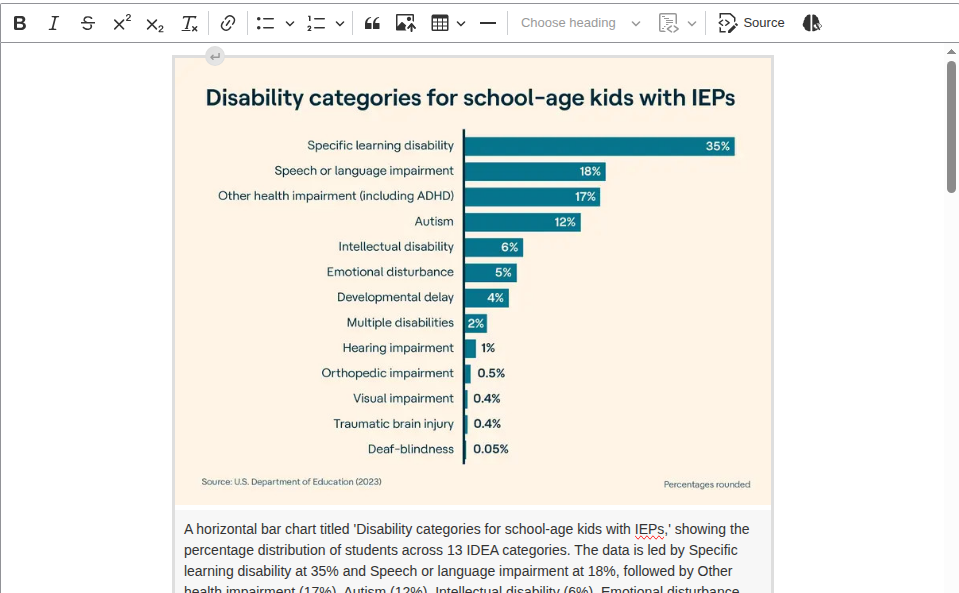
- Bulk CKEditor Content Sweeps: Click the "AI, describe my image!" button on the main CKEditor toolbar to automatically scan all inline images and nested Media entities in the body field. It processes all items at once and loads them into a review queue before saving.
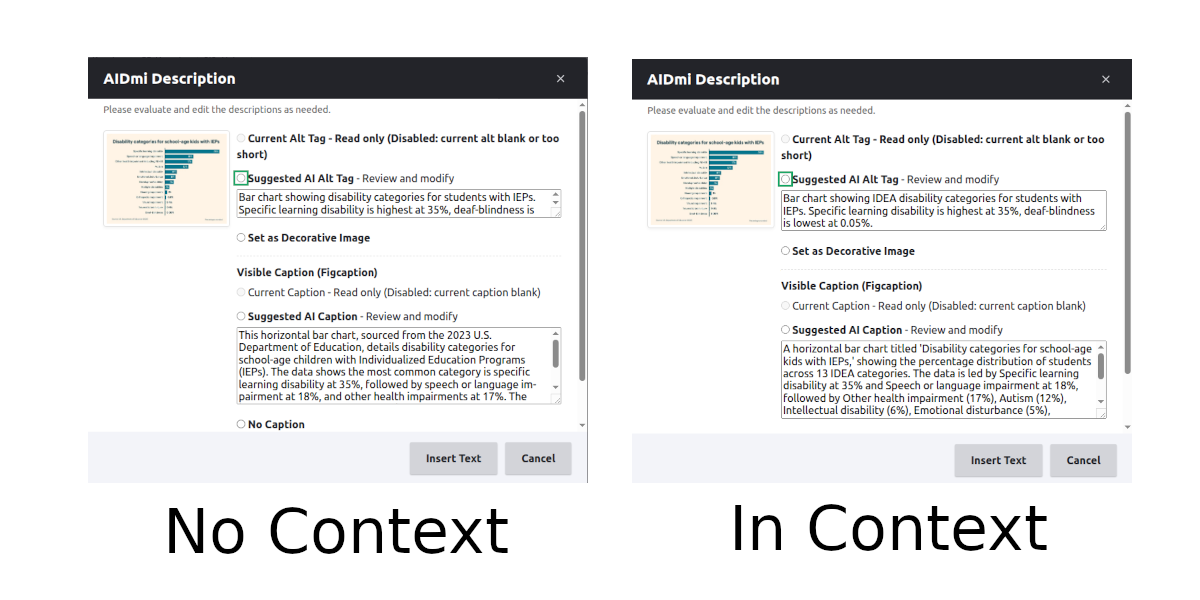
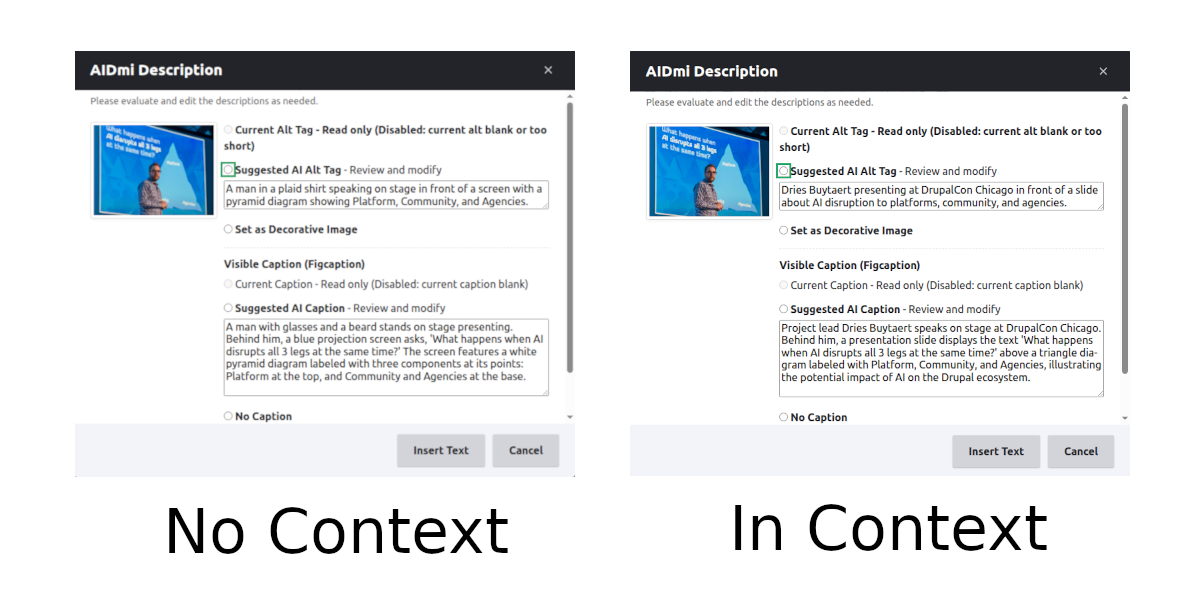
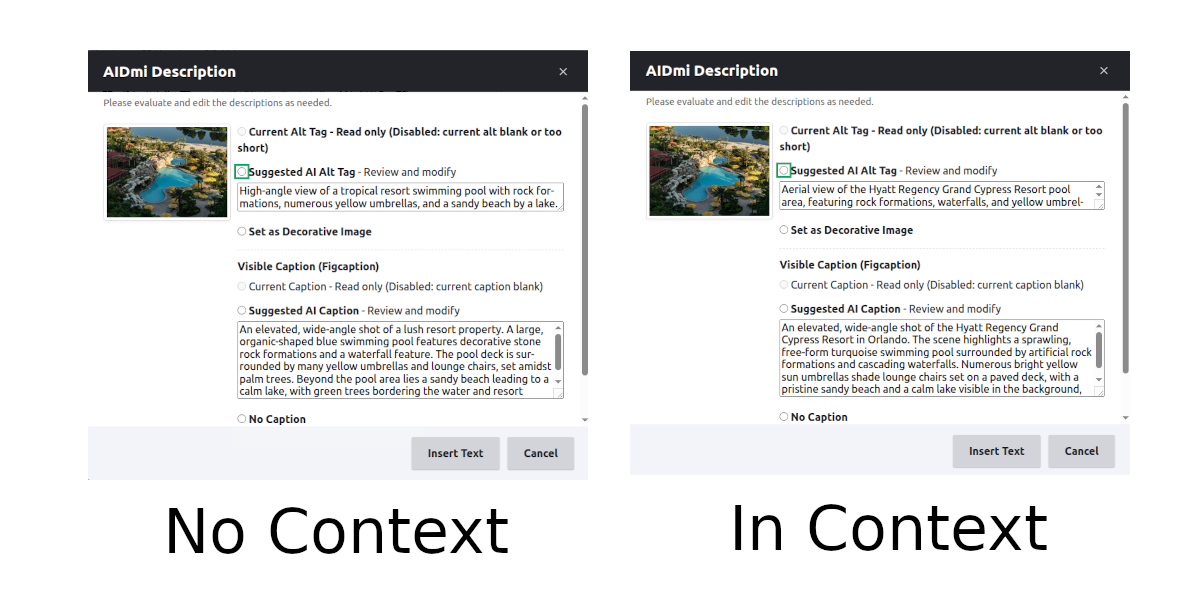
- Context-Aware AI Alt Text Generation: Rather than evaluating isolated graphics, the module feeds surrounding article text to the AI model. This produces precise, context-rich image alt text and descriptions tailored to the specific narrative.
- On-the-Fly Individual Image Edits: Use the dedicated AI action icon located directly beside the native CKEditor Alternative Text (image alt) sidebar input to generate or refresh descriptions per asset.
-
Section 508 & WCAG Visible Captions: Automatically craft visible descriptive captions. When enabled, AIDmi formats assets using clean semantic markup with
<figure>and<figcaption>tags.
Integration with the Drupal AI Ecosystem
AIDmi integrates seamlessly with the Drupal AI module. By utilizing Drupal's unified AI provider plugin architecture, you can plug into OpenAI, Anthropic, Ollama, AWS Bedrock, or any supported provider to drive your image analysis and alt text workflows.
Installation & Configuration
Navigate to: Configuration > Web services > AIDmi Settings
1. Global Framework Integration
- Drupal AI Provider & Model: Select your preferred LLM provider configured through the core Drupal AI framework.
- Test Connection: Perform an immediate connectivity check before saving credentials.
2. Feature Customization
- AI Prompt Instructions: Adjust the system prompt passed to the AI to fine-tune how concise or descriptive the generated image alt text should be.
- Send Surrounding Text to AI (Context Toggle): Enable to pass body text to the model for semantic alignment, or disable to analyze the raw image asset alone.
- Generate Image Captions: Toggle whether visible
<figcaption>text should accompany the alt attribute.
Permissions
Grant the Generate AIDmi Accessibility permission to roles that require access to the AI generation tools within CKEditor.
Setup CKEditor 5 Integration
- Navigate to: Configuration > Content authoring > Text formats and editors (
/admin/config/content/formats). - Click Configure next to your target CKEditor 5 format (e.g., Full HTML or Basic HTML).
- Locate the "AI, describe my image!" toolbar button in the available items tray and drag it into the active CKEditor 5 toolbar row.
- Save the configuration.
Related Modules
- AI Image Alt Text - Field-level image alternative text generator.
Project information
- Project categories: Accessibility, Artificial Intelligence (AI), Content editing experience
- Ecosystem: AI (Artificial Intelligence)
 1 site reports using this module
- Created by mferanda on , updated
 Stable releases for this project are covered by the security advisory policy.
Look for the shield icon below.

