
Using workspaces
Last updated on
4 April 2024
Switching between workspaces
At the top of the screen, an indicator shows which workspace you are currently in.

Clicking on the indicator brings up more options.
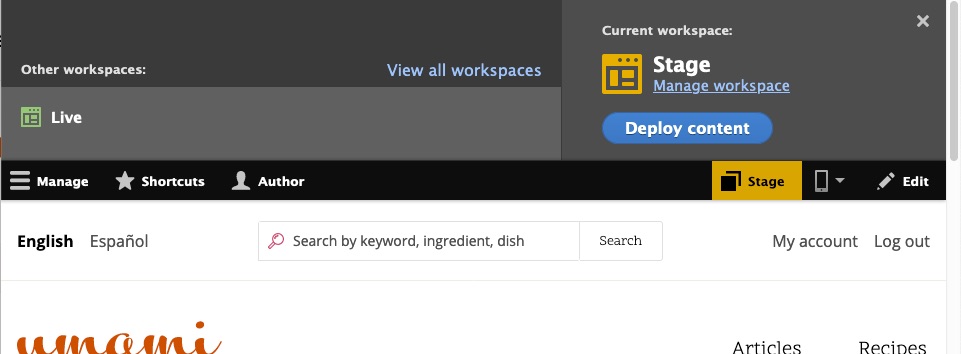
To use another workspace, click it. This will bring up a confirmation dialog.
While in the other workspace, make any required changes. These will only exist in that workspace until it is deployed to live.
Publishing a workspace to the Live site
To publish the current workspace, click "Publish content"
This will take you to a confirmation form, listing how many content items will be published to Live.
Limitations of workspaces
Currently it is not possible to edit content in the live workspace if the same entity has been edited in another workspace - see #3438083: Ability to edit content in Live while it’s also being edited in other workspaces
Help improve this page
Page status: No known problems
You can:
You can:
- Log in, click Edit, and edit this page
- Log in, click Discuss, update the Page status value, and suggest an improvement
- Log in and create a Documentation issue with your suggestion

