
8.2. Creating A Custom Block
Last updated on
14 April 2025
- In the Manage administrative menu, navigate to Structure > Block layout > Custom block library (admin/structure/block/block-content).
- Click Add custom block. The Add custom block page appears.
Fill in the fields as shown below.
Field name Explanation Example value Block description
Name of the block shown to administrators
Hours and location block
Body
Content of the block when it is displayed
Open: Sundays, 9 AM to 2 PM, April to September<br />Location: Parking lot of Trust Bank, 1st & Union, downtown Anytown.
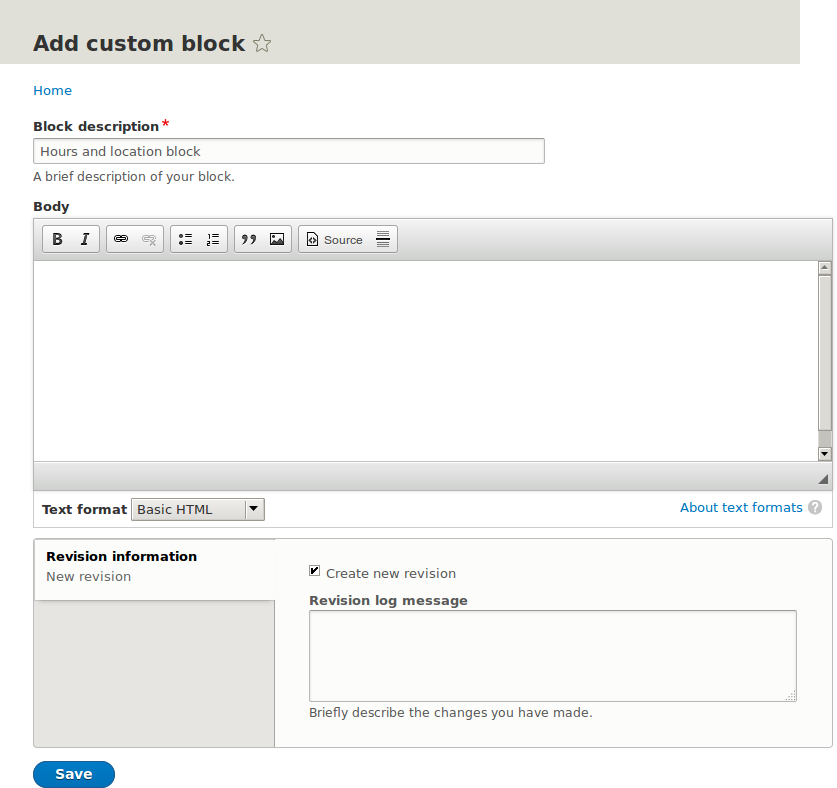
- Click Save. A message appears indicating the block has been saved.
- Edit the content of your custom block. In the Manage administrative menu, navigate to Structure > Block layout > Custom block library (admin/structure/block/block-content). Find your block in the list and click Edit to make changes.
- Place the block you created in the sidebar. See Bagian 8.3, “Placing a Block in a Region” for details.
Drupal.org community documentation page "Working with blocks (content in regions)"
Attributions
Adapted by Jacob Redding and Boris Doesborg from Working with blocks (content in regions), copyright 2000-2017 by the individual contributors to the Drupal Community Documentation.
This page is generated from AsciiDoc source from the User Guide. To propose a change, edit the source and attach the file to a new issue in the User Guide project. PDF and e-book formats are available on the User Guide project page.
Source file: block-create-custom.asciidoc
Help improve this page
Page status: No known problems
You can:
You can:
- Log in, click Edit, and edit this page
- Log in, click Discuss, update the Page status value, and suggest an improvement
- Log in and create a Documentation issue with your suggestion
