
On this page
- Install and enable modules
- Connect a Twitter application
- 1. Development account approval process
- 2. Create a development environment
- 3. Add a new Twitter application
- 4. Set the application permissions
- 5. Copy security keys to the site
- 5. Attach a Twitter account to the site
- Troubleshooting
- Could not obtain a valid token from the Twitter API
Installing the Twitter module
This is documentation for Drupal 7, which is no longer supported. Learn more and find resources for Drupal 7 sites
There are several steps necessary to make the Twitter module work on a site.
These options change regularly. They have been updated as of August 17th, 2018.
Install and enable modules
The Twitter module depends upon the OAuth module, so it must be present in the site's codebase too (recommended location: sites/all/modules/contrib). Once the OAuth module has been added to the site, it will be possible to enable the Twitter module.
Connect a Twitter application
As of July 2018 it is much more complicated to connect the Twitter module to a site than it was previously.
There are several steps necessary in order to communicate with the Twitter API.
- The Twitter account must be set up as a developer account.
A dev environment must be set up.- An app must be created for the site.
- The app permissions must be confirmed.
- The security keys must be copied to the Drupal site.
Once these steps are completed it will be possible to work with Twitter from the Drupal site.
1. Development account approval process
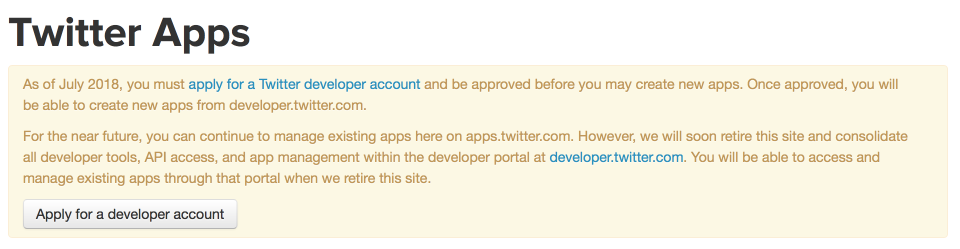
As of July 2018, it is no longer possible for anyone to create apps, they must first be granted approval for a developer account.
To start the approval process, click the "Apply for a developer account" button.

Make sure that the correct account is logged in, and then click the "Continue" button.
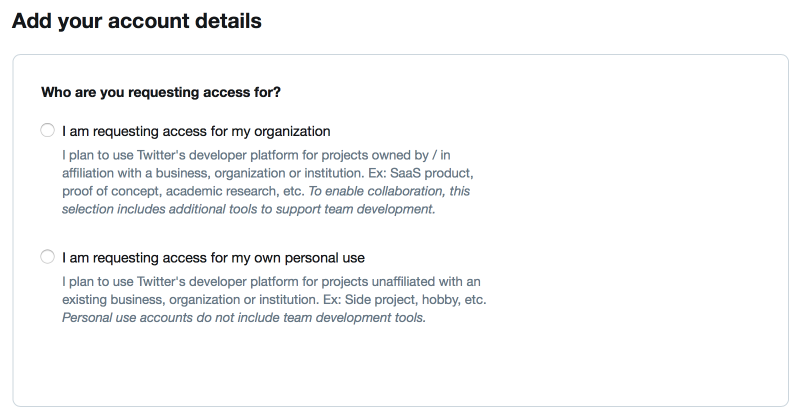
Select the appropriate account type for the specific account.
Depending upon the specific option selected, other fields will open up. All fields must be filled in. Click the "Continue" button when finished.
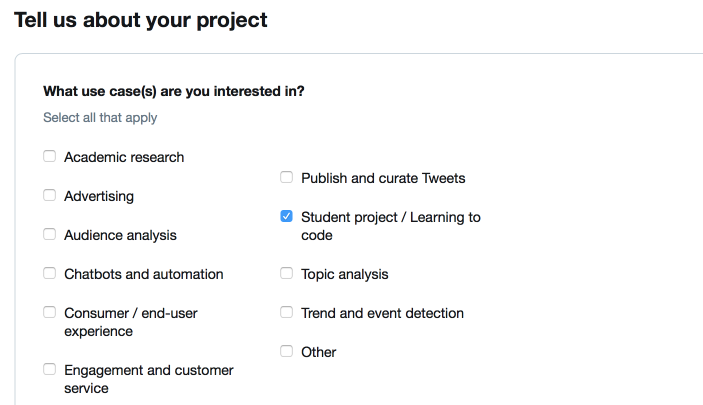
The third step of the signup process requires selecting the reason for requesting an account. These options may vary depending on the type of account selected on the second step above.

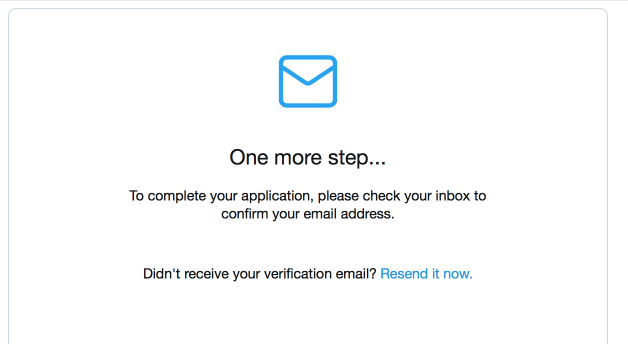
The fourth step of the process is to agree to Twitter's Terms of Service agreement, which also includes their Display Requirements document, their Twitter Brand Assets and Guidelines, and their Automation Rules. Presuming these are all acceptable, scroll through the agreement, click the checkbox underneath the document and then click "Submit application".
2. Create a development environment
Not sure this is strictly needed yet.
3. Add a new Twitter application
All of the Twitter applications are manage from https://developer.twitter.com/en/apps. This page may be found by going to the Twitter developer site, hovering over the account name and clicking "Apps".
To create a new application for a new site, click the "Create an app" button on the main apps page. That will open the following form:
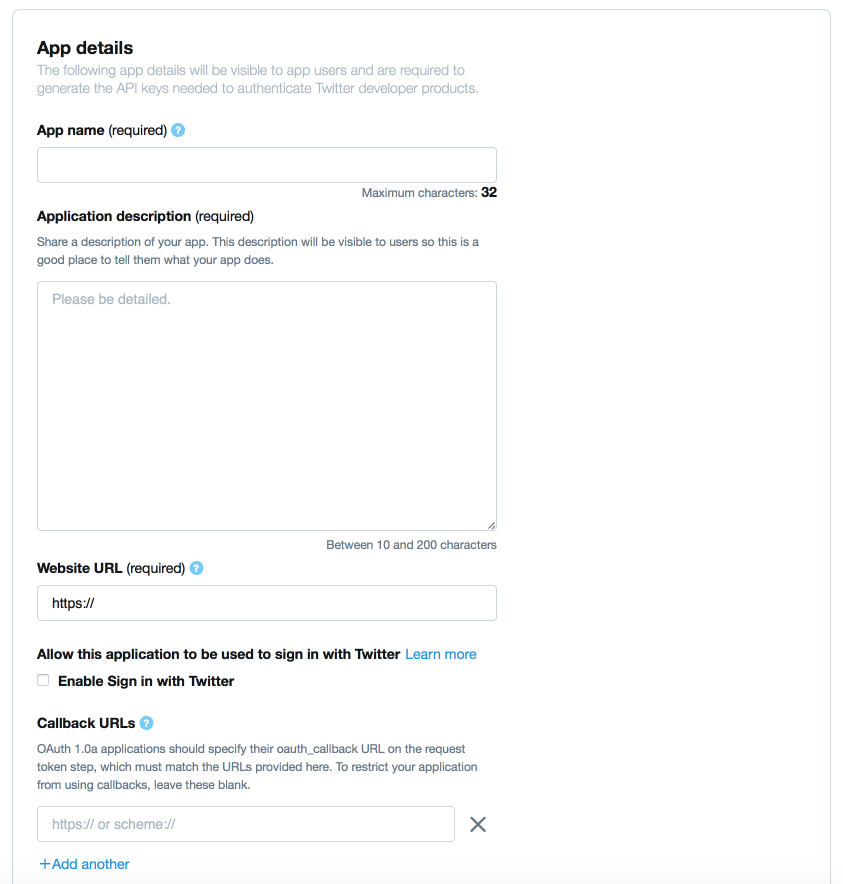
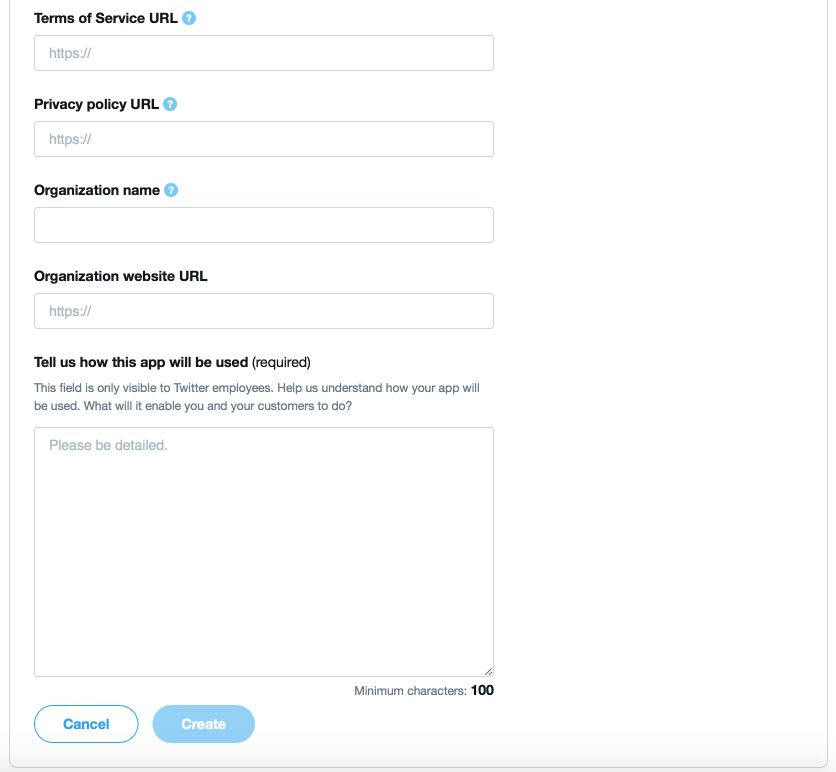
This form must be fully filled in.
- App name: The name of the application, which can be just the site's name.
- Application description: A brief description of the application; when using it for integration with a Drupal site it might make sense to explain what the website is about.
- Website URL: The full URL of the website.
- Enable Sign in with Twitter: If it is intended that visitors will be able to log into their Drupal account using their Twitter account, enable this checkbox and then install the Twitter Signin submodule.
- Callback URLs: These are URLs on the site used as part of the authentication process for connecting to the API. Using the Twitter module the URL should be
https://www.example.com/twitter/oauth. - Terms of Service URL: If the site has a terms of service page, provide the full URL to that page.
- Privacy policy URL: If the site has a privacy policy page, provide the full URL to that page.
- Organization name: If the site belongs to an organization, and it is not the same as the site's name, provide that organization's name.
- Organization website URL: If the organization that owns the app's website has a different main website, provide that full URL.
- Tell us how this app will be used: Provide a detailed description of how the app is intended to be used, not just "to use the Twitter APIs", but specifically to say e.g. "to post content to Twitter on our organization's account", "to let site visitors log in with their Twitter account", etc. This field requires a minimum of 100 characters.
Once all of the fields are filled in appropriately, click the "Create" button. A popup will be displayed with a reminder of Twitter's terms:
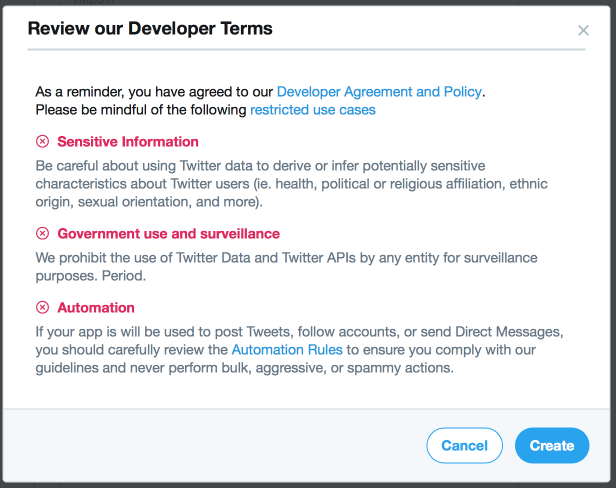
To finish, click the "Create" button.
4. Set the application permissions
One the application has been created it is necessary to confirm the app's permissions are correct for the intended use cases.
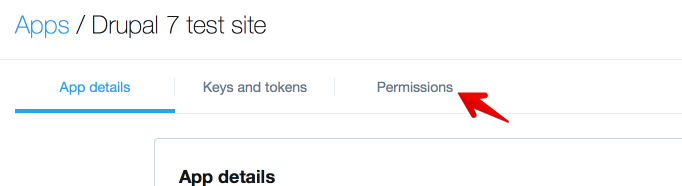
Click on the "Permissions" section of the app to load the following page:
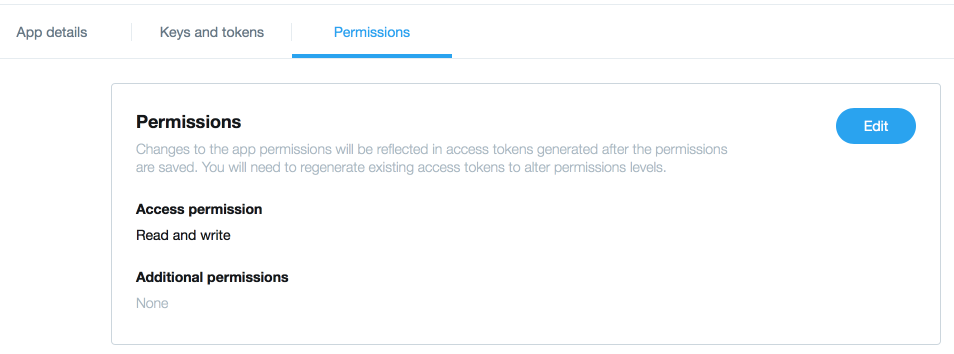
Click the "Edit" button to change the permissions:
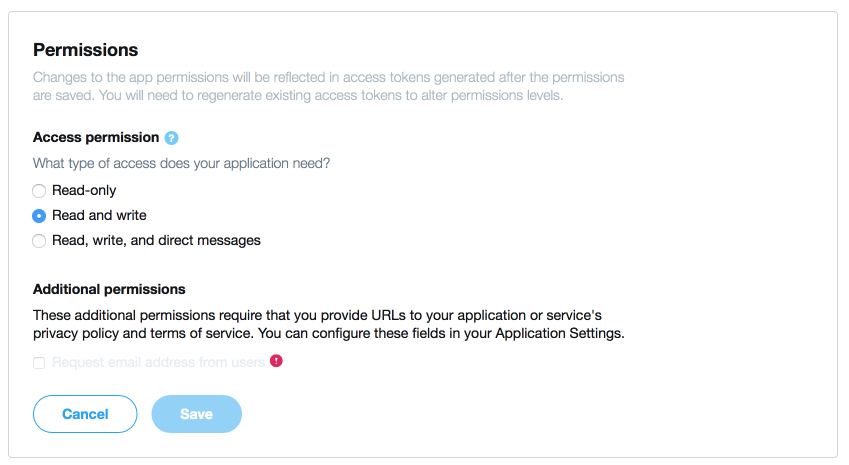
There are different options available:
- To only read content from Twitter, the "Read-only" permission should be sufficient.
- To post messages to Twitter in addition to reading content, e.g. using the Twitter Post submodule to automatically post messages, select the "Read and write" permission; this is the default.
- In the rare case that direct message access is required too, select "Read, write, and direct messages". Note: the Twitter module does not provide any out-of-the-box integration with direct messages.
- In order to access the visitor's email addresses, likely required for the option to let visitors sign into the Drupal site using their Twitter account, ensure that the app has a URL for the site's Terms of Service and the click the "Request email address from users" option.
Once done, click the "Save" button.
5. Copy security keys to the site
Go back to the "Keys and Tokens" section of the application:
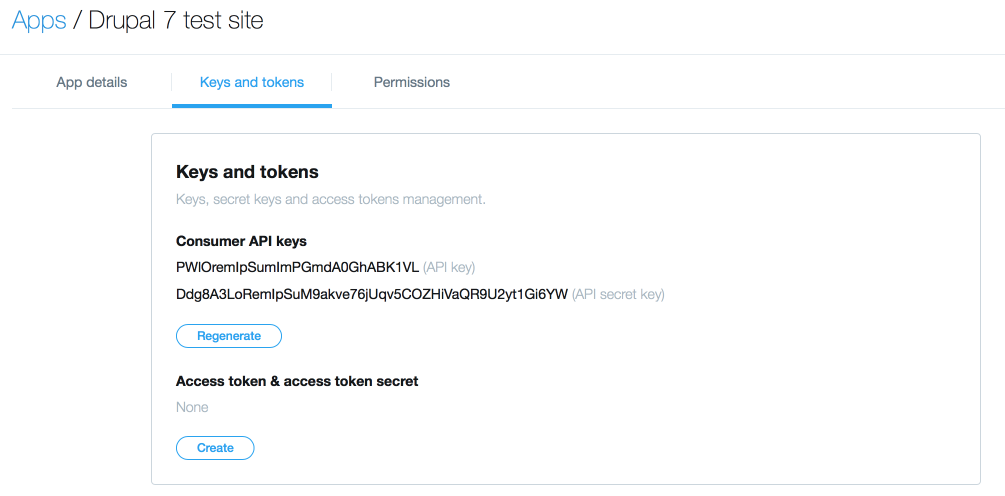
In a separate web browser tab or window, open the Twitter module's settings page (Administration > Configuration > Twitter > Settings or /admin/config/services/twitter/settings).
Copy the two "Consumer API keys" values and paste them into the Drupal site's Twitter settings page:

Click the "Save configuration" button at the bottom of the page to save the values.
It will now be possible to connect Twitter accounts to the Drupal site.
5. Attach a Twitter account to the site
Twitter accounts can be added from the Twitter admin page:
- Administration-> Configuration-> Twitter
- /admin/config/services/twitter
Alternatively, one may be attached to a Drupal user account provided they have the appropriate permission.
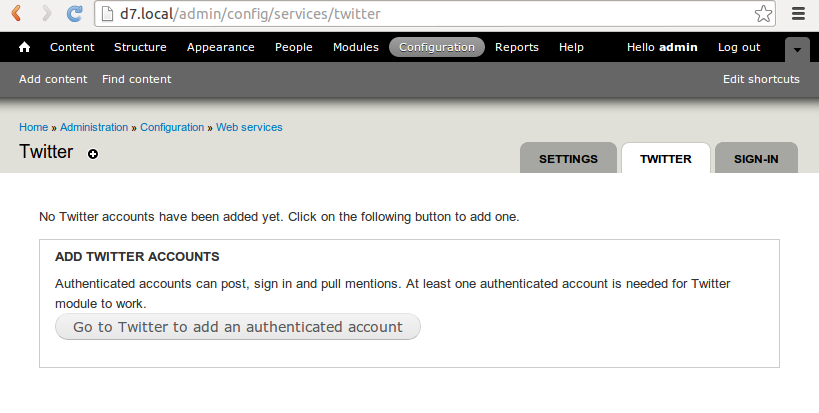
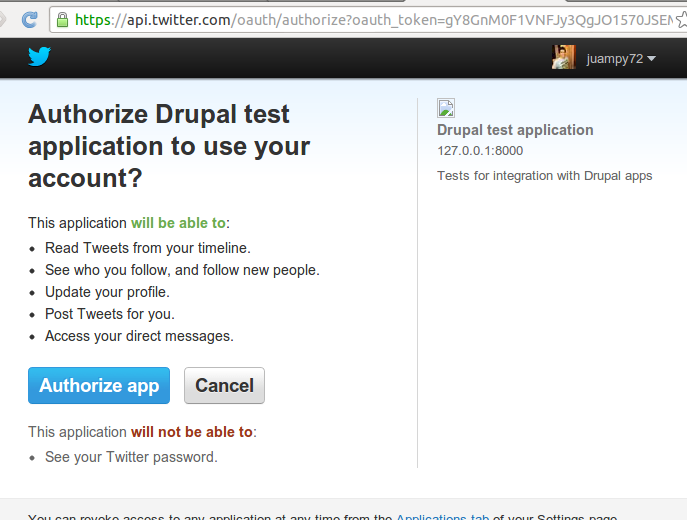
Click to add an account. Once again, verify that the list of permissions being giving is correct for the intended use case:
After authorizing the app the account will be listed on the Twitter module's admin page.
It will now be possible to pull tweets and mentions for this account by selecting the checkboxes and saving changes.
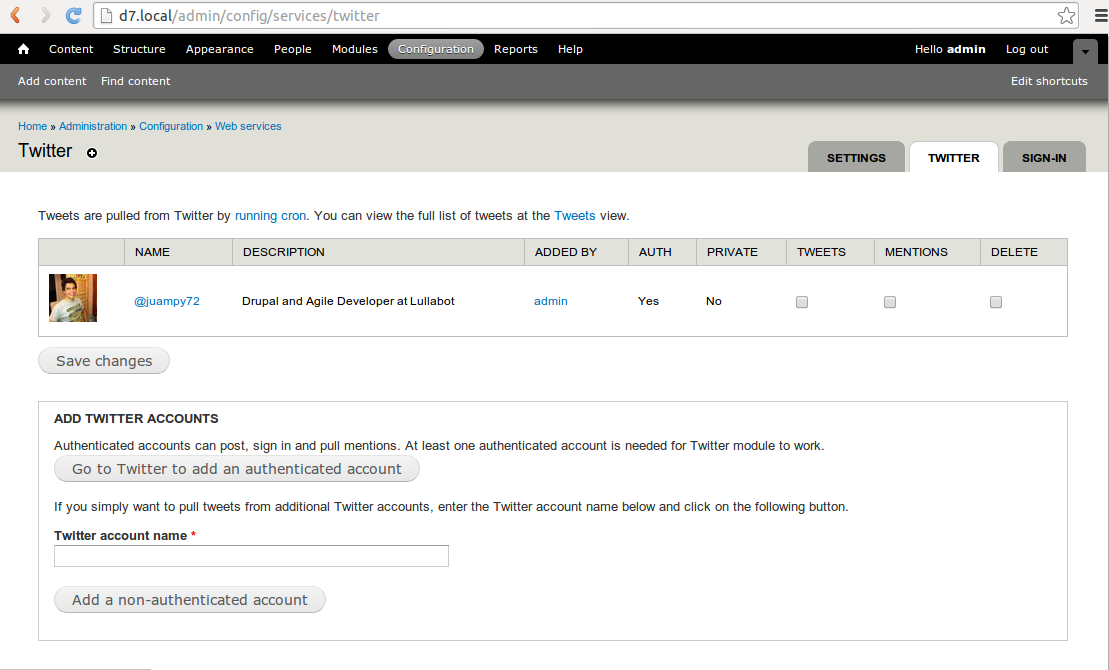
There is also a new textfield to add non-authenticated accounts (any other Twitter account). This allows tweets from these accounts to be loaded to the site.
Troubleshooting
Could not obtain a valid token from the Twitter API
If you get the following error message after trying to authorize your Twitter account:
Could not obtain a valid token from the Twitter API. Please review the configuration.
Please check the following:
- You have entered the right callback URL when creating the Twitter app. If you are testing on your local machine, this could be something like http://127.0.0.1:8000/twitter/oauth, or your local hostname: eg. http://mysite.local/twitter/oauth.
- Make sure the OpenSSL extension is enabled in PHP. Edit php.ini and check that the following line is not commented out:
extension=openssl.so
Help improve this page
You can:
- Log in, click Edit, and edit this page
- Log in, click Discuss, update the Page status value, and suggest an improvement
- Log in and create a Documentation issue with your suggestion
