
Exporting content
Exporting specific content items
In order to export your content item, click the “Export” option in its menu. The “Export” option is situated next to the traditional “Edit,” “Delete,” and "Revisions" options.

After clicking “Export,” you immediately get a YAML code snippet that is super easy to copy to another environment or website (provided the Single Content Sync module is enabled there as well).
You can use the buttons below the generated code to download the results as:
- a ZIP file with all file references such as images, documents, videos, etc.
- a single YAML file — in this case, the file import will be done by the absolute URL (suitable if you use CDN for files)

Exporting content in bulk
In order to export content in bulk, go to the content overview page and select the desired content items you wish to export. Then select the "Export content" action from the action dropdown menu and click on the "Apply to selected items" button.
 You will see a link to download the generated ZIP file with the content.
Troubleshooting
If you do not see "Export content" action in the Content Overview you might need to import the action config manually by follow these steps:
- Copy content of system.action.content_bulk_export.yml :
langcode: en
status: true
dependencies:
  module:
    - node
id: content_bulk_export
label: 'Export content'
type: 'node'
plugin: content_bulk_export
configuration: { }- Go to /admin/config/development/configuration/single/import
- Choose Action configuration type
- Paste the content of the config and click on the import button.
You should now see the action.
Do not forget to export configs with drush cex, so your action will not be lost.
If you want a similar action to be available for other entity types, follow the same steps but before importing the config modify the dependencies, id, label and type to match your desired type, before importing according to the entity type.
For example, when adapting the example for feeds it may look like this:
langcode: en
status: true
dependencies:
  module:
    - feeds
id: feeds_feed_bulk_export
label: 'Export feed'
type: 'feeds_feed'
plugin: content_bulk_export
configuration: {  }
Exporting multilingual content
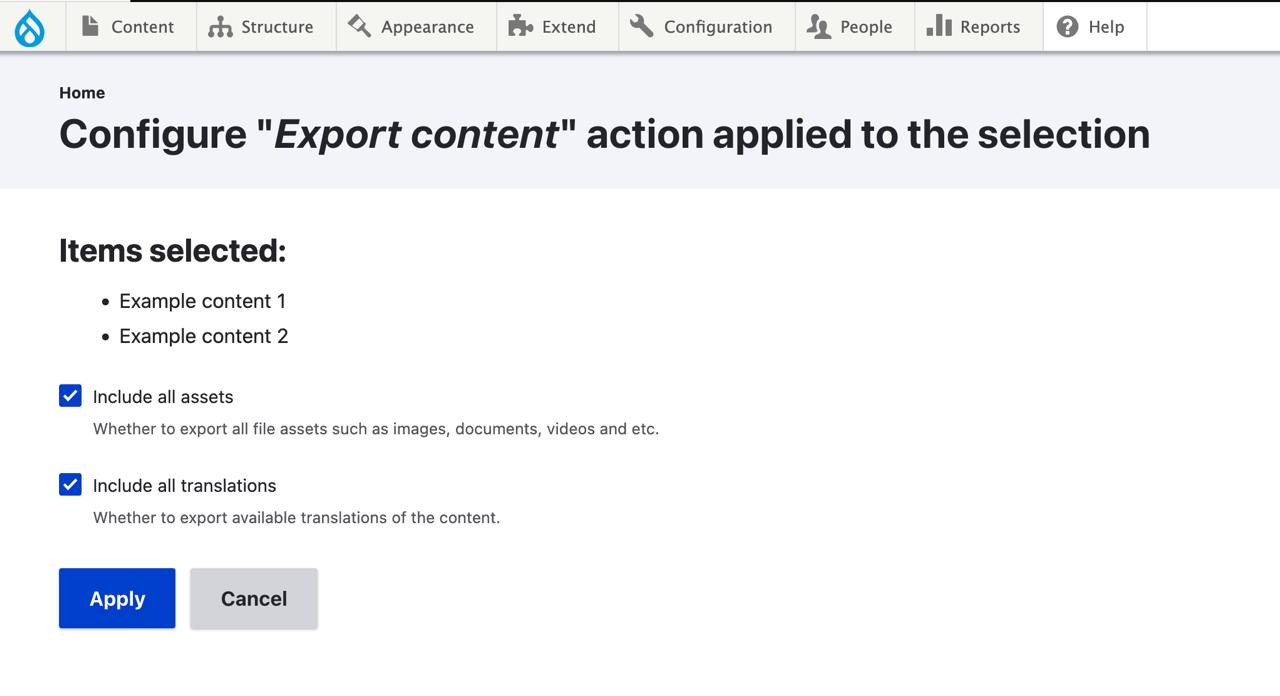
If you export bulk content, by default all assets and translations will be exported, but if you install the VBO module, you will be able to change the settings. When using this approach, you will see a confirmation message and will be able to choose to include all the assets and all the translations in the export.
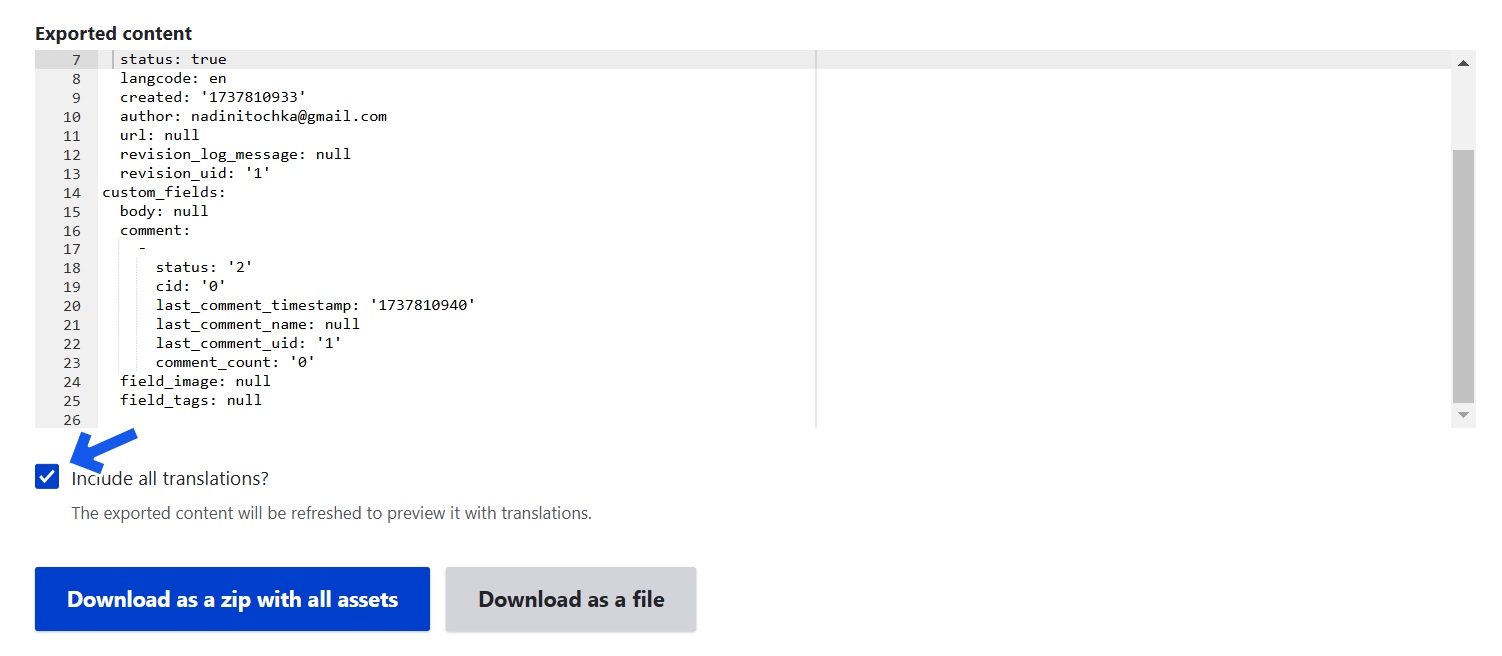
If you export a single item, you will see an "Include all translations" checkbox below the generated code. This works out of the box.
Drush commands
To export content you can use drush content:export. By default, the command will export all entities of type Node at the following location: DRUPAL_ROOT/scs-export. You can customize the execution of the command by passing it some parameters and options. The first parameter will change the entity types being exported (e.g. taxonomy_term, block_content, etc.). The second parameter will specify an output path from DRUPAL_ROOT. For example: drush content:export block_content ./export-folder will export all entities of type block_content in the DRUPAL_ROOT/export-folder directory (if the export-folder directory does not exist, a new one will be created).
The following options can also be passed to the command:
--translateif used, the export will also contain the translated content--assetsif used, the export will also contain all necessary assets--all-contentif used, the export will contain all entities of all entity types--dry-runif used, the terminal will show an example output without performing the export--bundleif used, all entities of specific type and bundle will be exported. if--all-contentis used, it will take priority over this option.--entitiesif used, only the entities passed (using entity id or uuid) will be in the export.
Usage:drush content:export --entities="1,4,7". if--all-contentis used, it will take priority over this option.
Examples:
drush content:export node /relative/output/path --translate --assets --bundle="article"drush content:export --all-content --translate --assetsdrush content:export block_content --entities="d8502131-009d-49a0-9294-e0eaf4df2d5c"drush content:export --all-content --dry-run
Help improve this page
You can:
- Log in, click Edit, and edit this page
- Log in, click Discuss, update the Page status value, and suggest an improvement
- Log in and create a Documentation issue with your suggestion
