
On this page
How to use a Drupal view as the event feed source of Fullcalendar Block
Steps
- Create a REST Export view. (To do this, first install RESTful Web Services and Serialization from the Web Services modules that are part of core. These are found at /admin/modules. Then, create a view and add a REST Export display.)
- Accepted request formats of this view is set to json.
- Specify the content types for events'
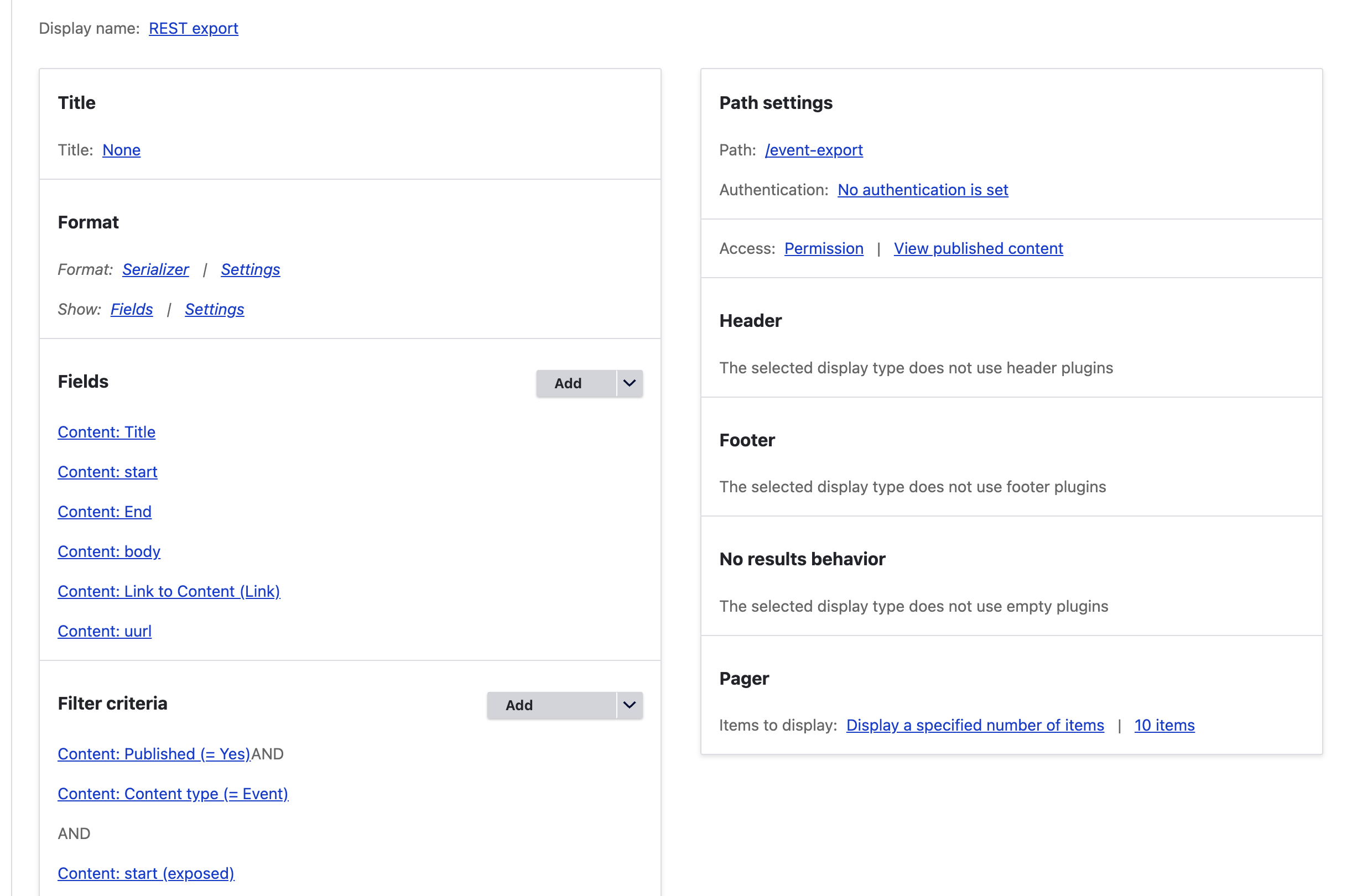
- Add fields into this view. Such as title, start date, rrule text, event type.
- In the row style option setting, tick the 'Raw output' boxes for all fields. (Showing as the screenshot below).
- Specify the alias for each field, such as start, end, rrule.
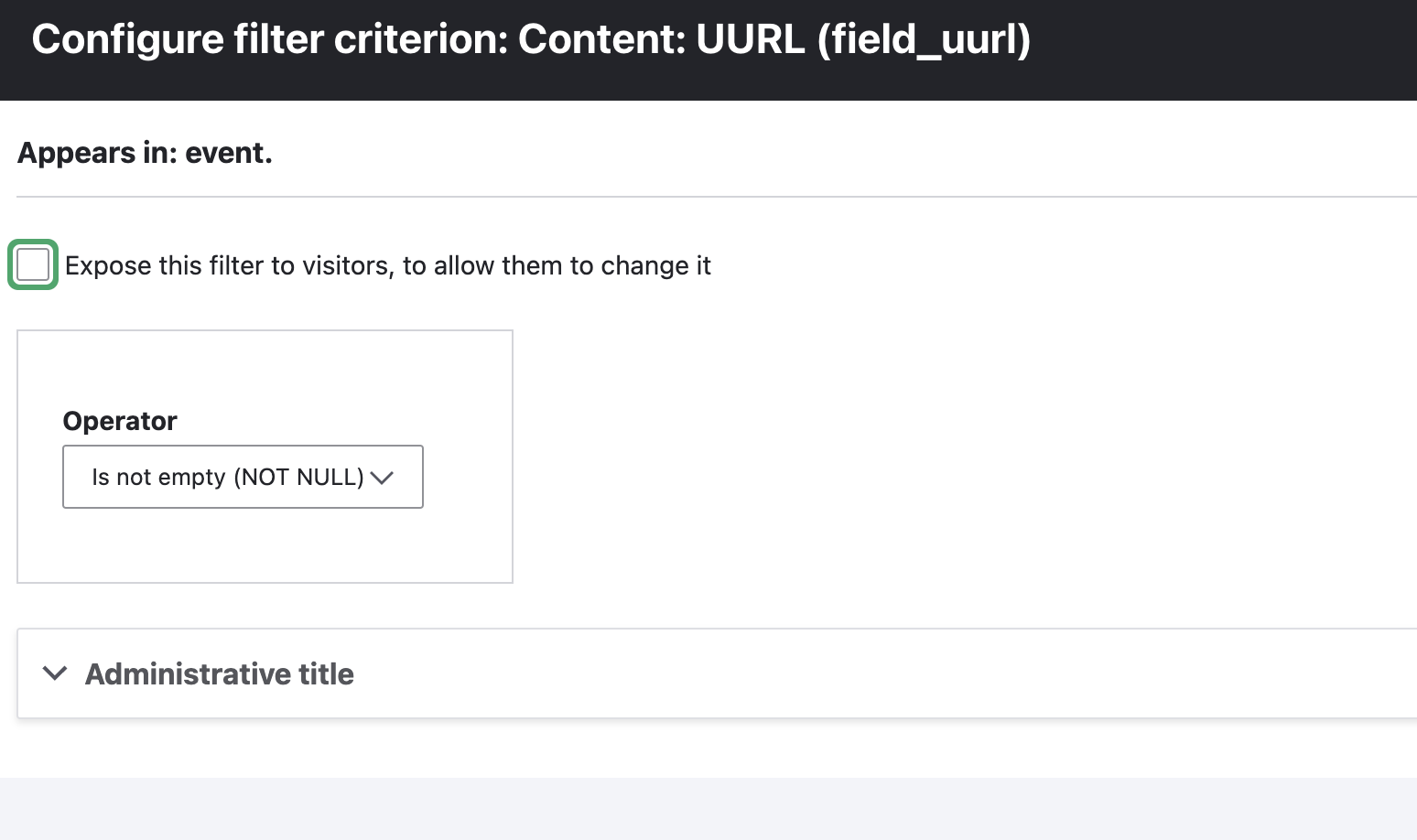
- Create filter criteria. The select criteria for the start field is required, otherwise all events will be loaded each time the calendar changes views, such as changing months. If there is recurring event, a filter for rrule field is needed.
- Specify a path for this view.
Event end dates
Fullcalendar interprets an event's end date as exclusive. If your data represents end dates for all-day events as inclusive, then multi-day events will be rendered on the calendar as ending a day early. To fix this, your view will need to add 1 day to the end dates. You can use the end date field's Rewrite Results to override its text with:
{{ field_end_date__value|date_modify("+1 day")|date("Y-m-d") }}RRULE field
Before considering using the RRule feature for a recurring event, you'd better check if the simple recurrence feature match your needs, which is out of box of the Fullcalendar 5. That means you don't need any plugin for it.
In order to make the RRule field works for a recurring event, you have to enable the RRule plugin in the block configuration (advanced settings), as this feature relies on that plugin.
The rrule field of the event content type should be a plain text field.
You can copy and paste the rrule string from the RRULE generator,
https://jakubroztocil.github.io/rrule/
The RRule filed need to setup the alia as 'rrule' for it. Details see following 'Field alias' section.
Event colorizing
You can use the content type of a field, for example a taxonomy reference field to colorize a event background color.
In the step 4, you need to add the content type or a taxonomy reference field used to distinguish the event color into the view fields.
In the block configuration, you need to add following advanced settings accordingly.
# Event background color setting.
event_background:
  # The name of the field used to distinguish event color. It could be the content type.
  field_name: field_event_type
  # The field value and the according color code, separated by space.
  color_map:
    - '5 #ff0000'
    - '6 #ff0000'
    - '7 #0000ff'
    # or the content type id.
    - 'event #ff0000'
Event Time
In the block configuration, in the Advanced Settings, you can set whether to display the event time.
# Hide the event time (a Boolean field).
displayEventTime: false
Example
View setting:
Accepted format:

Field Alias:

Filters:

Start filter:

RRULE filter:
Link to an event:
You need to make sure to add the field "link to content" to the list of fields. Then, under "Format" go to the Settings link for the Show:Fields section. In the popup for "REST export: Row style options" find the "view_node" field and put 'url' as the alias (no quotes) so that the url will appear in the feed as url instead of view_node. Then Apply and Save.
The example view configuration yml file from here.
Help improve this page
You can:
- Log in, click Edit, and edit this page
- Log in, click Discuss, update the Page status value, and suggest an improvement
- Log in and create a Documentation issue with your suggestion
