
Configure Attribute-Based User Sync for Drupal
Attribute Based User Sync allows you to synchronize Auth0 users based on a configured profile attribute and assign them the Drupal role. You can enable synchronization through cron and choose what happens when a previously synchronized user no longer matches the configured attribute criteria.
This feature is useful when you want to create or synchronize Drupal accounts for users who meet specific role or access requirements defined in Auth0.
User Profile Attributes:
- Open the User Profile Attributes section.
- Enter the email address or user ID of the Auth0 user whose profile details you want to view.
- Click Fetch User Profile Details to retrieve the user's profile information. If you leave the field empty, the system fetches the first user in your Auth0 application.
- Review the fetched profile attributes and use the displayed field names to configure attribute and role mappings.
- Click Clear Details to remove the displayed profile details when needed.

Configure Attribute and Role Mappings:
- Before configuring Attribute-Based User Sync Settings, make sure your Auth0 attribute and Drupal role mappings are configured correctly.
- For detailed instructions, refer to the Role-Based User Sync for Drupal Auth0 guide.
- Once the mappings are configured, proceed to the next step to configure Attribute-Based User Sync Settings.
Enable Attribute Cron Sync:
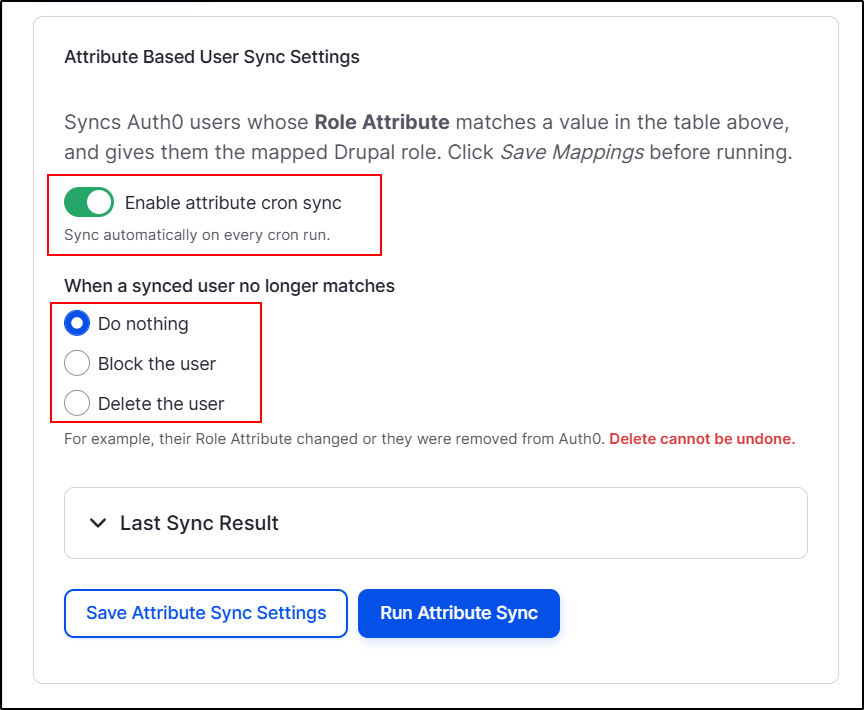
The Enable attribute cron sync setting allows the module to synchronize users automatically whenever Drupal cron runs.
To enable automatic synchronization:
- Navigate to the Mapping tab and scroll down to the Attribute Based User Sync Settings.
- Enable attribute cron sync.
- Ensure that Drupal cron is configured to run according to your required schedule.
When enabled, the module performs attribute-based synchronization on every cron run. The synchronization frequency therefore depends on how often Drupal cron executes.
If this option is disabled, automatic synchronization through this setting is not performed. You can still run synchronization manually using the Run Attribute Sync button.
Under When a synced user no longer matches, choose how the module should handle a previously synchronized user whose Role Attribute no longer matches the configured mapping criteria or who has been removed from Auth0.
The available options are:
Do nothing:
- Select Do nothing to leave the existing Drupal user account unchanged when the user no longer matches the synchronization criteria.
- This option is suitable when you do not want the attribute sync process to change existing accounts automatically.
Block the user:
- Select Block the user to block the Drupal account when a previously synchronized user no longer matches the configured criteria.
- This option can help prevent users who no longer meet your access requirements from continuing to use their Drupal accounts.
Delete the user:
- Select Delete the user to delete the Drupal account when a previously synchronized user no longer matches the configured criteria.
Deleting a user cannot be undone. Test this option carefully in a non-production environment before enabling it on a live site.
Save Attribute Sync Settings:
After enabling automatic synchronization and selecting the required behavior for users who no longer match:
- Review your selected settings.
- Click Save Attribute Sync Settings.
- Confirm that the settings have been saved before starting synchronization.
Run Attribute-Based User Sync Manually:
You can run Attribute-Based User Sync manually whenever you want to synchronize users without waiting for the next Drupal cron run.
- Click Run Attribute Sync.
- Wait for the synchronization process to complete.
- Check the synchronization status and results in the Last Sync Result section, if available.
When the operation completes successfully, verify the affected user accounts and their assigned roles on the Drupal People page.
Only users matching the configured attribute criteria are created or synchronized through this process. Users who do not match are not created by Attribute-Based User Sync.
Last Sync Result:
The Last Sync Result section provides a place to review the results of the most recent synchronization run.
- Locate Last Sync Result under Attribute Based User Sync Settings.
- Expand the section to view the available results.
- Review the displayed information to identify whether the synchronization completed successfully and whether any issues require attention.
- If the expected users are missing or their roles have not been assigned correctly, verify the Auth0 connection, Role Attribute, saved mappings, and attribute values before running synchronization again.
You have successfully configured Attribute-Based User Sync for Drupal.
 Back to top
Help improve this page
You can:
- Log in, click Edit, and edit this page
- Log in, click Discuss, update the Page status value, and suggest an improvement
- Log in and create a Documentation issue with your suggestion
