
 The 2026 Drupal Business Survey is open. Your response will help shape the future of the Drupal business ecosystem.
Role-Based User Sync for Drupal Auth0
Last updated on
28 July 2026
The Role-Based User Sync feature allows you to automatically synchronize users from Auth0 to Drupal based on their Auth0 roles. It creates new Drupal user accounts and assigns the appropriate Drupal roles using the role mappings you configure, helping you manage user access with minimal manual effort.
Fetch Auth0 Roles:
- Go to the User Sync tab of the module.
- Set Roles per page, this controls how many roles are pulled per API request.
- Default: 100
- Maximum allowed: 100
- Leave this at the default unless you have a specific reason to change it.
- Click Fetch Roles from Auth0.
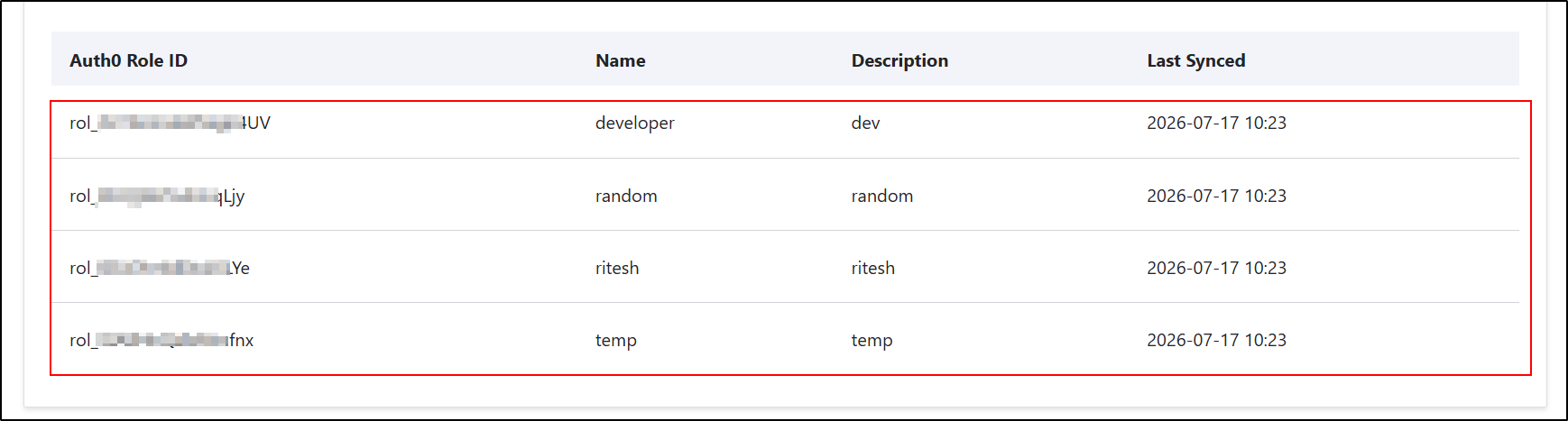
- This pulls all roles currently defined in your Auth0 tenant and stores them locally.
- Once complete, you should see the fetched roles listed where it currently says "No roles fetched yet."

- Roles Successfully Fetched from Auth0.
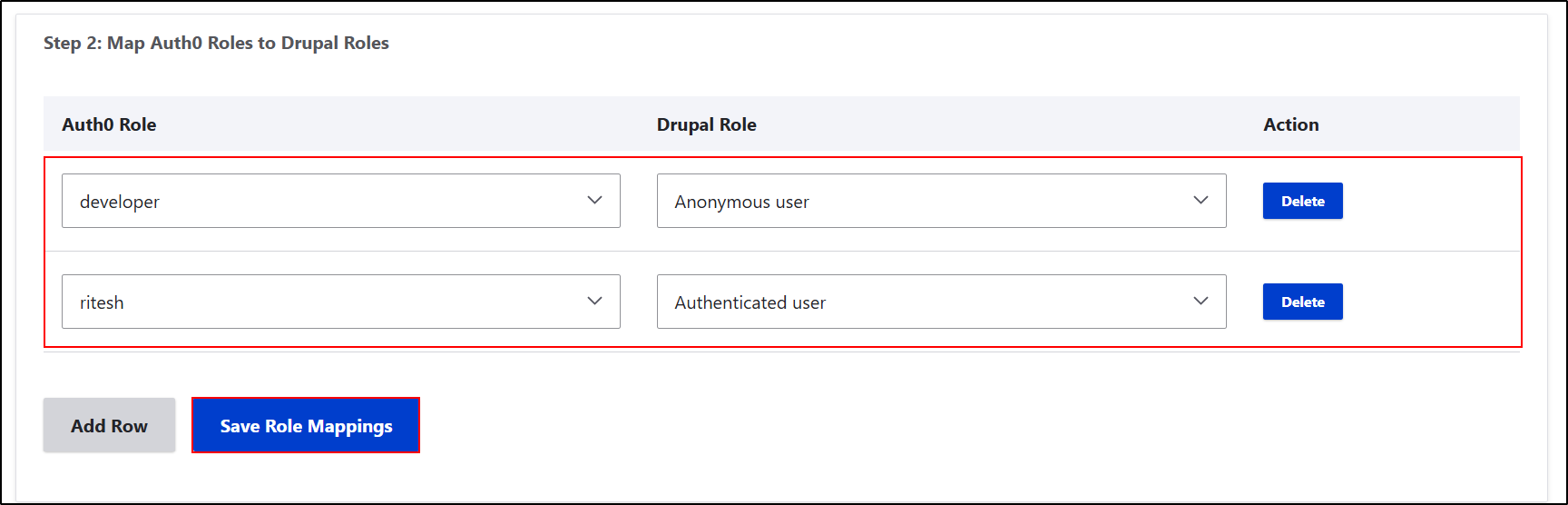
Map Auth0 Roles to Drupal Roles:
This helps Drupal assign the right role to users based on their Auth0 role.
- In the Auth0 Role column, select an Auth0 role that you fetched in above step.
- In the Drupal Role column, select the Drupal role you want to assign.
- Click Add Row to map additional Auth0 roles.
- To remove a mapping, click the Delete button for that row.
- After configuring all the role mappings, click Save Role Mappings.
Sync Users to Drupal
In this step, you can synchronize users from Auth0 to your Drupal site. During the sync, Drupal creates user accounts and assigns roles based on your role mappings.
- In the Users per page field, enter the number of users to fetch in each request.
- The default value is 100.
- Click Run Manual Sync Now to start the synchronization.
Sync Options
- Sync only users from mapped roles
- Enabled: Only users with mapped Auth0 roles are synchronized.
- Disabled: All Auth0 users are synchronized, regardless of role mapping.
- Auto-create Drupal role for unmapped roles
- Enabled: If an Auth0 role is not mapped to a Drupal role, the module automatically creates a Drupal role with the same name and assigns it to the user.
- Disabled: Only the roles you mapped in Step 2 are assigned. Unmapped roles will not be created automatically.
Disable this option if you want to manage all Drupal roles manually.
- Enable automatic sync via cron
- Enabled: Users are synchronized automatically whenever Drupal cron runs.
- Disabled: You need to click Run Manual Sync Now each time you want to synchronize users.
- After configuring the settings, click Save Settings.

- You have successfully configured Role-Based User Sync. New users from Auth0 will be automatically synchronized to Drupal and assigned the corresponding Drupal roles.
 Back to top
Help improve this page
Page status: No known problems
You can:
You can:
- Log in, click Edit, and edit this page
- Log in, click Discuss, update the Page status value, and suggest an improvement
- Log in and create a Documentation issue with your suggestion
