
Managing config files
Overview
There are various ways of uploading your server's configuration files to opensolr:
- Automatic during Server creation
- Manually from the existing Server's Opensolr tab
- Manually from Drupal to opensolr
Automatic upload
During the server creation, Drupal will attempt to automatically upload the config.zip files to opensolr. If successful, a message will be displayed.

Uploading from Opensolr tab
In the servers list page Configuration → Search and Metadata → Search API, click on your server's name and you will be redirected to the Server's view page. On this page, click on the +Get config.zip button and download the configuration archive. Then, click on the Opensolr tab.
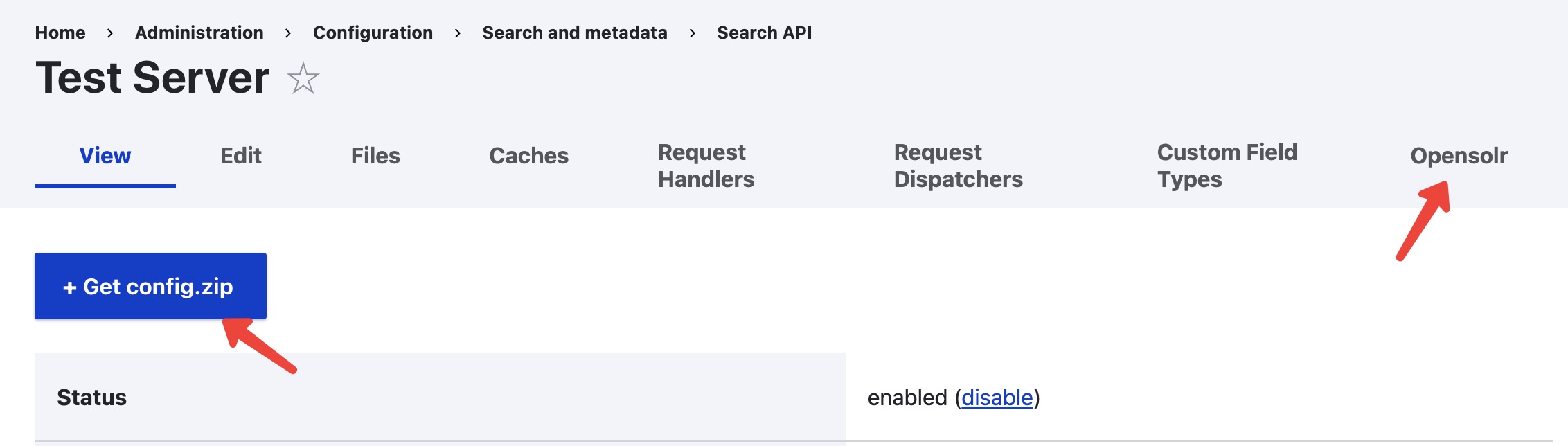
In the Opensolr tab, under the Import Config Zip sub-tab, upload the previously downloaded configuration archive and submit the form. If everything is okay, you should receive a confirmation message.

Uploading to your opensolr account
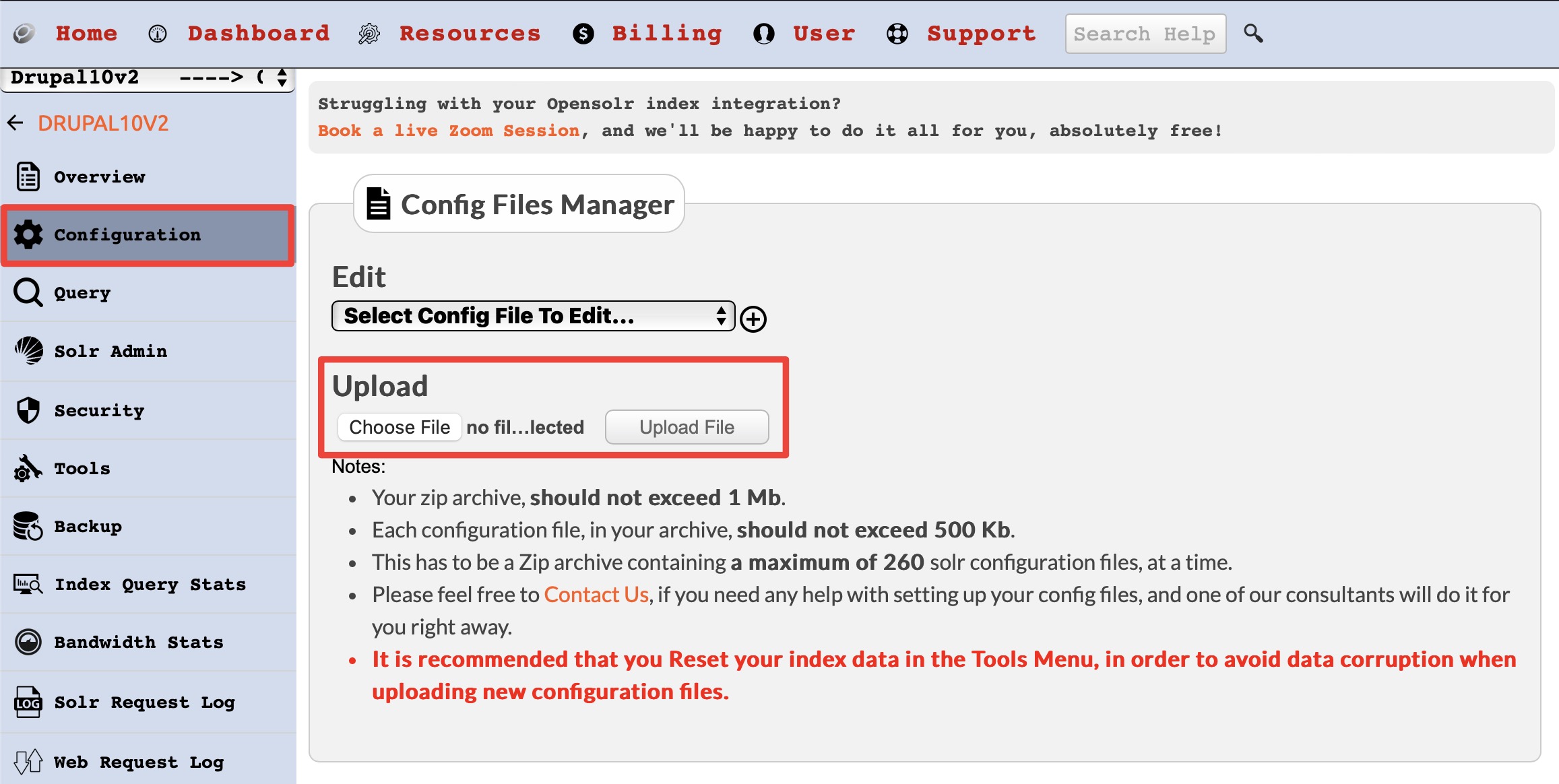
Download the config.zip archive as instructed at the beginning of the previous section. Log in to your opensolr account, and go to your index page. In the left sidebar, select Configuration. Upload the previously downloaded configuration zip file from Drupal.
- Go to the next section: Adding security to your requests (submodule)
- Return to previous section: Creating your opensolr server
Help improve this page
You can:
- Log in, click Edit, and edit this page
- Log in, click Discuss, update the Page status value, and suggest an improvement
- Log in and create a Documentation issue with your suggestion

