


This project is not covered by Drupal’s security advisory policy.
When working on Drupal frontend, developers must rely on the browser's inspector to navigate the source code and sniff the debug comments wrapping the templates being rendered.
While this approach does work, hovering and right-clicking elements on the screen; or trying to select and copy the name of a theme suggestion from the source code (hint: it doesn't work) qualifies as very poor user experience.
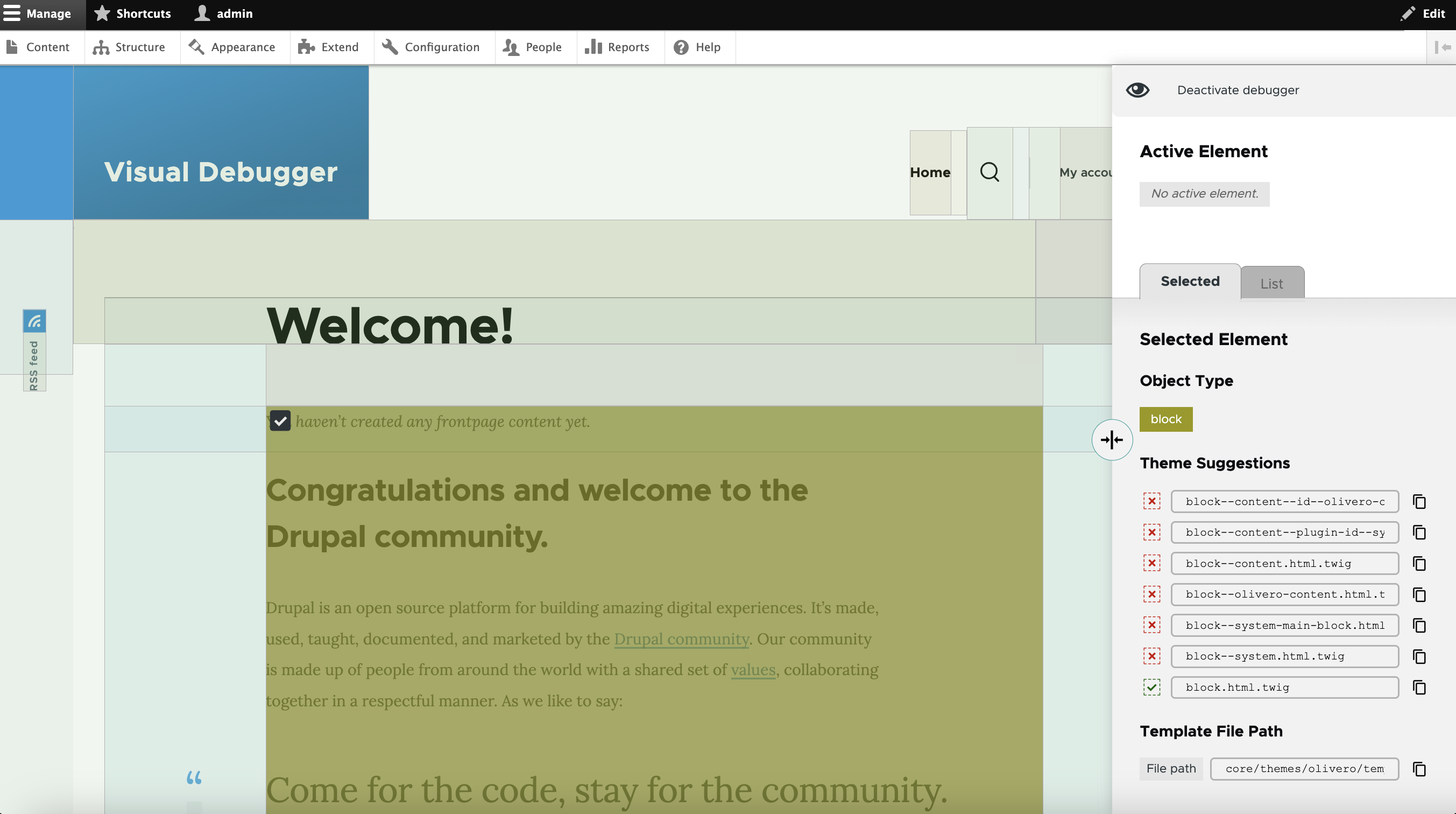
Visual Debugger renders placeholder layers on top of the original templates so users can quickly discover where they lie and point-and-click to see details that would be otherwise scattered and hidden throughout the source code.
The details about the selected elements are displayed inside a fly-out window, so users can easily see their debug information, including theme suggestions and path to the active template file. Copying that information to the clipboard is a breeze.
Installation and basic configuration
To enable Visual Debugger:
1. Install the module with Composer. Since this is a module carrying functionality meant for developers, you will probably want to install it with a composer require --dev, so the module is incorporated into the require-dev block in composer.json.
2. Enable the module
3. Make sure Drupal debugging is activated; the module won't be able to do its job if debug comments aren't rendered in the source code.
3. Go to the admin interface (/admin/config/development/visual-debugger). Make sure Use Visual Debugger on frontend theme is activated for frontend theme debugging. Alternatively, users might also debug the backend by activating Use Visual Debugger on admin theme.
4. You may also want to activate cache debugging on your Drupal instance, in which case Visual Debugger will pick it up and show that information on the fly-out window.
5. Nothing else :-)
Theme debugging.
Developers can navigate to any page on the website and check a skin layer renders on top of the page content. It should carry a series of semi-transparent layers matching each component carrying a template in the website source code.
When hovering any of these skin layer placeholders, user will notice block Active Element is updated and displays the name of the entity. Each entity is assigned a specific color, so users can quickly grasp the type of element being highlighted.
Users can select any of these layers by hovering and clicking them. A checkbox visual indication will then show at the top left corner of the selected layer to highlight it is selected. The Visual Debugger fly-out window at the side of the screen will then display details on the selected layer:
- the entity type itself;
- the theme suggestions, specifying which one is active.
- the path of the template file in use.
For convenience, users might want to deactivate the Visual Debugger, and the debug skin will immediately disappear from the screen. Turning it back on is also very simple, by clicking the icon that remains visible to the top-right corner of the screen.
Users may also resize the fly-out window to make it wider or narrower by click-dragging the rounded handle at the edge of the fly-out window.
User preferences for fly-out window width and activation status are stored in the browser and recovered every time a new page is loaded.
Limitations
Keep in mind the script does its best to overlap the elements originally rendered on the page, but it might fail for dynamic, animated elements, like carousels. Also, the placeholders associated with elements that are fixed or sticky will match the initial position, but will then scroll normally with the rest of the content, diverging from its original referenced element.
Visual Debugger was originally developed with desktop screen sizes in mind. It hasn't been tested against mobile devices, and it could go terribly wrong on those screen sizes. If handling mobile screen sizes becomes a requirement, future development might be able to improve that experience and better accommodate elements on the screen.
Project information
- Project categories: Developer tools
 1 site reports using this module
- Created by mabho on , updated
 This project is not covered by the security advisory policy.
Use at your own risk! It may have publicly disclosed vulnerabilities.
Releases
This release is delivering a feature improvement (access permission to the debugger) and a bugfix (copy to clipboard functionality).
Development version: 1.0.x-dev updated 9 Oct 2024 at 11:36 UTC

