

 Come together with the global Drupal community in Rotterdam, 28 Sept – 1 Oct 2026. Sessions, contribution, connection, and Early Bird savings until 8 June.


This project is not covered by Drupal’s security advisory policy.
Expand the capabilities of your site with the ConcordPay payment system!
After installing the ConcordPay payment module, your customers will be able to pay using:
- Visa and MasterCard cards;
- e-wallets Apple Pay and Google Pay.
Your customer only needs a few steps to pay for a product or service:
- Select the required product on the website.
- Click on the “Buy” or “Pay” button, which takes you to the checkout payment page protected by the bank.
- Choose a convenient payment method for making a payment.
Thanks to the plugin for Drupal Ubercart, you can double the conversion on your site!
REASONS TO CHOOSE CONCORDPAY
Business opportunities with the ConcordPay service:
- Regular payments. Connect convenient subscription payments and receive money from customers in a timely manner.
- Separation of payments. Simplify settlements with suppliers and partners: set up automatic distribution of payment amounts between counterparties.
- Payments from all over the world. Receive payments from Visa and Mastercard holders from different countries. The money will quickly be credited to the account and automatically converted into hryvnia.
- Invoicing. Send the link to the buyer by email, SMS or messengers and instantly receive information about the payment.
- Personal Area. Control payments, generate statements and reports, analyze sales. Manage multiple projects at once in one place with flexible accounting and customization options.
- One-click payment. Make your customers’ future purchases easier. The ConcordPay system will remember the necessary data of buyers after the first payment and substitute them in the next.
SUPPORTED PAYMENT METHODS
BANK CARDS
- Visa, MasterCard.
ALTERNATIVE PAYMENT METHODS
- Google Pay, Apple Pay.
MOBILE PAYMENTS
ConcordPay is fully optimized for use on smartphones, tablets, laptops, desktops, TVs. Your customers will be comfortable to make purchases from any device.
TARIFFS
See current tariffs on the ConcordPay website.
Instructions for installing the Drupal Commerce payment gateway
Firstly, download the payment module for the Drupal site management system. Move the content from the archive to the root of the site. Then follow the instructions:
- Download the module.
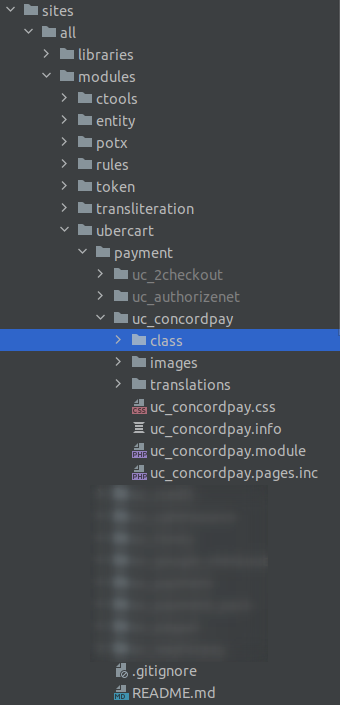
- Unpack the plugin archive and place the files in the {YOUR_SITE}/sites/all/modules/ubercart/payment/ directory
- Go to "Admin Panel -> Modules (admin / modules)", select the Ubercart ConcordPay Payment module and click the button "Save"
- Go to the payment service settings of your store
("Home -> Administration -> Store -> Configuration -> Payment method", admin/store/settings/payment) - Click on the Settings link opposite the ConcordPay module
- Enter your merchant data received from the payment system and save the settings.
- Merchant ID;
- Secret Key; - Turn on the payment module ConcordPay
- Enter data from your merchant and save settings.
Project information
 Maintenance fixes only
Considered feature-complete by its maintainers.- Project categories: E-commerce
- Created by Concordpay on , updated
 This project is not covered by the security advisory policy.
Use at your own risk! It may have publicly disclosed vulnerabilities.

