

 The 2026 Drupal Business Survey is open. Your response will help shape the future of the Drupal business ecosystem.


This project is not covered by Drupal’s security advisory policy.
Tailpine, as the name suggests is a Tailwind CSS and Alpine JS based Drupal theme. The theme has been built with Storybook and Single Directory Components integration. This theme arose following author's presentation about these topics during Drupak's Drupal Global Contribution Weekend 2025.
The tutorial which got birth to this theme is here.
https://www.youtube.com/watch?v=Gu-mXaUhXqI
Use 2.0.x for Canvas users, 1.0.x for UI Suite users
Some components from the theme.
Hero Style One

Beautiful Interactive Elements
Accordions

Logo sets

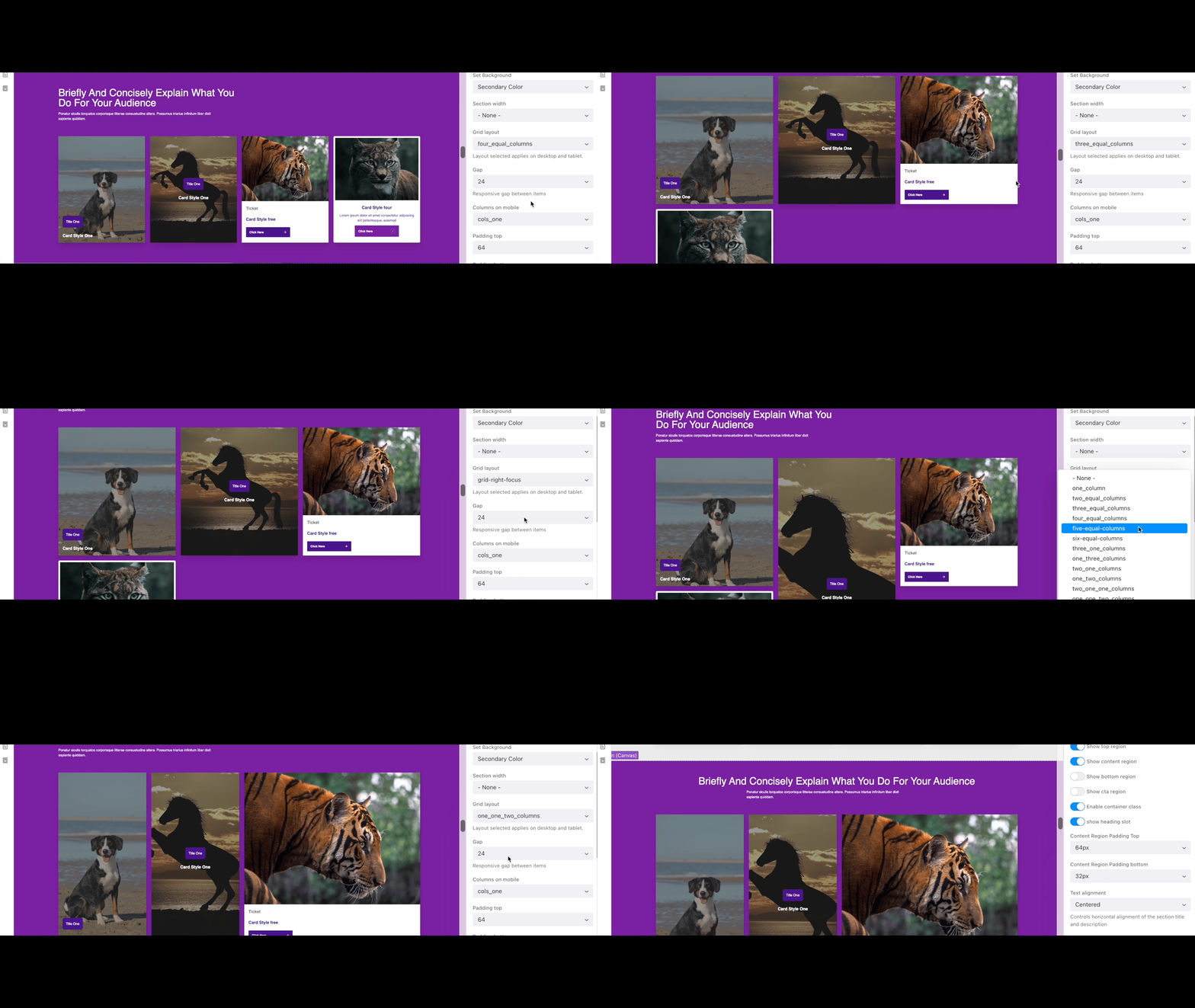
Flexible Card sections

Powerful and Flexible Components

Installation & Setup Guide for Tailpine Canvas (Canvas Based)
Before you begin, make sure your development environment is properly set up. You can use DDEV (a Docker-based development environment) or any other setup you prefer but DDEV is preferred. Ensure all commands are executed within your chosen environment.
1. Install Drupal
Start with a fresh Drupal installation.
Once Drupal is successfully installed and running, you can proceed with the Tailpine setup.
2. Install Tailpine (Canvas Compatible Version)
Tailpine provides support for both Standard (UI Suite) and Canvas-based setups.
For this guide, we will use the Canvas-compatible version of Tailpine.
composer require 'drupal/tailpine:^2.0@RC'This will install the latest release candidate version of Tailpine.
3. Install Canvas Module
Before setting up the theme, you must install Canvas, as this version of Tailpine depends on it.
Steps:
- Go to the Canvas project page on Drupal.org
- Download the module
- Place it inside your Drupal project
- Enable the module
4. Create a Tailpine Subtheme
Once Tailpine is installed, create your custom subtheme:
drush --include="web/themes/contrib/tailpine" tailpine:create subthemeThis will generate a new subtheme that inherits Tailpine's base configuration.
5. Set Up and Enable the Subtheme
Next, run the setup command to configure and enable your subtheme:
drush --include="web/themes/custom/subtheme" subtheme:setupWhat this command does:
- Enables your subtheme
- Moves required recipes, files and config directories to the root
- Prepares your environment for Canvas-based development
6. Import Pre-built Canvas Pages, Menus, and Blocks
Tailpine provides pre-built Canvas configurations to help you get started quickly.
Command:
drush recipe ../recipes/tailpine-canvas-recipesWhat this command does:
- Imports pre-built Canvas pages
- Sets up menus and navigation
- Configures blocks and layout structure
- Applies related configuration automatically
This setup is ideal if you want to:
- Learn how Canvas works
- Quickly start with ready-made layouts
- Use existing structures as a base for your own pages
7. Start Building with Canvas
After importing the configuration:
- Go to the Canvas page
- Open or create a new page
- Start building using Canvas components
- Customize layouts visually
Supporting organizations:
Sponsored by Drupak, developed by Drupak's awesome developers.
Project information
- Ecosystem: Tailwind, Alpine.js, Single Directory Components, Storybook
 19 sites report using this theme
- Created by drupak on , updated
 This project is not covered by the security advisory policy.
Use at your own risk! It may have publicly disclosed vulnerabilities.


