


This project is not covered by Drupal’s security advisory policy.
A SmartThings SmartApp for Drupal integration of device values.
This module provides drupal fields containing the real-time value of SmartThings device values. It contains a webhook (SmartThings SmartApp) that connects to a SmartThings Hub using the SmartThings API.
Requirements
- Login access to a SmartThings SmartPhone App (Not the "SmartThings Classic" app) that is connected to a SmartThings hub with enabled devices. https://www.smartthings.com/getting-started
- Alternatively install the SmartThings Demo module to populate the DB with fake SmartThings device values.
- A SmartThings developer workspace: https://smartthings.developer.samsung.com/workspace/
Instructions
Install the SmartThings module on your Drupal instance:
- Install/Enable SmartThings module
- Visit admin/config/smartthings/settings
Get the Public Key for your SmartThings SmartApp API connection:
- Login to your SmartThings developer workspace (https://smartthings.developer.samsung.com/workspace/) and create a new project.
- Create an "Automation for the SmartThings App" and give it a name.
- Select Developer->Automation Connector->WebHook Endpoint
- Enter your target URL and use the "smartthings/webhook" path (eg. https://example.com/smartthings/webhook)
- Add an "App Display Name" like "Drupal Integration" that you will see on the SmartPhone SmartThings app in the list of Automations.
- Select "r:devices:*" from the permissions scope list
- Click Next and Save
- Copy the resulting Public Key
Add the Public Key to your Drupal SmartApp:
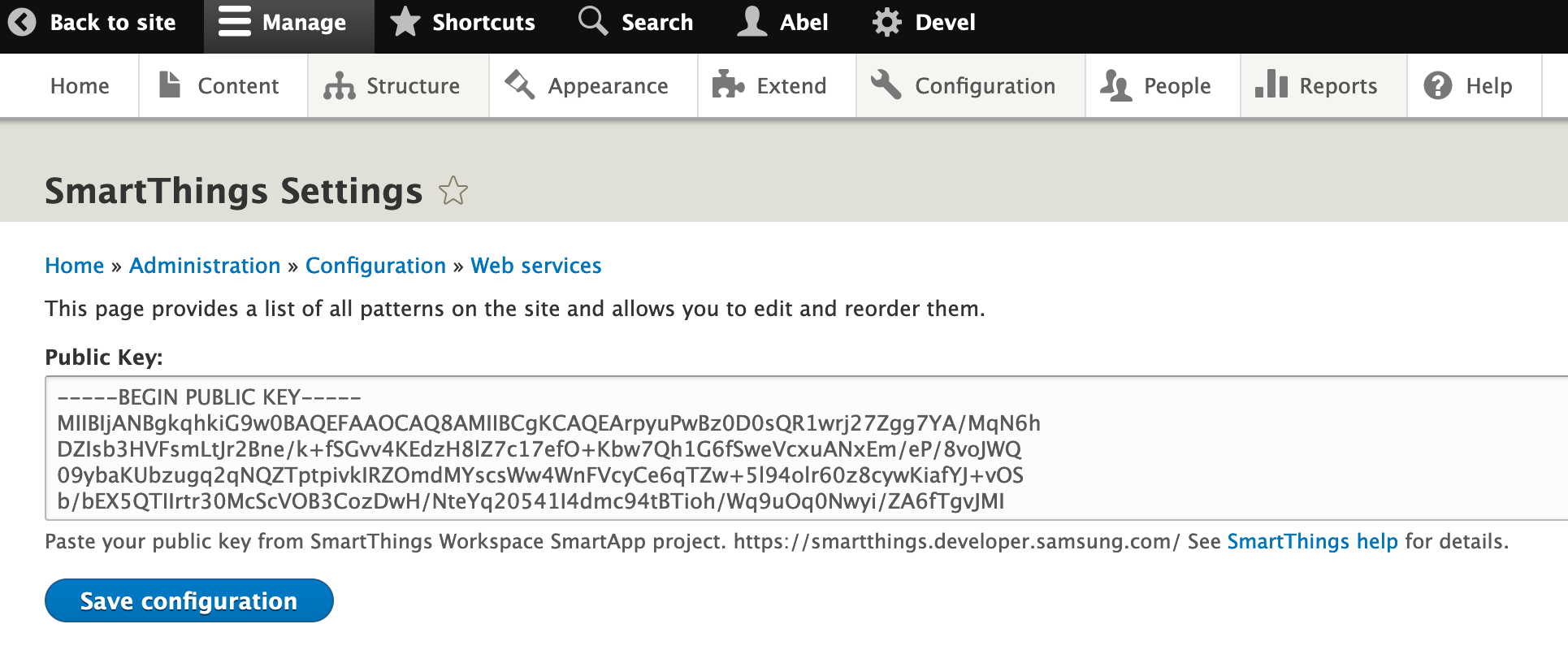
- Visit admin/config/services/smartthings/settings
- Paste the Public Key from the SmartThings developer workspace
- Save
Add devices to your SmartThings SmartApp.
- Install your SmartThings SmartPhone App. (Note: the SmartThings Classic app will not work)
- Launch the SmartThings app. Your SmartThings app and Developer Workspace must be signed into the same account.
- Enable Developer Mode in the SmartThings app:
- Launch the SmartThings app.
- Go to Dashboard > Settings.
- Long-press "About SmartThings" for 20 seconds.
- Enable Developer Mode.
- Restart the SmartThings app.
- Go to the Automations tab and click ADD AUTOMATION.
- Tap on the Automation app to install it.
Create a field and get results!
- Return to your Drupal installation
- Create a SmartThings field type in a content type
- Create a new piece of content
- Select a SmartThings device capability value. (NOTE: The device's value must change before the value will be updated on your Drupal site. Toggle your device, or wait for the value to change so you can see the value update on your Drupal site.)
- Save
Project information
 Seeking new maintainer
The current maintainers are looking for new people to take ownership.- Project categories: Content editing experience, Site structure, Integrations
- Created by Abelito on , updated
 This project is not covered by the security advisory policy.
Use at your own risk! It may have publicly disclosed vulnerabilities.

