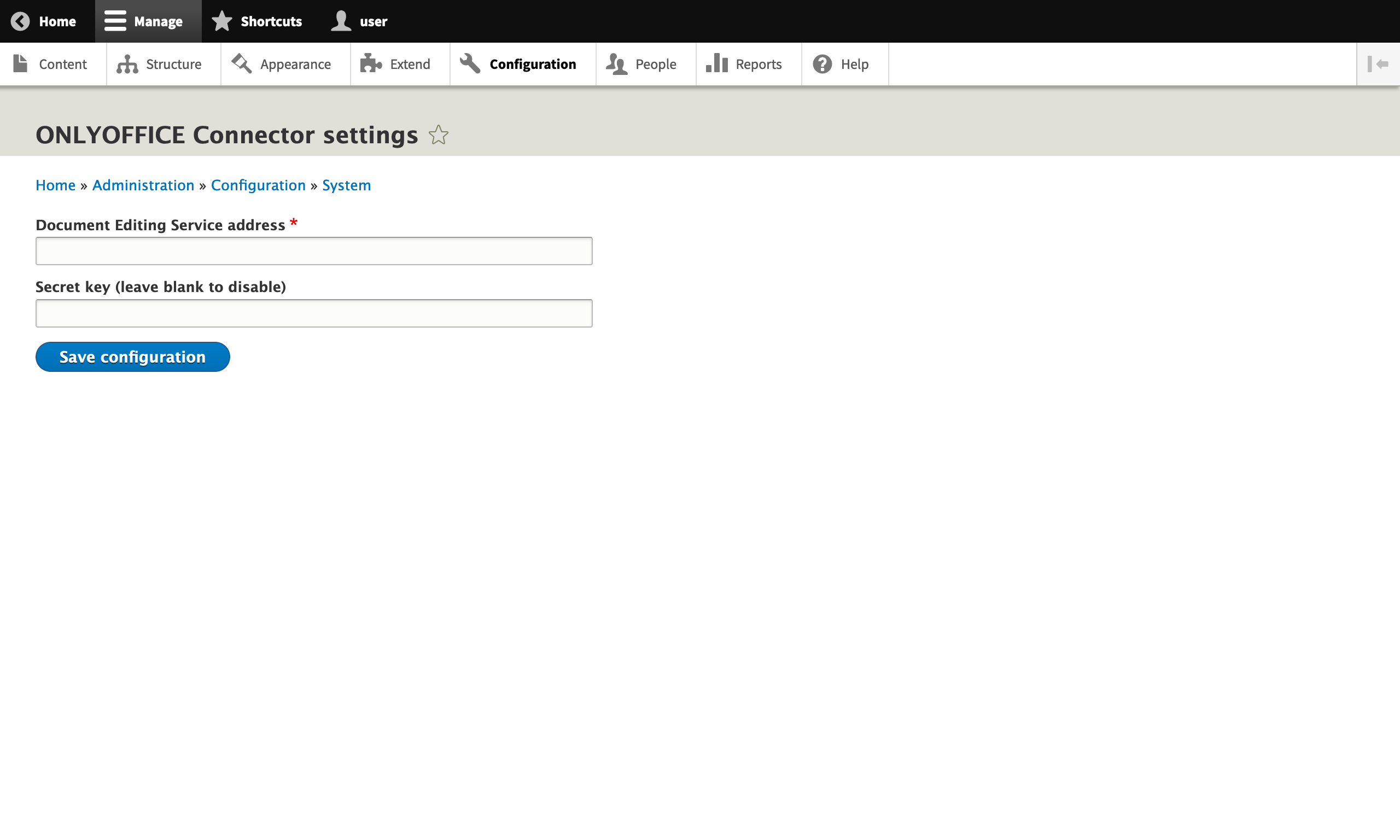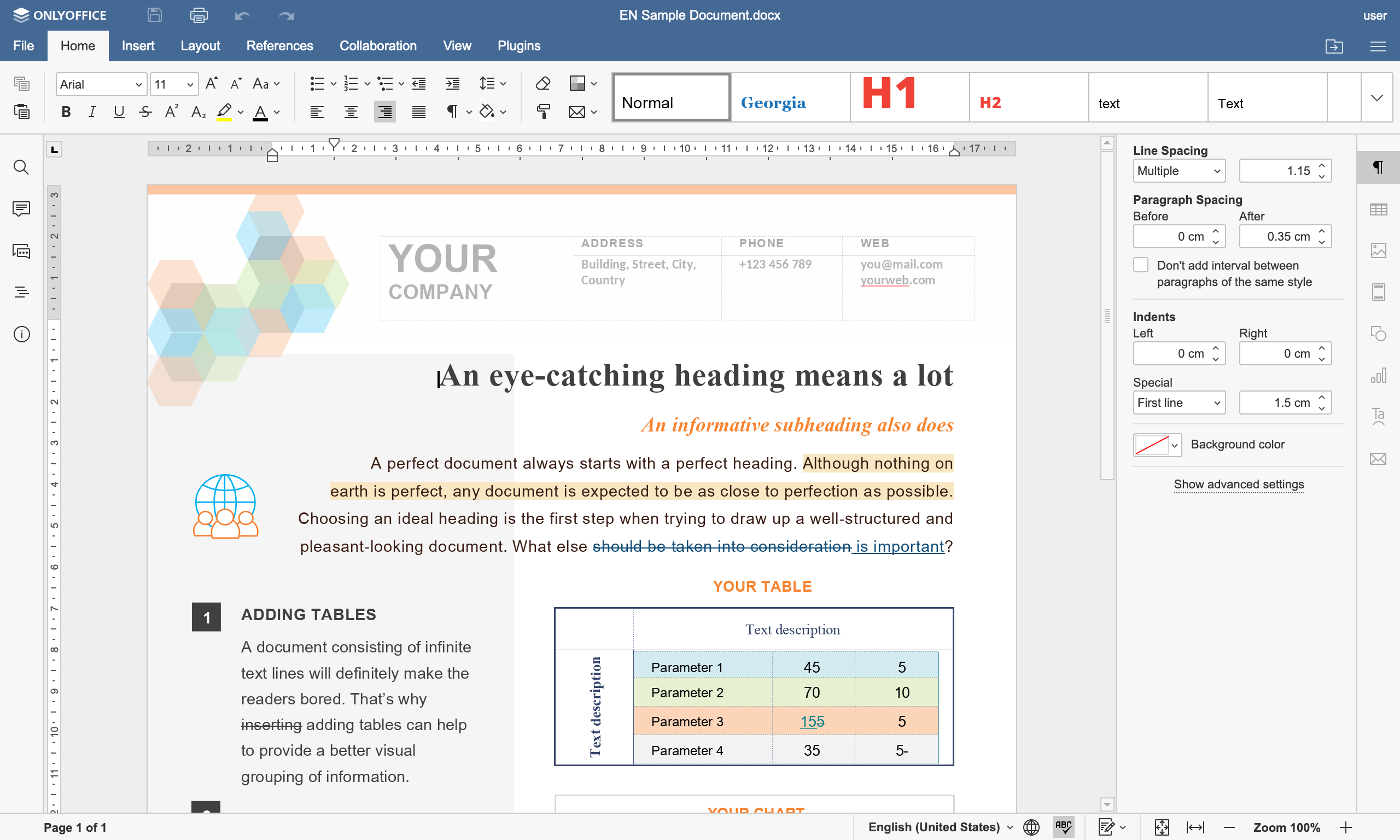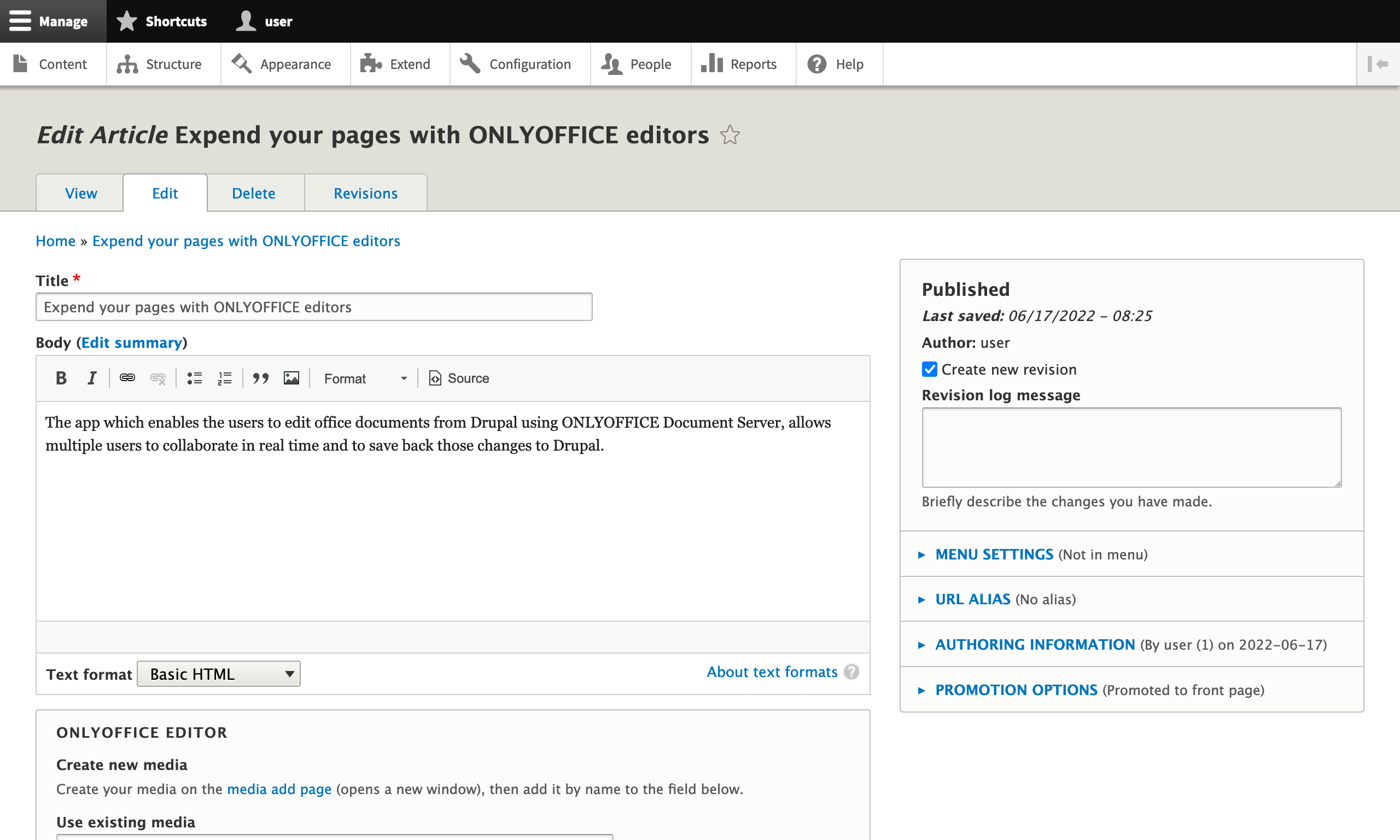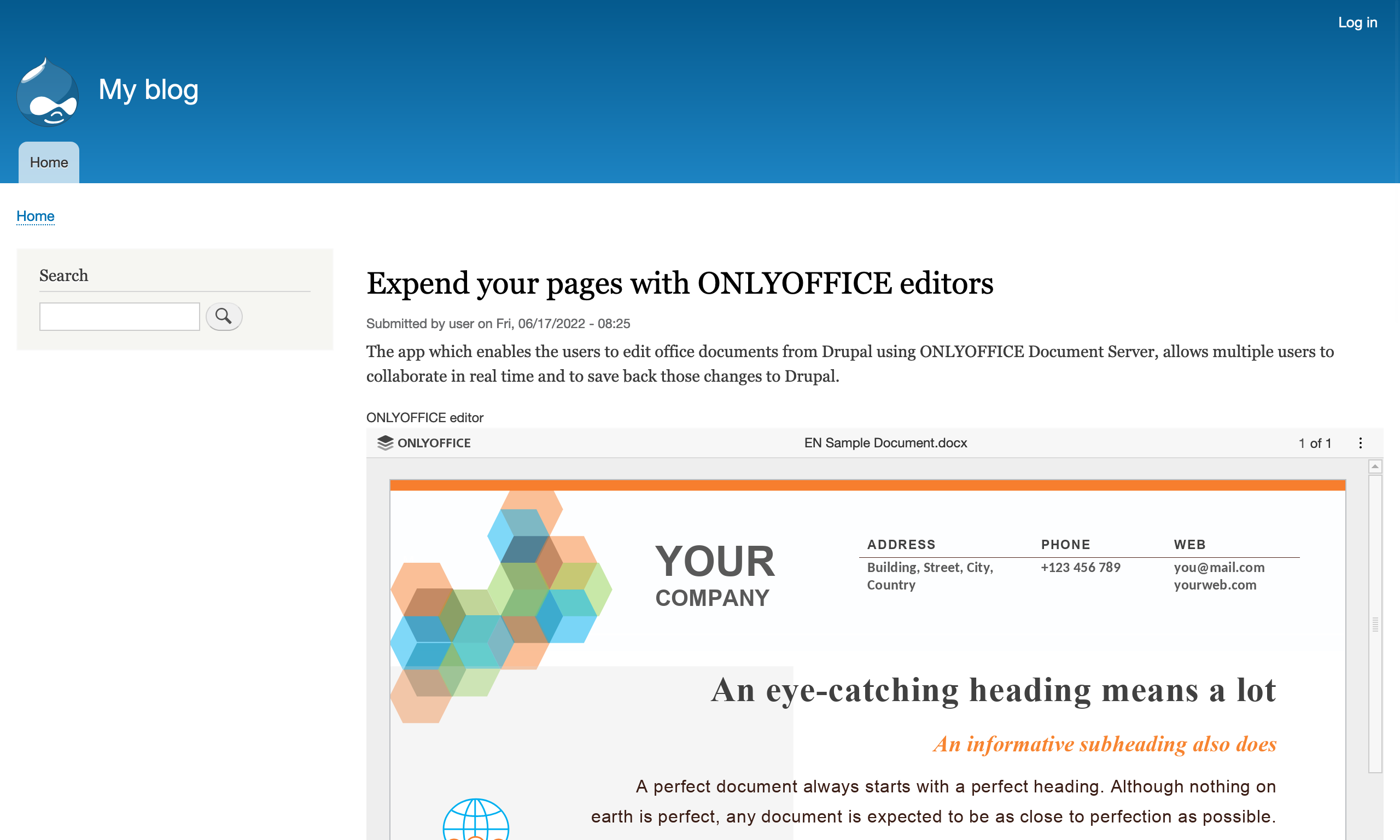
The ONLYOFFICE module enables users to edit files in the Media module from Drupal using ONLYOFFICE Docs packaged as Document Server.
The module allows to:
- Edit text documents, spreadsheets, and presentations.
- Preview files on public pages.
- Collaborate on documents using two co-editing modes (real-time and paragraph-locking).
- Create and fill out PDF forms.
Supported formats:
- For editing: DOCX, XLSX, PPTX, PDF forms.
- For viewing only: DJVU, DOC, DOCM, DOT, DOTM, DOTX, EPUB, FB2, FODT, HTML, MHT, ODT, OTT, OXPS, PDF, RTF, TXT, XPS, XML, CSV, FODS, ODS, OTS, XLS, XLSM, XLT, XLTM, XLTX, FODP, ODP, OTP, POT, POTM, POTX, PPS, PPSM, PPSX, PPT, PPTM.
Usage
Edit files already uploaded to Drupal
All office files added to Media can be opened for editing. In the last table column, call the drop-down list and select the Edit in ONLYOFFICE action. The editor opens in the same tab. Users with Administrator rights are able to co-edit files using ONLYOFFICE Docs. All changes are saved in the same file.
Create new posts
When creating a post, you can add the new ONLYOFFICE element.
Go to Structure -> Content types -> Manage fields. On the opened page, click Add field. Add a new field: File or Media. Set the label and save.
For the added File field, specify the file extensions. Go to Structure -> Content types -> Manage fields. In the Allowed file extensions field, specify the file formats that will be shown in the editors (docx, xlsx, pptx). For the added Media field, click the Document checkbox.
Go to Structure -> Media types -> Document -> Manage display. For the Document field, specify the ONLYOFFICE Preview format. By clicking on the gear symbol, you can specify the dimensions of the embedded editor window.
When you are done with the pre-settings, you can create posts on the Content tab. Click on the Add Content button and select the created content.
Specify title and select a file (if the content contains File fields).
For Media section, specify the name of the previously uploaded file.
Your site visitors will also be able to view the created page (People -> Permissions -> View published content).
Work with forms
The ONLYOFFICE form section allows Drupal users to create new PDF forms: Manage-> Content -> ONLYOFFICE form.
Creating, uploading, editing PDF forms
To create a new PDF form, click the Create&Upload button. Select the Blank option and fill in the name for the new file.
To upload, select the Upload option and upload a PDF form from your device.
The created/uploaded file will appear in the list on the Forms page and open in editing mode in the ONLYOFFICE editor in a new tab.
Publishing PDF forms on a Drupal page
To add a PDF form to a Drupal page, some initial setup is required. Navigate to Manage -> Structure -> Content types. For the desired content type, select Manage fields. On the next page, click Create a new field, choose ONLYOFFICE form, and set a field name. This will add a field of the ONLYOFFICE form type to the selected content type.
To add a PDF form to a site page, navigate to Manage -> Content. Click the Add content button and select the content type that includes the previously added ONLYOFFICE form field. In the form field, enter the name of the existing form. If the form hasn’t been created yet, click Create new ONLYOFFICE form to open the PDF Forms section, where you can upload or create a new PDF form. Finally, click the Save button to complete the page creation in Drupal.
Filling out PDF forms
On the Drupal page, users can fill out the form with their data. To submit the completed form, click the Complete & Submit button in the top editor panel.
Once submitted, the completed form will be sent to the site. Visitors can also download a copy to their device by opening the context menu in the top editor panel and selecting Download as DOCX or Download as PDF.
Working with the filled forms
In the Manage -> Content -> ONLYOFFICE form -> Submitted forms section, Drupal users can view completed forms, organized by template name. To view all responses for a specific template, simply select the form's template name.
| Attachment | Size |
|---|---|
| 1. Settings.png | 155.67 KB |
| 2. Media Module.png | 80.25 KB |
| 3. Editor.png | 416.67 KB |
| 4. Create Drupal article.png | 346.21 KB |
| 5. Result.png | 294.28 KB |
Project information
- Project categories: Content display, Content editing experience, Integrations
 37 sites report using this module
- Created by onlyoffice on , updated
 Stable releases for this project are covered by the security advisory policy.
Look for the shield icon below.