

This module compress your images for optimal file-size using the ImageOptim API, and can be used in three ways:
- Optimizing images on file upload.
- Using the image optimitzation service as image effect in image styles.
- Scanning image files and optimizing massively.
You’ll need to obtain an API key/username from ImageOptim.
Images are send to ImageOptim web service using an HTTP Request and then donwloaded and replaced with an optimize version. If you want to save outbound bandwidth and are using an optimization image effect, add an earlier standard scale effect to limit the size of the image sent.
Installation
- Download the ImageOptim module and enable it.
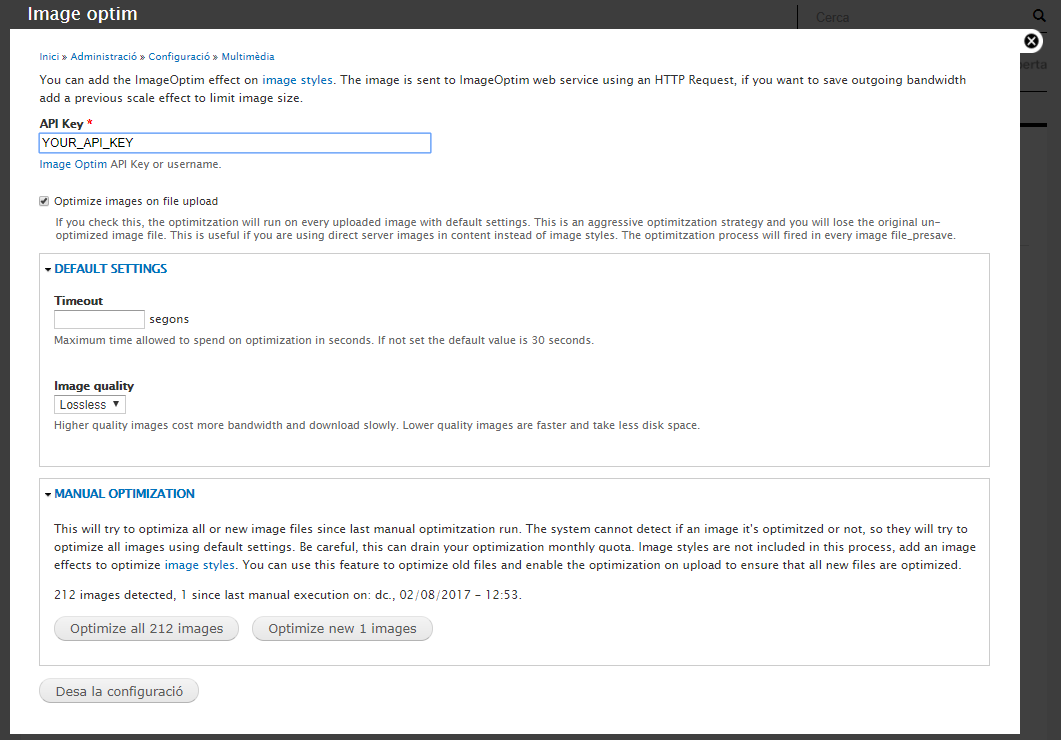
- Go to: Admin > Config > Media > Image Optim (admin/config/media/imageoptim) and set your API Key.
How to optimize images on file upload
- Go to: Admin > Config > Media > Image Optim (admin/config/media/imageoptim) and check the "Optimize images on file upload" checkbox.
How to add an image effecte optimitzation
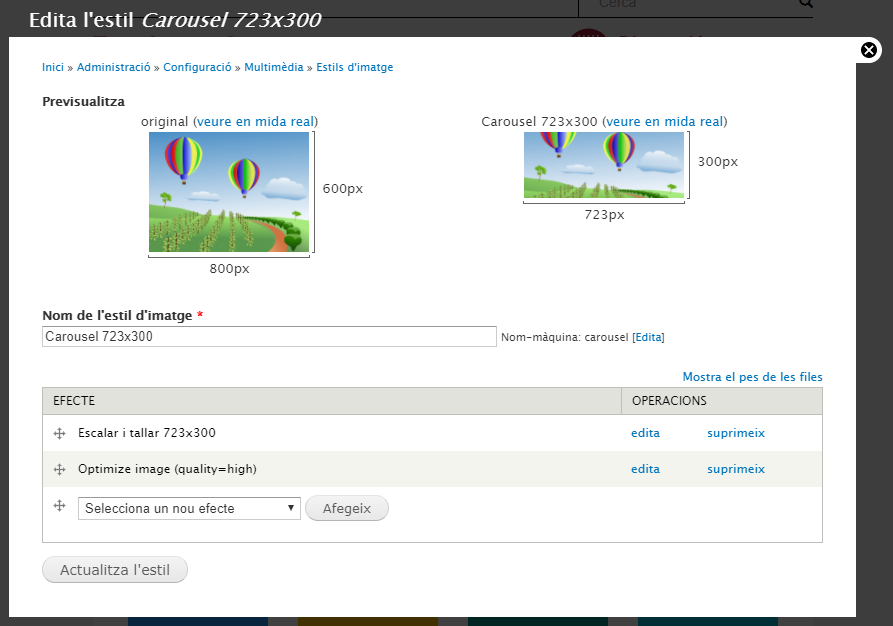
- Go to: Admin > Config > Media > Image Styles (admin/config/media/image-styles) and create or edit your image styles.
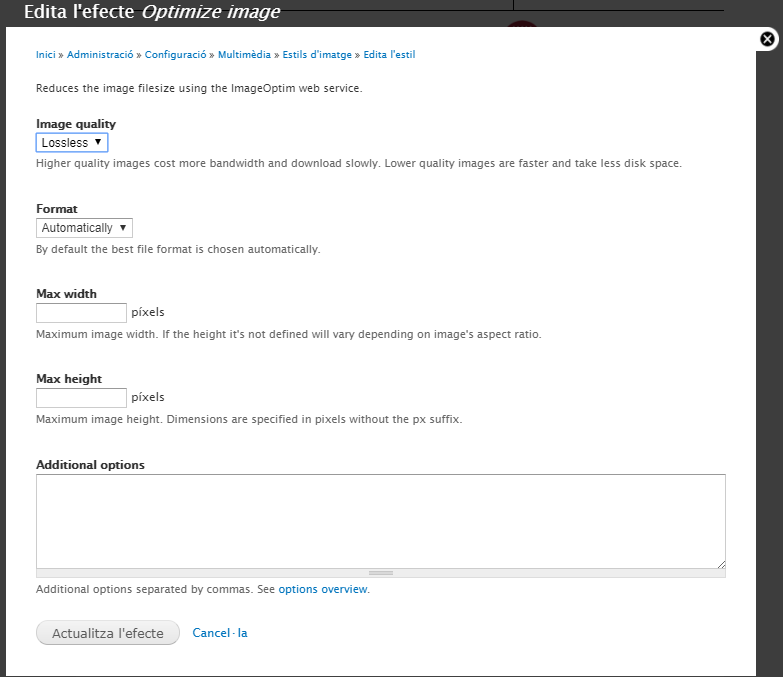
- Add Image Optim effect to every style that you want to optimize using ImageOptim webservice.
If you apply multiple effects set the Image Optimizer effect the last one, because if the image is re-saved using another toolkit you can lose the image optimization.
How to scan and optimize image files manually
- Go to Admin > Config > Media > Image Optim (admin/config/media/imageoptim) and run "Optimize all images" or "Optimize new images" in manual optimization fieldset.
New images are all images added since last manual optimization run, you probably will not need to use this feature if you have optimization on file upload enabled.
Project information
 Unsupported
Not supported (i.e. abandoned), and no longer being developed. Learn more about dealing with unsupported (abandoned) projects- Obsolete
Use of this project is deprecated. - Project categories: Media
 46 sites report using this module
- Created by oriol_e9g on , updated
 Stable releases for this project are covered by the security advisory policy.
There are currently no supported stable releases.

