MultiLink - documentation
Additional documentation for MultiLink

Managing News can be used to generate a highly topical printout of relevant news which can be used as a report in meetings or as a tangible hand-off to other members of a team.
Let's say that our company is in the sustainable fuel industry. The company has an intern whose job it is to take a daily review the latest news related to specific topical issues and send paper reports to the CEO. Managing News is perfect tool for making this job highly efficient and sharable because it layers several forms of automated filtering, followed by human-filtering tools which automatically generate nice, printable reports.
The first part of the equation is to pull together trusted news sources. To do this, the intern can import an OPML file from the company's collection of RSS feeds, or begin adding new feeds manually. Once a cron job is set up to automatically fetch new content from these feeds, the main Feeds section will always display the newest stories from all the aggregated feeds.
Once Managing News is aggregating a number of feeds, the amount of information to process can be overwhelming, and chances are that only a portion of the articles being aggregated are relevant to the topics used to generate the final reports.
Luckily, Managing News has a search feature which can be used to further narrow down results based on matching particular search terms. Let's say the topics we need to cover are oil prices, wind power and worldwide disaster.
All we need to do is click on the Search tab at the top of the screen, fill out the form with our search term and use the Save this search button to save each search for quicker access later on. When we're done, we'll have the three searches displaying in our Saved Searches sidebar:

The next step is to use human discretion to do what automated filtering can't quite do on its own: narrow down the results even further to match only the most relevant articles. They way to do this is by using channel tags.
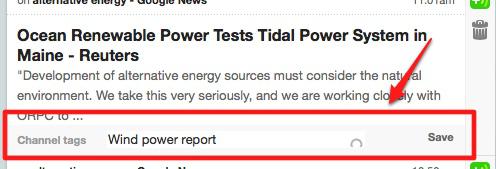
As the intern is browsing through the latest in the wind power saved search, they find an item that's a perfect match for the report they're compiling. To mark the item for inclusion, all they need to do is click on the pencil icon next to the Channel tags area under the item, and fill it out with a useful tag. In this case, "Wind power report":
Once the intern is done applying tags, it's time to generate the report.
Because we are working with reports that match single terms, we can click on the relevant term to display only items that match that term:

Then click the print button in the upper right-hand corner of the screen:

This will display a nicely formatted report which can then be printed via the web browser's print utility and handed off to the CEO.
In the future, as the CEO starts to see the benefit of keeping all of the other management in the loop, they decide that each top-level manager should get a special report based on tags that are related to their job. For example, the PR person needs all information related to oil prices and conferences, while the CFO needs a report on oil prices and inflation. Channels are perfect for this, because they pull together multiple tags into a single report.
All your intern has to do is create a channel based on the tags each report needs by going to the Channel tab and clicking Add channel. Once a channel exists, they just click on the channel item in the left-hand column and click the Print button to print out the report. Learn more about channels here and the print feature here.
Related pages
Additional documentation for MultiLink

Drupal is a registered trademark of Dries Buytaert.
