
 The 2026 Drupal Business Survey is open. Your response will help shape the future of the Drupal business ecosystem.
Set Up Auth0 User Synchronization with Drupal
Last updated on
28 July 2026
This guide explains how to configure an Auth0 Machine to Machine Application for the Drupal Auth0 User Sync module. The module uses the Auth0 User Management API to synchronize users between your Auth0 tenant and your Drupal website. By following the steps below, you'll create an Auth0 application, configure the required permissions, and connect it to your Drupal site.
Prerequisite:
Install and enable the Drupal Auth0 User Sync module on your Drupal site before proceeding with this guide.
Auth0 User Sync Settings:
- After installing the module on your Drupal site, in the Administration menu, navigate to Configuration -> People -> Auth0 User Sync. (/admin/config/people/auth0-user-sync)
- Login using miniOrange credentials.
- Now go to the Settings tab of the module.

Configure Auth0 Application:
- Log in to your Auth0 Dashboard.
- From the left navigation menu, click Applications.
- Select Applications from the expanded menu.
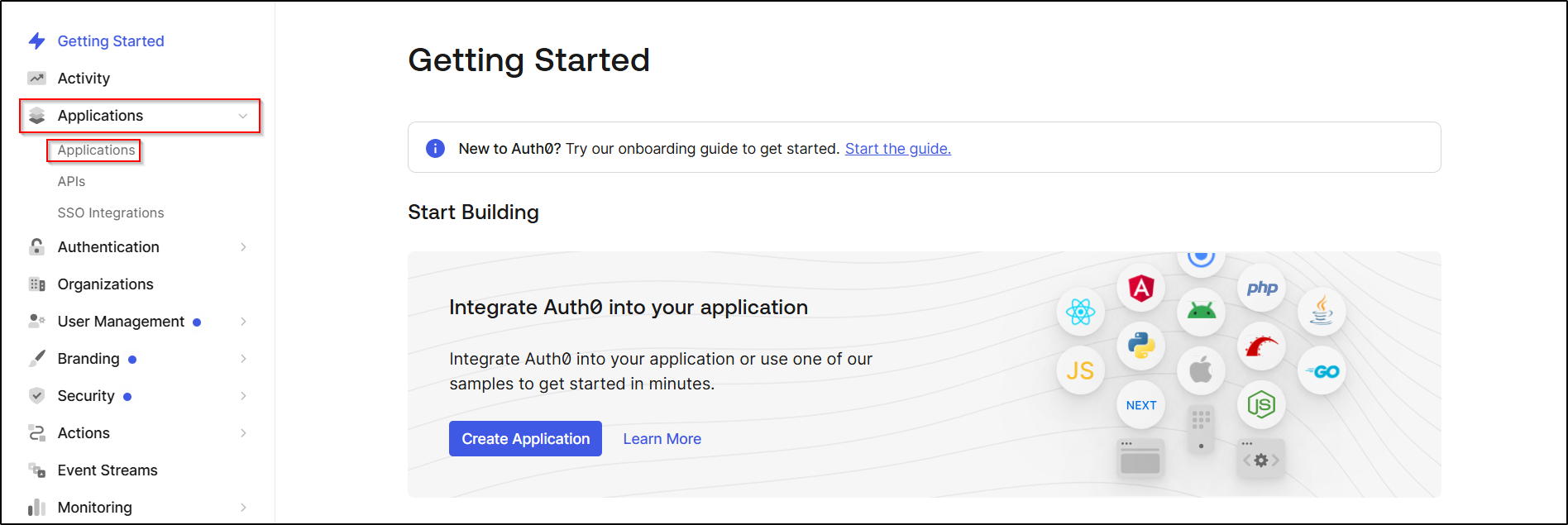
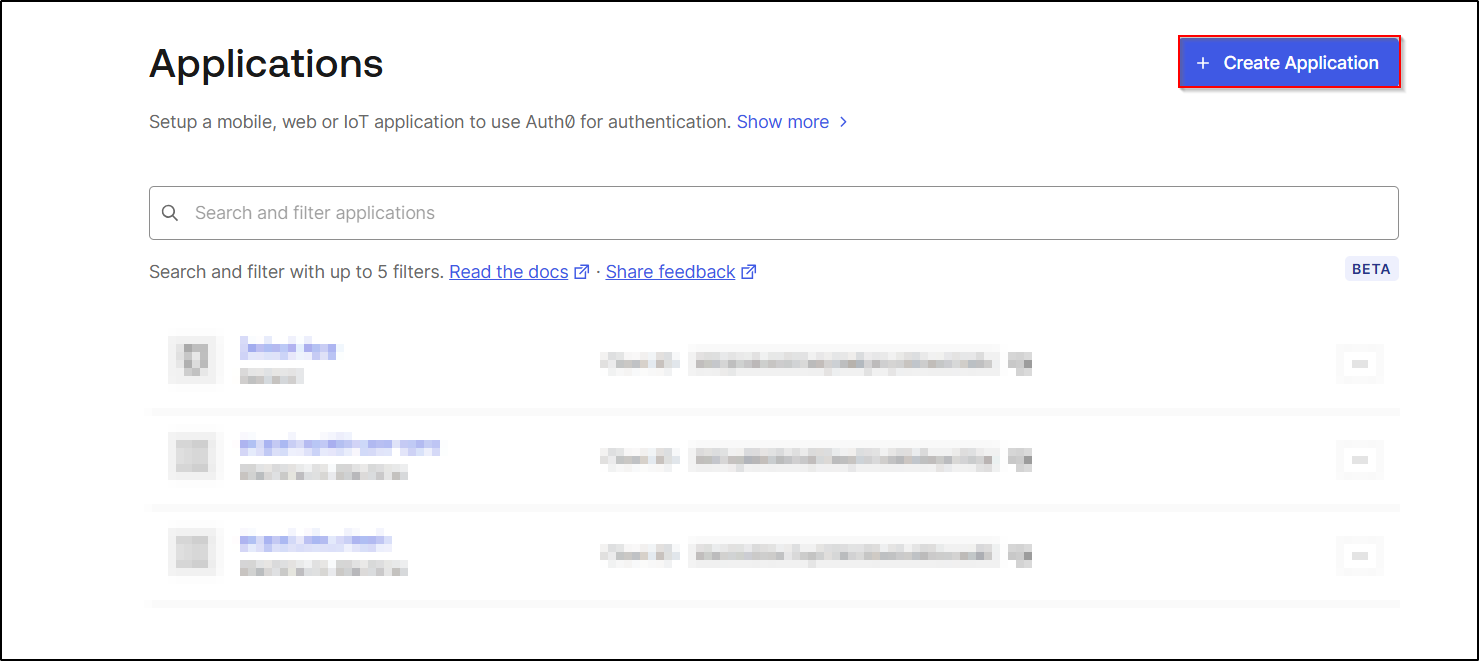
- On the Applications page, click the Create Application button in the top-right corner.
- This will open the application creation wizard, where you'll configure a new Auth0 application for your Drupal site.
- In the Create application window, enter a name for your application in the Name field.
- Under Choose an application type, select Machine to Machine Application.
- Click Create to create the application.

Note: The Machine to Machine Application type is required because the Drupal Auth0 Sync module communicates with the Auth0 Management API to synchronize users.
- After creating the Machine-to-Machine application, the Authorize Machine to Machine Application dialog appears.
- Click the Select an API dropdown.
- Choose Auth0 Management API.

- Next, select only the permissions related to users.
- Also, select the required role- and group-related permissions:
read:roles,create:roles,delete:roles,update:roles,create:role_members,read:role_members,delete:role_members,create:groups,read:groups,update:groups,delete:groups, andread:group_members.

- Click on the Authorize button.
- The application is now authorized to access the Auth0 Management API.
- Now, go to the Settings tab.
- Copy the following values:
- Domain
- Client ID
- Client Secret
- These values are required for configuring the Drupal module.
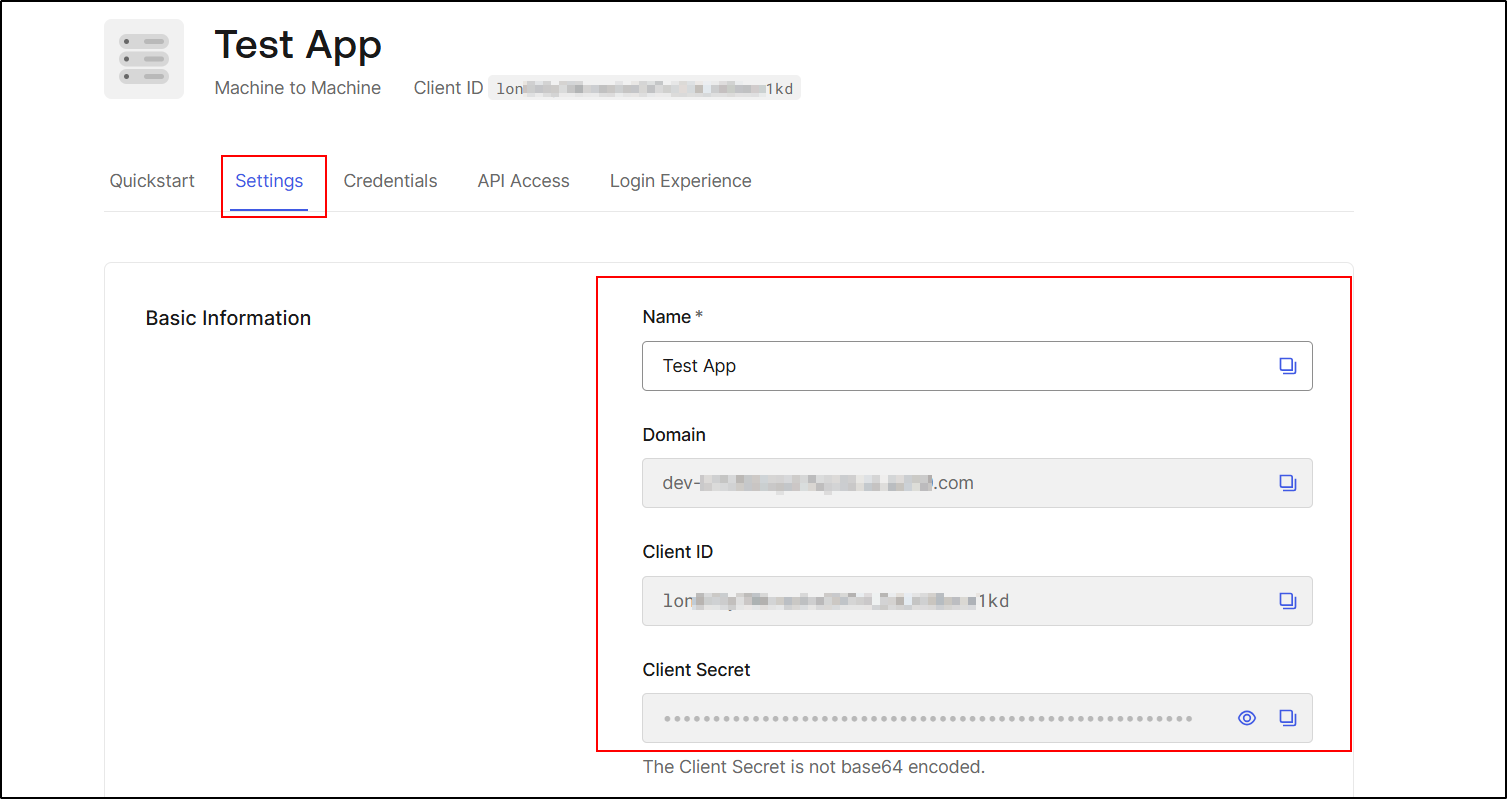
- Copy the Audience URL from the API Access tab and keep it handy for the next step.

Configure the Drupal with Auth0:
- Go back to the Drupal site and paste the copied value into the provided text field.

- Once done click on the Save and Test Configuration button to save your configuration.
- Your Drupal module is now configured with the Auth0 Machine-to-Machine application and is ready to communicate with the Auth0 User Management API.

 Back to top
Help improve this page
Page status: No known problems
You can:
You can:
- Log in, click Edit, and edit this page
- Log in, click Discuss, update the Page status value, and suggest an improvement
- Log in and create a Documentation issue with your suggestion
