
WHMCS OAuth SSO Setup
We provide Drupal OAuth & OpenID Connect Login - OAuth2 Client SSO Login module which is compatible with Drupal 7, Drupal 8, Drupal 9, Drupal 10, and Drupal 11.
Prerequisite:
- Install and activate the OAuth & OpenID Connect Login - OAuth2 Client SSO Login module on your Drupal site. Follow these steps to install the module.
Steps to configure Drupal as OAuth Client:
-
Once you have installed the module, go to the Configuration tab, and click on the miniOrange OAuth Client Configuration.

- Provide the following information into the Configure OAuth tab:
- Select Custom OAuth 2.0 Provider as the OpenID Provider from the Select Application drop-down. Also, if you don't see your Application/Provider in the Select Application drop-down, you can select Custom OAuth 2.0 Provider.
- Copy the Callback/Redirect URL and keep it handy.
If your provider only supports HTTPS Callback/Redirect URLs and you have an HTTP site, please make sure to enable the 'Enforce HTTPS Callback URL' checkbox at the bottom of the tab.
-
Enter the WHMCS as the Application name in the Display Name text-field.

Configure OAuth/OpenID SSO Application in WHMCS:
- Go to your WHMCS domain and log into your WHMCS Administrator account.
-
The following screen will be shown to you. Go to Setup on the navigation bar on top.

-
Select the OpenID Connect option from the Setup dropdown menu.

-
Click on the Generate New Client API Credentials button.

- After clicking the Generate New Client API Credentials button, you will be directed to an app details page and provide the required details in below screen:
- Enter the Drupal as the Application name in the Name text-field.
- Provide a Description of your application.
-
Paste the Callback/Redirect URL into the Authorized Redirect URIs text-field.
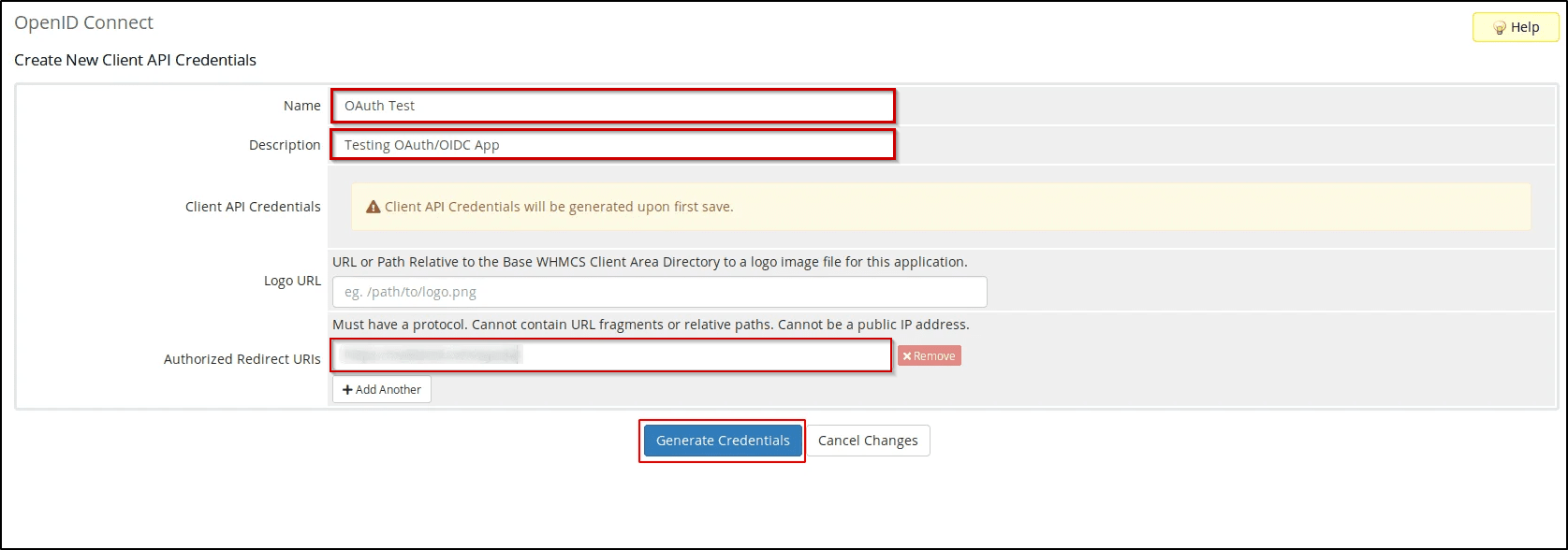
- Click on the Generate Credentials button.
Drupal integration with WHMCS:
- WHMCS assigns a unique Application ID to your application.
-
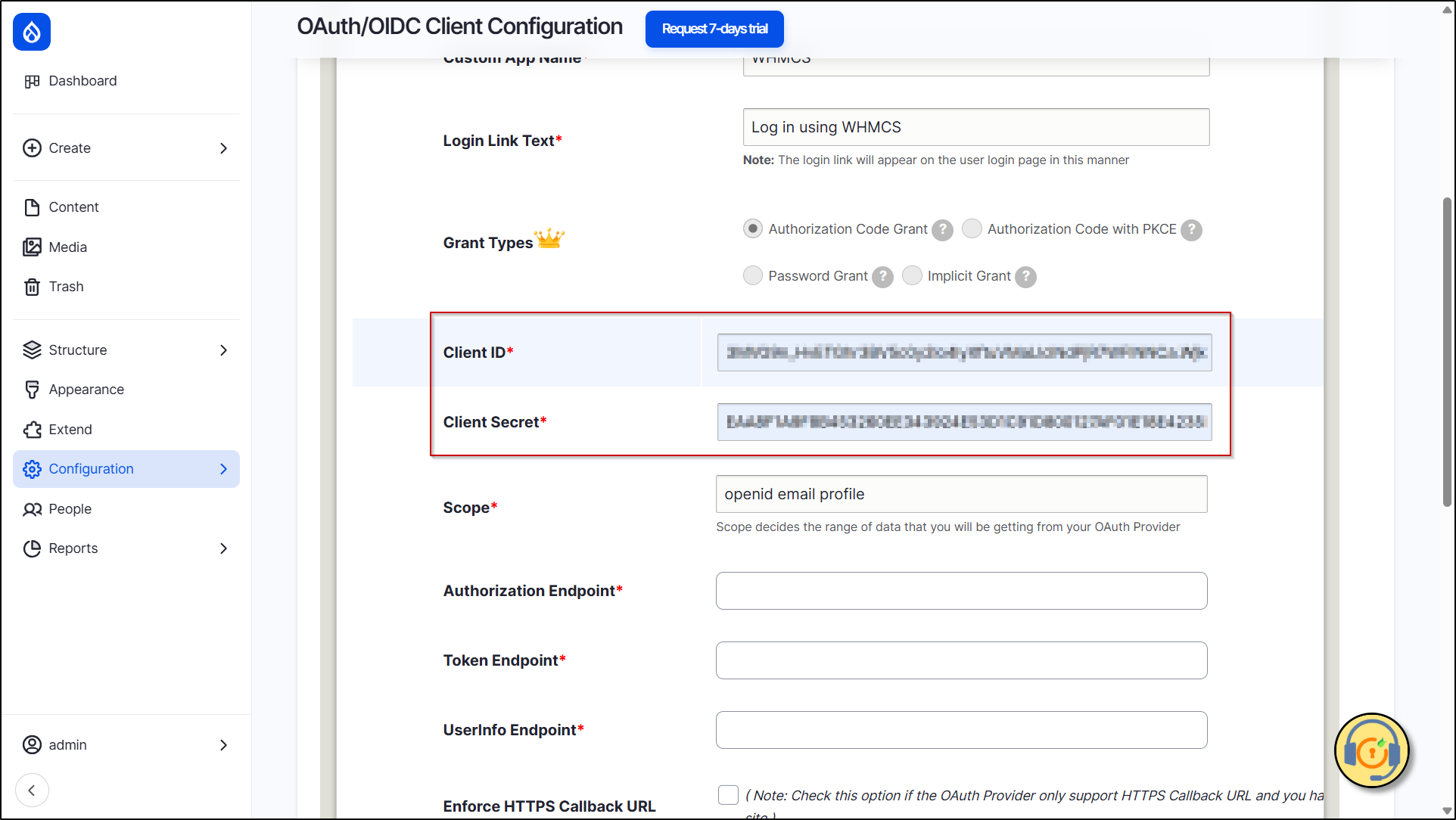
Copy the Client ID and Client Secret from the Client API Credentials section and keep it handy.

-
In Drupal's Configure OAuth tab, paste the copied Client ID into the Client ID text-field and the Client Secret into the Client Secret text-field.
-
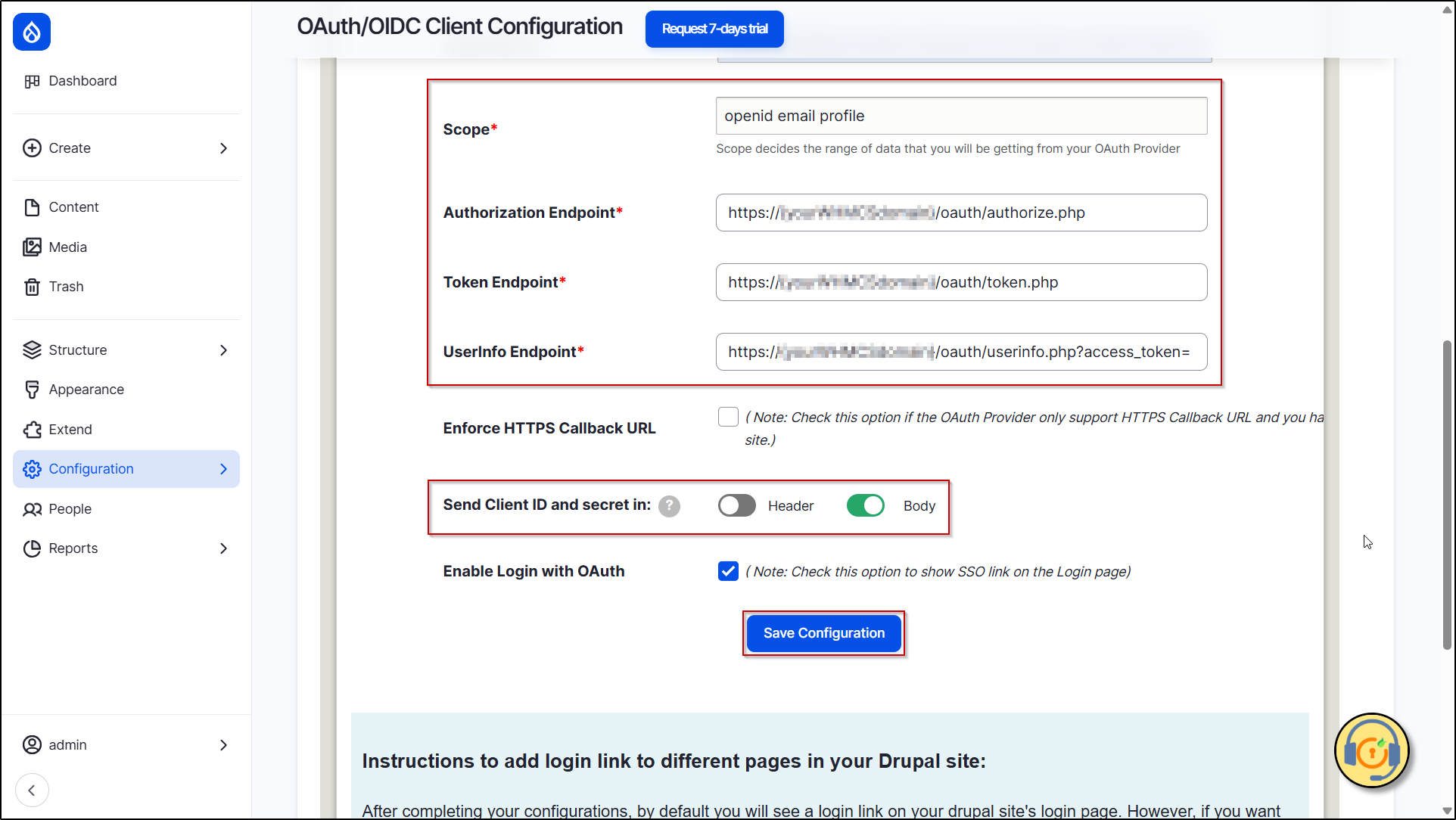
In the screen below, provide the Endpoints and Scope:
Scope openid profile email Authorize Endpoint https://{yourWHMCSdomain}/oauth/authorize.php Access Token Endpoint https://{yourWHMCSdomain}/oauth/token.php Get User Info Endpoint https://{yourWHMCSdomain}/oauth/userinfo.php?access_token=
-
The Send Client ID and Secret in checkbox allow you to specify whether the Client ID and Secret should be included in the header or the body of the Token Endpoint Request. If you're unsure which option to select, you can stick with the default settings. Click on the Save Configuration button.
Test Configuration of Drupal with WHMCS:
-
After successfully saving the configurations, now click on the Perform Test Configuration button to check the Single Sign-On (SSO) connection between Drupal and WHMCS.

- On a Test Configuration popup, if you don't have an active session in WHMCS on the same browser, you will be asked to sign in to your WHMCS account. After successfully logging into WHMCS account, you will be provided with a list of attributes that are received from the WHMCS.
-
Select the Email Attribute from the dropdown menu in which the user's email is obtained and click the Done button.
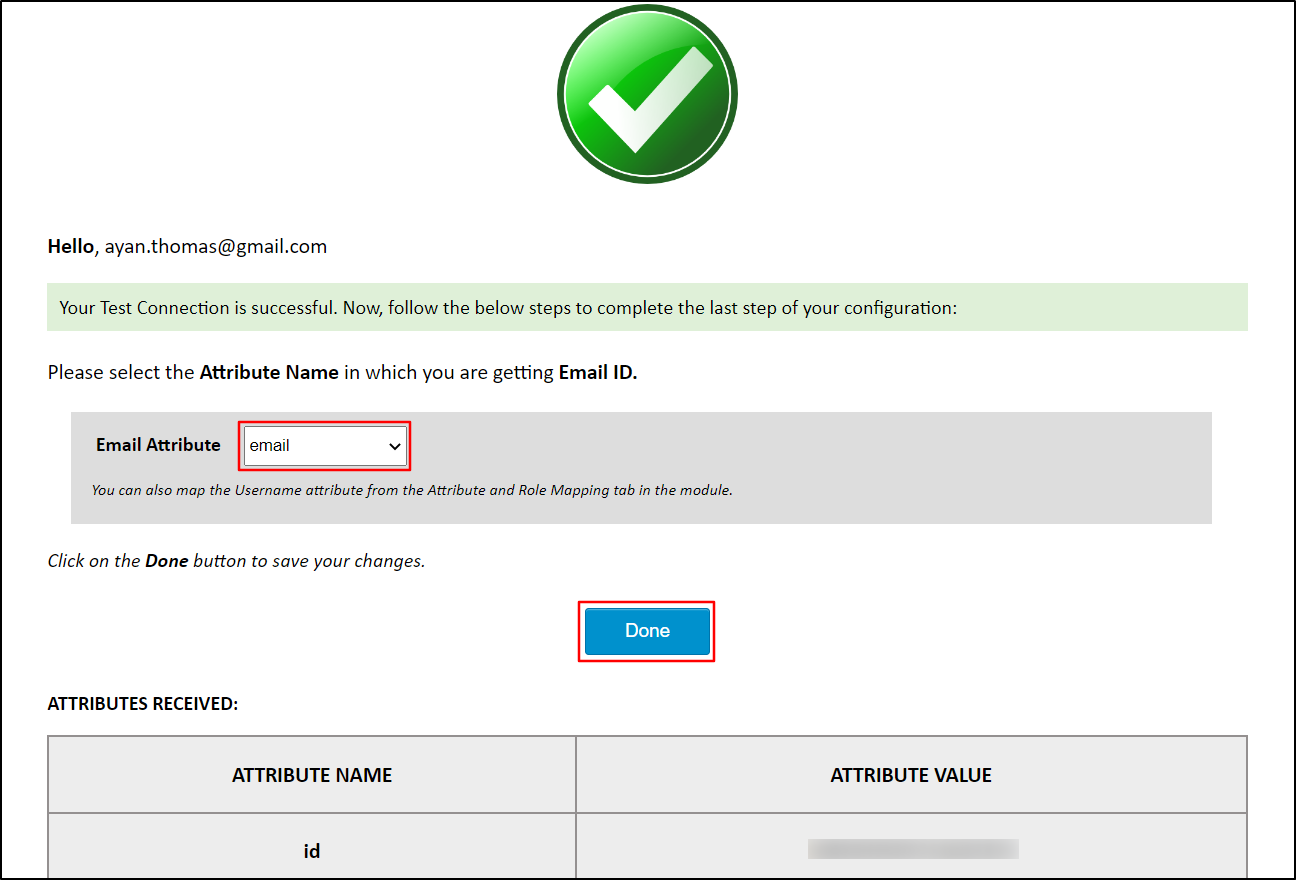
Please note: Mapping the Email Attribute is mandatory for your login to work.
-
After that you will be auto-redirected to Attribute & Role Mapping tab. Under this tab, copy the attribute name that contains the username and paste it into the Username text field.
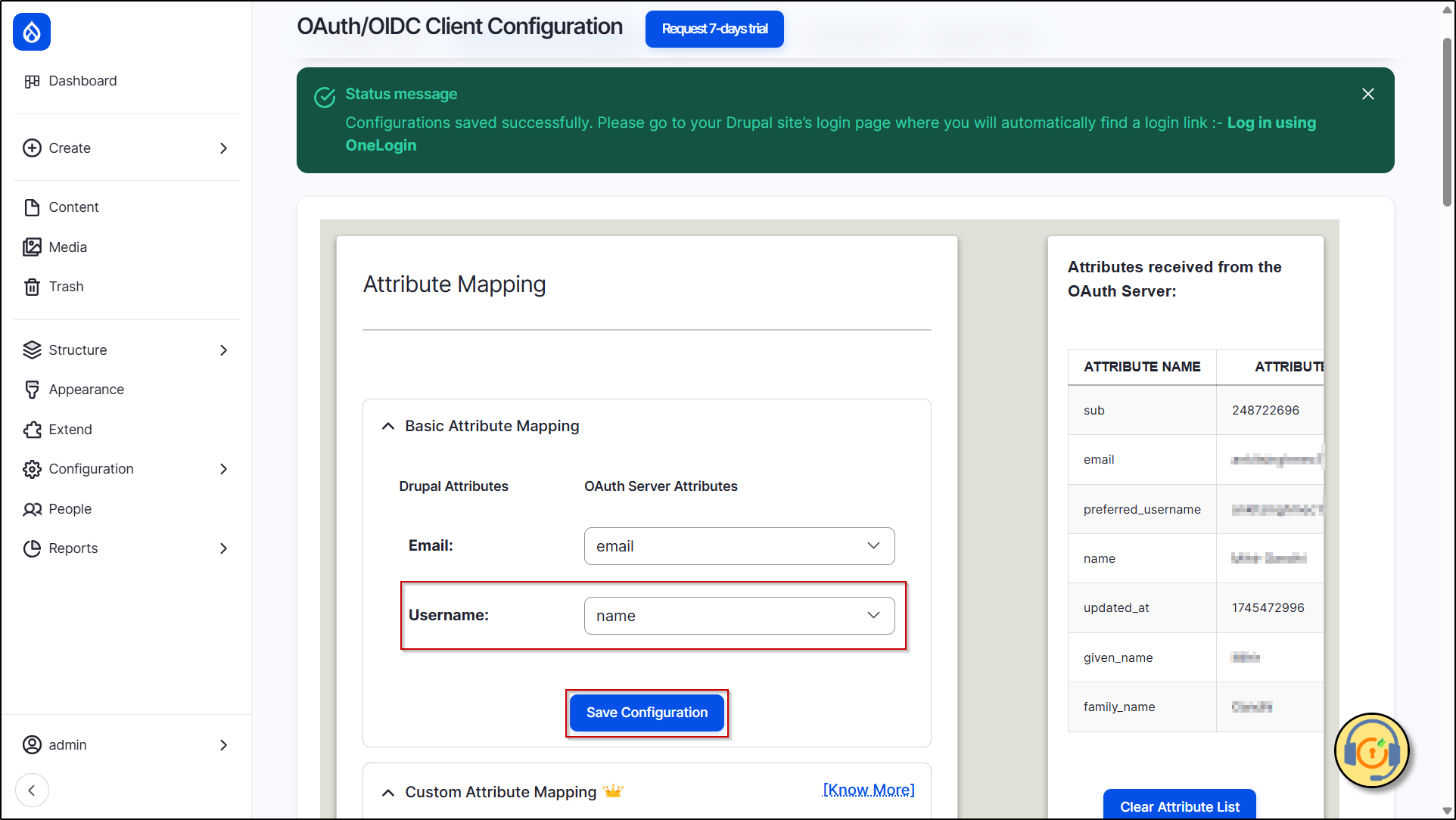
Congratulations! You have successfully configured WHMCS as OAuth/OpenID Provider and Drupal as OAuth Client.
How to perform the SSO login?
- Now, open a new browser/private window and go to your Drupal site login page.
- Click on the Login using WHMCS link to initiate the SSO from Drupal.
-
If you want to add the SSO link to other pages as well, please follow the steps given in the image below:

 Back to top
Help improve this page
You can:
- Log in, click Edit, and edit this page
- Log in, click Discuss, update the Page status value, and suggest an improvement
- Log in and create a Documentation issue with your suggestion

