
On this page
Installation and Configuration
Installation
Download the module using composer. If you need instructions on how to download a module using composer for your Drupal project you can read the documentation here: how to install dependencies with composer in Drupal 8.
composer require drupal/recaptcha_v3
Enable the module in the "extend" section of Drupal back-office (admin/modules).
Require PHP 7.1+
Configuration
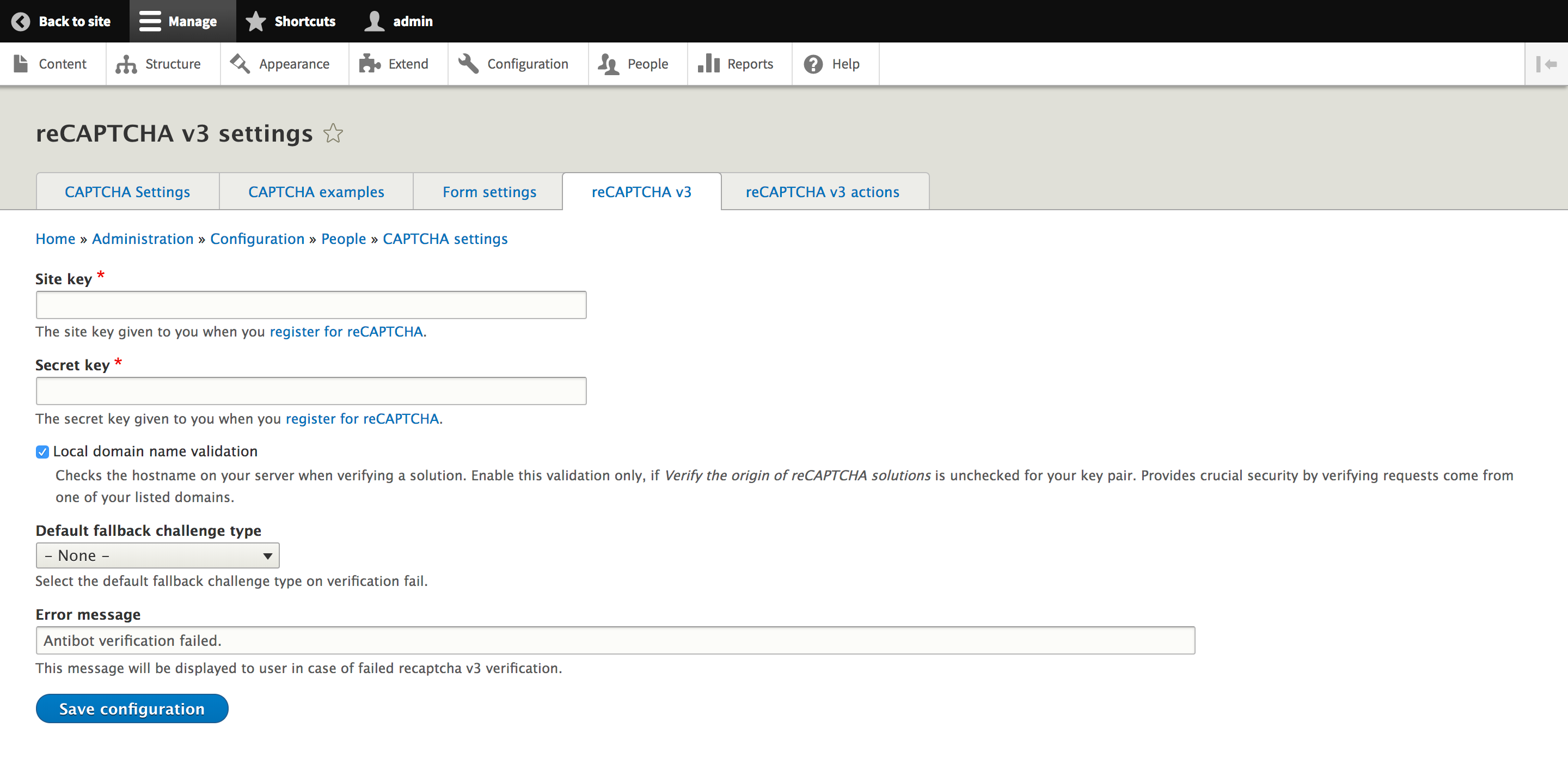
First, register reCAPTCHA v3 keys here. Navigate to Configuration > CAPTCHA module settings > reCaptcha V3, enter the "Site key" and "Secret key".
Navigate to Configuration > CAPTCHA module settings > reCaptcha V3 actions and add a new action.
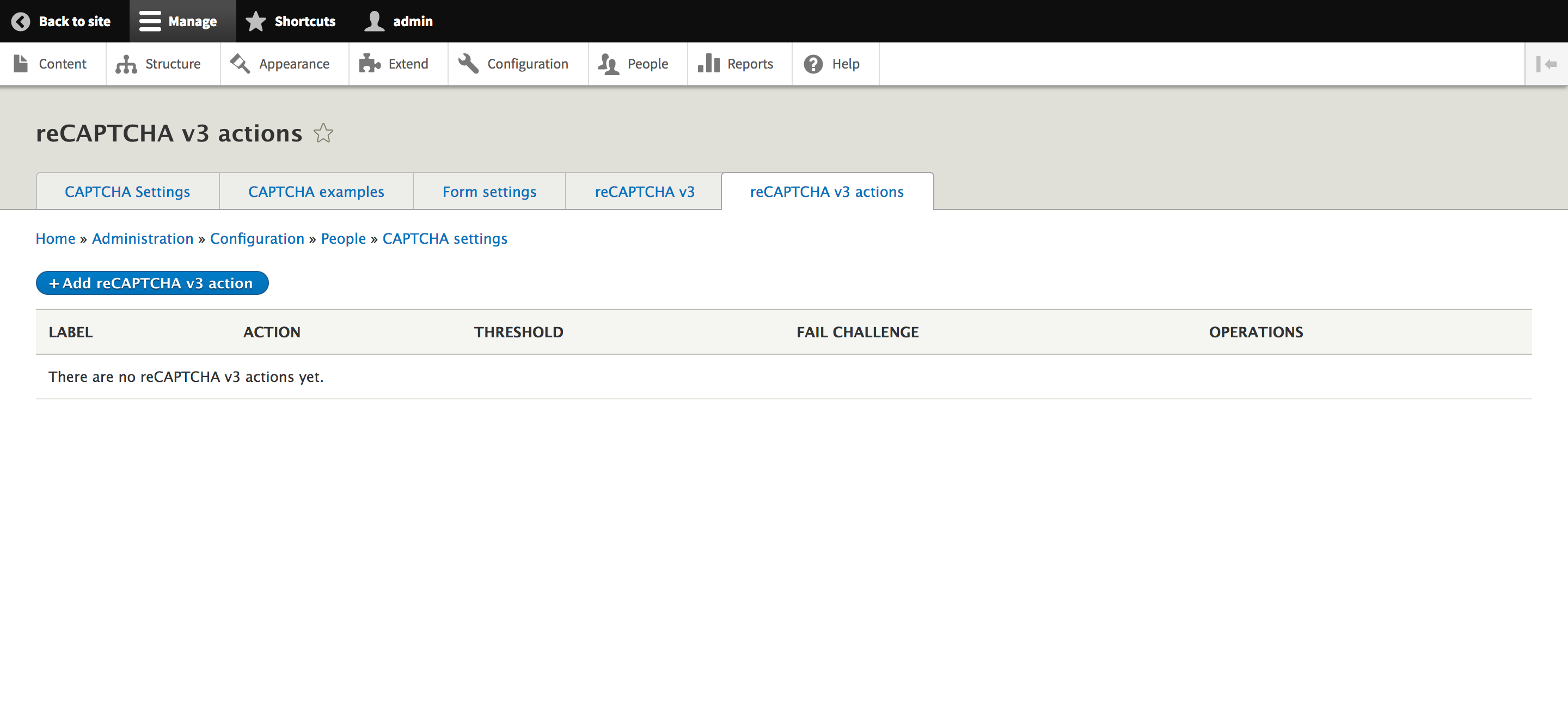
Add an appropriate name for your reCAPTCHA v3 action. Google reCAPTCHA v3 returns a score (1.0 is very likely a good interaction, 0.0 is very likely a bot). Based on the score, you can take variable action in the context of your site. You could specify the additional validation challenge for failed reCAPTCHA v3 validations. If you left empty "Default challenge type" option and "Challenge" for concrete action, then if user validation failed, reCAPTCHA v3 will be used again. This can bring to the inability to submit forms for suspicious users.

I'm recommending using this module together with reCaptcha: set the default captcha type to reCAPTCHA v3 and select reCaptcha v2 for the additional challenge. In this case, you will have unintrusive reCAPTCHA v3 as the default challenge and standard reCaptcha for failed user validations.
I am using using "Math captcha" as fall back challenge in this guide. 
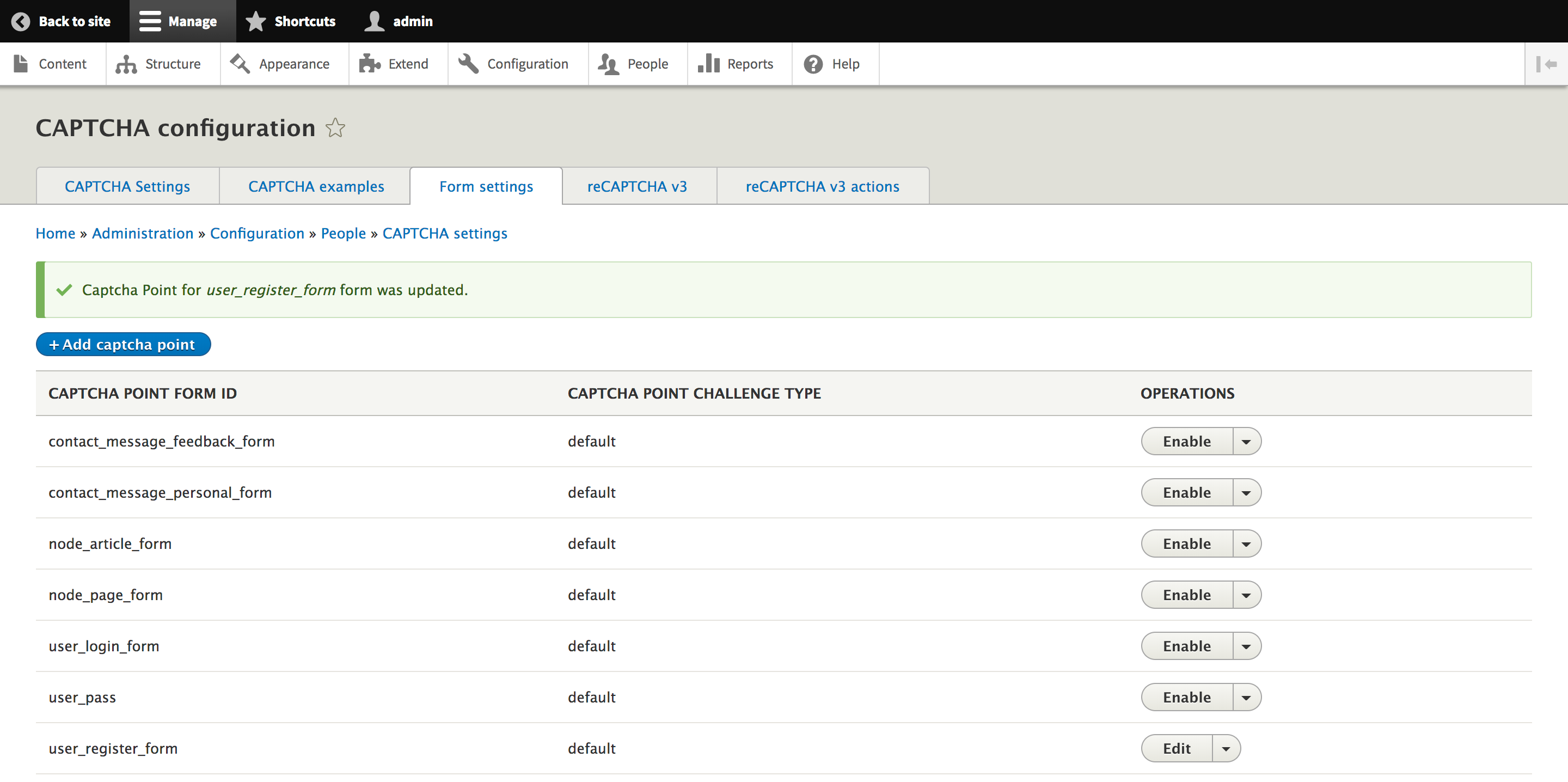
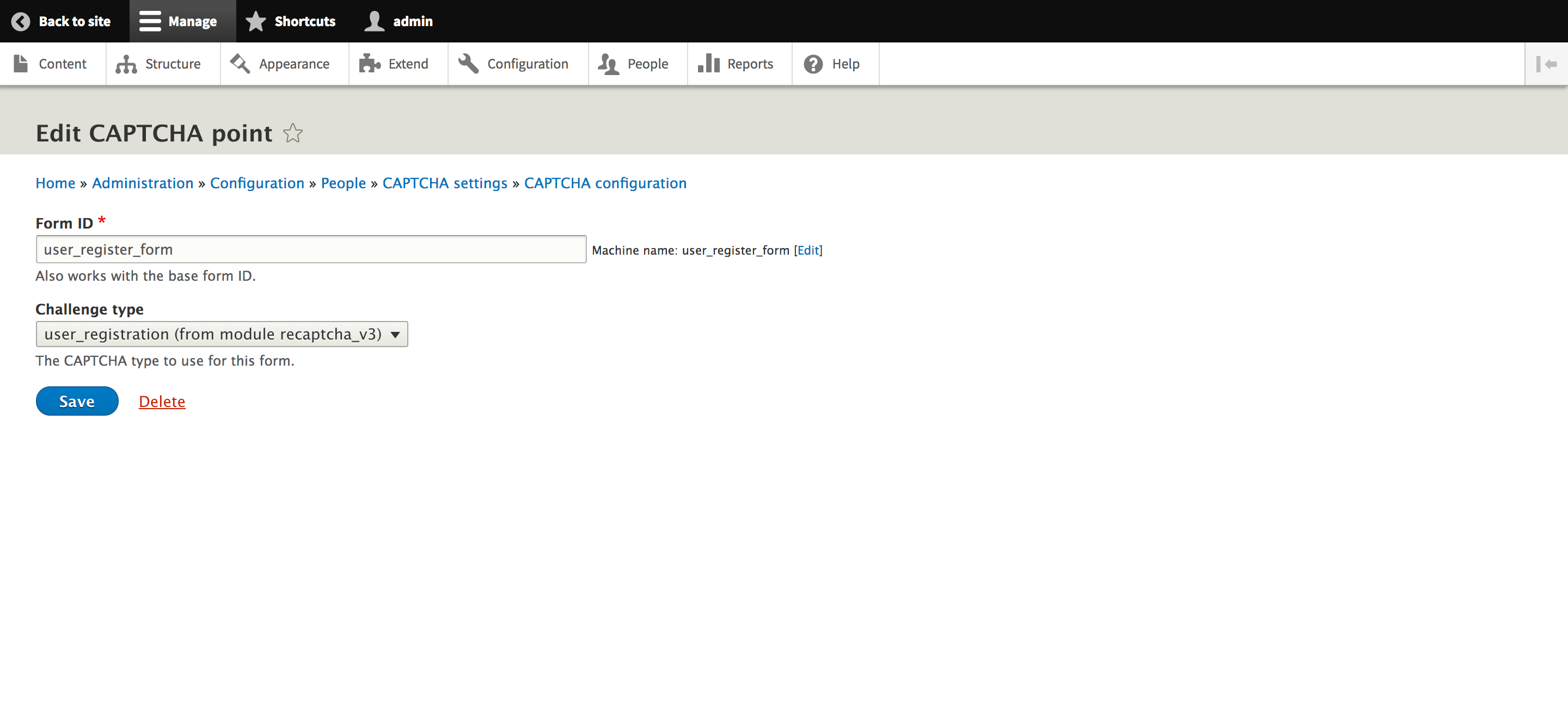
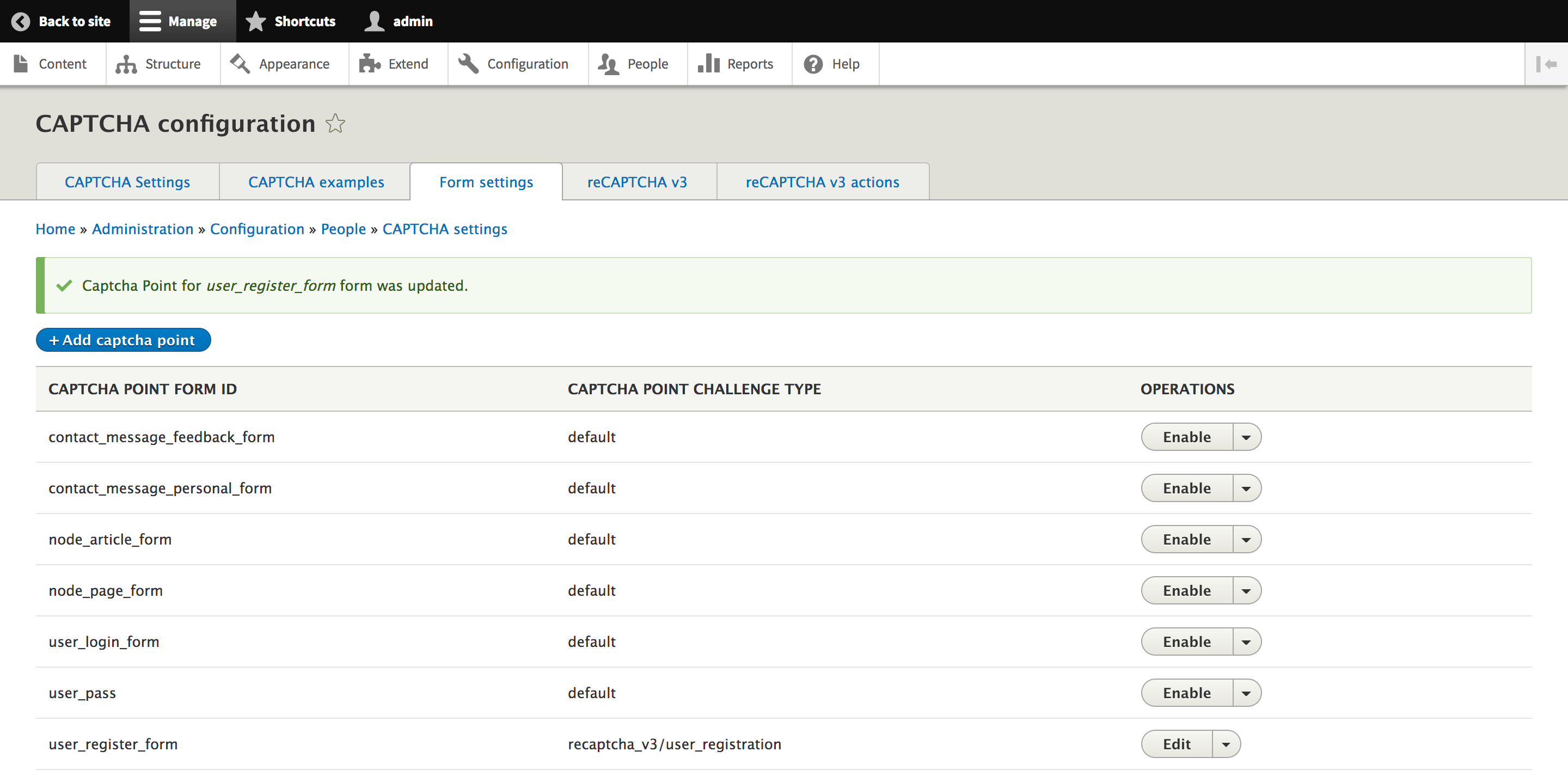
Finally you need to configure the action you created in Captcha points form (You can do the same in webform as well).
Help improve this page
You can:
- Log in, click Edit, and edit this page
- Log in, click Discuss, update the Page status value, and suggest an improvement
- Log in and create a Documentation issue with your suggestion
