
 Come together with the global Drupal community in Rotterdam, 28 Sept – 1 Oct 2026. Sessions, contribution, connection, and Early Bird savings until 8 June.
PayPal PayFlow Pro setup
1. Create a PayPal Manager account
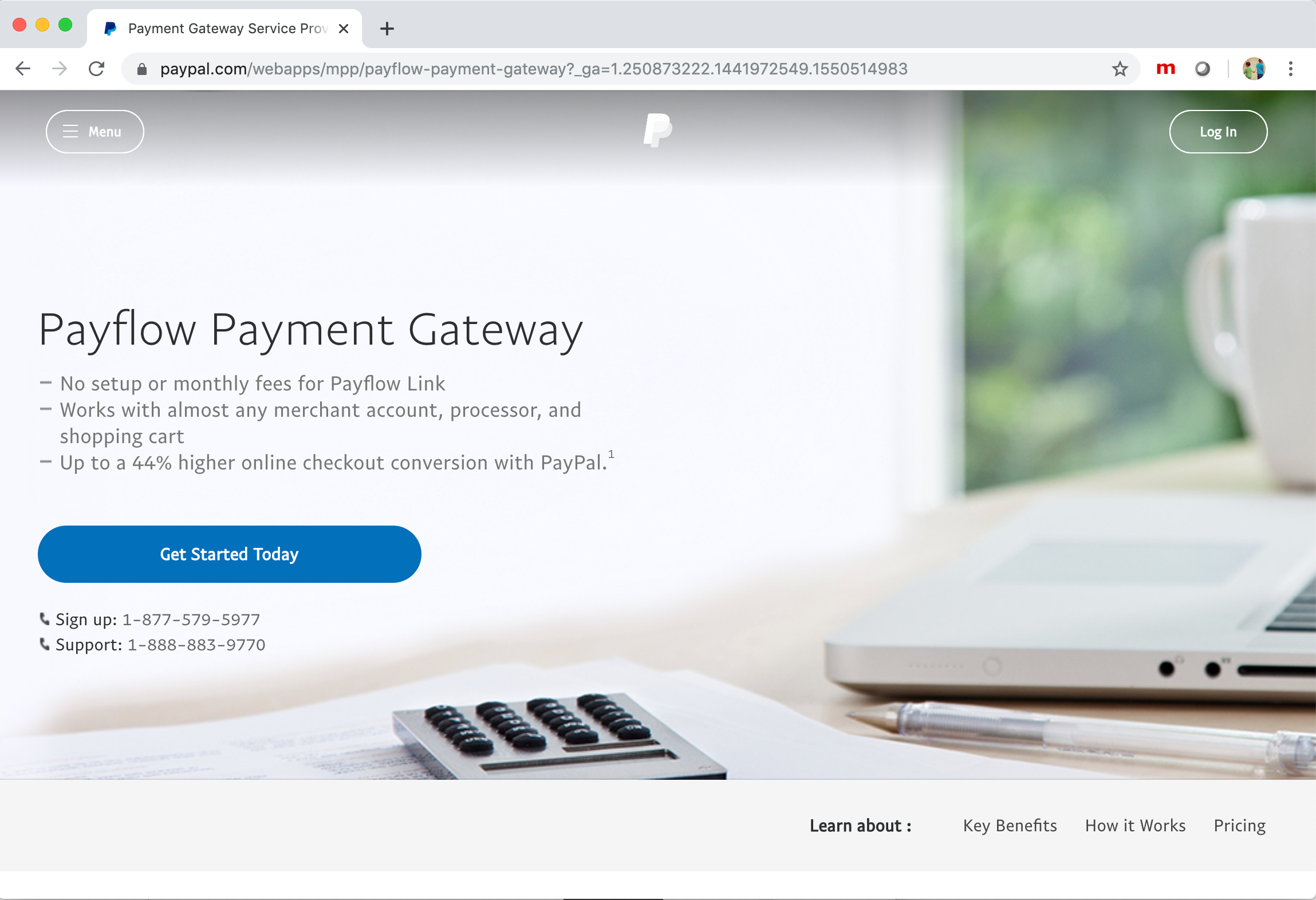
To get started with PayPal PayFlow Pro, you will need to create an account to use with the PayPal Manager. Navigate to PayPal's Payment Gateway Service Provider for Online Checkout - PayPal US page and click the, "Get Started Today" button:
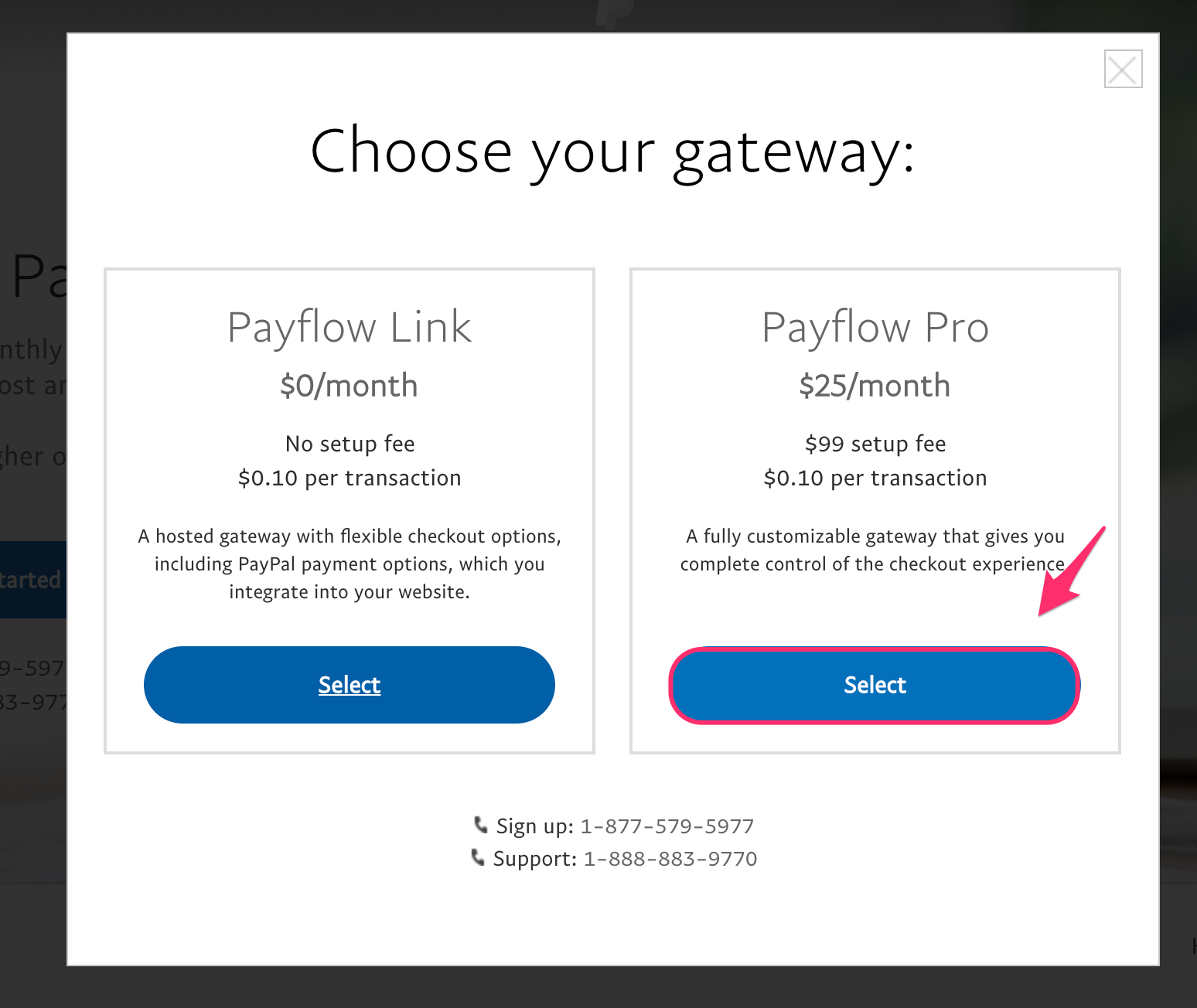
Choose the Payflow Pro option. (Payflow Link is a legacy product, not supported by the Commerce PayPal module.) You will be able to open a test account to use for a 30 day trial:
On the "Getting Started" page, you can just click, "Continue" if you are opening a trial account; otherwise, gather the necessary information as described.

2. Create a Payflow Gateway account
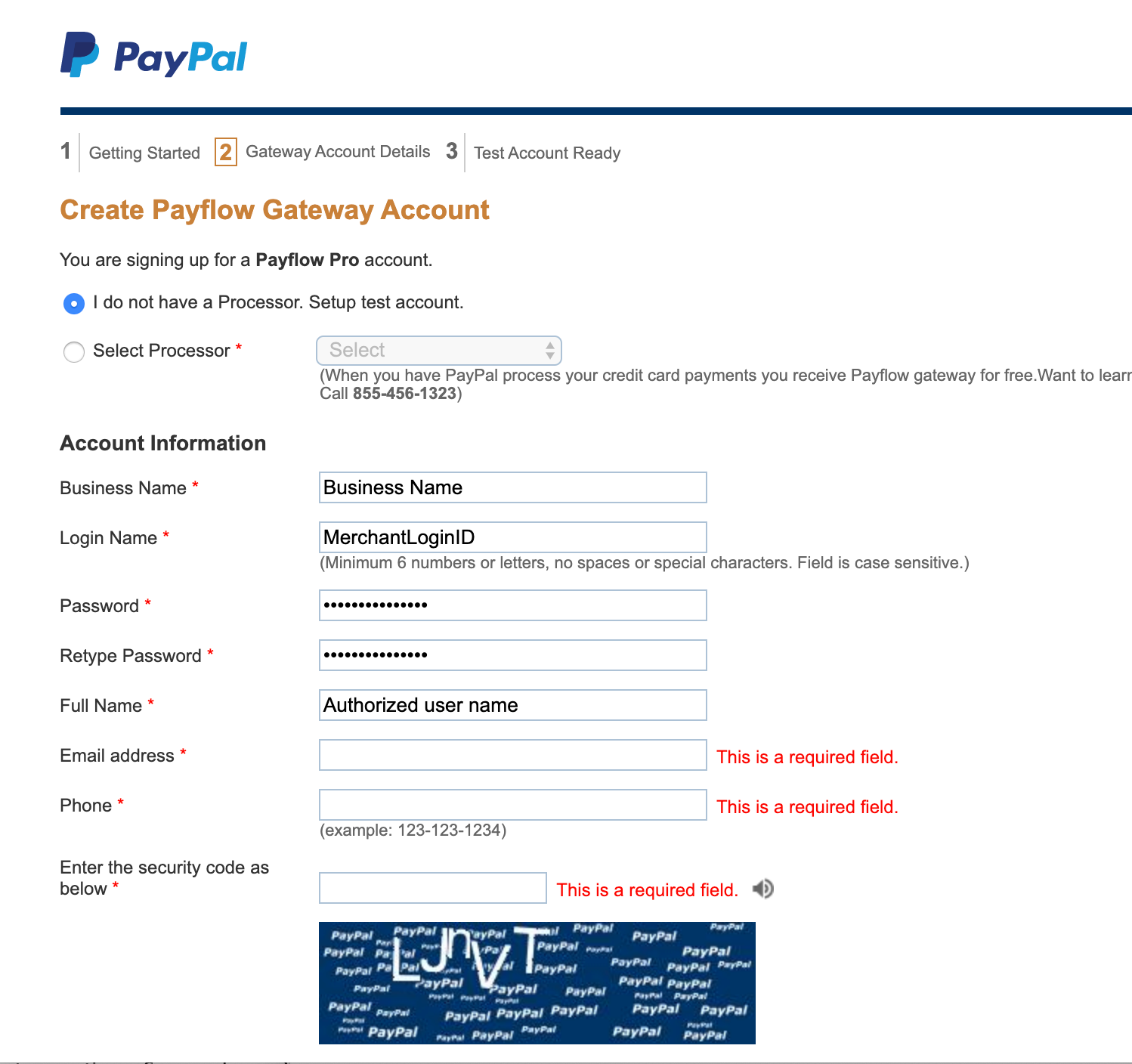
Select your Processor or select the test account setup option. The "Login Name" entered will be used for the initial admin user. You will be able to create additional administrative users through the PayPal Manager. Make a note of your Login Name and Password: you will need them for configuring your payment gateway within Drupal Commerce
After your PayFlow Gateway account has been created, you will see a confirmation page. Click "Login to Manager" to continue:

At this point, you do not need to create an API Transaction User for your cart/application. (See optional step 4 below.) You should, however, verify that your account is currently in TEST mode. You may also want to spend some time exploring the all the configuration options and functionality provided by the PayPal Manager service.

3. Configure a PayPal - Payflow gateway on your Drupal site
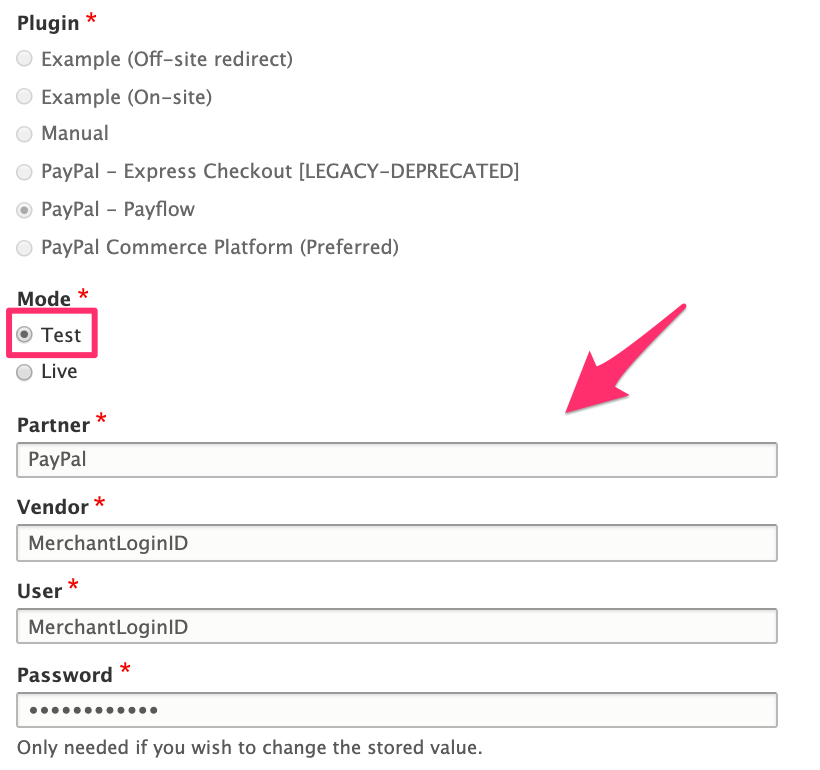
The Drupal Commerce Payments Getting Started documentation provides instructions for adding a payment gateway on your Drupal Commerce site. You will need to use the merchant login ID and password you created when you registered your PayFlow Gateway account to configure your Payflow gateway.
- Enter "PayPal" or the ID provided to you by the authorized PayPal reseller who registered you for the Gateway for the "Partner" setting.
- Enter the merchant login ID for both the "Vendor" and "User" settings. (See optional step 4 below to set up an API transaction user.)
- Enter the password associated with your PayFlow Gateway account (or the password for the API transaction user).
- Make sure to configure the payment gateway mode accordingly (i.e use "Test" mode when your account is in TEST mode).
- Note that all values are case sensitive.
4. (optional) Create an API Transaction User to be used specifically for your Drupal Commerce site.
When you created your PayFlow Gateway account, a default user account was created and assigned the "Admin" role. This user has full access to all Payflow Pro functionality. In some situations, you may want to create and use a dedicated "API Transaction" user on your Drupal site, one that does not have access to the PayPal manager. See PayPal Payflow Pro API Credentials and Endpoints for a full description of all available roles and capabilities.
To create an API Transaction user, log in to PayPal Manager and navigate to the Account Administration > Manage Users > Add User configuration page. Enter the "Admin User Password" you entered when creating the PayFlow Gateway account. The User Login Name and Password are the values you will use to configure your payment gateway within Drupal Commerce. Assign the "API_FULL_TRANSACTIONS" role to this new user.

Help improve this page
You can:
- Log in, click Edit, and edit this page
- Log in, click Discuss, update the Page status value, and suggest an improvement
- Log in and create a Documentation issue with your suggestion
