
 Come together with the global Drupal community in Rotterdam, 28 Sept – 1 Oct 2026. Sessions, contribution, connection, and Early Bird savings until 8 June.
Installing Font Awesome Icons
This guide is for installing the 8.x-2.x version of Font Awesome Icons.
To begin, simply download and install the module as normal. Once installed, you will then have to configure the Font Awesome Icons module to point to a valid Font Awesome source.
To do so, first navigate to the administration page for Font Awesome Icons at /admin/config/content/fontawesome.
Font Awesome delivery method
On this page, you should first select the method of serving Font Awesome that you will be using on your site, either SVG with JS or Webfonts with CSS. We highly recommend using SVG with JS for several reasons.
- SVG with JS is the more modern, up-to-date version of Font Awesome 5.0
- It allows for the use of a version 4 shim file to support backwards compatibility with Font Awesome 4.7 and lower.
- It allows for the use of the new Font Awesome Power Transforms
- There is an official CDN version of Font Awesome for SVG with JS, but there is not one provided for Webfonts.
However, Webfonts with CSS is still supported for most use-cases and will better support very old browsers. For more information on the two versions, see https://fontawesome.com/get-started.
Installing Font Awesome locally
You have the option to install Font Awesome locally if you do not wish to use the CDN version of Font Awesome. There are several method to do this.
First, you can simply run the drush command drush fa-download. This will automatically download the Font Awesome library and install it at /libraries/fontawesome. You can check the status report page of your Drupal installation to confirm that the Font Awesome library is installed at the proper location.
Second, if you wish to install manually, you can simply download the Font Awesome library from https://fontawesome.com/ and install it at /libraries/fontawesome such that the file all.js is located at /libraries/fontawesome/js/all.js.
Font Awesome Pro
Please note that if you are using the Pro version of Font Awesome, you must download and install the Pro version of Font Awesome manually. The drush command does not support the installation of the Pro version, and Font Awesome does not provide a CDN version. Simply download the Pro version and install it at /libraries/fontawesome as you would do in the normal installation of Font Awesome.
Using a Font Awesome CDN
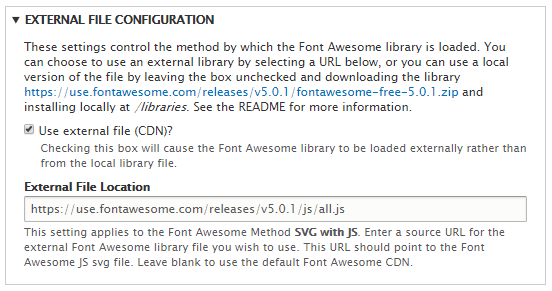
Next, you have the option to use the CDN version of Font Awesome if you wish (only if using the SVG with JS version of Font Awesome). Using the CDN version means that you do not have to install a local version of the Font Awesome, it is loaded from a remote URL.
To do so, simply check the box to use the CDN. The default CDN value should be filled in automatically. If not, simply leave the field blank to use the default CDN. You can enter your own CDN location here if you would like. Please note that Font Awesome does not currently provide a CDN for the Pro Version. If you are using the Pro Version, you will have to install the local library, which we will cover below. Font Awesome does have future plans to provide a CDN for the Pro version, but it is not currently supported.
Backwards Compatibility with Font Awesome 4.7.0
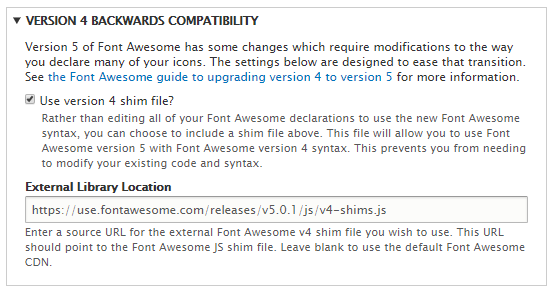
Font Awesome 5.0 introduced a new set of icons and a new way of declaring icon weights. This means that there is a new syntax for many icons, and Font Awesome tags for 4.7.0 will no longer function properly. To prevent having to edit the entire codebase, Font Awesome provides a shim file which will allow for backwards compatibility with Font Awesome 4.7.0. This is available only if you are using the SVG with JS version of Font Awesome.
To use, simply check the box to use the version 4 shim file. If you are using a CDN, there will also be a place to provide a CDN location for the v4 shim file. Leave the field blank to use the default CDN, or enter your own value. If you do not use a CDN, the file will be loaded from the local library.
That's it! You should now have a working version of Font Awesome 5.0 on your site. You can begin using the tags right away to add icons. See https://fontawesome.com/how-to-use for more information.
To use the CKEditor plugin to pick icons, or to use the Font Awesome Icon field, see our documentation on using those features.
Help improve this page
You can:
- Log in, click Edit, and edit this page
- Log in, click Discuss, update the Page status value, and suggest an improvement
- Log in and create a Documentation issue with your suggestion
