
Imagefield Slideshow
You are browsing documentation for an older version of Drupal, which is not supported any longer, and the information may not be correct. See current documentation for Contributed modules
Overview of the Module:
Provides a Slideshow formatter for Image fields, using JQuery Cycle plugin.
This module is developed specifically to render the slideshow from the image field.
Imagefield Slideshow module will provide a field formatter for image fields, so that multiple images are uploaded to that particular image field and the formatter helps you to render those images a slideshow.
Potentially the administrator would be able to change the rendering settings of the slideshow like transition effects and image size to render.
Works with all entity display formatters like node, user etc, and also with the views module.
How to install the module?
- Create a libraries directory on your drupal instance's root folder.
- Create a directory within libraries named
jquery.cycle. - Download the latest version of the jQuery Cycle plugin (http://jquery.malsup.com/cycle/download.html) place it inside the
jquery.cycledirectory. The filename should be:jquery.cycle.all.js - Enable the Imagefield Slideshow module from the modules page.
- You should now see a new field formatter for image fields display settings Ex: under Manage display section of content types
How to configure the module?
When you visit any image fields display settings, you will be able to find the Imagefield Slideshow formatter, as shown in the image below.
Ex: admin/structure/types/manage/article/display

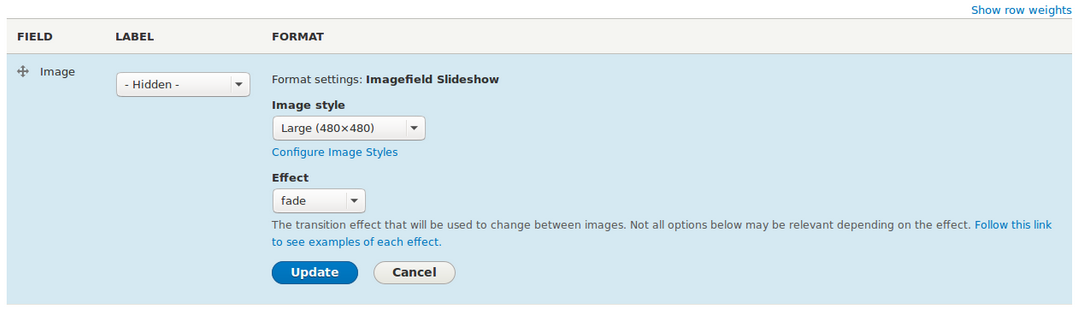
You can configure the setting for rendering the slideshow, as shown in the following image.
- Select the image style required.
- Select the transition effect to be applied in the slideshow.
- Select the pause on hover.
This module is best suited, if you need a unique slideshow on every node of a content type.
Similar module in Drupal 7
Field Slideshow - https://www.drupal.org/project/field_slideshow
Help improve this page
You can:
- Log in, click Edit, and edit this page
- Log in, click Discuss, update the Page status value, and suggest an improvement
- Log in and create a Documentation issue with your suggestion
