
On this page
Media Entity
This is a explanation of getting up and running with the Media Entity module.
Note that the official documentation about the module, which is maintained and updated by the maintainers is the D8 Media Guide. The information on this page may be outdated.
Using Media Entity
Media entity provides two types of user interfaces. The first is "Media bundles" which is used to "Add media bundles". A Media bundle is an entity and can be utilized in the same manner as other core entities such as Content types, Comment types, Contact forms, etc. Media bundles are accessed at admin/structure/media and looks like this...
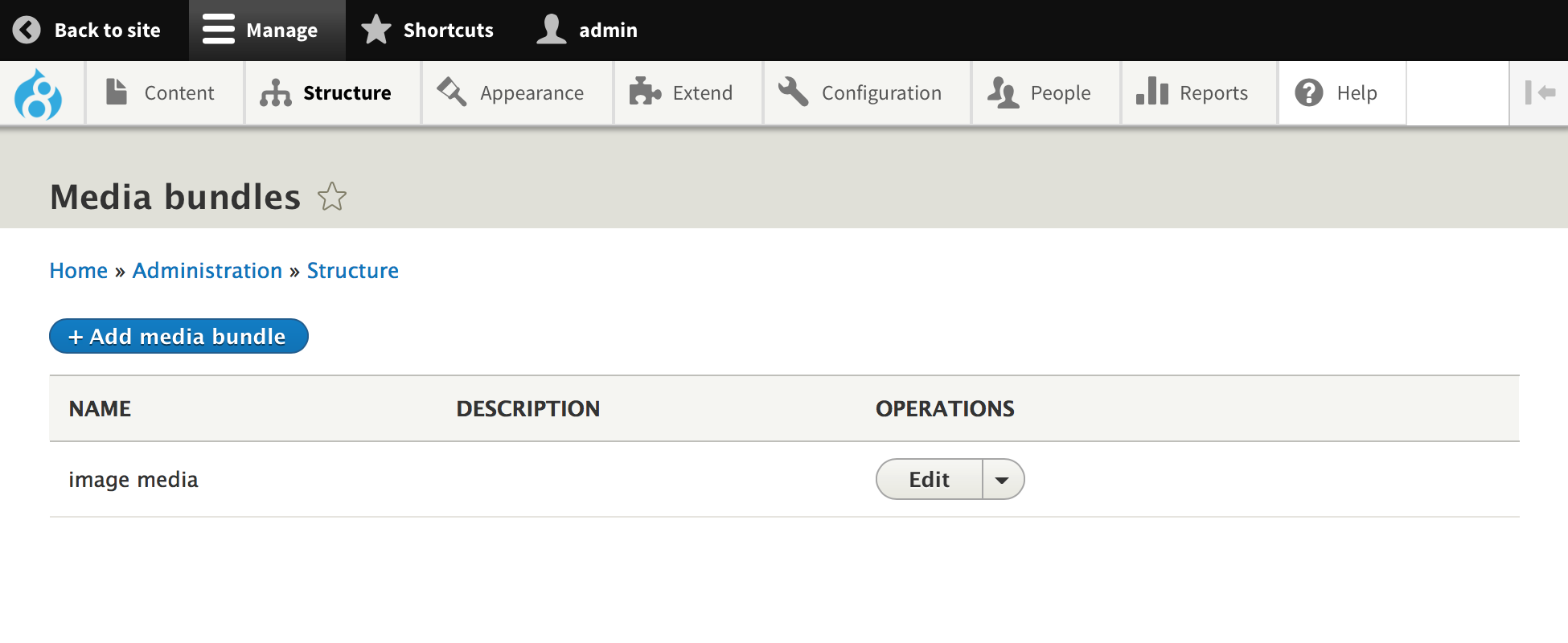
As an example, this screenshot shows one media bundle, named "image media", as having already been added. (See "Installing a Media provider module" below to do this!)
The second user interface provided with Media Entity is a content view named Media. This is a full fledged "View" similar to such core Views as Content, Files, or People. The Media view is inserted as a content tab and can be accessed at admin/content/media and looks like this...
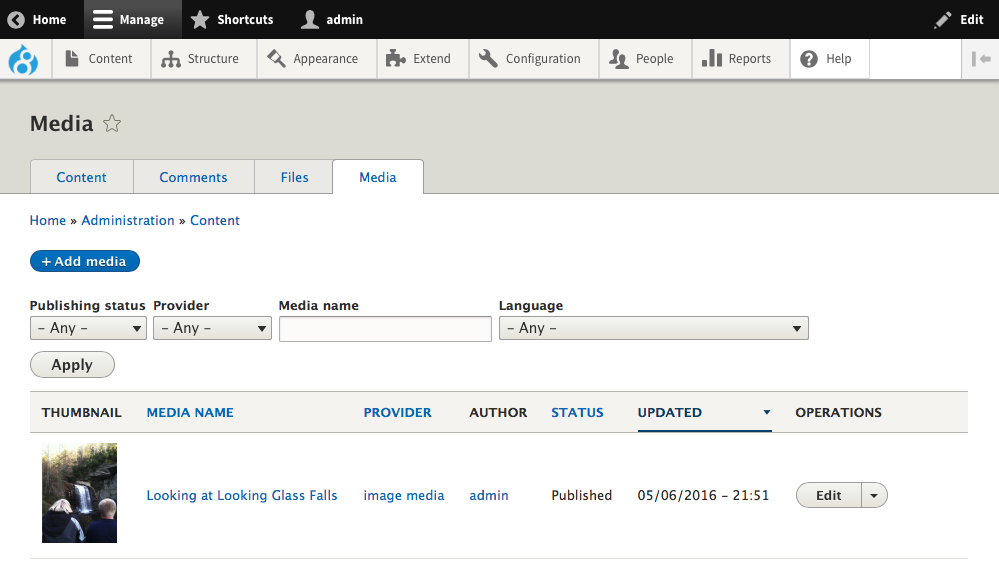
As an example, this screenshot includes one media entity, added to the "image media" bundle, named "Looking at Looking Glass Falls". (See "Installing a Media provider module" below to do this!)
Installing a Media provider module
After installing and enabling the Media Entity module, the very next thing you will want to do is install a Media provider module see Media Entity for a list of those available.
For sake of example download and install look at Media Entity Image
Having completed installation of both media entity and media entity image, you can now browse to admin/structure and see the "Media bundles" link. You can follow this to a page where you can define a media type, this is analogous to a content type for nodes.
Create a new media type called 'image' for example and in the type provider field choose 'Image'. Image here is what is provided by the media entity image provider module.
You can add fields and change display settings for you new media type just as you would a content type. After which you can begin making media content.
So just
1) Browse to 'admin/content'
2) Click on the media tab (important, this is easy to miss)
3) Click the add media button, and complete the form.
Help improve this page
You can:
- Log in, click Edit, and edit this page
- Log in, click Discuss, update the Page status value, and suggest an improvement
- Log in and create a Documentation issue with your suggestion

