
 Come together with the global Drupal community in Rotterdam, 28 Sept – 1 Oct 2026. Sessions, contribution, connection, and Early Bird savings until 8 June.
Date Formats and Exposed Filters
Last updated on
30 April 2025
Date formatting – the order of day, month, and year – is important to many websites. However, getting date formats working correctly with Views’ exposed filters can take a bit of administrative work.
The following modules should be installed and enabled:
- Views: Views UI (requires CTools and Views)
- (optional) Better Exposed Filters
- Date: Date (requires Date API) and Date Views
At this point, you can use the existing date fields that come by default with any content type (i.e.: created, updated, last comment, etc.) or you can add date fields to a content type. In the instructions below , text in dialogs or options to choose will be shown in bold italics.
To build a view that uses a custom date format:
- In a newly created or existing view, add a Date: Date (node) filter
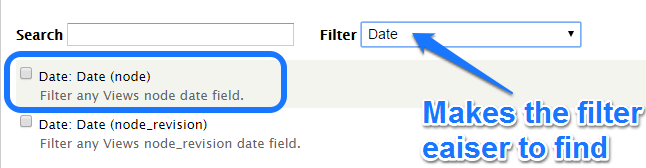
- In the Configure extra settings for filter criterion dialog
- For Date selection form element, select Text.
- Under Date field(s), tick the fields you want included in this filter. You can set the AND/OR of the fields selected under the Method heading. For simplicity, just tick one field.

- Click the Apply button
- On the Configure filter criterion: Date: Date (node) dialog, tick the Expose this filter to visitors, to allow them to change it checkbox. Change the Label as needed.
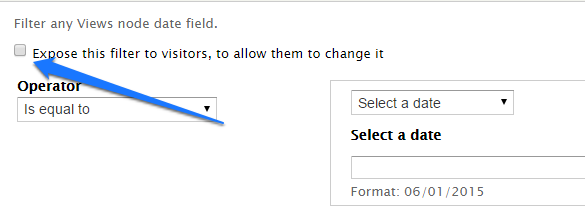
- Click the Apply button.
- To adjust the date format, go to the Date and time admin page (admin/config/regional/date-time), adjust the Short date format to use the date order you want. (e.g.: Year-Month-Day)
- You can use the Filter granularity in the Configure extra settings for filter criterion Date: Date (node) dialog to include adjust the resolution of the filer. For example, leave just Year and Month ticked to filter by all posts created in a given month.
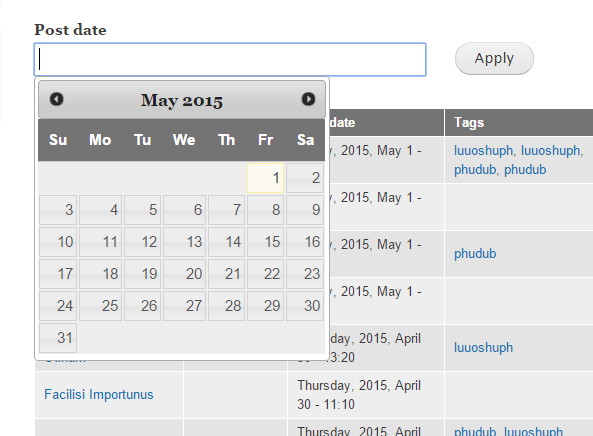
- If you enable to Better Exposed Filters module, you can set a jQuery UI Datepicker widget for your exposed date filter fields. Note that the datepicker currently has problems with granularities that include hours, minutes, and seconds.

And the resulting page:
Help improve this page
Page status: Not set
You can:
You can:
- Log in, click Edit, and edit this page
- Log in, click Discuss, update the Page status value, and suggest an improvement
- Log in and create a Documentation issue with your suggestion
