

Active
Project:
Plupload integration
Version:
6.x-1.x-dev
Component:
Documentation
Priority:
Normal
Category:
Support request
Assigned:
Unassigned
Reporter:
Created:
19 Apr 2011 at 18:28 UTC
Updated:
11 Jun 2013 at 00:23 UTC
Jump to comment: Most recent file





Comments
Comment #1
kari.kaariainen commentedYou define the node type by selecting an image field at admin/settings/plupload-bulk. The node type that has that image field will be the type for the nodes that get created.
Comment #2
kirilius commentedThank you. Is there any functionality provided to populate other fields in the nodes? For example my setup includes one Gallery node type and multiple Image nodes, which have a nodereference to the main Gallery node. Can this module be used to populate that nodereference while creating the nodes?
Also what about the node titles (or other manadatory fields)? What titles are the nodes created with?
Comment #3
kouri commentedSame for me,kirilius
I thought this bulk uploader would finally be the one! But no way, impossible to install it properly...
Gallery Assist,
Plupload,
Gallery_Assist_Plupload,
Plupload Integration
Making all these modules work all together is pretty hard without a clear doc...
As you, I found this procedure related to the only Plupload Integration module:
1. Extract the module into sites/all/modules/
2. Dowload the Plupload library from http://www.plupload.com/
3. Extract the libary into sites/all/modules/plupload/ (it will look like sites/all/modules/plupload/plupload)
4. Assign user permissions appropriately /admin/user/permissions
5. Configure target import field at the path on the config page: /admin/settings/plupload-bulk
6. Browse to the path /file-plupload
7. Add Files using the web interface. (Or even drag-and-drop files onto the widget)
8. Click Start Upload
9. Wait, the Plupload widget is working its magic.
10. You've made nodes. Hooray!
but I got lost from point 5 :( ( what is " target import field" )
After hours, I finally got the section "Gallery Assist Bulk Uploader" in a GA creation form but... nothing in it excepted the msg:
Wait a few seconds...
If your browser does not support HTML5 native or flash upload you will no see the Plupload container. Try Firefox 3, Safari 4, or Chrome; or install Flash. though I use Firefox 3.6
Totally disappointed.
Comment #4
justintime commented<shameless plug>Have you guys tried Node Gallery? It integrates with plupload and requires no configuration. Make sure you use the 3.x releases.</shamepless plug>
Comment #5
kouri commentedthx for the plug. I'll surely check but I 'm afraid Plupload won't work neither.
Comment #6
kouri commentedI finally installed Node Gallery 3
As I feared, plupload is still not usable (checkbox 'Use plupload module to upload images?' is greyed as I can't set up 'plupload integration' or 'plupload package' properly.)
Again. here's what I done to my Drupal 6 site:
1 I pasted plupload integration module into ../drupal/modules/ directory
2 I downloaded the widget (from http://www.plupload.com/) and placed it as is (i.e. whole plupload folder) into the ../drupal/sites/all/modules/plupload/ directory (that gives : ../drupal/sites/all/modules/plupload/plupload)
I Updated and flushed cache...but plupload is still not activated in Node Gallery
I don't see what else I can do..
:(
EDIT : I moved plupload integration module to drupal/sites/all/modules/ without success
Comment #7
kirilius commentedI still cannot get the plupload widget to show. I have exactly the same observations as #6 above. Is there a way to tell FOR SURE whether plupload is configured properly? A status report or a log message perhaps?
Comment #8
obstikle commentedApologies if I'm being too basic here, but have you actually enabled the module. It's named 'Plupload integration module' on the module administration page (admin/build/modules). (It's in the CCK sub-section.) That step isn't mentioned in the readme.txt.
If the plupload library isn't installed correctly, you'll get an error message when you try to enable the module, and the module won't enable.
@#3. The 'target import field' is the filefield to which Pupload will upload files to, as answered by #1. I think step 5 should read something more like:
The config page looks something like this

@#2. Not on its own. Currently Pupload only populates the target filefield and it populates the node title with the file name. All other fields are left empty. There's a discussion about what Pupload should do here: #880300: Decide on a plupload module roadmap
Comment #9
obstikle commentedHere's a patch with some additions to the README.txt, including information on the nodes created by Pupload.
Comment #10
kirilius commentedHi obstikle, yes I did install the module ;-)
In fact I did these steps this morning:
1) Installed a fresh D6 (v6.22)
2) Installed CCK, FileField, ImageField and Jquery Update (all latest stable versions as of today)
3) Downloaded the Plupload library. The current version is: 1_5_1_1. Unzipped that under sites/all/libraries/. Now the full path looks like this: sites/all/libraries/plupload/js/plupload.js
4) Installed the Plupload Integration module - no error message was displayed! (attached screenshot #1)
5) Created a test content type with an ImageField in it (attached screenshot #2)
6) Opened the "Plupload integration settings" page and set the target field (screenshot #3)
7) I did not set any permissions as I am doing this test as an administrator. However last time I tested I allowed all authenticated users for "bulk upload files with plupload"
8) I pointed my browser to mysite/file-plupload and boom... I got a HTTP 404 not found error!
I have tested this at least 3 times and always get the same results. Is there anything I am doing wrong?
Thanks!
Comment #11
kirilius commentedOK, I got this working ;-)
Step #6 from the readme says: Browse to the path /file-plupload
In fact it should say Browse to the path /?q=file-plupload
When I added "?q=" before the path it worked.
Comment #12
obstikle commentedDoes this mean you don't have clean URLs enabled? It's very rare now for sites not to have it enabled (at least in my experience). Most people forget "?q=" even exists, hence why it isn't used in the documentation.
Comment #13
kirilius commentedYup! That was the problem. For some reason my cPanel (on a shared hosting) did not extract the .htaccess file from the D6.22 archive due to some JS error and I didn't notice clean URLs were not enabled.
Thanks!
Comment #14
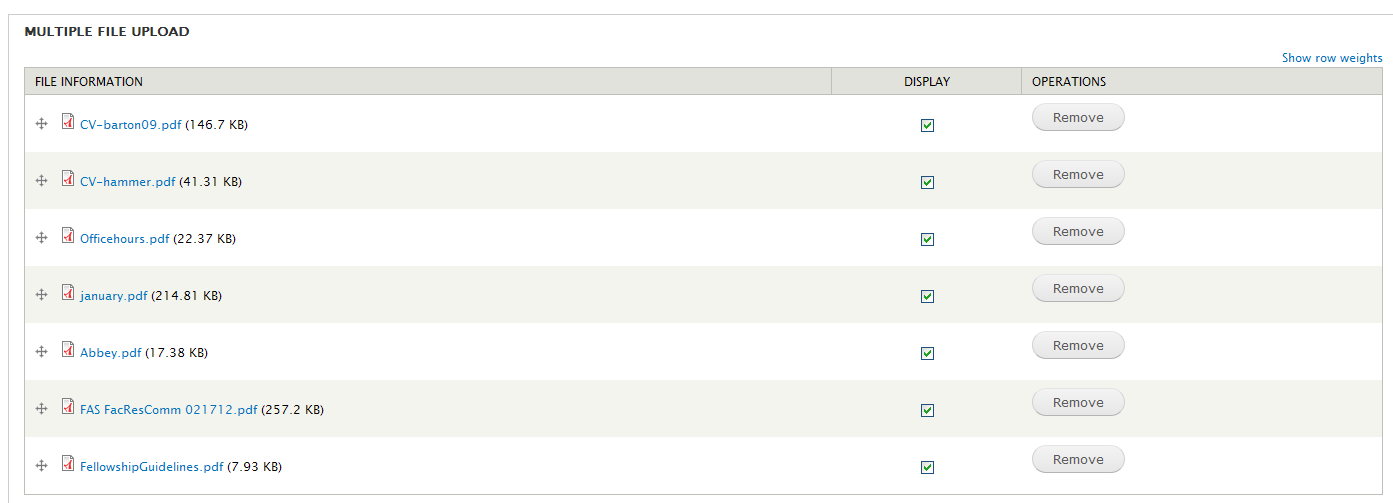
nflowers1228 commentedHere is what worked for me with Drupal 7; there are some differences that should be noted, specifically there is not configuration of the "Plupload integration settings" page. From what I could see this doesn't exist. But this setup worked for me:
Configure the module(s)
Configure the Content type File field
Uploading the files
Comment #15
slashrsm commentedCan you add this to documentation page i prepared? http://drupal.org/node/1647896
Comment #16
nflowers1228 commentedI added it to the documentation page. I'll add more as I can.
Comment #17
slashrsm commentedgreat, thanks
Comment #18
mattwmc commentedthe question is about D6 not D7.
Its not the same.