
Install, configuration and basic usage
Basic Usage
Once the module is installed, you can find the settings form under Configuration -> Web Services ->Social Media Platforms (/admin/config/services/social-media-platforms).
Display options
Warning: If you configure the Icon type as Font, you have to add the icon library either by the theme, or by installing a module.
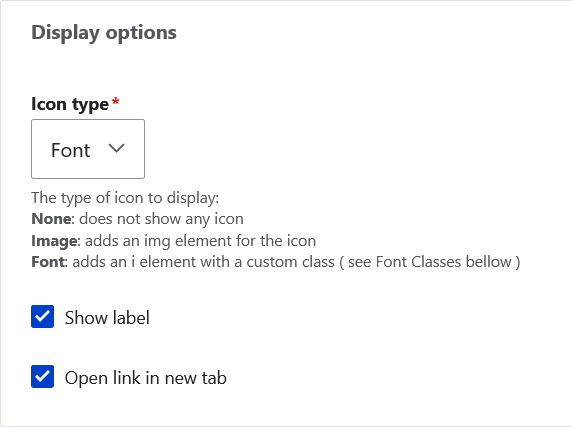
The Icon type field allows you to specify the type of icon to display:
- None: It will not display an icon.
- Image: It will display an image icon ( the module provides some default ones ).
- Font: It will display a font icon ( an i html with customizable class names, the module does not provide any by default ).
The Show label checkbox defines if the label is going to be displayed, or not.
The Open link in new tab allows to specify the link target attribute.
Social Media Platforms
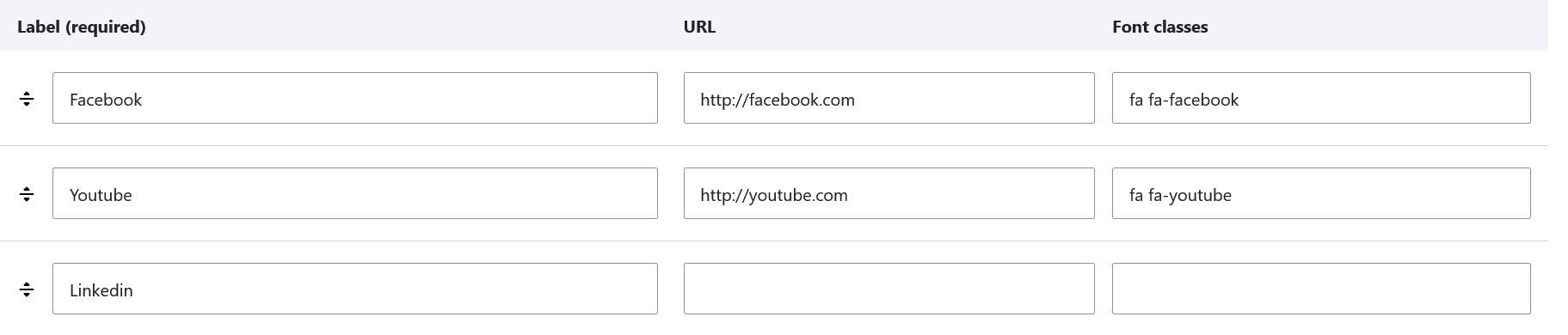
This table allows you to configure different social media platforms.
- All the entries with an empty URL value will not be displayed in the block.
- You can drag and drop the rows to change the order.
- If you set the Icon type to "Font", the Font classes needs to be filled with a value to be displayed correctly.
Font icons
If you configure the font type as "Icon", you have to provide a icon library using the theme, or using a drupal module that provides it for you, and configure the Font classes attribute accordingly.
Using Domain Config
If you are using the module with Domain Config submodule from Domain enabled yo will see a "Enable domain configuration" button on top of the settings form. Once you click that, you will be able to define different configurations for different Domains and languages defined in the site.
Permissions
The module defines an administer social media platforms permission.
Help improve this page
You can:
- Log in, click Edit, and edit this page
- Log in, click Discuss, update the Page status value, and suggest an improvement
- Log in and create a Documentation issue with your suggestion

Social Media Platforms