
 Come together with the global Drupal community in Rotterdam, 28 Sept – 1 Oct 2026. Sessions, contribution, connection, and Early Bird savings until 8 June.
On this page
- Overview
- Creating Custom Export Destinations
- Step 1: Create the Plugin Class
- Step 2: Understanding the Plugin Annotation
- The allowed_formats Property
- Simplified Annotation
- Step 3: Implementing Required Methods
- exportMenu(string $menuName)
- getExportDescription()
- Step 4: Clear Cache and Test
- Adding Custom Configuration
- Defining the Plugin Schema
- Schema for Custom Configuration
- Using the Export Action Form
- Customizing the Action Form
- Implementation
- Reference Implementations
Extending Export Destinations
Overview
Export Destinations are plugins of type MenuMigrationDestination that reside in Plugin\menu_migration\ExportDestination.
They define where and how the export of a menu hierarchy is performed, using a specified Format plugin to encode the menu data.
The module comes with three predefined export destinations:
- Codebase - Exports menus to files in the codebase, using a configurable path relative to
DRUPAL_ROOT - Download - Exports one menu at a time as a downloadable file
- AnotherMenu - Exports a menu hierarchy directly to another menu in the same Drupal site (added in version 4.1.0)
Creating Custom Export Destinations
If the export destinations provided by the module don't meet your needs, you can create your own custom destination plugin.
Tip: If you create a destination plugin that could be beneficial to others, I encourage you to contribute it back to the module.
Step 1: Create the Plugin Class
For this demonstration, let's create a plugin named ExampleDestination. Within your custom module (we'll refer to it as MY_MODULE for this example), create the following file:
MY_MODULE/src/Plugin/menu_migration/ExportDestination/ExampleDestination.php
<?php

namespace Drupal\MY_MODULE\Plugin\menu_migration\ExportDestination;

use Drupal\Core\StringTranslation\TranslatableMarkup;
use Drupal\menu_migration\Attribute\MenuMigrationDestination;
use Drupal\menu_migration\Plugin\menu_migration\ExportDestination\ExportDestinationBase;

/**
 * Provides an Example export destination.
 */
#[MenuMigrationDestination(
  id: 'example',
  label: new TranslatableMarkup('Example'),
  allowed_formats: ['json', 'yaml'],
  multiple: FALSE,
  cli: TRUE
)]
class ExampleDestination extends ExportDestinationBase {

  /**
   * {@inheritdoc}
   */
  public function exportMenu(string $menuName) {
    // Get the menu tree for the specified menu
    $menuTree = $this->menuMigrationService->getMenuTree($menuName);

    // Encode the menu tree using the selected format
    $data = $this->getFormatPlugin()->encode($menuTree);

    // Implement your custom export logic here
    // For example: save to external API, upload to cloud storage, etc.

    return TRUE;
  }

  /**
   * {@inheritdoc}
   */
  public function getExportDescription() {
    // Return an array of translatable strings that will appear in the
    // export confirmation form to inform the user what and where
    // the export will happen.
    return [
      $this->t('The selected menu will be exported to the Example destination.'),
    ];
  }

}
Step 2: Understanding the Plugin Annotation
The #[MenuMigrationDestination] attribute supports the following properties:
- id - The unique machine name of the plugin (required)
- label - The human-readable name displayed in the user interface (required)
- allowed_formats - An array of format plugin IDs that this destination supports (required as of version 4.1.0)
- multiple - Boolean indicating if multiple menus can be exported at once (optional, defaults to
TRUE) - cli - Boolean indicating if the destination supports Drush commands (optional, defaults to
FALSE)
The allowed_formats Property
As of version 4.1.0, the allowed_formats property is required for all Export Destination plugins. This property defines which format plugins can be used with your destination.
For example:
- The
CodebaseandDownloaddestinations support file-based formats:['json', 'yaml'] - The
AnotherMenudestination only supports theRawformat:['raw']
Note: If allowed_formats is omitted, a deprecation warning is triggered and the defaults (json and yaml) are used. In version 5.0.0, omitting this property will cause an error. See drupal.org/node/3498853 for more information.
Simplified Annotation
If you're using the default values for multiple (TRUE) and cli (FALSE), you can simplify the annotation:
/**
 * Provides an Example export destination.
 */
#[MenuMigrationDestination(
  id: 'example',
  label: new TranslatableMarkup('Example'),
  allowed_formats: ['json', 'yaml']
)]
class ExampleDestination extends ExportDestinationBase {
Step 3: Implementing Required Methods
exportMenu(string $menuName)
This method is called for each selected menu and must implement the export logic.
- Parameter:
$menuName- The machine name of the menu to export - Returns: Boolean indicating success or failure
The ExportDestinationBase class handles iterating through all selected menus, so you only need to implement the logic for exporting a single menu.
getExportDescription()
This method returns an array of translatable strings that appear in both the export confirmation form (UI) and in the Drush command confirmation prompt, informing users what will happen during the export.
- Returns: An array of translatable strings or markup describing the export operation
- Note: Each array element is displayed as a separate line. Use multiple array elements to create multi-line descriptions
- Note: If the description contains HTML, the tags will be stripped when used with Drush
Step 4: Clear Cache and Test
After creating your export destination plugin, clear Drupal's caches:
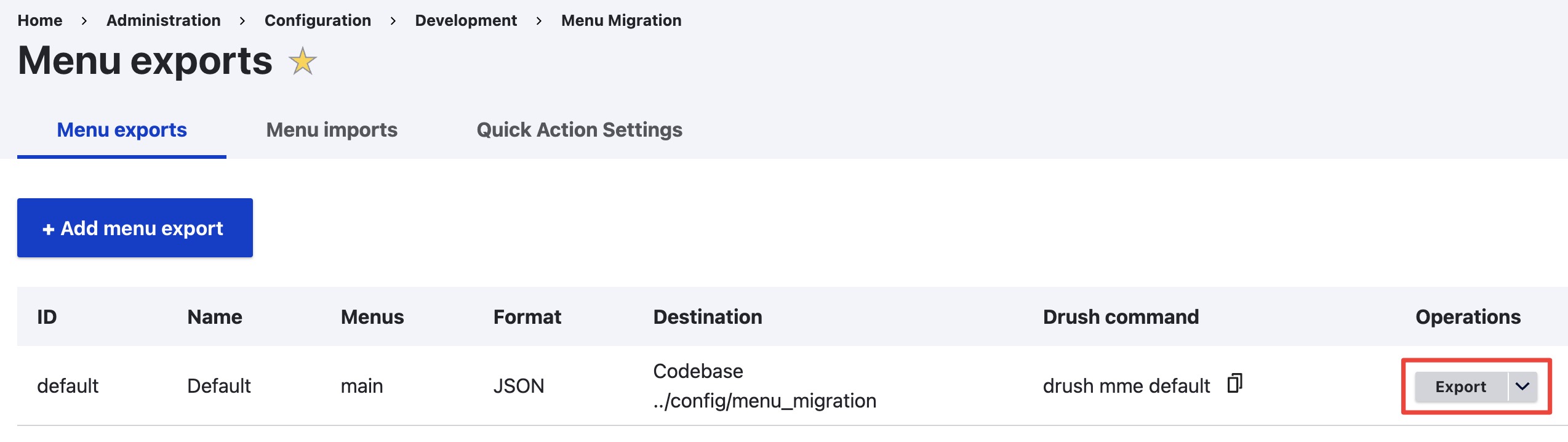
drush crNavigate to Configuration → Development → Menu Migration → Menu Exports, and click on +Add menu export. Your new destination should appear in the Export Destination field.

Adding Custom Configuration
If your export destination requires additional configuration beyond the default format and menu selections, you can add custom form fields by implementing the following methods:
/**
 * {@inheritdoc}
 */
public function defaultConfiguration() {
  return [
    'my_config' => '',
  ] + parent::defaultConfiguration();
}

/**
 * {@inheritdoc}
 */
public function buildConfigurationForm(array $form, FormStateInterface $form_state) {
  $form = parent::buildConfigurationForm($form, $form_state);

  $form['my_config'] = [
    '#type' => 'textfield',
    '#title' => $this->t('My configuration'),
    '#description' => $this->t('Enter something cool for my configuration.'),
    '#default_value' => $this->configuration['my_config'],
  ];

  return $form;
}

/**
 * {@inheritdoc}
 */
public function validateConfigurationForm(array &$form, FormStateInterface $form_state) {
  parent::validateConfigurationForm($form, $form_state);
  // Add your custom validation logic here (optional)
}

/**
 * {@inheritdoc}
 */
public function submitConfigurationForm(array &$form, FormStateInterface $form_state) {
  parent::submitConfigurationForm($form, $form_state);
  // Add your custom submit logic here (optional)
}
With this configuration added, your menu export form will include the custom field:

Defining the Plugin Schema
If your export destination has custom configuration fields, you need to define a schema for proper configuration validation and data structure in your module's schema file:
MY_MODULE/config/schema/MY_MODULE.schema.yml
Note: If your plugin has no custom configuration fields beyond the defaults (format and menus), a schema definition is optional. The Menu Migration module provides a wildcard fallback (menu_migration.destination_config.*) that will handle basic plugins automatically.
Schema for Custom Configuration
If your plugin defines custom configuration fields (like the my_config example above), extend the schema:
menu_migration.destination_config.example:
  type: source_destination_config_single
  label: 'Example'
  mapping:
    my_config:
      type: string
      label: 'My configuration'
You can find existing schema examples in menu_migration/config/schema/menu_migration.schema.yml.
Using the Export Action Form
When you click the Export button in the Menu Exports listing, users are presented with a confirmation form before the export executes.
By default, this form displays a confirmation message and a submit button:

Customizing the Action Form
If you need to collect additional information just before export (information that shouldn't be stored permanently in the configuration), you can customize this form by implementing the ImportExportActionPluginInterface.
For example, the FileUpload import source uses this to prompt for a file upload before each import operation.
Implementation
Add the interface to your class declaration:
use Drupal\menu_migration\Plugin\ImportExportActionPluginInterface;

class ExampleDestination extends ExportDestinationBase implements ImportExportActionPluginInterface {
Then implement the required methods:
/**
 * {@inheritdoc}
 */
public function buildActionForm(array $form, FormStateInterface $form_state) {
  $form['something'] = [
    '#type' => 'textfield',
    '#title' => $this->t('Something'),
    '#description' => $this->t('Enter something needed for this export.'),
    '#required' => TRUE,
  ];

  return $form;
}

/**
 * {@inheritdoc}
 */
public function validateActionForm(array $form, FormStateInterface $form_state) {
  // Add validation logic here (optional)
  $value = $form_state->getValue('something');
  if (empty($value)) {
    $form_state->setErrorByName('something', $this->t('This field is required.'));
  }
}

/**
 * {@inheritdoc}
 */
public function submitActionForm(array $form, FormStateInterface $form_state) {
  // Process the form values and store them for use in exportMenu()
  $this->configuration['runtime_value'] = $form_state->getValue('something');
}
With this implementation, the confirmation form will include your custom fields:

Reference Implementations
For complete examples of Export Destination implementations, refer to the following files in the menu_migration/src/Plugin/menu_migration/ExportDestination/ directory:
Codebase.php- Exports to the file system with custom directory configurationDownload.php- Exports as a downloadable file with special response handlingAnotherMenu.php- Exports directly to another menu using the Raw format
Help improve this page
You can:
- Log in, click Edit, and edit this page
- Log in, click Discuss, update the Page status value, and suggest an improvement
- Log in and create a Documentation issue with your suggestion
