On this page
Media Browser
PLEASE NOTE: The following documentation is outdated, an updated version will be online as soon as possible.
Media Browser provides a style plugin to Views that formats a display in an easy-to-use content browser. The module is called Media Browser as users may be familiar with this kind of browsers from YouTube or other video sharing websites, but the style plugin can be applied to any kind of content.
In order to make it work correctly it requires two displays:
- List Display: its role is to list the different items in the browser (in YouTube: the list of video thumbnails on the right). You will probably use a block display for that. On this display you will choose the "Media Browser" style plugin.
- Attachment Display: this one will be responsible for showing the one item you have selected from the list display (in YouTube: the main video area). This display must be attached to the list display.
Configuration: An Example
Say we want to build a media browser showing videos in a way similar to what YouTube does. With the CCK module we create a content type called "Video" containing the following fields:
- Title
- Video (using the Embedded Media Field module)
- Description
After doing so, we create ten nodes containing videos from YouTube: this will be our working set.
Views Configuration
We create now a view called "videos" and, in its default display, we set filters and sort criteria that all the other displays will inherit:
- Sort criteria
- Node: Post date desc
- Filters
- Node: Type = Video
REMEMBER: from now on, always override the default settings for each item you configure.
We add now a block display as follows:
- Basic settings
- Name: List Display
- Use AJAX: Yes (suggested)
- Use pager: Mini
- Items per page: 3
- Block settings
- Admin: Videos
- Fields
- Content: Video, choose "Image Thumbnail" as format;
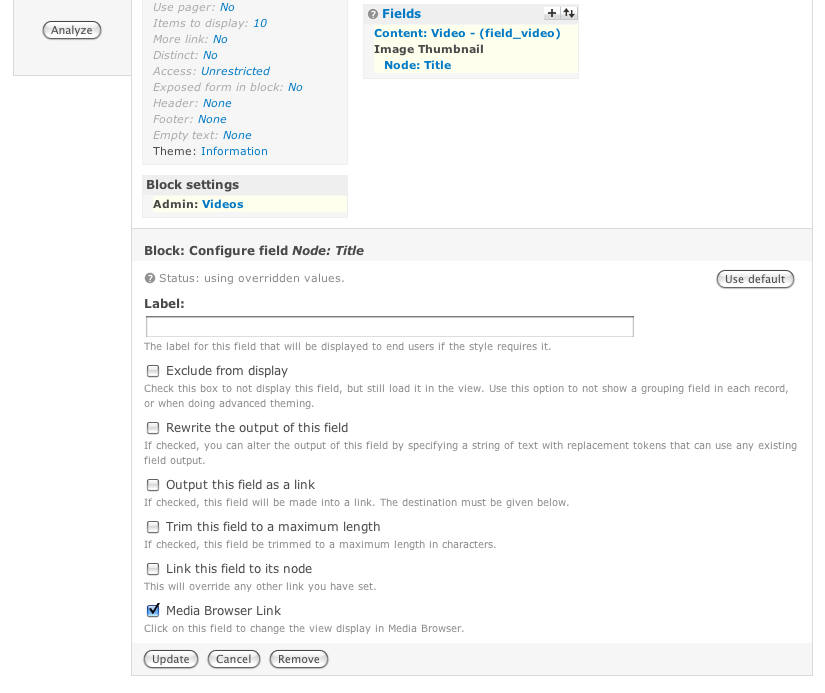
- Node: Title, check the "Media Browser Link" box: this will link the item with the attachment view we are going to create in the next step (Screenshot).
To show the main video, we create an attachment display called "Main Display" and we attach it to the "List Display" block we had created before (Attachment settings -> Attach to: List Display). Here are the settings we need to change (Screenshot):
- Basic settings
- Name: Main Display
- Items to display: 1
- Attachment settings
- Position: After
- Attach to: List Display
- Fields
- Content: Video, choose "Full Size Video" as format this time
- Node: Title
- Content: Description
Now we save the view, we come back to "List Display" and we change the style from "Unformatted" to "Media Browser". In the configuration panel that we will be presented with, we will choose "Main Display" and we save our settings.
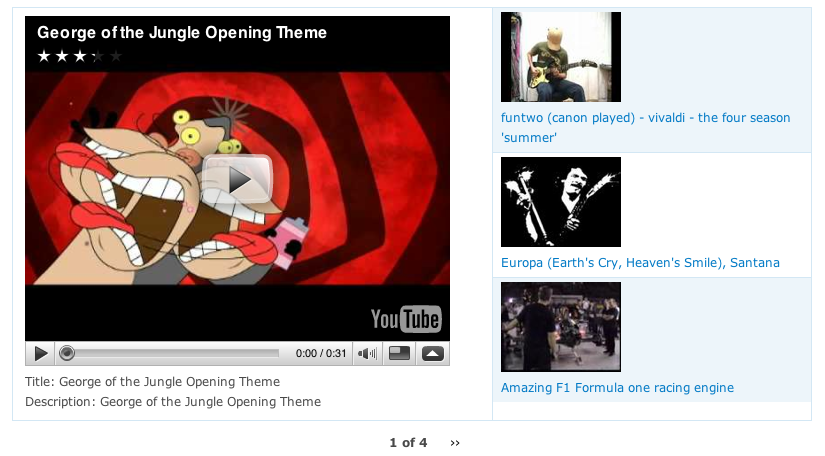
That's it. After saving our view we can now enable the block "Videos" and enjoy the media browser (Screenshot).
Help improve this page
You can:
- Log in, click Edit, and edit this page
- Log in, click Discuss, update the Page status value, and suggest an improvement
- Log in and create a Documentation issue with your suggestion